
Are you looking to customize your WordPress site without losing your changes during updates? Creating a child theme might just be your perfect solution.
Imagine having the power to tweak your website’s appearance and functionality while keeping the original theme intact. With a manual child theme, you gain both flexibility and security. This guide will walk you through the simple steps to create a child theme in WordPress, opening doors to endless customization possibilities.
Stick around, and you’ll discover how easy it is to enhance your website’s design while safeguarding your hard work. Ready to take control of your WordPress theme? Let’s dive in!
What Is A Child Theme
A child theme is a sub-theme in WordPress. It inherits features from a parent theme. You can change the look without changing the parent theme. This keeps the original theme safe and updated. You can add custom styles and functions. It’s a good way to learn about theme development.
Creating a child theme is not hard. First, make a new folder in the themes directory. Name it after the parent theme, adding “-child”. Next, add a style.css file in the folder. Inside, write details about the theme. Also, add the parent theme’s name. Finally, create a functions.php file. This helps to enqueue styles.
Benefits Of Using Child Themes
Child themes keep your website safe. They help to make updates easy. You can change design without losing data. Child themes save time and effort. They make your site work better. You can try new ideas safely. Fixing problems is easy with them. They are great for learning. You can learn coding with child themes. They help your site grow. Use child themes for a strong website. They protect your site from crashes. Your website stays clean and organized.
Child themes keep your site fast. They are good for beginners. You don’t need to worry about updates. Your site stays fresh and new. Child themes are very helpful. Many people like using them. They make designing fun. Use child themes for a happy website. Enjoy making your site look cool. Your site stays safe and happy.
Preparing Your WordPress Environment
Backing up is very important. Always save your data. Use a backup plugin. BackupBuddy or UpdraftPlus are good options. Store backups safely. Maybe on the cloud. Or on an external drive. This keeps your data safe. In case something goes wrong. You can easily restore it.
A local environment is very useful. It lets you test changes safely. XAMPP or MAMP are good tools for this. They create a local server on your computer. Install WordPress on this server. Then you can work without affecting your live site. This method is safe and practical. It helps you learn and experiment. All without any risk.
Credit: www.wpbeginner.com
Creating A Child Theme Directory
First, open your hosting panel. Look for the File Manager. Click to open it. You will see your WordPress files. Find the wp-content folder. Inside, locate the themes folder. This is where all themes live. You need to create a new folder here. This folder is your child theme directory.
Choose a simple name for your child theme. Use lowercase letters. No spaces, please. You can use dashes instead. For example, if your main theme is “OceanWP,” name your child theme oceanwp-child. Naming is important. It helps WordPress find your child theme. Keep the name relevant to the parent theme.
Creating The Style.css File
To create a child theme in WordPress, start by crafting the style. css file. This file needs the theme name, template, and author details. It defines the child theme’s styles and imports the parent theme’s styles.
Adding Theme Information
Start by creating a new folder for the child theme. Inside this folder, make a new file called style.css. At the top of this file, add a comment block with theme information. Include the child theme’s name, the parent theme’s name, and the theme author. This helps WordPress understand the relationship between the themes.
Importing Parent Theme Styles
After adding the theme information, you need to import the parent theme’s styles. Use the @import rule inside the style.css file. This rule should point to the parent theme’s style.css file. This step ensures the child theme inherits the parent’s styles. Be careful to use correct paths and syntax. This keeps your website looking good and functioning well.
Creating The Functions.php File
Crafting the functions. php file in your child theme involves creating a new file in the theme folder. Add custom code to modify or enhance the functionality of the parent theme without altering its core files. This ensures your changes remain intact during theme updates.
Enqueueing Parent And Child Styles
Use a functions.php file for the child theme. This file helps to load the styles. First, load the parent theme styles. Then, load the child theme styles. This keeps the design consistent. Copy the code from the parent theme. Use it in the child theme. Make sure to enqueue both styles. This makes sure both styles are active. It helps in keeping the design intact.
Adding Custom Functions
Add custom functions to make your child theme unique. Use PHP to write new functions. These functions can change how the theme works. You can add new features. Or, change old ones. Just write them in the functions.php file. This way, your site will have unique features. Keep the code simple. This helps in understanding it later.
Activating Your Child Theme
Creating a child theme manually in WordPress involves copying and modifying theme files. Begin by setting up a new directory for your child theme within the themes folder. Then, include a stylesheet and functions. php file to customize your child theme effectively.
Upload Via WordPress Dashboard
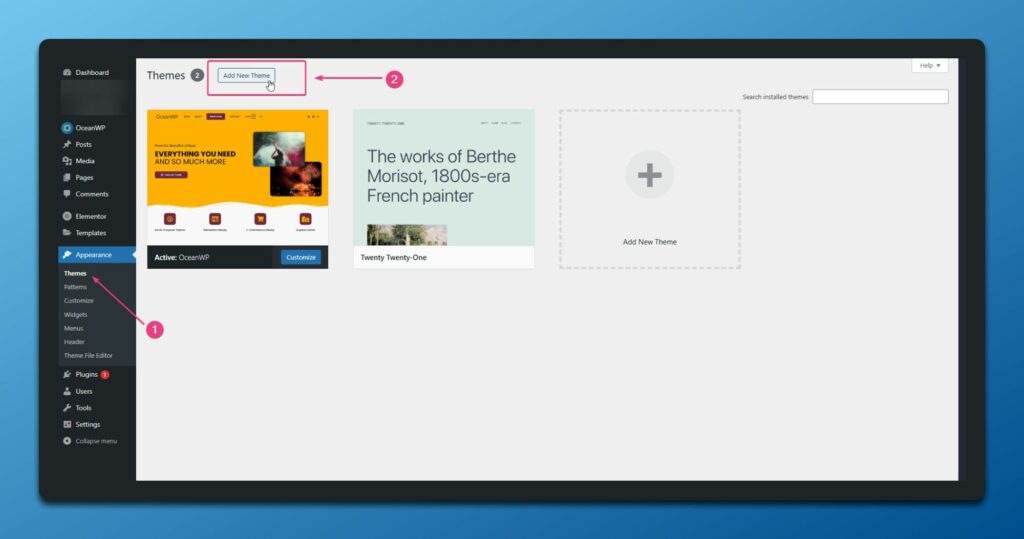
To activate your child theme, first log in to your WordPress dashboard. Navigate to the Appearance menu. Click on Themes. You will see a list of themes. At the top, there’s an “Add New” button. Click it. Now, you can upload your child theme. Click “Upload Theme”. Choose the child theme file from your computer. It should be a .zip file. Click “Install Now”. Wait for the upload to finish.
Once uploaded, click “Activate”. Your child theme is now active. Visit your site to see the changes. Remember, a child theme inherits its parent theme’s look. But you can customize it. This keeps your site unique.

Credit: www.youtube.com
Customizing Your Child Theme
Adjust the look of your site with CSS changes. First, open the style.css file. Add your new styles here. These styles will change how your site looks. Keep the styles simple. You can change colors, fonts, or sizes. Always check your site after changes. This will ensure everything looks good.
Template files change how your site works. Copy any template file from the parent theme. Paste it into your child theme folder. Edit these files to make your changes. Remember, small changes can make a big difference. Use comments to keep track of changes. This helps you remember what you did.
Custom scripts add special features to your site. You can add JavaScript files for this. Place your script in the child theme folder. Then, add a line in the functions.php file. This line will load your script on the site. Make sure your script is safe and tested. Bad scripts can break your site.
Testing Your Child Theme
Creating a child theme in WordPress manually ensures your customizations stay intact during updates. Start by making a new folder in the themes directory for your child theme. Then, add a style. css file and include a functions. php file to enqueue the parent theme’s styles and functions.
Check For Errors
Start by activating the child theme in your WordPress dashboard. Look for any errors or broken layouts. If something looks wrong, check the code. Make sure all functions and styles are correct. Debugging tools can help spot issues. Always fix errors right away. This keeps your site healthy.
Ensure Mobile Responsiveness
View your site on a phone and a tablet. Check if everything looks good on small screens. Images should not be cut off. Text must be easy to read. Buttons should be easy to click. Use responsive design tools if needed. This will help all users have a good experience.
Verify Browser Compatibility
Test your site in different browsers. Use Chrome, Firefox, and Safari. Each browser might show your site differently. Make sure it works fine in all of them. Fix any issues with browser-specific CSS rules. A compatible site reaches more people.
Troubleshooting Common Issues
Style conflicts can mess up your theme’s look. Check your CSS files first. Look for duplicate rules. Remove or change them. Use Inspect Element in your browser. It shows you what’s wrong. Fixing small issues can make a big difference. Focus on clear and simple styles. They help solve many problems. Your theme will look better.
Function errors can stop your site from working. Check your functions.php file. Look for missing semicolons. They cause many errors. Use an online checker. It finds errors fast. Add missing parts or fix errors. Test your site after changes. It should work smoothly. Fixing errors early saves time.
Credit: oceanwp.org
Frequently Asked Questions
What Is A WordPress Child Theme?
A WordPress child theme is a sub-theme that inherits functionality from a parent theme. It allows you to modify or add features without altering the main theme files. This ensures that updates to the parent theme don’t overwrite your changes, providing a safe and flexible way to customize your website.
Why Create A Child Theme Manually?
Creating a child theme manually gives you complete control over customization. It ensures your changes aren’t lost when the parent theme updates. Manual creation also helps you understand WordPress theme structure better, enhancing your development skills. It’s a straightforward process that safeguards your customizations effectively.
How Do I Start A Child Theme?
To start a child theme, create a new folder in your themes directory. Inside, add a style. css file with a header comment specifying the parent theme. Include a functions. php file to enqueue the parent theme’s styles. This basic setup initiates your child theme, ready for customizations.
Can I Use Plugins For Child Themes?
Yes, plugins can simplify child theme creation by automating setup tasks. However, manual creation offers more flexibility and understanding. Plugins often limit customization options and might not cover all specific needs. For comprehensive control, manual creation remains the preferred method among developers.
Conclusion
Creating a child theme manually in WordPress is straightforward. It helps customize your site safely. You keep the original theme intact. Changes remain even after updates. First, set up a new folder for the child theme. Use a style. css file for custom styles.
Functions. php file adds functionalities. Adjust other template files as needed. Always test changes before going live. Manual child theme creation boosts your site’s flexibility. You gain more control over design and features. Follow these steps, and enhance your WordPress site easily.
Enjoy the process of personalizing your website.


