

Are you ready to customize your WordPress site without risking your hard work every time your theme updates? Creating a child theme is the key to safely making changes while keeping the original theme intact.
Whether you want to tweak colors, fonts, or layouts, a child theme lets you do it all without breaking anything. In this guide, you’ll learn exactly how to create a WordPress child theme step-by-step—no complicated jargon, just simple instructions you can follow right away.
Stick with me, and by the end, you’ll have the confidence to protect your website’s customizations and keep your design fresh and unique. Let’s get started!
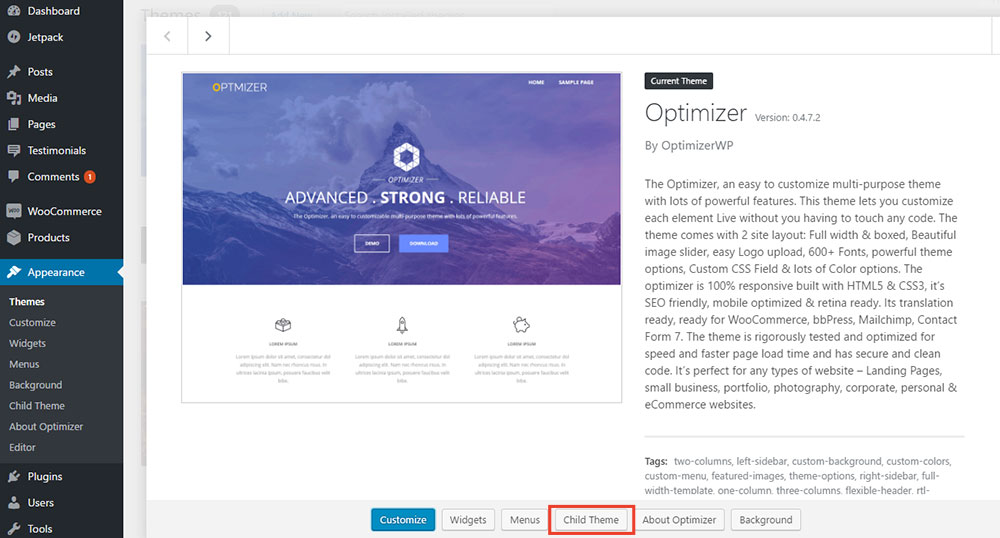
Credit: optimizerwp.com
Why Use A Child Theme
Using a child theme in WordPress is essential for safe and effective customization. It keeps your changes intact even after updating the parent theme. This approach ensures your website remains stable and easy to manage.
Child themes offer a smart way to build on top of existing themes without losing original features. They also help organize your custom code separately from the core theme files. This separation improves site performance and makes troubleshooting easier.
Protect Customizations From Updates
Parent theme updates can overwrite custom changes. A child theme keeps your edits safe from these updates. This way, you avoid losing important design or functionality tweaks. You can update the parent theme without fear of breaking your site.
Maintain Parent Theme Features
Child themes inherit all features of the parent theme. This means you keep the original look and functions. You can add new styles or change templates while using the parent’s base. It creates a balance between custom work and stable features.
Separate Custom Code From Parent
Keeping your code separate helps with site management. Child themes store custom CSS, PHP, or template files apart from the parent. This makes it easier to find and fix issues. It also keeps the parent theme clean and untouched.
Credit: www.wpbeginner.com
Child Theme Basics
Creating a child theme in WordPress helps protect your custom changes. It keeps your edits safe from updates to the original theme. Understanding the basics of child themes is essential before you start building one.
Parent Vs Child Theme
The parent theme is the original theme with full features and design. The child theme inherits everything from the parent. You can change the child theme without affecting the parent. This way, updates to the parent theme do not erase your custom work.
Required Files For Child Theme
At minimum, a child theme needs two files. The first is style.css, which holds the theme’s information and styles. The second is functions.php, used to enqueue the parent theme’s styles and add custom functions. These files create a working child theme.
Child Theme Folder Structure
The child theme folder lives inside the wp-content/themes directory. Name it clearly, often by adding -child to the parent theme’s name. Inside this folder, place the required files like style.css and functions.php. You can also add template files to override the parent theme’s templates.
Creating A Child Theme Manually
Creating a child theme manually in WordPress gives you full control over your site’s design. It protects your changes from being lost during theme updates. This approach is simple and requires only a few steps. Follow this guide to build a child theme by hand.
Set Up Child Theme Folder
Open your WordPress installation folder. Navigate to wp-content/themes. Create a new folder for your child theme. Name it clearly, usually adding -child to the parent theme’s name. For example, twentytwentyone-child. This keeps your theme files organized.
Create Style.css With Header
Inside the child theme folder, create a file named style.css. Add the theme header at the top of this file. It should include:
- Theme Name
- Template (parent theme folder name)
- Description (optional)
- Author (optional)
- Version (optional)
Example:
/ Theme Name: Twenty Twenty-One Child Template: twentytwentyone /
This tells WordPress that this is a child theme and which parent theme it belongs to.
Add Functions.php To Load Styles
Create a functions.php file in your child theme folder. Add code to enqueue the parent and child styles. Use wp_enqueue_scripts action hook. Example code:
php function child_theme_enqueue_styles() { wp_enqueue_style( 'parent-style', get_template_directory_uri() . '/style.css' ); wp_enqueue_style( 'child-style', get_stylesheet_uri(), array('parent-style') ); } add_action( 'wp_enqueue_scripts', 'child_theme_enqueue_styles' ); ? This ensures your child theme loads styles correctly. The parent theme’s styles load first, then child styles override them.
Using A Plugin To Create Child Theme
Creating a child theme in WordPress using a plugin simplifies the process. It removes the need to write code manually. This method suits users who prefer a quick and safe way to customize themes. Plugins handle the technical details, making child theme creation accessible for beginners.
Install Child Theme Plugin
Go to your WordPress dashboard. Navigate to Plugins > Add New. Search for a child theme plugin, like “Child Theme Configurator.” Click “Install Now,” then “Activate.” The plugin is now ready to use.
Configure Plugin Settings
Open the plugin from the dashboard menu. Select the parent theme you want to create a child for. Adjust settings such as child theme name and description. Choose if you want to copy styles or customize functions. Save your settings before moving on.
Generate And Activate Child Theme
Click the button to generate the child theme. The plugin creates all necessary files automatically. Once done, go to Appearance > Themes. Find your new child theme and click “Activate.” Your site now runs on the child theme, ready for safe customization.
Customizing Your Child Theme
Customizing your child theme lets you change your website’s look and behavior safely. It keeps your changes separate from the parent theme. This way, updates to the parent theme won’t erase your custom work.
Below are key ways to customize your child theme effectively and securely.
Override Parent Templates
Copy the template file you want to change from the parent theme. Place it in your child theme folder. Edit this copied file to adjust layout or content. WordPress will use this file instead of the parent one. This method lets you change specific pages or sections.
Add Custom Styles
Use the child theme’s style.css file to write your custom CSS. This file loads after the parent theme styles. Add colors, fonts, spacing, or any visual changes here. Avoid editing parent theme styles directly. Your styles stay safe and easy to update.
Add New Functions Safely
Open the child theme’s functions.php file to add PHP code. Use this file to add new features or modify existing ones. Never delete the parent functions.php file. Your child functions.php runs in addition to the parent’s functions. This keeps your site stable and easy to maintain.
Credit: happyaddons.com
Testing And Troubleshooting
Testing and troubleshooting are essential steps after creating your WordPress child theme. These steps ensure the child theme works smoothly without issues. They help catch problems early and keep your site stable. Follow these simple checks to confirm everything is set up correctly.
Activate Child Theme
Go to your WordPress dashboard and open the Appearance menu. Click on Themes and find your child theme. Activate it by clicking the Activate button. This step switches your site to use the child theme instead of the parent. Check the front end to see if your site looks correct. If you see errors or broken layouts, do not panic. These signs show that further testing is needed.
Check For Style And Function Conflicts
Visit different pages and posts on your site to spot any style issues. Look for missing images, broken menus, or misplaced text. These problems may happen if your child theme’s CSS conflicts with the parent theme. Test all key features like contact forms, sliders, and widgets. Make sure they work as expected. Use the browser’s developer tools to inspect any style issues. Fix conflicts by adjusting your child theme’s style.css or functions.php files carefully.
Debug Common Issues
Enable WordPress debug mode by adding define('WP_DEBUG', true); in your wp-config.php file. This action shows errors and warnings on your site. Look for messages related to your child theme files. Common issues include missing template files or incorrect function names. Fix these by double-checking your code and file paths. Clear your browser cache and refresh the page after each fix. Repeat testing until no errors appear. This process helps keep your child theme error-free and reliable.
Best Practices For Child Themes
Creating a child theme in WordPress protects your custom work from being lost. Following best practices helps keep your site stable and easy to manage. These practices focus on safe updates, clear customizations, and secure backups. They ensure your child theme works well with the parent theme and stays reliable over time.
Keep Parent Theme Updated
Always update the parent theme regularly. Updates fix security issues and add new features. An outdated parent theme can cause problems with your child theme. Keeping it current helps your site run smoothly and safely. Your child theme depends on the parent, so updates matter.
Limit Customizations To Child
Make all changes only in the child theme files. Avoid editing the parent theme directly. This keeps your modifications safe from parent theme updates. Focus on changing styles, templates, or functions within the child theme. It makes your work easier to manage and less risky.
Backup Before Major Changes
Create a full backup before making big changes. Backup protects your site if something goes wrong. Save copies of your child theme and database. You can restore your site quickly if needed. Regular backups give peace of mind during updates or new edits.
Frequently Asked Questions
Why Create A Child Theme In WordPress?
Creating a child theme in WordPress protects customizations from parent theme updates. It enables safe styling and functionality changes without altering original code.
What Two Files Do You Need To Create A Child Theme?
You need two files to create a child theme: style. css and functions. php. These files enable customization without altering the parent theme.
What Is The Child Theme Structure?
A child theme inherits a parent theme’s styles and functions. It contains a style. css and functions. php file for safe customization without altering the parent theme. This structure enables updates without losing custom changes.
What Is The Difference Between Theme And Child Theme In WordPress?
A WordPress theme defines a site’s design and functionality. A child theme inherits the parent theme’s features but allows safe customization without altering the original code. This protects custom changes from being lost during parent theme updates.
Conclusion
Creating a child theme in WordPress keeps your custom changes safe. It lets you update the parent theme without losing work. You only need two files to start: style. css and functions. php. This setup helps you customize your site easily and securely.
Experiment with your design without worry. Child themes make managing WordPress simpler and smarter. Try creating one today to protect your website’s look and feel.


