
Creating a child theme in WordPress might sound like a daunting task, but it’s actually simpler than you think. Imagine having the freedom to customize your website while keeping it safe from unwanted updates.
With a child theme, you can tweak and tailor your site to your heart’s content without the risk of losing your changes. This guide will walk you through the step-by-step process of creating a child theme from a parent theme, enabling you to maintain the integrity of your website while enjoying limitless customization.
By the end, you’ll not only enhance your WordPress skills but also gain a new level of control over your site’s design and functionality. Stay with us, and unlock the power of child themes.
What Is A Child Theme?
A child theme is a theme that inherits features from another theme. This other theme is called the parent theme. Child themes let you make changes without altering the parent. This is very important for updates. When the parent theme updates, your changes stay safe. You can add new styles and functions. But the main design stays the same.
To create a child theme, you need two files. One is a style.css file. The other is a functions.php file. These files tell WordPress to use the parent theme. This setup makes your site both flexible and safe.
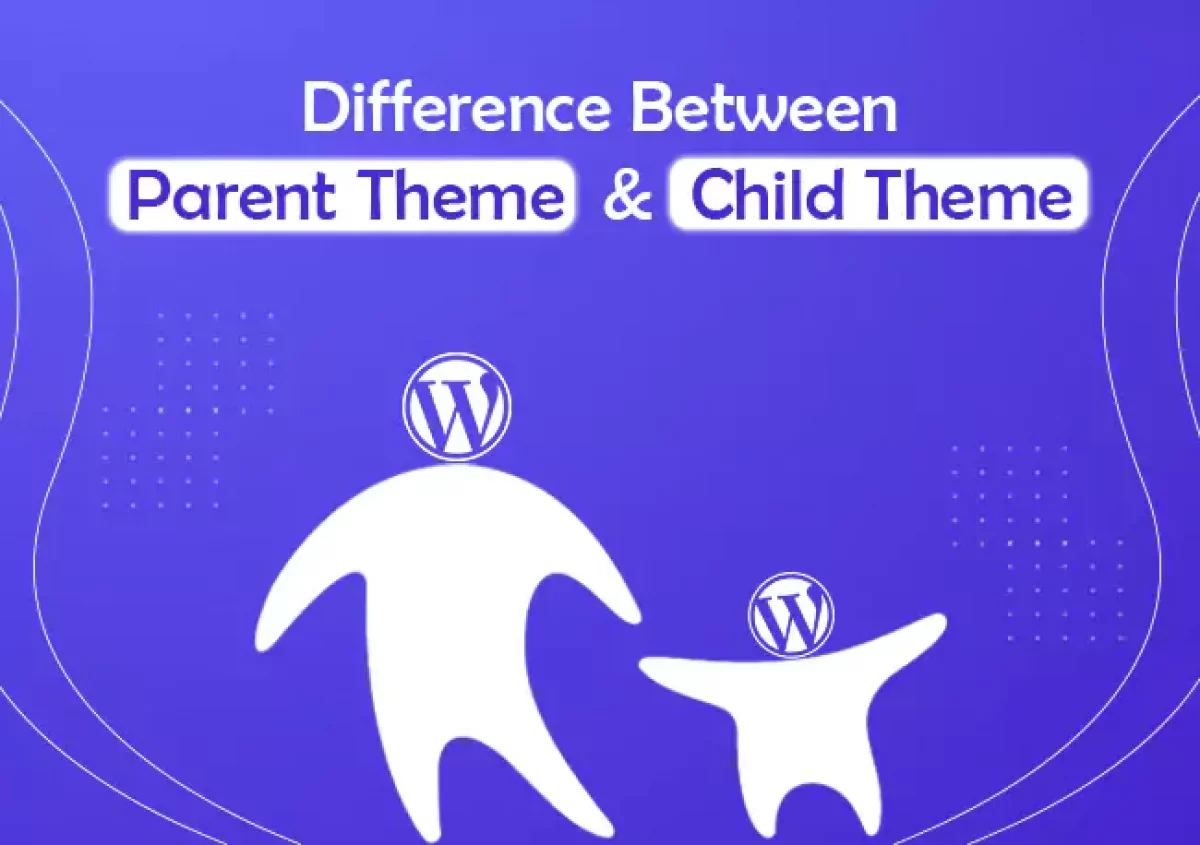
Credit: www.hostitsmart.com
Benefits Of Using A Child Theme
A child theme keeps your changes safe. Updates to the parent theme won’t affect your customizations. This means your site stays up-to-date. It also makes it easy to switch back to the parent theme. You can experiment without fear. You gain control over specific parts. You get to change styles and layouts. Your site becomes unique.
Child themes are easy to create. They save you time. They are great for beginners. You don’t need to know a lot about coding. Just a little is enough. The process is simple. It involves copying and editing files. This method is safe and reliable. It keeps your site stable. It also makes it easy to fix mistakes.
Preparing For Child Theme Creation
Creating a child theme in WordPress involves copying the parent theme files. This process helps customize without altering the original theme. Ensure to enqueue stylesheets properly for seamless integration.
Back Up Your Site
Backing up your site is very important. It keeps your data safe. Use plugins like UpdraftPlus or BackupBuddy. These tools make backups easy. Always save backups on an external drive. You can also use cloud storage. This way, your site is secure. If something goes wrong, restore your site quickly.
Choose The Right Parent Theme
Picking the right parent theme matters a lot. A good parent theme is well-coded. It should also have regular updates. Check if the theme has good reviews. Make sure it fits your site needs. A suitable parent theme makes creating a child theme easier.

Credit: jetpack.com
Creating A Child Theme Directory
Access your WordPress files using a file manager or FTP. Locate the wp-content/themes folder. Inside this folder, you will find all the themes. Find your parent theme folder. Note its name carefully. You will need it later.
Create a new folder in wp-content/themes. Name it something like yourtheme-child. Replace “yourtheme” with your parent theme’s name. Inside this new folder, create a file named style.css. This file is important. It will hold the styles for your child theme.
Configuring The Style.css File
Child themes need their own style.css file. This file tells WordPress about the child theme. Add information at the top of the file. Include the theme name, description, and author. Also, add the template name of the parent theme. This helps WordPress link the child theme to its parent. Make sure to follow the format correctly. It is important for the child theme to work well.
Adding Theme Information
Theme information goes at the top of style.css. This includes details like the theme name and author. Add a description for your theme. Use comments to separate each piece of information. The template field connects your child theme to the parent theme. Make sure you spell the parent theme name correctly. This ensures your child theme works properly.
Enqueuing The Parent Theme Stylesheet
The child theme needs to load the parent theme’s stylesheet. Use the functions.php file for this. Add code to enqueue the parent stylesheet. This code tells WordPress to load the parent styles first. Write the function with care. Mistakes can cause your site to look wrong. Ensure you use the right hook to enqueue the stylesheet.
Setting Up The Functions.php File
First, go to your child theme folder. Create a new file. Name it functions.php. This file is important for your child theme. It helps to add custom functions. Don’t copy the parent theme’s functions.php file. It will load automatically.
To make your child theme work, add code to functions.php. This code helps to load scripts. It keeps styles from the parent theme. Write this code: wp_enqueue_style. It ensures both themes work well. Never use @import for styles. It can slow down your site.
Activating Your Child Theme
Open your WordPress dashboard. Go to Appearance and click on Themes. You will see a list of available themes. Find your child theme and click on Activate. Your child theme is now live. Check your site to see changes. If something looks off, don’t worry. This is normal during the first switch.
Testing The Child Theme
Visit your website. Check the layout and design. Ensure all parts work fine. Look at the header, footer, and menus. Make sure the child theme is working. If you see any issues, go back to the dashboard. Adjust settings as needed. This step is important. It ensures your site looks good.
Customizing The Child Theme
Adding custom CSS makes your site unique. Create a file named style.css in your child theme folder. This is where you add your custom styles. Use simple CSS to change colors or fonts. Keep styles organized. Check changes on your site. Save the file. Refresh to see updates. Always test new styles. Avoid complex styles. Simple changes are best. Enjoy your new look!
Template files control layout. Copy files from the parent theme. Paste them in the child theme folder. Edit these files to change the layout. Use a simple editor like Notepad or Sublime Text. Small changes can improve your site. Always back up before editing. Test changes on a local site. Check for errors. Keep edits simple. Avoid breaking the site. Enjoy your custom layout.
Troubleshooting Common Issues
Creating a child theme in WordPress ensures your custom changes remain intact during updates. Start by making a new folder for your child theme. Add a style. css file and import the parent theme’s styles. Adjust the functions. php file to enqueue styles correctly.
This process safeguards your modifications effortlessly.
Resolving Style Conflicts
Sometimes, style conflicts arise between parent and child themes. This can make your site look strange. To fix this, locate the conflicting styles in the parent theme’s CSS. Copy these styles to the child theme’s CSS file. Then, modify them as needed. Ensure that the child theme’s styles override the parent theme’s styles. Use specific selectors to ensure proper override. Test changes on different browsers. Check if everything looks correct. Always backup your files before editing.
Fixing Template Overrides
Template overrides can cause issues in child themes. This happens when template files are not copied correctly. First, find the template file you want to override. Copy it to the child theme’s folder. Make sure the file structure is the same. Edit the copied file as needed. Keep the original code intact. Test changes on your site. Ensure everything works as expected. If issues arise, double-check your code. Look for errors or missing elements.
Best Practices For Maintaining Child Themes
Creating a child theme ensures your customizations remain intact during updates. Start by duplicating the parent theme’s style. css and functions. php. Use the child theme for modifications, preserving the original theme settings.
Regular Updates And Backups
Child themes need regular updates. This keeps them working well. Without updates, things might break. Update your child theme each time the parent theme updates. This ensures compatibility. Always make a backup before updating. Backups save your work. They prevent data loss. Regular backups protect your site. Keep backups in a safe place. Use tools for easy backup creation.
Documenting Changes
Document every change you make in the child theme. This includes CSS tweaks and function changes. Write down what you did. This helps you remember. Documentation helps others understand changes. It’s useful for future reference. Use a simple text file. Note the date and details. Keep this file organized. Documentation makes updates easier. It saves time and effort.

Credit: www.askdesign.biz
Frequently Asked Questions
What Is A WordPress Child Theme?
A WordPress child theme is a sub-theme that inherits functionalities from a parent theme. It allows you to customize designs without affecting the main theme. By using a child theme, you can safely update the parent theme without losing your custom changes.
This keeps your website’s design consistent and secure.
How To Create A Child Theme In WordPress?
To create a child theme, first create a new folder in your theme directory. Add a style. css file and include the header comment for the child theme. Next, create a functions. php file to enqueue the parent theme’s styles.
Finally, activate the child theme from your WordPress dashboard.
Why Use A Child Theme In WordPress?
Using a child theme preserves your customizations during theme updates. If you modify the parent theme directly, updates can overwrite your changes. A child theme allows for safer customizations, letting you tweak designs without altering core files, ensuring your website remains updated and functional.
Can Child Themes Affect Website Performance?
Child themes generally don’t affect website performance negatively. They inherit functionalities from the parent theme, ensuring efficient operations. However, adding excessive custom code can slow down your site. It’s crucial to optimize your child theme’s code for best performance.
Conclusion
Creating a child theme in WordPress is simple and rewarding. It protects your customizations during updates. Follow the steps closely to ensure success. Use a child theme to enhance your website’s design. This approach ensures your changes remain intact. It’s a great way to learn more about WordPress themes.
Remember, a backup is always wise. This process boosts your site’s flexibility. With practice, your skills will grow. Start experimenting today for a more personalized website. Your creativity can flourish without risking the parent theme’s updates. Enjoy the journey of customization and learning!


