
Are you looking to customize your WordPress site without losing changes during updates? Creating a child theme might just be the solution you need.
Imagine having the freedom to tweak your website’s design and functionality while keeping the parent theme intact. This not only ensures your customizations are safe during updates but also gives you the flexibility to experiment and innovate without fear. In this guide, you’ll discover the step-by-step process to create a child theme for WordPress effortlessly.
Whether you’re a beginner or have some experience, this straightforward approach will empower you to take full control of your website’s aesthetics and performance. Ready to dive in and unlock the true potential of your WordPress site? Let’s get started!
What Is A Child Theme
A child theme is like a small helper for a bigger theme. It lets you change your website’s look without touching the main theme. This way, your changes stay safe even if the main theme updates. It’s like having a special tool to paint your house. The house stays the same, but the color changes. Child themes are great for beginners. They help you learn without risks. You can try new things without fear. It’s a safe way to play with your website’s design. A child theme is easy to make. You just need a few files. These files tell WordPress what changes you want.
Creating a child theme helps keep your site unique. It lets you add personal touches. You can change colors, fonts, and layouts. This makes your website special. A child theme is a smart choice for customizing WordPress sites.
Credit: wpengine.com
Benefits Of Using Child Themes
Child themes help keep your website safe. They protect your original theme. Updates won’t break your site. This is important for any site owner.
Making changes is easier with child themes. You can change the look without affecting the main theme. This gives you freedom.
Testing new features becomes simple. You can try new codes safely. No need to worry about losing your main theme settings.
Child themes are great for learning. Beginners can practice safely. Mistakes won’t ruin the main theme.
Sharing your work becomes easy. You can show your changes to others. They can use your child theme too.
Essential Tools And Requirements
Creating a child theme for WordPress is fun. You need some tools. A good code editor is very important. Visual Studio Code is popular. Many people use it. You also need FTP software. FileZilla is a great choice. It helps you upload files. A browser is needed too. Check your changes on a browser. Google Chrome works well. You should know some basic HTML and CSS. These help you change your theme. It is easy to learn them. There are many online courses.
Install WordPress on your computer. Follow the steps. Use XAMPP or WAMP for this. These make things easy. You can test your theme here. It is safe to test. Always backup your files. This is very important. Use UpdraftPlus for backups.
Setting Up A Child Theme Directory
First, open your WordPress installation folder. Look for the wp-content folder. Inside, find the themes directory. This is where you will create your child theme directory.
Create a new folder in the themes directory. Name it something like my-child-theme. Make sure the name is clear and simple. This folder will hold all your child theme files.
Now, you need a file called style.css. This file is important. It tells WordPress about your child theme. Open a text editor and create this file inside the new folder. Add a header comment with information like the theme name, template, and author.
Creating The Style.css File
The style.css file is very important for your child theme. It tells WordPress about your theme. You need to start with a header comment. It looks like this:
/
 Theme Name:   Your Child Theme Name
 Template:     Parent Theme Folder Name
/
The Theme Name is what you call your child theme. The Template is the folder name of the parent theme. Save this file in the child theme folder.
To make sure styles from the parent theme load, you need to enqueue them. Open the functions.php file in your child theme. Add this code:
php
function my_theme_enqueue_styles() {
    wp_enqueue_style('parent-style', get_template_directory_uri() . '/style.css');
}
add_action('wp_enqueue_scripts', 'my_theme_enqueue_styles');
?
This code tells WordPress to use the parent theme styles. It’s important so your child theme looks right.
Creating The Functions.php File
The functions.php file is important in a child theme. It lets you add custom functions and features. Start by creating a new file named functions.php. Place it inside your child theme folder. This file works like a plugin. It can add or change things in your parent theme. You should write your code carefully here. Any mistakes may break your site. Always test your code before making it live. This keeps your site safe.
Use simple PHP code to add functions. You may need to copy functions from the parent theme. Make sure to change what is needed. This avoids errors. You can also use this file to remove unwanted actions. This file is handy for making your site unique. Remember, always backup before changes.
Customizing The Child Theme
Create a child theme in WordPress to safely modify your website’s design. Begin by creating a new directory within the themes folder. Add a style. css and functions. php file to start customizing without altering the original theme. Enjoy a personalized look with ease.
Modifying Styles
Changing styles can be fun. Use a style.css file. Add new CSS rules. This file changes the look of your site. You can adjust colors or fonts. Make the site unique. Ensure styles match your brand. Keep the design clean. A consistent look is important. Test changes before going live. This ensures everything works well. Backup your files regularly. It saves time if errors occur.
Adding New Functions
Enhance features using functions.php. This file allows new functions. Add code snippets here. Improve your site’s performance. You can create custom widgets. Or add specific post types. Be careful with code changes. Errors can affect your site. Always test code on a local server first. This prevents issues online. Learn from online tutorials. They help in understanding PHP codes. Keep your site secure and functional.
Credit: wedevs.com
Testing The Child Theme
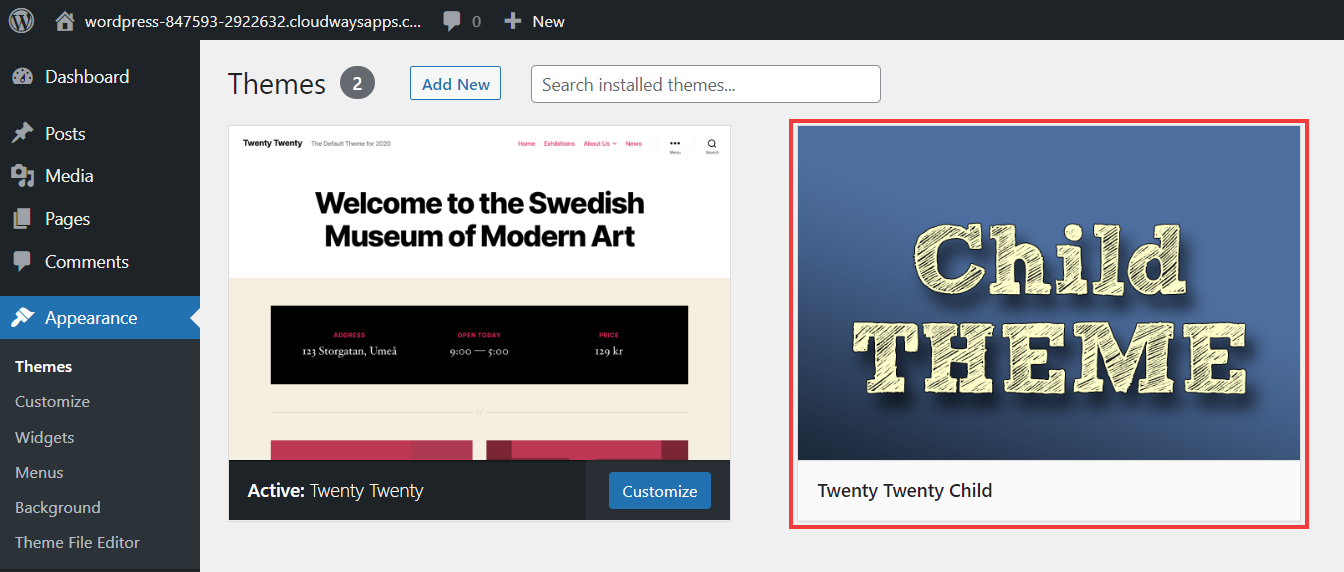
Testing is important to make sure your child theme works. First, activate the child theme in WordPress. Go to your dashboard. Click on Appearance and then Themes. You should see your child theme listed. Click Activate next to the theme.
After activation, check if your site looks good. Visit your website. Look for missing images or styles. If something looks wrong, the child theme may have errors.
To fix errors, review your code. Make sure the style.css and functions.php files are correct. Sometimes the child theme does not inherit styles correctly. In this case, double-check the parent theme settings.
Testing ensures your site runs smoothly. Spend time to make sure everything is perfect. It helps your website look nice for visitors.
Troubleshooting Common Issues
Creating a child theme in WordPress helps customize your site without altering the main theme. Identify the parent theme and create a new folder for the child theme. Add a style. css file and functions. php to the folder. This approach keeps your changes safe during theme updates.
Subheading
Sometimes, child themes don’t show changes. This can be frustrating. First, clear your browser’s cache. Then, check the functions.php file. Make sure it’s correct. Typos can cause problems.
Next, inspect the style.css file. Ensure it has the right template name. This connects the child to the parent theme. Missing or wrong names stop the theme from working.
Another issue is the white screen of death. This blank page means errors exist. Check the error log. Fix any mistakes in the code.
Finally, deactivate all plugins. Then, activate them one by one. Some plugins clash with themes. Identifying the faulty plugin helps solve the issue.
Best Practices For Child Themes
Creating a child theme is important. It helps keep your site safe. You can update the main theme easily. Your custom changes stay safe. Begin by making a new folder. Name it after your child theme. This folder should be in the themes directory. Create a style.css file in this folder. Add details like theme name and description. It’s important to add these details.
Next, make a functions.php file. This file helps add features to your theme. Use it to enqueue the parent theme’s style. Use code to connect the parent and child theme. Make sure the child theme is active. Check the appearance section in WordPress. Your child theme should appear there. Activate it to start using your changes. Keep the parent theme updated for security. Always test your changes carefully.
Credit: www.cloudways.com
Frequently Asked Questions
What Is A WordPress Child Theme?
A child theme is a sub-theme that inherits the functionality of a parent theme. It allows you to modify or add features without altering the original theme code. This ensures updates to the parent theme won’t overwrite your customizations, providing a safe and efficient way to personalize your site.
Why Create A WordPress Child Theme?
Creating a child theme offers flexibility and safety in customization. It allows you to tweak design elements and add features without affecting the parent theme. This ensures future updates won’t erase your changes, maintaining your customizations while keeping your site secure and up-to-date.
How Do I Start A Child Theme?
To start a child theme, create a new folder in your WordPress themes directory. Add a style. css file with a theme header and import the parent theme’s stylesheet. Include a functions. php file to enqueue styles. Activate your child theme from the WordPress dashboard.
Can I Customize A Child Theme?
Yes, customizing a child theme is easy. You can modify CSS, add PHP functions, and edit template files. This allows you to personalize your site’s appearance and functionality while preserving the parent theme’s core features. Customizations are safe from updates, ensuring your changes are permanent.
Conclusion
Creating a child theme in WordPress is straightforward. First, set up a new theme folder. Next, make a style. css file. Then, add a functions. php file. Customize these files to suit your needs. Remember to keep the parent theme updated.
This ensures smooth operation and compatibility. Child themes let you tweak designs safely. They also help in preserving changes during updates. Experiment with different styles and layouts. Enjoy the freedom of creativity and personalization. Your site will reflect your unique touch.
Keep learning and exploring WordPress possibilities.


