
Are you looking to enhance your WordPress theme with customized blocks? Imagine having the power to tailor each section of your website precisely to your liking.
Creating blocks for WordPress themes can transform your site from generic to unique, giving you full control over design and functionality. Whether you’re aiming to improve user experience, streamline your content, or simply want to stand out, learning to create your own blocks can be a game-changer.
This guide will walk you through the process step-by-step, ensuring you have all the tools you need to elevate your WordPress site effortlessly. Dive in and discover how easy it can be to make your website truly yours.
Benefits Of Custom Blocks
Custom blocks make your website look unique. They help you stand out. Many themes come with the same blocks. With custom ones, your site looks different. People remember it better. Unique designs attract more visitors. They often stay longer. This can boost your site’s engagement.
Custom blocks also give more flexibility. You can change them as needed. Add or remove parts easily. This helps in keeping content fresh. Fresh content attracts repeat visitors. It keeps your website lively and active. You can also make blocks fit your brand. Colors, fonts, and styles can match your logo. This creates a uniform look across your site.

Credit: kinsta.com
Setting Up The Development Environment
Good tools make work easy. Code editor is first. Use Visual Studio Code. It’s popular and free. Next is Git. It helps track changes. GitHub can store code online. Command line tools are handy too. Learn basic commands. Browser developer tools show website info. These tools are vital.
Node.js is needed for development. It runs JavaScript outside the browser. npm is a package manager. It installs libraries and tools. First, download Node.js. Install it by following steps. Check installation by typing node -v in the terminal. If it shows a version number, it’s installed. Next, use npm to add packages.
Set up a local server. XAMPP or WAMP can help. They host WordPress on your computer. Create a new database for WordPress. Install WordPress in the server’s folder. Access WordPress via a browser. It’s like visiting a website. Change themes and plugins. Test changes easily. This setup is key for development.
Introduction To Block Api
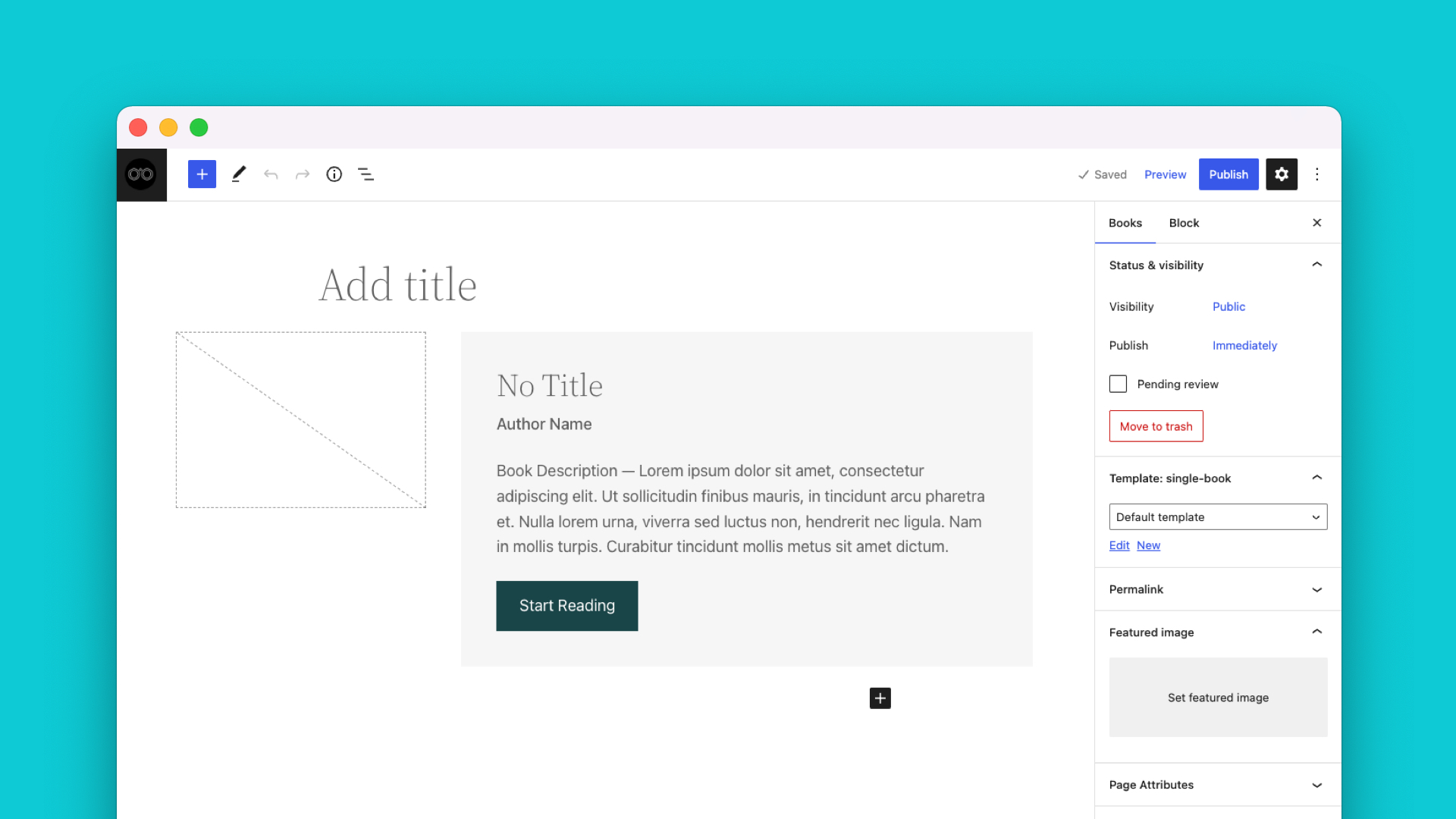
The Block API is a part of WordPress. It helps create custom blocks. Blocks are units of content. These units can be text, images, or other media. Blocks make page editing easy. They use a drag-and-drop interface. Understanding blocks is key for theme development. Blocks are reusable. This means you can use them on many pages.
Block registration is an important step. It makes your block available in the editor. Each block needs a unique name. This name helps identify the block. Use JavaScript to register a block. First, define block settings. Then, specify how the block appears. Add a title and description. Include an icon for visual aid. Finally, set the category for the block. This helps users find it easily.
Credit: wpengine.com
Creating A Basic Block
Start by organizing your files. Create a new folder for your block. Inside, make folders for JavaScript, PHP, and CSS. Each folder holds related files. This keeps everything tidy. Name your files clearly. Use names like block.js and style.css. It helps in finding them easily. Good file structure is important. It makes your work more efficient. It also helps others understand your code.
JavaScript brings your block to life. It handles interactions and dynamic content. Use PHP to connect your block to WordPress. Write a function to register your block. This tells WordPress about your block. Use wp_enqueue_script to link your JavaScript. Make sure your script is loaded in the right place. This ensures everything works smoothly. JavaScript and PHP work together. They create a seamless experience for users.
Use CSS to style your block. CSS makes your block look good. Add styles in style.css. Keep it simple and clean. Use classes to target elements. This makes it easy to apply styles. Test your styles in different browsers. Ensure your block looks good everywhere. Use media queries for responsiveness. This makes your block look good on all devices. Styling is important. It enhances the user experience.
Advanced Block Features
Creating blocks for WordPress themes enhances site design and functionality. Easily customize layouts with advanced block features. These tools simplify the process, making theme development accessible for all skill levels.
Custom Attributes
Custom attributes help personalize your blocks. They make blocks unique. Add special features to your blocks. Change colors, sizes, or styles easily. Custom attributes give blocks their own identity. They make blocks stand out. Use them to enhance block appearance. Your blocks will look different. They will fit your theme better.
Dynamic Blocks
Dynamic blocks change with time. They update automatically. Show fresh content without effort. Display new posts or comments easily. Dynamic blocks keep your site alive. They are smart and helpful. Use them for popular posts. They work well with live feeds. Dynamic blocks save time for you. They make updates simple.
Inner Blocks
Inner blocks are blocks inside blocks. They help organize content. Make complex layouts simple. Inner blocks create nested structures. They fit well within larger blocks. Use them for detailed designs. Inner blocks add depth to your theme. They offer more control. Your layouts will be cleaner. They make designing fun.
Testing And Debugging
Common Issues can slow down your WordPress site. These issues often arise from conflicting plugins or theme errors. Missing files cause problems too. They lead to broken pages. Slow loading times frustrate users. It’s important to fix these quickly.
Errors might show up as white screens or missing elements. Users may not see expected features. Sometimes, updates break existing functions. Security vulnerabilities are also a concern. Protect your site by addressing them.
Debugging Tools help find and fix problems. Use WP Debugging to see errors in code. It shows you what’s wrong. Query Monitor checks database queries. It helps improve speed. Log files track activity. They are useful for finding errors. Browser Developer Tools help with CSS and HTML. They show you changes in real-time. Fixing small bugs can make your site better.
Deploying Custom Blocks
Crafting custom blocks for WordPress themes enhances site functionality and design. Use the WordPress Block Editor to create unique layouts. Tailor blocks to match your theme’s style and improve user experience effortlessly.
Packaging The Block
Packaging a block is simple. You start by compiling the block files. Use a build tool like Webpack. This helps in creating efficient code. Ensure the files are optimized for speed. Next, add metadata. This includes block name and description. Metadata helps in identifying the block. Gather all necessary files into a folder. This folder represents the block package.
Zip the folder for easy upload. Make sure the zip file is clean. It should contain only necessary files. Extra files can confuse WordPress. Check the package by testing it locally. Testing ensures the block works well. Fix any errors before uploading.
Uploading To WordPress
Log into your WordPress dashboard. Navigate to the plugins section. Select ‘Upload Plugin’ option. Choose the zipped block package. Click ‘Install Now’. WordPress installs the block automatically. Activate the block once installed. Activation makes the block available for use. Visit the block editor to see your block. Test it to confirm it functions correctly.
Credit: wptavern.com
Best Practices
Crafting blocks for WordPress themes involves understanding the WordPress Block Editor. Focus on creating reusable, customizable blocks. Ensure compatibility with various plugins and themes for a seamless user experience.
Code Optimization
Creating blocks for WordPress themes requires clean and efficient code. It is important to write short and simple code. This makes the site load faster. Fast loading improves user satisfaction. Avoid unnecessary code and files. They slow down the website. Use comments to explain your code. This helps other developers understand it. Keep your code organized. It is easier to read and maintain. Regularly test your code. Fix errors as soon as you find them.
User Experience
A good user experience is key to a successful website. Make sure your blocks are easy to navigate. Users should find what they need quickly. Use clear and simple labels. Avoid using complex words. Design your blocks to be visually appealing. This keeps users engaged. Ensure that your blocks work well on all devices. Mobile users should have a smooth experience. Test your blocks on different browsers. This ensures compatibility. Listen to user feedback. It helps improve the user experience.
Frequently Asked Questions
What Are WordPress Theme Blocks?
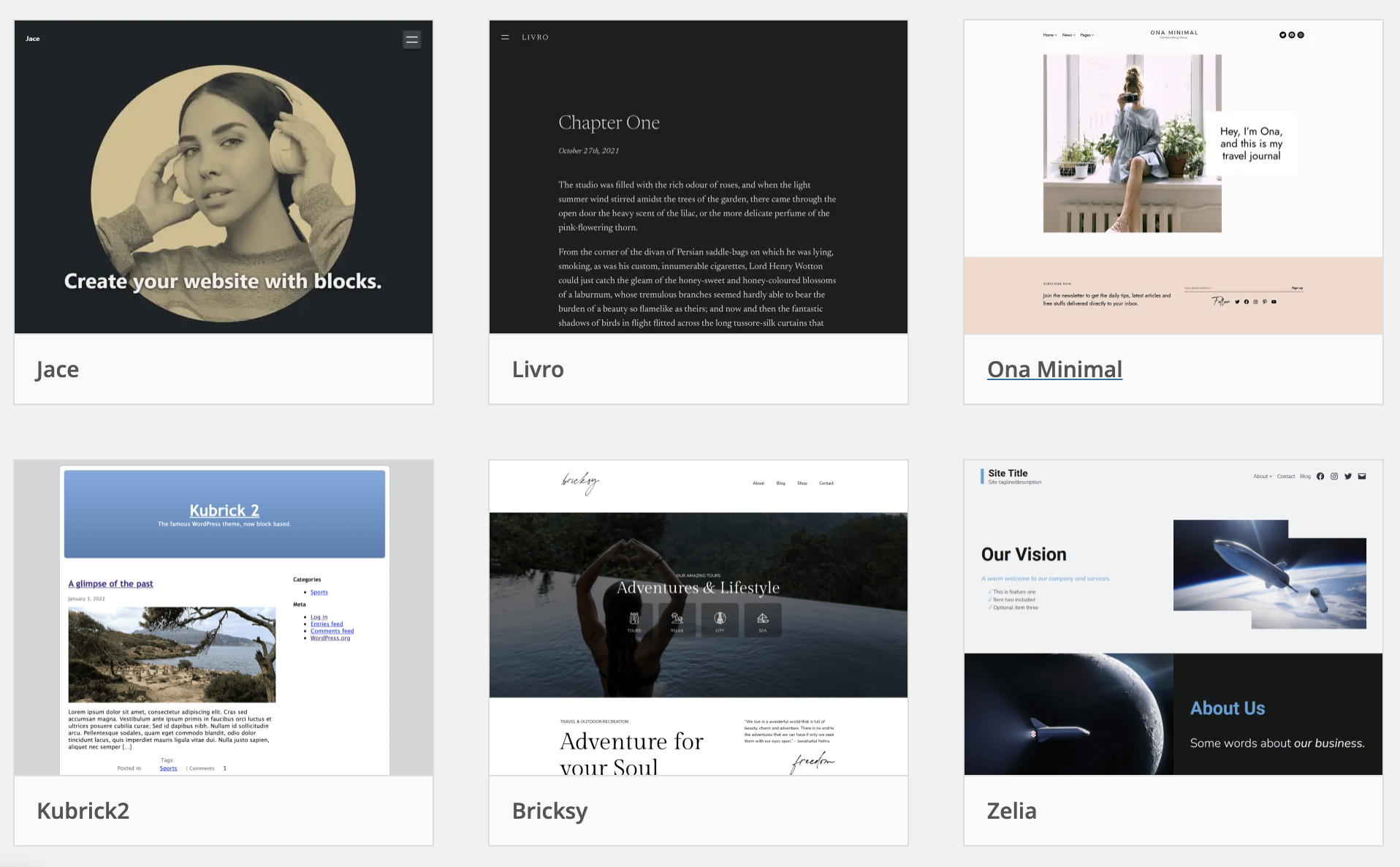
WordPress theme blocks are reusable design elements for building pages and posts. They help create flexible layouts without coding. Users can mix and match blocks to customize their site design. Blocks enhance the editing experience, making it intuitive and visual.
They’re essential for modern WordPress theme development.
How Do I Create Custom Blocks?
To create custom blocks, use the WordPress Block Editor API. Start by setting up a development environment. Use JavaScript and React to define block behavior and appearance. Register your block with PHP. Test and ensure compatibility with the WordPress editor.
Follow best practices for performance and accessibility.
Why Use Blocks In WordPress Themes?
Blocks simplify content creation and design in WordPress themes. They offer a modular approach, enabling easy customization and layout changes. Blocks improve user experience by providing intuitive drag-and-drop functionality. They enhance consistency and maintainability across pages. Using blocks ensures compatibility with the latest WordPress features and updates.
Are Blocks Compatible With All Themes?
Blocks are compatible with most modern WordPress themes, especially block-ready themes. However, older themes may require updates or compatibility checks. Always test blocks on your specific theme to ensure proper functionality. Consider using a block-based theme for optimal performance and ease of use.
Check theme documentation for block support details.
Conclusion
Creating blocks for WordPress themes boosts customization. You now control design. Enjoy experimenting with different layouts. Blocks simplify content management. Enhance user experience effortlessly. Follow steps carefully to build your blocks. Practice makes you comfortable with the process. Keep your WordPress theme updated.
Stay informed about new features. Blocks offer flexibility and creativity. Explore various options to find what suits you. Use available resources for additional guidance. Share your custom designs with the community. Interact and learn from others’ experiences. WordPress blocks empower website development.
Start creating today and watch your site evolve!


