
Are you using the Avada theme for your WordPress site and want to make customizations without losing them during updates? Creating a child theme is your solution.
In this guide, you’ll discover how to create an Avada child theme step-by-step, ensuring your custom tweaks remain intact with every update. Imagine the peace of mind knowing your site’s unique features are safe from being overwritten! By the end of this article, you’ll not only have a fully functional child theme but also the confidence to modify your website’s look and functionality with ease.
Dive in and unlock the power to transform your WordPress site effortlessly.
What Is A Child Theme
A child theme is like a mini-theme. It uses the main theme’s features. This main theme is called the parent theme. Child themes are great for customizing your site. You can change the look and feel. But the original theme stays safe. This means updates won’t erase your changes. This is a big plus. You keep the main theme updated. Yet, your changes stay. Many people use child themes. They keep the website fresh and unique.
Benefits Of Using A Child Theme
A child theme makes website changes safe. The original theme stays untouched. This means updates won’t erase your work. You can customize your site easily. Colors, fonts, and layouts change without risk. A child theme is great for learning. You test ideas without fear of breaking things. Mistakes are easy to fix. Many people use child themes for flexibility. They make sites unique without much coding. The parent theme provides a strong base. The child theme adds special features. It’s a smart way to build sites.
Child themes help keep your site organized. Changes are in one place. This makes troubleshooting simple. Your site stays neat and tidy. Designers love child themes for experiments. They create and test new ideas safely. It’s a fun way to learn and grow. Using a child theme makes your website better. It’s a tool for creativity and safety.
Preparing For Child Theme Creation
Always backup your website before making changes. It keeps data safe. Use a reliable plugin to do this. Plugins like UpdraftPlus are easy to use. They save all your files. Keep backups in a secure place. This way, you can restore them later. Never skip this step.
A local environment is important. It lets you test changes safely. Install XAMPP or MAMP on your computer. These tools are free to use. They mimic a real server. You can work offline with them. Always test on your local site first. It prevents errors on your live site. Keep your local setup updated.

Credit: www.youtube.com
Creating The Child Theme Folder
Start by opening your WordPress directory. Locate the wp-content folder. Inside, find the themes folder. This is where your theme files live. Now, create a new folder here. Name it avada-child. This name is important. It tells WordPress this is a child theme.
Ensure the folder name is all lowercase. Use hyphens instead of spaces. Spaces can cause errors. Once the folder is ready, you can move to the next step. The folder is now ready for the child theme files. Remember, this folder will hold all your new theme files.
Adding The Stylesheet
To add the stylesheet in your Avada Child Theme, create a style. css file. This file contains your custom styles. Place it in the child theme folder to ensure it loads correctly.
Creating The Style.css File
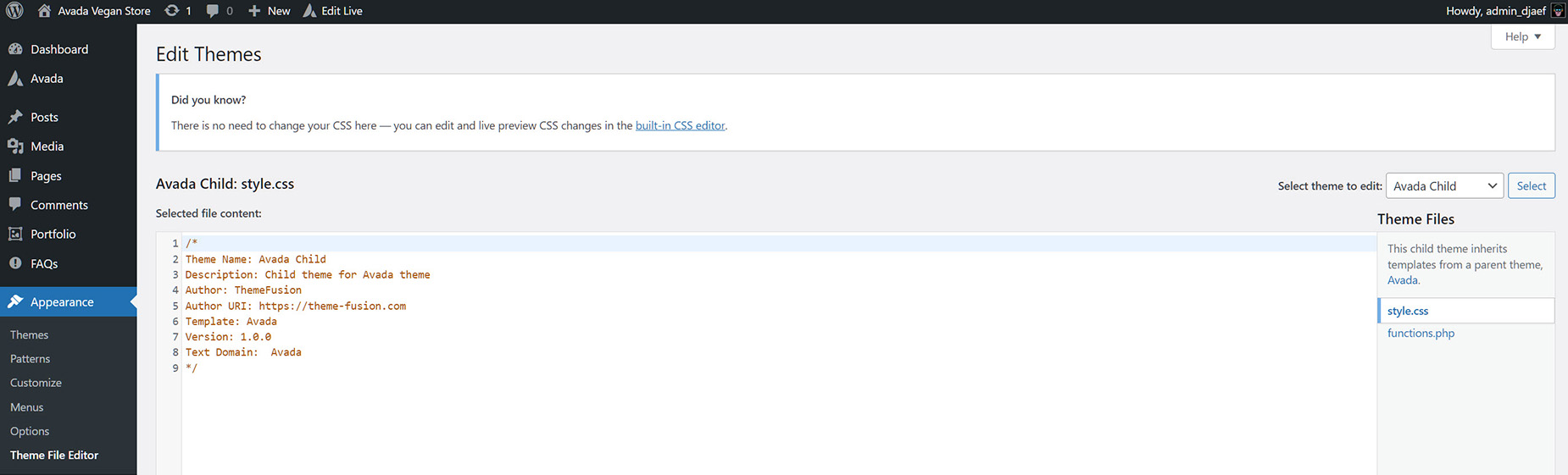
Create a new folder for your child theme. Name it clearly. Inside, make a file called style.css. This file is important. It holds all the styles for your child theme. Add a header at the top. This tells WordPress about your theme. Include the theme name, template, and version. Save the file.
Enqueuing The Parent Theme Styles
Link the parent theme’s styles to your child theme. Open the functions.php file in your child theme folder. Use wp_enqueue_style to add the parent stylesheet. This keeps the parent styles intact. Write the function properly. Ensure there’s no error. The child theme will now inherit all the parent styles.
Configuring The Functions.php File
The functions.php file is important. It helps add features to your theme. Think of it as a toolbox. You use it to add or change things.
You can write code here. Always start with <?php. This tells WordPress you are coding.
It’s good to include the parent theme’s styles. Use a code snippet for this. It helps keep things looking nice.
- Check your code for mistakes.
- Save your changes often.
- Use comments to explain your code.
Customizing The Avada Child Theme
Changing template files is easy. Copy the file from the parent theme. Paste it in the child theme folder. Edit the copied file to make changes. Keep the same file name as the parent. This way, WordPress uses your custom file. Be careful when editing. Small mistakes can break your site. Always back up your changes. Use a code editor for better results.
Add custom functions in the functions.php file. This file lives in your child theme folder. Open it with a text editor. Write your custom functions here. Each function must have a unique name. This avoids conflicts with other functions. Save changes and upload the file. New functions will now work on your site. Test each function to ensure it works well.
Credit: avadathemes.com
Activating The Child Theme
Activate the child theme to enjoy custom changes. Go to your WordPress dashboard. Click on Appearance, then Themes.
You will see your child theme. Hover over it. A button will say Activate. Click it. Your child theme is now active.
Check your website to see changes. If something looks odd, don’t worry. Sometimes themes need adjustments.
This step is important. It keeps your site’s look fresh. Your changes stay safe during updates.
Testing Your Child Theme
Creating a child theme for Avada in WordPress lets you customize without losing updates. Test your child theme to ensure compatibility and functionality. This step maintains your personalized designs while preserving the core features of Avada.
Checking For Styling Consistency
Ensure all styles match your main theme. Look for any mismatched fonts or colors. Compare your site with the main theme. Adjust the CSS if needed. Use the browser’s inspect tool to check elements. Make sure all sections look the same. This keeps your site looking professional and consistent.
Testing Site Functionality
Click on each menu item. Ensure they work. Check links and buttons. Ensure they lead to the correct pages. Test forms. Submit them to see if they work. Look for any errors or bugs. Fix them to keep your site functional. Ensure your site is responsive. Test it on different devices. This ensures everyone can use your site.
Credit: avada.com
Troubleshooting Common Issues
Sometimes, the child theme doesn’t appear in the WordPress dashboard. Make sure you placed the style.css and functions.php files correctly. Check if the parent theme is activated. A missing or broken file might cause issues. Double-check the directory path and file names. They are case-sensitive. Ensure the Template line in style.css matches the parent theme folder name. Clear your browser cache to see changes. Wrong permissions on files may also cause problems. Set permissions to 755 for folders and 644 for files. This will help WordPress access them. Plugins sometimes interfere with themes. Try deactivating them one by one. This identifies the conflicting plugin. Once identified, update or replace it. Always backup your site before making changes. This keeps your data safe.
Frequently Asked Questions
What Is A Child Theme In Avada?
A child theme in Avada is a sub-theme that inherits functionalities from the parent theme. It allows you to modify and add custom features without losing changes during updates. This approach is ideal for customizing your website while ensuring stability and preserving your work.
Why Use A Child Theme In WordPress?
Using a child theme in WordPress ensures your customizations remain intact during theme updates. It offers flexibility to modify styles and functions without altering the parent theme. This method provides a safe environment for experimenting, keeping your site secure and up-to-date.
How Do I Create An Avada Child Theme?
To create an Avada child theme, start by creating a new folder in your themes directory. Add a style. css and functions. php file with necessary code. Activate the child theme from WordPress dashboard. This process helps in maintaining customizations efficiently.
Can I Customize Avada Child Theme Easily?
Yes, customizing an Avada child theme is easy and flexible. You can modify styles, add custom functions, and integrate new features. This approach allows your changes to stay intact during updates, providing a seamless customization experience without affecting the parent theme.
Conclusion
Creating an Avada child theme is simple yet effective. It protects your customizations during updates. Follow the steps to ensure your site stays unique. Remember, child themes offer flexibility and security. This method keeps your site stable and updated. Take the time to make it right.
Your efforts will pay off in the long run. Keep learning and enhancing your WordPress skills. Enjoy the process of crafting your perfect site. Happy designing, and let your creativity shine!


