
Are you ready to transform your creative vision into a dynamic WordPress theme? Imagine the satisfaction of seeing your design come to life, installed on websites around the world.
Whether you’re a budding developer or a seasoned designer, creating an installable WordPress theme is within your reach. This guide will walk you through the process step by step, demystifying the complexities and empowering you to craft a theme that stands out.
You’ll discover the secrets to making your theme not just functional, but also irresistible. By the end of this article, you’ll have the confidence and knowledge to create a theme that not only meets your needs but exceeds them. So, let’s dive in and unlock the potential of your creativity!
Understanding WordPress Themes
WordPress themes are like clothes for websites. They change the look and feel. Themes control layout, colors, and fonts. They make each site unique. Design matters in themes. Good design attracts visitors. Themes are made of templates and stylesheets. Templates are like blueprints. They decide how content is placed. Stylesheets handle colors and text size.
Creating a theme involves coding skills. HTML, CSS, and PHP are used. Basic knowledge can help start. Themes need testing before use. Check on different devices. Make sure everything works. Themes can be found in the WordPress theme directory. Free themes are available. Premium themes offer more features. Choose carefully for your needs.
Essential Tools And Software
Text editors help write code. They make it easy to see errors. Notepad++ and Sublime Text are popular choices. These tools have features like syntax highlighting. This makes code easier to read. Choose one that feels comfortable. Explore its functions. Get used to its interface.
Local development environments are needed to test themes. XAMPP and WAMP are widely used. They mimic real servers on your computer. This helps in testing without going live. Setting up is simple. Download and install the software. Start the services needed. Access the local server through a browser.
FTP clients upload themes to servers. FileZilla is a common choice. It connects your computer to the web server. Drag and drop files from your computer to the server. Make sure to have server login details. Keep them safe. Check the connection is secure. Upload files carefully. Verify they are in the correct folders.
Setting Up The Development Environment
First, download WordPress from its official site. Save the files on your computer. Next, install a local server like XAMPP or MAMP. These tools help run WordPress on your computer. Open the server tool and start the Apache and MySQL services. Go to your web browser and type localhost/phpmyadmin. Create a new database for WordPress here. Now, go to the WordPress folder and open wp-config-sample.php. Enter your database details and save it as wp-config.php. WordPress is ready to install locally.
Navigate to the wp-content/themes folder in your WordPress directory. Create a new folder with the name of your theme. This folder is your theme’s home. Inside, add two files: style.css and index.php. The style.css file tells WordPress about your theme. Add the theme name, author, and version at the top of the file. The index.php file is where your theme’s content will display. Your new theme directory is now set up.

Credit: www.themezaa.com
Theme Structure And Files
Template files help create the theme’s layout. These files are essential for your theme. The main file is index.php. It controls the homepage. Other files like header.php and footer.php make up the top and bottom. Use single.php for single posts. The page.php file is for pages.
Stylesheets make the site look nice. The main file is style.css. It defines the theme’s style. Scripts are for special tasks. Use functions.php to add them. Add JavaScript for interactive parts. Keep code clean and organized. Avoid extra code.
Theme functions add special features. The functions.php file is important. It can include widgets and menus. Use it to add custom headers. This file helps register theme features. It can also load styles and scripts. Keep it simple and well-documented.
Developing The Theme
Start by sketching a simple layout on paper. Think about where you want each part to go. Use boxes and lines to show different sections. Header, footer, and sidebar are important parts. Keep it clean and neat. Check other themes for ideas. They help you plan better.
Styles make your theme look nice. Use CSS to change colors, fonts, and sizes. Try different styles to see what fits. Make sure text is easy to read. Use contrasting colors for better visibility. Test on different screens. Everything should look good everywhere.
JavaScript adds fun actions to your theme. Use it for slideshows or dropdown menus. Keep scripts simple and clear. Avoid too many effects. They can slow down your site. Check your code. Make sure it works well. Test each feature before adding more.
Credit: www.templatemonster.com
Customizing Theme Features
The Theme Options Panel is like a control center. It helps you change settings. You can choose colors, fonts, and layouts. This makes your theme unique. Everyone can use this without coding skills.
Widget Areas are special spaces on your site. You can add small blocks here. Like menus, search bars, or recent posts. These make your site look friendly. More widgets mean more fun things for visitors.
Custom Post Types help you create different content. Not just blog posts. You can make portfolios or testimonials. This makes your site diverse. People can see more than just articles.
Testing And Debugging
Cross-Browser Testing ensures your theme works on all browsers. Open your theme in different browsers like Chrome, Firefox, and Safari. Check if everything looks the same. Make sure buttons and links work. Some code might not work in all browsers. Fix these issues to make your theme better.
Responsive Design Checks are important. Use your phone and tablet to see your theme. It should look good on small screens too. Try rotating your device. The design should adjust. If it doesn’t, your theme needs fixing.
Fixing Common Errors is a part of this process. Sometimes, themes have bugs. Look for broken images or wrong links. Check the code for mistakes. Use tools to find and fix errors. Making these fixes makes your theme strong.
Packaging The Theme
First, gather all theme files. This includes the style.css and index.php. Also, add the functions.php file. Ensure all files are in one folder. Next, right-click the folder. Choose Compress or Zip option. This creates a .zip file. The zip file is your theme package. It’s now ready to upload.
Ensure your theme works well. Check if it’s responsive. Test it on different devices. Fix any errors. Add a readme.txt file. This file helps users. It includes instructions and theme features. Also, add a screenshot.png of your theme. This image should be 1200×900 pixels. Finally, your theme is ready for sharing.
Installing The Theme
Easily install your custom WordPress theme with simple steps. Download the theme file, then navigate to your WordPress dashboard. Select “Appearance,” then “Themes,” and click “Add New. ” Upload your theme file and activate it. Enjoy your new look!
Uploading Via WordPress Admin
First, log into your WordPress admin dashboard. Go to Appearance, then click on Themes. Select Add New at the top. Choose the Upload Theme option. Click Choose File. Select your theme’s zip file from your computer. Click Install Now. Wait for the installation to complete. Click Activate to use the theme.
Manual Installation Via Ftp
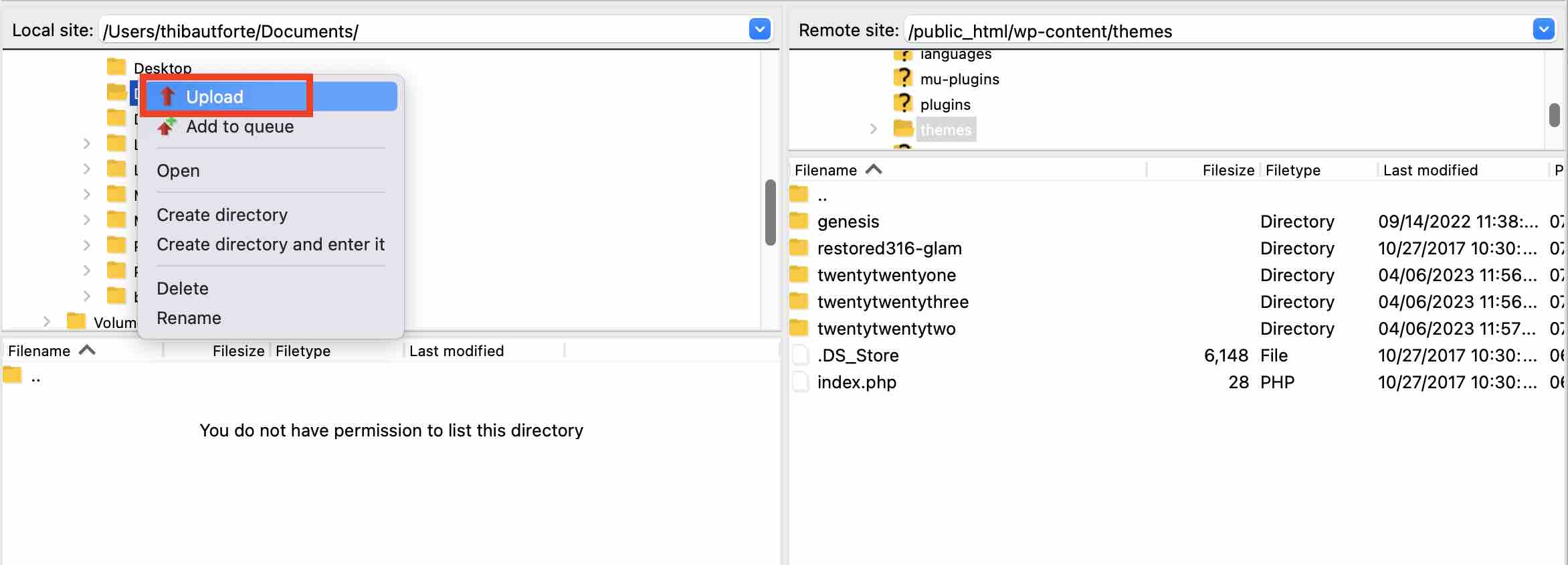
Open your FTP client and connect to your website. Navigate to wp-content/themes. Upload the unzipped theme folder to this directory. Once uploaded, log into your WordPress admin. Go to Appearance and then Themes. Locate your theme and click Activate. Your theme is now live on the site.
Best Practices And Tips
Good content uses keywords naturally. Headers help organize text. Images need alt tags for better understanding. Links should be descriptive. Use meta tags for search engines.
Fast themes get more visits. Use lightweight code. Compress images for quick loading. Less HTTP requests mean faster pages. Always check speed with tools. Make sure files are small.
Simple code is best. Avoid unnecessary elements. Use comments to explain code. Follow coding standards. Organize files well. Clean code helps others understand.
Credit: wpmarmite.com
Frequently Asked Questions
What Is A WordPress Theme?
A WordPress theme defines the design and layout of your site. It consists of template files and stylesheets, allowing you to customize appearance. Themes can be installable and modifiable, providing flexibility. Creating your own theme requires coding skills, but enhances personalization.
How Do I Start Creating A Theme?
Begin by setting up a development environment. Use tools like XAMPP or Local to install WordPress locally. Familiarize yourself with PHP, HTML, and CSS. Create necessary theme files: style. css, index. php, and functions. php. Follow WordPress codex guidelines for theme development.
What Are Essential Theme Files?
Essential theme files include style. css, index. php, and functions. php. Style. css defines your theme’s appearance. Index. php is the main template file. Functions. php allows theme customization through hooks and filters. These files are foundational for WordPress theme creation.
How Can I Test My Theme?
Test your theme locally using WordPress development tools. Check for responsiveness and compatibility across devices. Validate HTML and CSS for errors. Use debugging plugins to ensure functionality. Testing ensures a seamless user experience before deploying your theme.
Conclusion
Creating an installable WordPress theme isn’t as hard as it seems. Start with a solid plan. Then, design your theme carefully. Use clear code. Test thoroughly. Make sure everything works smoothly. Pay attention to user experience. Keep things simple. Focus on speed and functionality.
Your theme should look great and load quickly. Remember to update regularly. Keep learning and improving your skills. Follow these steps. Soon, you’ll have a WordPress theme ready to share. Enjoy the process and keep creating. Your efforts will pay off with a useful, attractive theme.


