

Ready to build your own website but don’t know where to start? Creating a WordPress website is easier than you might think, even if you have no technical background.
Whether you want a personal blog, a business site, or an online store, WordPress gives you the tools to make it happen. In this guide, you’ll discover clear, simple steps to set up your WordPress site quickly and confidently. By the end, you’ll have a website that looks great, works smoothly, and feels truly yours.
Let’s dive in and make your online presence a reality!

Credit: gretathemes.com
Choosing WordPress.com Or WordPress.org
Choosing between WordPress.com and WordPress.org is an important step when creating a WordPress website. Both platforms use the WordPress software but offer different features and levels of control.
This choice affects how much you can customize your site, the cost, and the ease of use. Understanding the key differences helps you decide which fits your needs best.
Key Differences
WordPress.com is a hosted service that manages your site for you. It handles hosting, backups, and security. WordPress.org is self-hosted software you install on your own web server. You control everything but must manage hosting and security yourself.
WordPress.com limits customization and plugin use. WordPress.org lets you install any plugin or theme. Costs for WordPress.com are often lower at the start. WordPress.org requires paying for hosting and a domain name.
Pros And Cons Of WordPress.com
Pros: Easy to set up and use. Hosting and security are included. Backups are automatic. Good for beginners or simple websites.
Cons: Limited design and plugin options. Your site displays a WordPress.com banner unless you pay. Storage space is limited. Less control over your site’s features.
Pros And Cons Of WordPress.org
Pros: Full control over your website. Unlimited plugins and themes. No branding from WordPress. Better for advanced customization and growth.
Cons: You must buy hosting and a domain. You manage backups, security, and updates. Setup is more complex. Costs can be higher over time.
Picking A Domain Name
Choosing the right domain name is a key step in creating a WordPress website. It is the web address people type to visit your site. A good domain name helps visitors remember your site easily. It also builds trust and supports your brand online.
Picking a simple and clear domain name makes your website look professional. Avoid long or hard-to-spell names. The domain should reflect your site’s content or purpose.
Tips For Selecting A Domain
Keep your domain short and easy to say. Use common words that are easy to spell. Avoid numbers and hyphens because they confuse visitors.
Choose a domain that matches your business or blog name. This helps with brand recognition. Include keywords related to your site topic for better search engine ranking.
Pick a popular domain extension like .com, .net, or .org. These are trusted by users and search engines. Make sure the domain is unique and not used by others.
Registering Your Domain
Register your domain through a reliable domain registrar or web hosting provider. Check domain availability with their search tool. Once you find a free domain, secure it quickly.
Complete the registration by providing your contact information. Choose a registration period, usually one year or more. Consider domain privacy protection to keep your details private.
After registration, link your domain to your WordPress hosting. This connects your domain name with your website content. Your site becomes accessible to visitors worldwide.
Selecting A Hosting Provider
Choosing the right hosting provider is essential for your WordPress website. The hosting service stores your site’s files and makes it accessible online. A good host ensures your website loads fast and stays online without problems. Picking the right type of hosting and provider affects your website’s speed, security, and performance. This section helps you understand hosting types and suggests reliable providers.
Types Of Hosting
Shared hosting means your website shares server space with others. It is the cheapest option but may be slower if many sites use the server. Suitable for small blogs or new websites.
VPS hosting offers more power. Your website gets a dedicated part of the server. It is faster and more secure than shared hosting. Ideal for growing websites with moderate traffic.
Dedicated hosting gives you an entire server. You control all resources, making it very fast and secure. Best for large websites with high traffic and special needs.
Managed WordPress hosting is designed specifically for WordPress sites. The provider handles updates, security, and backups. This option saves time and reduces technical work.
Recommended Hosting Services
Bluehost is popular for beginners. It offers shared and managed WordPress hosting. Bluehost is easy to use and has good customer support.
SiteGround provides fast servers and strong security features. It offers managed WordPress hosting with free daily backups.
HostGator is another reliable choice. It has affordable plans and a simple control panel for beginners.
WP Engine is a premium managed WordPress host. It focuses on speed, security, and expert support. Good for business websites needing extra care.
Credit: www.websitebuilderexpert.com
Installing WordPress
Installing WordPress is the first step to building your website. It sets up the foundation for your online presence. The process is simple and can be done in two ways. Choose the best method based on your comfort level and hosting provider.
One-click Installation
Many hosting companies offer a one-click WordPress install feature. This tool automatically sets up WordPress for you. Just log in to your hosting control panel. Find the WordPress installer, often under “Website” or “Apps” sections. Click it and follow the prompts. Enter your site name, admin username, and password. The installer handles the rest. This option saves time and avoids technical steps.
Manual Installation Steps
Manual installation gives you full control over the setup. First, download the latest WordPress package from WordPress.org. Next, upload the files to your web server using FTP. Create a MySQL database on your hosting account. Then, open your site URL in a browser. WordPress will ask for database details. Enter your database name, username, password, and host. Follow the on-screen setup instructions. Finally, create your admin account. Once done, WordPress is ready to use.
Configuring Basic Settings
Setting up your WordPress website starts with configuring the basic settings. These settings shape how your site looks and functions. They also help search engines understand your website better. Spend some time here to build a strong foundation for your site.
Site Title And Tagline
The site title is your website’s name. It appears in browser tabs and search results. The tagline is a short phrase that describes your site’s purpose. Choose a clear and simple title. Write a tagline that adds value and explains what visitors will find.
Permalinks Setup
Permalinks are the URLs for your posts and pages. A clean permalink structure helps users and search engines. Select the “Post name” option for simple and readable links. For example, use yoursite.com/about instead of complex numbers and symbols.
Timezone And Language
Set your website’s timezone to match your location. This ensures correct scheduling of posts and events. Choose the site language to reach your audience better. Both options are found in the General Settings menu.
Choosing And Installing Themes
Choosing and installing a theme is a key step in creating your WordPress website. Your theme controls the look and layout of your site. Picking the right theme ensures your site looks good and works well. WordPress offers many themes, both free and paid. Installing a theme is simple and takes just a few clicks. After installation, you can customize the theme to match your style and needs.
Free Vs Premium Themes
Free themes are available in the WordPress theme repository. They are easy to install and use. Free themes often have fewer features but work well for simple sites. Premium themes cost money but offer more design options and support. They come with advanced features like sliders, page builders, and better customization. Choose a theme based on your budget and the features you need.
Installing Themes From WordPress Repository
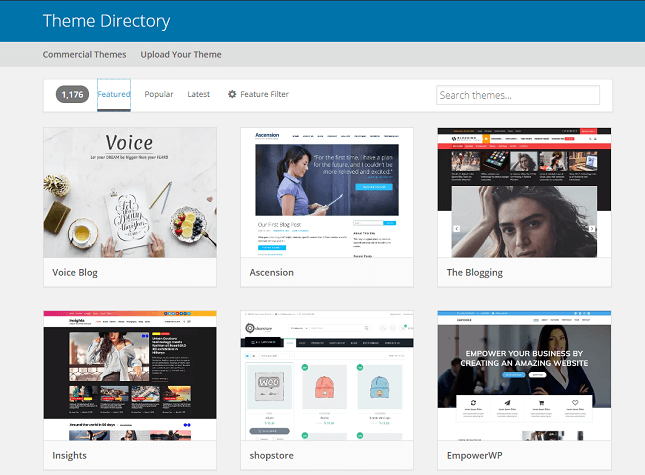
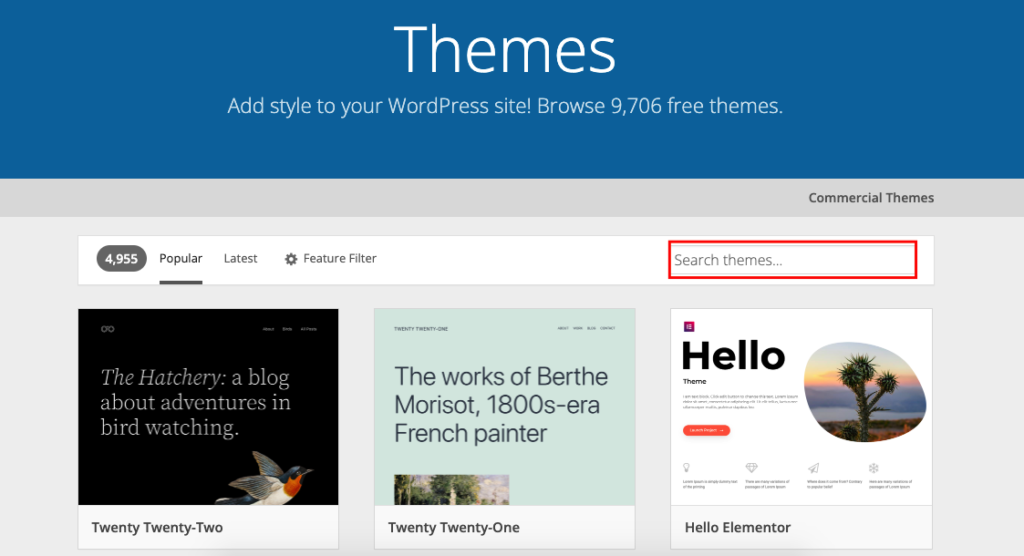
To install a theme from the WordPress repository, go to your dashboard. Click on “Appearance” and then “Themes.” Click “Add New” to browse free themes. Use the search bar or filters to find a theme you like. Click “Install” and then “Activate” to apply the theme to your site. The whole process is quick and requires no coding knowledge.
Customizing Your Theme
After installing a theme, customize it to fit your brand. Go to “Appearance” and select “Customize.” Use the WordPress Customizer to change colors, fonts, and layout. Add your logo and adjust menus and widgets. Preview changes before publishing to see how your site looks. Customization helps make your site unique and user-friendly.
Adding Essential Plugins
Adding essential plugins enhances your WordPress website’s functionality. Plugins help you customize features without coding. They improve your site’s performance, security, and user experience. Choosing the right plugins is important for beginners. Installing plugins is simple and quick. This section guides you through must-have plugins and how to install them.
Must-have Plugins For Beginners
Start with plugins that improve security and speed. A good security plugin protects your site from threats. SEO plugins help search engines find your site. Caching plugins make your website load faster. Contact form plugins let visitors send messages easily. Backup plugins save your site data regularly. These plugins create a strong foundation for your site.
Installing And Activating Plugins
Log in to your WordPress dashboard. Go to the “Plugins” menu and click “Add New.” Use the search bar to find your plugin. Click “Install Now” on the chosen plugin. After installation, click “Activate” to start using it. Check your site to ensure the plugin works well. Update plugins regularly to keep your site safe and fast.
Creating Key Pages
Creating key pages is essential for a WordPress website. These pages shape your site’s structure and improve user experience. Focus on the About, Contact, and Home pages first. Use page builders to design these pages easily and quickly. Page builders offer drag-and-drop tools that need no coding skills. They help create clean, professional-looking pages that engage visitors.
About Page
The About page tells visitors who you are and what your site offers. Include your story, mission, and values. Use a page builder to add text blocks, images, and videos. Keep the layout simple and easy to read. Visitors should understand your purpose in seconds.
Contact Page
The Contact page lets visitors reach out to you. Add a contact form using a page builder plugin. Include your email, phone number, and social media links. A map can show your business location if needed. Make sure the page is clear and the form works well on all devices.
Home Page
The Home page is the first impression of your website. Use a page builder to create an eye-catching design. Feature your best content, services, or products upfront. Add calls to action that guide visitors to explore more. Keep the layout clean to avoid overwhelming users.
Writing And Publishing Posts
Writing and publishing posts is the heart of any WordPress website. It lets you share your ideas, news, and stories with your audience. A well-written post can attract visitors and keep them coming back. WordPress offers simple tools to create, format, and organize your content easily.
Creating New Posts
Start by logging into your WordPress dashboard. Click on “Posts” and then “Add New.” Enter a clear and catchy title for your post. Write your content in the editor box below. You can type directly or paste text from another source. WordPress autosaves your work, so you won’t lose progress.
Formatting And Adding Media
Use the toolbar to format your text. Make headings, bold important words, or add bullet points. Add images or videos by clicking the “Add Media” button. Upload files from your computer or choose from your media library. Media makes posts more attractive and easier to understand.
Using Categories And Tags
Organize your posts with categories and tags. Categories group related posts under a main topic. Tags are specific keywords that describe details in your post. Assigning these helps visitors find content quickly. It also improves your site’s SEO by making content easier to search.
Credit: wedevs.com
Optimizing Website Security
Optimizing website security is essential for every WordPress site owner. It protects your data, visitors, and reputation from cyber threats. Simple steps can greatly reduce risks and keep your website safe. Focus on three key areas to strengthen security and prevent attacks.
Keeping WordPress Updated
Always update WordPress to the latest version. Updates fix security flaws and bugs. Themes and plugins also need regular updates. Outdated software is a common way hackers enter sites. Enable automatic updates if possible. Check your site after updates to ensure everything works well.
Using Security Plugins
Install trusted security plugins to add extra protection. These tools monitor suspicious activity and block threats. They can limit login attempts and scan for malware. Popular options include Wordfence and Sucuri. Configure plugins carefully to avoid conflicts with your site. Regularly review their reports and alerts.
Best Hosting Security Practices
Choose a hosting provider with strong security measures. Look for features like firewalls, malware scanning, and backups. Use secure FTP and strong passwords for your hosting account. Avoid shared hosting if possible, as it can increase risk. Keep your server software up to date. Good hosting forms the first line of defense.
Improving Website Performance
Improving website performance is crucial for user experience and search engine rankings. Fast-loading websites keep visitors engaged and reduce bounce rates. Optimizing your WordPress site ensures it runs smoothly across all devices. Follow these simple steps to boost your site’s speed and performance.
Caching Plugins
Caching plugins store a static version of your pages. They reduce the load on your server and speed up page delivery. Popular options include W3 Total Cache and WP Super Cache. Installing and configuring a caching plugin can cut load times significantly. This helps visitors access content quickly without waiting.
Image Optimization
Large images slow down your website. Compress images before uploading to reduce file size. Use tools like TinyPNG or ShortPixel for easy optimization. Choose the right format: JPEG for photos, PNG for graphics with fewer colors. Properly sized and compressed images improve load speed and save bandwidth.
Choosing A Fast Theme
A lightweight theme loads faster than one with many features. Select themes designed for speed and simplicity. Avoid themes with excessive animations or large scripts. Themes like GeneratePress or Astra offer clean code and quick loading times. A fast theme creates a solid base for your website’s performance.
Setting Up Seo Basics
Setting up SEO basics is essential for your WordPress website to rank well in search engines. SEO helps search engines understand your content and improves your site’s visibility. Starting with simple steps can lead to better traffic and user engagement.
Installing Seo Plugins
SEO plugins make optimizing your website easier. Popular plugins like Yoast SEO and All in One SEO offer tools to improve your site’s SEO. Install a plugin from the WordPress plugin directory. Activate it and follow the setup wizard to configure basic settings. These plugins help with sitemaps, keywords, and more.
Optimizing Titles And Meta Descriptions
Titles and meta descriptions appear in search results. They should be clear, concise, and include your main keywords. Use your SEO plugin to edit these for each page and post. Keep titles under 60 characters and descriptions under 160 characters. Good titles and descriptions attract clicks and improve rankings.
Managing Backups And Updates
Managing backups and updates is vital for a WordPress website. Backups protect your data from loss. Updates keep your site secure and running smoothly. Regular maintenance prevents issues and improves performance. This section explains how to handle backups and updates easily.
Setting Up Automatic Backups
Automatic backups save your site data regularly. Choose a reliable plugin like UpdraftPlus or BackWPup. Install and activate the plugin in your WordPress dashboard. Set the backup schedule to daily or weekly. Store backups in a safe location like Dropbox or Google Drive. Test your backups to ensure they work correctly. Automatic backups reduce risks and save time.
Updating WordPress, Themes, And Plugins
Keep WordPress core updated to fix bugs and security issues. Update themes and plugins to add new features and patch vulnerabilities. Check for available updates in the dashboard under Updates. Perform updates one at a time to avoid conflicts. Backup your site before updating to prevent data loss. Regular updates improve website speed and security.
Launching And Promoting Your Site
Launching and promoting your WordPress site is a crucial step. It ensures your website works well and reaches your audience. A smooth launch creates a good first impression and builds trust. Promotion helps attract visitors and grow your online presence.
Checking Site Functionality
Test all links to make sure they work properly. Check your site on different devices and browsers. Verify loading speed is fast to keep visitors engaged. Ensure contact forms send messages correctly. Review images and videos to load without errors. Fix any issues before going live to avoid problems.
Sharing On Social Media
Post about your new site on popular social platforms. Use clear and simple messages to describe your site. Share images or videos to catch attention quickly. Engage with people who comment or ask questions. Regular updates keep your audience interested. Social sharing helps spread the word fast.
Submitting To Search Engines
Submit your website URL to Google Search Console and Bing Webmaster Tools. This helps search engines find and index your pages faster. Create and upload a sitemap to improve site visibility. Use relevant keywords in titles and descriptions. Monitor search performance and fix any issues found. Proper submission boosts your site’s ranking.
Frequently Asked Questions
How Do I Create My Own Website On WordPress?
Choose a domain and hosting provider, install WordPress, select a theme, customize your site, and add content to launch your website.
Why Are People Moving Away From WordPress?
People move away from WordPress due to security risks, frequent updates, plugin conflicts, and complex maintenance needs.
Can I Create A WordPress Site For Free?
Yes, you can create a free WordPress site on WordPress. com with a subdomain and limited features. WordPress. org offers free software but requires paid hosting and a domain.
Can Chatgpt Build A WordPress Website?
ChatGPT can assist in building a WordPress website by generating code, content, and design ideas. It cannot create sites independently.
Conclusion
Creating a WordPress website is easier than you think. Start with clear goals for your site. Choose the right WordPress option for your needs. Use simple themes and plugins to build your site. Keep your website updated to stay secure.
Practice often to improve your skills. With patience and effort, your site will grow. Enjoy sharing your content with the world!


