
Are you ready to unlock the potential of your online presence? Creating a WordPress website might seem daunting at first, especially if you’re just starting out.
But fear not! With the WordPress Theme Customizer, you have the power to shape your website to match your vision, all without needing to write a single line of code. Imagine having the ability to craft a unique and professional-looking site that captures attention and keeps your visitors engaged.
In this guide, you’ll discover how simple and intuitive it is to use the WordPress Theme Customizer. We’ll walk you through each step, ensuring you feel confident and empowered to create a website that not only looks stunning but also functions seamlessly. Whether you’re building a blog, a portfolio, or a business site, the Theme Customizer is your secret weapon to achieve a polished and personalized look. So, are you ready to dive in and take control of your website’s design? Let’s get started and transform your digital dreams into reality!
Credit: wedevs.com
Choosing The Right Hosting
Picking a good hosting is very important. A reliable hosting makes your site fast and safe. Choose one with good support. This helps fix problems quickly. Look for hosting that gives free SSL. SSL keeps your site secure.
Check if they offer easy backups. Backups protect your data. Pick a hosting that fits your budget. Some are cheap, but may not be good. Read reviews to see what others say. Uptime is also important. Uptime means your site is always live. Aim for 99.9% uptime.
Installing WordPress
WordPress is a popular platform for creating websites. Installing WordPress is easy. First, visit the WordPress website. Download the WordPress files to your computer. Next, find a hosting provider. Choose a plan that fits your needs. After that, use the hosting control panel. Look for the WordPress installer. Follow the steps to install WordPress. This usually takes a few minutes. Once installed, you’ll see a login page. Enter your username and password. You can now access your WordPress dashboard.
Theme Customizer lets you change your site’s look. You can choose colors, fonts, and layouts. This helps your website look unique. Your site should reflect your style. The customizer is easy to use. Try different settings to see what looks best. Keep your design simple. This helps visitors enjoy your site.
Selecting A Suitable Theme
Free themes are easy to find. They cost no money. But, they might have limited features. Free themes are great for simple websites. Premium themes offer more options. They have better designs. Premium themes often include support. This helps solve problems quickly.
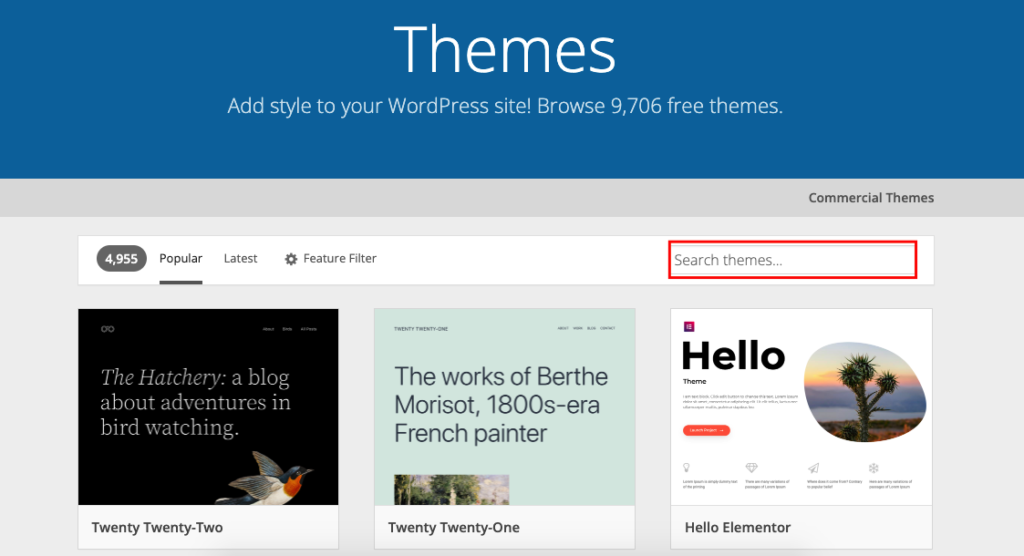
Go to the dashboard. Click on “Appearance”. Then select “Themes”. Click on “Add New”. Search for the theme you want. Click “Install” to begin. After installing, click “Activate”. Now your theme is ready. Customize it to suit your needs. Make sure to save changes often.

Credit: www.youtube.com
Navigating The Theme Customizer
To get to the Theme Customizer, first log in to your WordPress dashboard. Look at the left menu, find Appearance, and click on it. Under Appearance, you will see the option called Customize. Click it to open the Theme Customizer.
The interface shows a live preview of your site. On the left, you see options to change your theme. These options let you change colors, menus, and more. Each change updates the preview on the right. This way, you see how things look before saving.
Customizing Site Identity
Changing your site’s title is simple. Click on the site title box. Type your new name there. Your tagline sits below the title. It tells visitors about your site. Choose words that describe your site best.
The site icon is a small picture. It shows on the browser tab. Choose an image that fits your brand. This icon should be clear and simple. It helps visitors recognize your site quickly.

Credit: wpmarmite.com
Adjusting Colors And Fonts
Colors make your website look good. Choose colors that match your brand. Bright colors can be fun and lively. Soft colors feel calm. Use a color wheel to help choose matching colors. Avoid too many colors. Two or three are enough. This makes the website look clean.
Fonts are the style of letters on your site. Big fonts are easy to read. Small fonts can be hard. Pick a font that is clear. Sans-serif fonts are simple and modern. Serif fonts look classic. Use one or two fonts only. Too many fonts can be confusing. Keep it simple and neat.
Setting Up Menus
First, go to the Appearance tab. Click on Menus. This opens the menu page. Enter a name for your menu in the box. Click Create Menu. You have a new menu now. Add pages by ticking the boxes. Click Add to Menu. Arrange them in any order. Simply drag and drop. Save your menu by clicking Save Menu. Now your menu is ready.
Check your theme settings. Look for Menu Locations. You can assign your menu here. Choose a location from the dropdown. Select the menu you created. Click Save Changes. Your menu is now visible on your site. Different themes have different locations. Explore them to see what fits best.
Configuring Widgets
Widgets are small blocks. They add features to your site. You can put them in sidebars or footers. They make your site look nice. Go to the widget section in your WordPress dashboard. Click “Add” to include a new widget. Drag it to the area you like. To remove, click on the widget and choose “Delete”. It’s simple! You can change them anytime you want.
Some themes have many widget areas. You can customize them easily. Choose the area you want to change. Drag your widget there. Widgets can be text, images, or links. They help visitors find things easily. You can also change widget settings. Click on the widget and adjust its options. This makes your site more personal.
Managing Homepage Settings
A static front page means your homepage stays the same. This is a good choice for business websites. Go to your WordPress dashboard. Click on Settings. Then choose Reading. Select A static page under Your homepage displays. Choose your desired page from the list. Save changes to see the update. This keeps your homepage stable. Visitors will always see the same page first.
Blogs can show posts in different ways. Choose between showing full posts or summaries. Full posts display all content. Summaries show a small part. Go to Settings and click Reading. Find the section titled For each post in a feed. Choose Full text or Summary. Save changes when done. This controls how blog entries appear.
Publishing And Reviewing Changes
Preview changes before publishing. Use the preview button to see updates. This helps catch mistakes early. Colors, fonts, and layouts are visible. It’s like a sneak peek. Make sure everything looks right.
Save your work often. Click the save button after changes. This keeps your work safe. Ready to share? Hit publish. Your site will go live. Visitors will see updates. It’s easy and quick. Stay organized and focused.
Common Customization Issues
Display errors can confuse beginners. Websites may not look right. Images might not appear. Text can seem jumbled. Check your internet connection first. Clear browser cache if problems continue. This refreshes stored data. Sometimes, themes are not updated. Ensure the theme is the latest version. Plugins may conflict with each other. Deactivate plugins one by one. See if the error goes away. Contact your theme support if unsure. They can offer guidance. Keep calm and go step by step.
Sometimes changes cause issues. Go back to default settings. This can fix the problem. Find the reset button in the Customizer. Click it carefully. You won’t lose everything. Content stays safe. Only design settings change back. Make a note of changes before resetting. This helps you remember choices. Use the reset as a last option. Keep experimenting with caution. Always save your work first. This keeps your site stable.
Frequently Asked Questions
How Do I Customize My WordPress Theme?
Customizing your WordPress theme is easy using the Theme Customizer. Access it from your dashboard under ‘Appearance. ‘ You can change colors, fonts, layouts, and more. Preview changes live and save when satisfied. This tool is intuitive, making theme customization accessible for beginners.
What Is WordPress Theme Customizer?
The WordPress Theme Customizer is a built-in tool allowing you to modify your site’s appearance. It provides a user-friendly interface to tweak various elements like colors, fonts, and layouts. Live preview features ensure changes look perfect before saving. This simplifies the design process for beginners.
Can Beginners Use The Theme Customizer Easily?
Yes, beginners can use the Theme Customizer easily. It offers a simple interface to make changes effortlessly. With live previews, it’s user-friendly for adjusting colors, fonts, and layouts. The intuitive design ensures that even novice users can customize their WordPress site effectively.
How To Access Theme Customizer In WordPress?
Access the Theme Customizer by navigating to ‘Appearance’ in your WordPress dashboard. Click ‘Customize’ to open the tool. Here, you can modify site elements like colors and fonts. This intuitive interface allows you to make and preview changes live, ensuring an easy customization process.
Conclusion
Creating a WordPress website is easier than you think. The Theme Customizer tool makes personalization simple. Adjust colors, fonts, and layouts with a few clicks. Beginners can feel confident exploring these options. Dive in, experiment, and see your vision come to life.
Remember, practice makes perfect. Don’t be afraid to try new things. You can always change settings later. Enjoy building your site step by step. Your unique website awaits your creativity. Keep it simple, stay curious, and have fun! You’re on your way to a beautiful WordPress site.


