
Are you eager to set up your own website but feeling overwhelmed by the technical details? You’re not alone.
The good news is, creating a WordPress website can be straightforward, especially when you start with the default theme. This step-by-step guide is tailored just for you, the beginner, to help you launch a stunning and functional website without the hassle.
Imagine sharing your thoughts, showcasing your work, or building your brand online, all with ease. By the end of this article, you’ll have the confidence and knowledge to bring your website to life. Ready to dive in and transform your ideas into reality? Let’s get started!
Setting Up Your Domain And Hosting
First, pick a domain name for your website. A domain is your site’s address. It should be easy to remember. Try using simple words and keep it short. Next, choose a hosting provider. Hosting is where your site lives on the internet. Many companies offer hosting services. Compare their prices and features. Some popular choices are Bluehost, SiteGround, and HostGator. Check their support and reliability.
After selecting a provider, sign up and pay. Now, connect your domain to your hosting. Most providers guide you through this process. Follow their steps carefully. Once done, your website is ready for WordPress. You can now install WordPress and start building your site.

Credit: www.youtube.com
Installing WordPress
Starting a website with WordPress is easy. First, you need web hosting. Choose a hosting service like Bluehost or SiteGround. Then, install WordPress. Most hosting sites offer a one-click install. Follow the simple steps they provide.
Once installed, log into your WordPress dashboard. Use your login details. Here, you can see many options. Choose the default theme to start. It’s simple and easy to use. You can change it later if you want.
Make sure to update your site often. Keep it secure. WordPress has regular updates. Install these to protect your website. Now, your site is ready to go!
Choosing The Default Theme
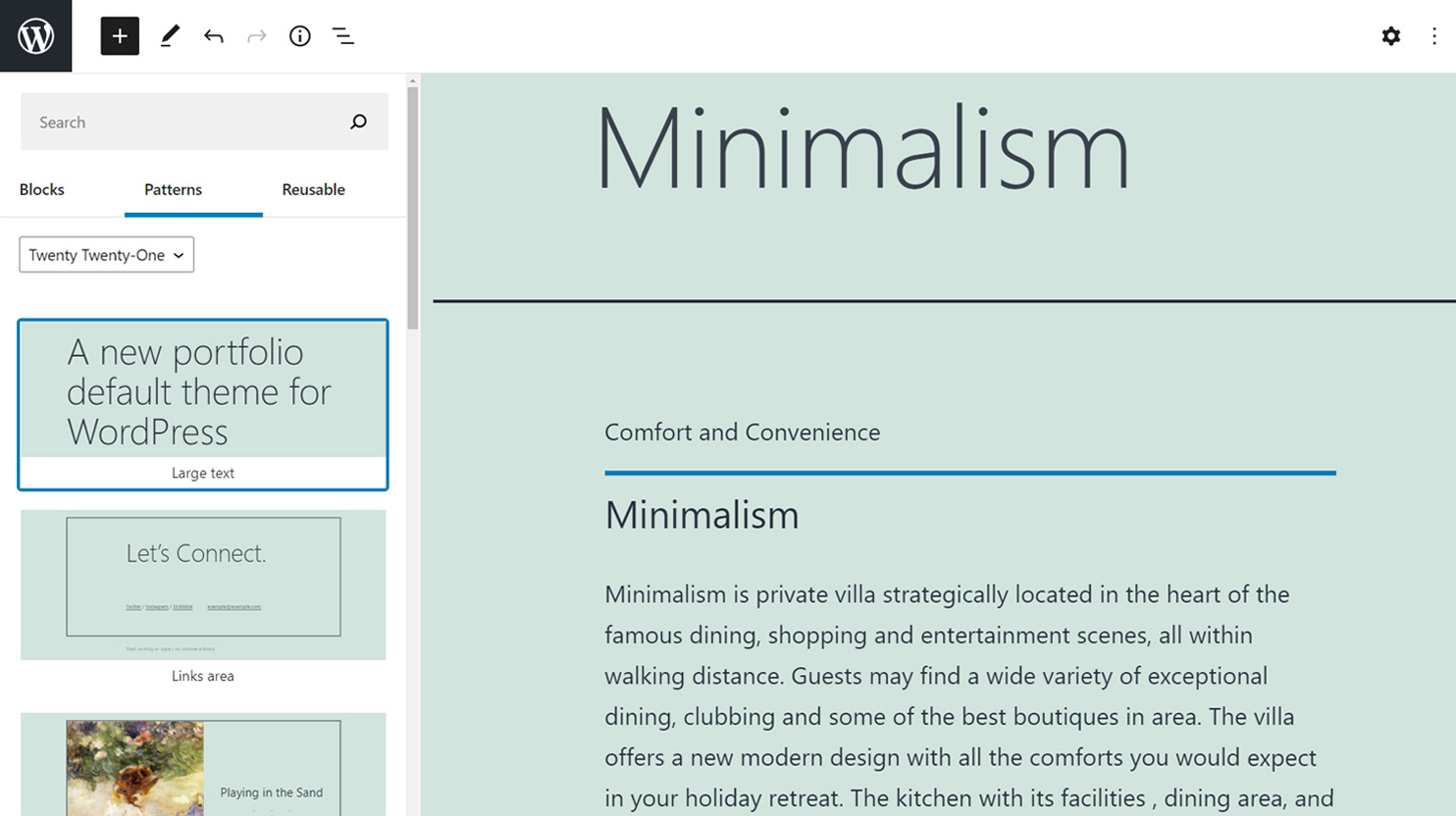
The default theme is easy to use. It is designed for beginners. You can set it up fast. It has a clean design. The layout is simple and neat. Many people like its look. It is also mobile-friendly. This means it works well on phones and tablets. Updates are done by WordPress. This keeps your site secure and up-to-date. Customizing it is possible. You can change colors and fonts. No coding skills are needed for this.
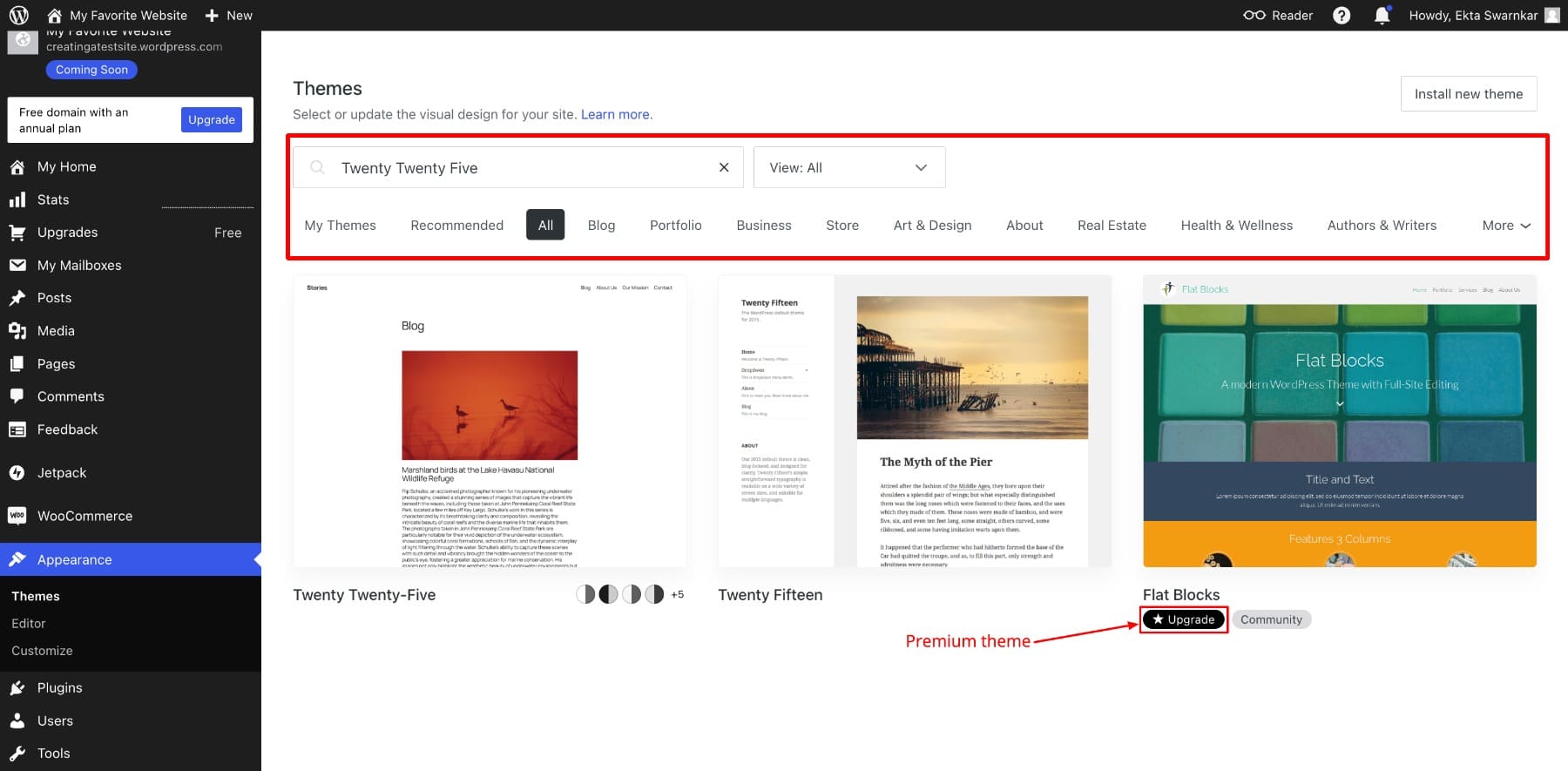
Go to your WordPress dashboard. Click on “Appearance”. Then click “Themes”. You will see the default theme. Click “Activate”. Your theme is now live. This process is very simple. You can now add your content. Enjoy your new website!
Credit: thimpress.com
Customizing The Default Theme
Change the color to make your site look nice. Use the theme customizer. Pick colors that match your idea. Fonts help with reading. Choose fonts that are clear. Mix colors and fonts for a good look. Make your site easy to read.
The header is at the top. It can have your site name. Add a logo to make it special. The footer is at the bottom. You can add links there. Also, add contact info. Headers and footers help with navigation. They make the site look complete.
Widgets add fun stuff to your site. Like a clock or calendar. Put them in the sidebar. Menus help people find things. Use them to list pages. Organize your site better. This makes your site friendly. People will find what they need easily.
Creating Essential Pages
The Home Page is the first thing people see. It should be clear and friendly. Add a title with the name of your site. Include a short, welcoming paragraph. Use a simple image to make it look nice. Make sure the menu is easy to find. Include links to other pages. These links help people explore your site.
The About Us Page shares your story. Write about who you are and what you do. Keep it short and clear. Use friendly language. Share your goals and values. Add a photo if you can. Photos make the page more personal. Let visitors know why your site is special.
The Contact Page lets visitors reach you. Add an email address. Include a simple form for messages. Make sure it’s easy to use. Add your phone number if needed. Include links to your social media. This helps people connect with you. Keep the page neat and simple.
Adding Content
Start with a new post by clicking “Add New” under “Posts.” Write a catchy title for your post. Use simple words. Keep sentences short. Add your text in the large box. Use the toolbar to bold or italicize words. When you finish, click “Publish” to make it live.
Add images or videos to your post. Click “Add Media” above the text box. Choose files from your computer. Press “Upload” to add them. You can resize or edit them. Use the media library to manage files. Click on a file to see more options. Add descriptions to help readers. This makes your content engaging.
Enhancing Functionality With Plugins
Discover the power of plugins to enhance your WordPress website’s functionality. With just a few clicks, you can add features like contact forms, image galleries, and SEO tools. Even beginners can easily customize their site’s default theme to meet specific needs.
Transform your website effortlessly and enjoy a seamless user experience.
Installing Essential Plugins
Plugins add features to your WordPress site. They make websites better. Start with essential plugins. Yoast SEO helps with search engine ranking. Akismet fights spam. Jetpack offers site security. WooCommerce is for online stores. These plugins are easy to install.
Plugin Configuration
Configuring plugins is simple. Go to the plugin settings. Follow instructions provided. Adjust settings to suit your needs. Some plugins need an API key. Get the key from the plugin website. Always save your changes. Test the plugin. Make sure it works well. Keep plugins updated. They get new features and fixes. Updating is important for security.
Ensuring Website Security
Building a WordPress site with a default theme is simple. Prioritize security by updating themes and plugins regularly. Use strong passwords and enable two-factor authentication to protect your site from threats.
Setting Up Backups
Backing up your website is very important. It keeps your data safe. Use tools like UpdraftPlus or BackupBuddy. These tools help save your site’s data. Always store backups in a different place. This way, you can restore your site easily if needed.
Installing Security Plugins
Security plugins protect your site from bad people. Wordfence and Sucuri are popular choices. They stop hackers from entering your site. Install them to keep your site safe. These plugins also help monitor your site. They alert you when something looks wrong. Keep plugins updated to ensure strong protection.
Optimizing For Seo
Start by setting up a SEO-friendly title and description. Use simple words. Keep it short and clear. Add keywords people search for. Ensure they are relevant. Check the permalink structure. Use “post name” for easy reading. Avoid numbers and symbols. Make sure your URLs are clean. They should explain the page content.
Select an SEO plugin for WordPress. Popular choices are Yoast SEO and All in One SEO Pack. Install the plugin. Configure basic settings. Add a XML sitemap. This helps search engines find your pages. Use the plugin to analyze your content. Check for errors. Get suggestions for improvement. Follow these tips. Make your site visible in searches.
Monitoring And Maintenance
Creating a WordPress website involves monitoring and maintenance. Check for updates regularly to keep it secure. Backup your site often to avoid data loss.
Updating WordPress And Plugins
Keep WordPress and plugins updated. Updates fix bugs and improve security. Check for updates weekly. Log in to your dashboard. Click on updates. Update plugins first, then WordPress. Back up your site before updates. Updates ensure safety and smooth running.
Monitoring Website Performance
Website speed is crucial. Slow sites lose visitors. Use tools like Google PageSpeed. Test website speed monthly. Optimize images and reduce plugins. Monitor server uptime. Use plugins like Uptime Robot. Check how often your site is down. Ensure fast loading and smooth browsing.
Credit: www.elegantthemes.com
Frequently Asked Questions
How Do I Start A WordPress Website?
To start a WordPress website, first choose a domain name and hosting provider. Install WordPress through your hosting dashboard. Then, log in to your WordPress dashboard. From there, you can customize your site using the default theme and add essential plugins to enhance functionality.
What Is The Default WordPress Theme?
The default WordPress theme is the theme automatically activated upon installation. It is typically updated annually. This theme is designed to be simple, responsive, and user-friendly. It provides a solid foundation for beginners to start building their website without needing extensive design skills.
Can I Customize The Default WordPress Theme?
Yes, you can customize the default WordPress theme to fit your needs. Use the WordPress Customizer to change colors, fonts, and layout. You can also add widgets and menus. For advanced customization, use the theme’s built-in options or add custom CSS through the Customizer.
Is The Default WordPress Theme Mobile-friendly?
Yes, the default WordPress theme is mobile-friendly and responsive. It automatically adjusts its layout for different screen sizes. This ensures your website looks good on desktops, tablets, and smartphones. Mobile-friendly design is crucial for user experience and search engine ranking.
Conclusion
Creating a WordPress website with a default theme is simple. Beginners can start quickly without much hassle. This step-by-step guide offers clarity and ease. You learn to manage settings and customize themes. With practice, you gain confidence in website design.
Experiment and explore various features to enhance your site. Remember, patience is key when learning new skills. Keep improving and updating your website regularly. Your online presence grows as you get more comfortable. Enjoy the journey of building and maintaining your WordPress site.
It’s a rewarding experience that brings your ideas to life.


