
Have you ever stumbled upon a stunning HTML template and thought, “I wish I could use this on my WordPress site”? You’re not alone.
Many website owners crave the flexibility to transform their favorite HTML designs into fully functional WordPress themes. The good news is, you can do it, and it’s easier than you think. Imagine the satisfaction of seeing your unique vision come to life on your website.
By learning how to convert an HTML template into a WordPress theme, you gain control and the ability to customize your site like never before. Ready to unlock the full potential of your website and captivate your audience? Let’s dive into the process, step by step. Your dream website is just a few clicks away.
Preparing Your Environment
First, you need a local server on your computer. This server helps run WordPress. Software like XAMPP or MAMP can help. They are easy to use. Download and install one of these tools. Follow the steps on the screen. This will set up your local server. Now, your computer can act like a small server. This is important for running WordPress.
Start by downloading the latest WordPress package from its official site. Once downloaded, unzip the files. Move them to the htdocs folder if you use XAMPP. Now, open your browser. Type localhost/wordpress in the address bar. Follow the on-screen instructions. Create a new database in PHPMyAdmin. Link WordPress to this database. With these steps, WordPress will be installed. Now, you’re ready to create your theme.

Credit: www.youtube.com
Understanding WordPress Theme Structure
WordPress themes have many files. Each file has a job. The main file is style.css. It tells WordPress about the theme. Other files are index.php, header.php, and footer.php. These files make the theme work. A folder called images holds pictures. Another folder, js, keeps JavaScript files. All files and folders work together. They make themes look nice.
WordPress has a smart system. It uses template hierarchy. This means it picks the right file for a page. For example, single.php is for posts. page.php is for pages. If it can’t find a file, it uses index.php. This helps WordPress work well. It makes sure pages look good. Learning this system helps. It lets you make great themes.
Converting Html To Php
Start by breaking the HTML template into smaller parts. Identify the common sections like header, footer, and sidebar. These sections repeat on different pages. Each section should be in its own file. This helps in managing the code. It’s easier to update one file than many pages. Look for the main content area too. This area will change on different pages.
Create a new PHP file for the header. Copy the header code from the HTML template. Save it as `header.php`. Do the same for the footer. Save it as `footer.php`. Include these files in your main PHP files using `php include ‘header.php’; ?` and `php include ‘footer.php’; ?`. This way, the header and footer are in all pages. Changes in one file update every page.
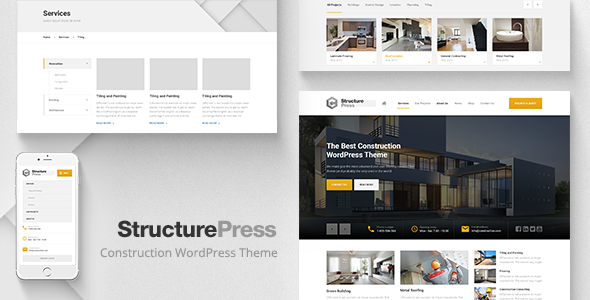
Credit: themeforest.net
Integrating WordPress Functions
Transform an HTML template into a WordPress theme by integrating essential WordPress functions. This process involves converting static HTML elements into dynamic WordPress components, ensuring seamless functionality and design consistency.
Replacing Static Content Using WordPress Loop
Replace static content with WordPress functions. This makes your theme dynamic. Start by identifying static sections. These could be headers, footers, or sidebars. Use PHP tags to call WordPress functions. Replace hardcoded text with WordPress functions like the_title() or the_content(). This will pull content from your WordPress database.
The WordPress Loop is key here. It fetches and displays posts. Use the Loop to show posts dynamically. Wrap your HTML structure with PHP tags. Add if and while statements to control the Loop. This helps display posts the way you want.
Remember to test your theme. Check if content displays correctly. Look for any missing elements. Ensure all functions work smoothly. This creates a seamless experience for users.
Adding Css And Javascript
Enqueueing means adding CSS and JavaScript files to your theme. WordPress provides functions for this. Use wp_enqueue_style() for CSS. Use wp_enqueue_script() for JavaScript. These functions help manage files efficiently. Place them in the functions.php file.
Dependencies are files needed by other files. Use wp_enqueue_style() and wp_enqueue_script() to manage them. Specify dependencies in these functions. This ensures files load correctly. For example, jQuery can be a dependency for scripts.
Customizing Theme Options
Themes need support for many features. This includes custom logos, post formats, and HTML5. Add support in the theme’s functions file. This tells WordPress what the theme can do. It makes your theme powerful and flexible. Developers use a simple function for this. It is called add_theme_support(). This function is very important. It tells WordPress about your theme’s capabilities.
Custom menus help users navigate a website. They are easy to create in WordPress. Use the register_nav_menus() function. This adds menu support to your theme. Then, users can set up their own menus. Menus can link to any page or post. They are very flexible. You can find this function in the theme’s functions file. It is easy to use and very helpful.
Testing And Debugging
Creating a WordPress theme from an HTML template involves careful testing and debugging to ensure functionality. Identifying errors early helps streamline the conversion process. Focus on resolving issues promptly to maintain a seamless user experience.
Checking For Errors
Errors can break your theme. Check your HTML and CSS code. Look for missing tags. Fix broken links. Wrong paths can cause trouble. Use a debugger to find mistakes. Debuggers help spot errors quickly. Update your code regularly. Keep it clean and organized.
Validating Responsive Design
Responsive design is important. Test your theme on different devices. Use tools like BrowserStack. Check if images and text fit well. Adjust CSS rules if needed. Make sure the layout looks good. Responsive design ensures user satisfaction. Mobile users should have a smooth experience.
Finalizing And Launching
Transforming an HTML template into a WordPress theme involves finalizing essential files and launching the website. Ensure all functions work smoothly and are compatible with various devices. Finally, upload your theme to WordPress and activate it to bring your design to life.
Optimizing For Performance
Speed is key for any website. Slow sites lose visitors fast. First, check image sizes. Large images slow down pages. Use tools to compress images. Smaller images load quicker. Next, look at your code. Clean code runs better. Remove any unused CSS or JavaScript. Minimize them to boost speed. Also, try caching. Caching saves data for later. This helps with faster page loads. Lastly, pick a good hosting provider. Good hosting means better speed and uptime.
Preparing For Deployment
Check everything before going live. Look at all links. Make sure they work. Fix any broken ones. Test your theme on different devices. It should look good everywhere. Use a staging site for final checks. This is a test area. It lets you catch mistakes. Review your SEO settings. Good SEO helps people find your site. Double-check your plugins. Make sure they’re updated. Finally, back up your site. A backup is a safety net.

Credit: www.wpexplorer.com
Frequently Asked Questions
How To Convert Html Template To WordPress?
To convert an HTML template to a WordPress theme, start by dividing the HTML into header, footer, and sidebar sections. Next, integrate these sections into WordPress theme files using PHP. Ensure to replace static content with WordPress functions to dynamically generate content.
What Is Needed To Create A WordPress Theme?
To create a WordPress theme, you need basic knowledge of PHP, HTML, CSS, and JavaScript. Familiarity with WordPress functions and the theme hierarchy is also essential. Additionally, a code editor and a local development environment like XAMPP or WAMP can be helpful.
Can Any Html Template Become A WordPress Theme?
Most HTML templates can become WordPress themes with modifications. You’ll need to divide the HTML into appropriate sections and integrate WordPress functions. Ensure the template structure aligns with WordPress theme standards for successful conversion.
Why Convert Html To WordPress Theme?
Converting HTML to a WordPress theme offers dynamic content management. WordPress provides an easy-to-use admin panel for content updates. This conversion also enhances SEO capabilities and allows better plugin integration for additional functionalities.
Conclusion
Creating a WordPress theme from an HTML template is straightforward. Start by understanding your HTML code. Use it as a guide. Convert the static elements to dynamic WordPress functions. This makes your site interactive. Testing the theme is crucial. Check compatibility with plugins.
Ensure responsiveness on all devices. Remember to optimize for SEO. Good SEO practices improve visibility. Keep your design clean and user-friendly. Users appreciate easy navigation. A well-crafted WordPress theme enhances your site’s appeal. With patience and practice, you can master this process.
Your site will stand out with a custom theme.


