
Are you ready to take your WordPress site to the next level by creating your very own custom theme? Imagine having a unique design that perfectly reflects your style and brand, setting your website apart from the rest.
Creating a WordPress theme in 2017 may sound daunting, but with the right guidance, it’s entirely achievable—even for beginners like you. In this guide, you’ll discover the essential steps to design and develop a theme that not only looks stunning but also functions flawlessly.
We’ll break down the process into simple, manageable tasks, ensuring you stay motivated and excited throughout. Get ready to unleash your creativity, enhance your website’s performance, and captivate your audience with a WordPress theme that’s truly yours. Let’s dive in and make your vision a reality!
Choosing The Right Tools
A good text editor makes coding easy. Try using Notepad++ or Sublime Text. They help see errors quickly. For more features, use an IDE like Visual Studio Code. It has many tools to help you code better. These tools save time and reduce mistakes.
Graphics software is important for designing themes. Use Photoshop or GIMP to create images. They help make your site look nice. Icons and logos can be made here too. These tools let you design freely. Good design attracts more visitors.
Build your theme on a local server. Try using XAMPP or Local by Flywheel. These tools help test themes before going live. This makes sure everything works well. Testing locally finds errors early. It keeps your live site safe.
Setting Up Your Workspace
First, set up WordPress on your computer. Download XAMPP or MAMP. These tools help you run WordPress locally. Install them. Start the server and database. Create a new database in phpMyAdmin. Download WordPress from its official site. Unzip the files. Place them in the htdocs folder. Access your WordPress site by visiting localhost in your browser. Follow the installation steps. Your local WordPress is now ready.
Begin by creating a theme folder. Go to the WordPress directory. Find the wp-content folder. Inside, locate themes. Make a new folder. Name it your theme name. This folder will hold all theme files. Keep it organized. Your theme folder is now set.
Build a basic file structure. Inside your theme folder, create new files. Start with style.css. This file is crucial for styling. Add index.php. This is the main template file. Include functions.php for theme functions. These files are essential. They make your theme work. You now have a basic structure. It’s ready to grow.
Understanding WordPress Theme Basics
A WordPress theme is like a puzzle. Each piece is a file. These files create the look of your site. The main file is style.css. It holds the theme’s styles. Another key file is index.php. It displays the content.
Themes also use a file called functions.php. This file adds special features to your site. You will find templates too. They control how pages look. Header, footer, and sidebar are some examples.
Template hierarchy is like a roadmap. It tells WordPress which file to use. It follows a set path. The path depends on the page type. For a single post, WordPress looks for single.php. If it can’t find it, it uses index.php.
Pages have their own rules. First, WordPress checks for page-slug.php. If not found, it tries page-id.php. This order helps WordPress display the right template.
The Loop is the heart of WordPress. It shows posts on your site. It starts with a question: Are there any posts? If yes, it shows them one by one. This is The Loop’s job. It repeats until no posts are left.
The Loop is flexible. It can show one post or many. It adjusts to your needs. You can also change it. Add filters or styles. Make it your own. The Loop makes your site come alive.
Creating The Header And Footer
Start with a simple header. Use HTML tags like tags for this. Keep it simple and clean. Use CSS to style it later. Make sure it looks good on all devices.
Create a basic footer using tags. Add important links here. Include a copyright notice. Use contact information for your site. Maybe add social media links. Keep it neat and easy to read. Style it with CSS for a better look. A well-designed footer helps users find information easily.
Designing The Main Page Layout
Custom homepages make sites unique. They show your site’s personality. Start with a simple design. Use colors that match your brand. Choose clear fonts for text. Add a logo to the top left. This helps people know your site. Images are important. They make the page pretty. Use high-quality pictures. People love them.
Responsive designs work on all devices. Phones, tablets, and computers. They fit each screen size. Make buttons easy to tap. Use flexible grids. These help content adjust. Test your site often. Check on different screens. Mobile users are many. They need sites to load fast. Keep images small. Use clean code. This speeds things up.
Styling With Css
Keeping CSS files organized is very important. This helps in making changes easily. It’s best to create different files for different parts of your website. For example, you can have one file for the header and another for the footer. This makes it simple to find and edit code. Remember, clear names for files help too. It saves time.
Preprocessors like Sass and LESS are useful tools. They make CSS easier to write and manage. These tools allow you to use variables and functions. This means you can avoid writing the same code again and again. It makes your code shorter and cleaner. Learning to use a preprocessor can improve your CSS skills.
Adding Dynamic Features
Custom widgets make themes more interactive. A widget is like a small box. It does something special. For example, it can show the weather. Or it can show a clock. Adding widgets to your theme is fun. First, think of what you want your widget to do. Next, write the code for it. This code must be in PHP language. Finally, place the widget in your theme. Now, your theme has a new feature!
Theme options let users change the look of a site. They can pick colors and fonts. They can choose layouts too. To add options, use the WordPress Customizer. It is very helpful. First, make a settings page. Add choices for users. Then, link these choices to your theme. Now, users can easily update their site. They will love the new options!
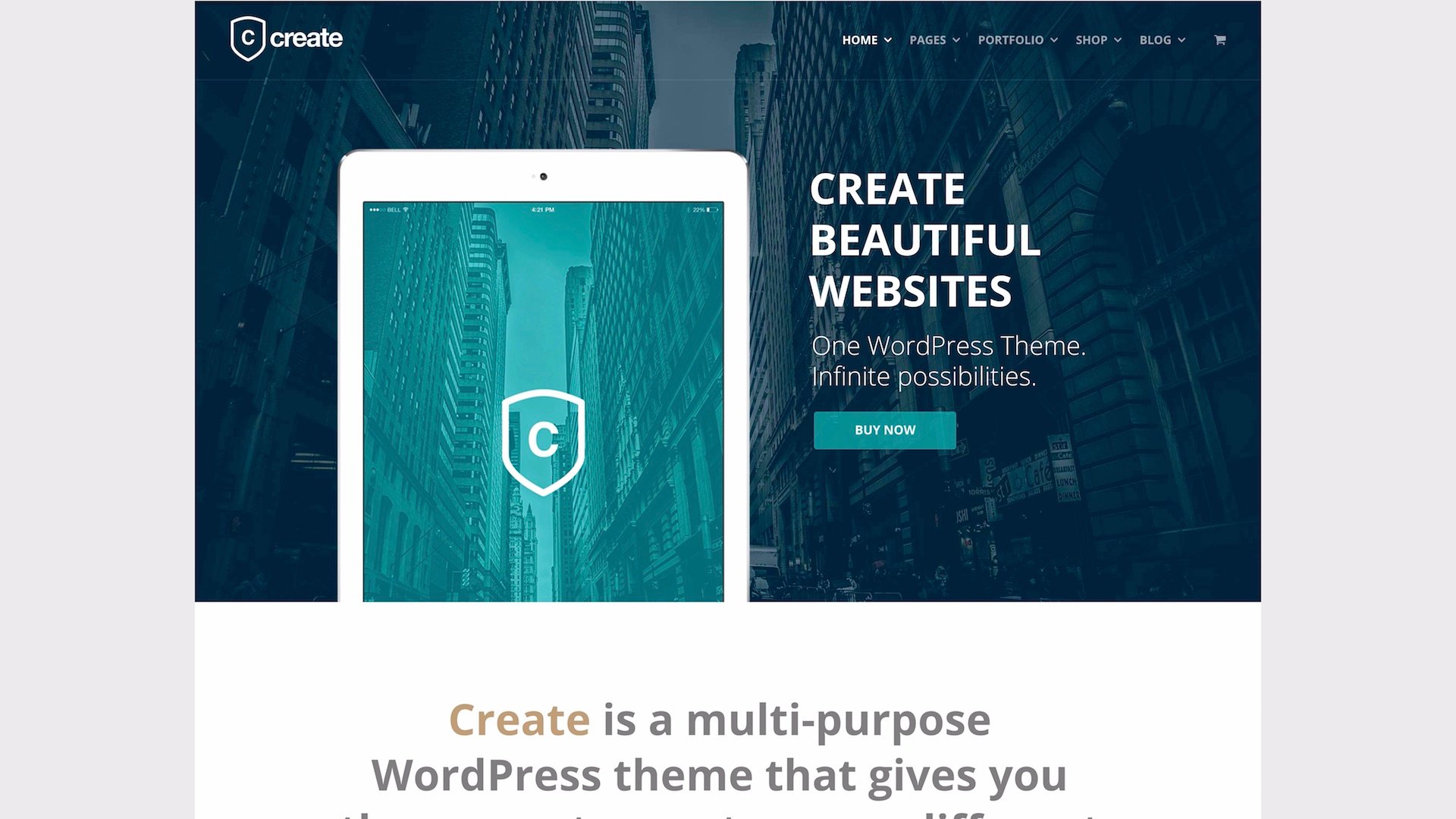
Credit: siteorigin.com
Ensuring Theme Compatibility
A theme must work well on all browsers. Check it on Chrome, Firefox, and Safari. Each one might display things differently. Use browser tools to help with this task. These tools can show how your theme looks. They will help in fixing display issues. It is important for your theme to look the same everywhere. This keeps users happy and your site looking good.
Many people use phones to browse websites. A theme must be mobile-friendly. Test the theme on small screens. Make sure text and images are clear. Buttons should be easy to tap. Use responsive design to achieve this. This makes your site fit any screen size. A mobile-friendly theme keeps users engaged.
Optimizing Performance
Minifying makes your files smaller. This helps pages load faster. CSS and JavaScript files often have extra spaces. Removing these spaces reduces file size. Minify tools do this job well. They cut down on space and comments. Your website uses less data. Smaller files mean quicker loads.
Fast websites make users happy. Images can slow down a site. Use smaller images to speed things up. Lazy loading helps too. It loads images only when needed. This saves time. Consider using a content delivery network (CDN). It stores files close to users. This means faster loading times. Simple tweaks improve speed a lot.

Credit: www.youtube.com
Submitting To The WordPress Repository
Creating a WordPress theme in 2017 involves submitting it to the WordPress Repository. Ensure your theme follows WordPress guidelines. Use clear code and a unique design. This helps in getting approval and reaching a wider audience. Submitting themes enhances visibility and credibility in the WordPress community.
Preparing For Submission
To submit your theme, follow WordPress rules. Check your theme is ready. Make sure it is clean and neat. Test everything twice. Find any bugs and fix them. Your theme must be safe. Ensure no malware or viruses. This is very important.
Use the right files. Include a license file. WordPress requires it. Add a readme file too. This helps users understand your theme. Your code should be clear. Developers will check it. Write notes in your code. This helps others.
Follow WordPress guidelines. These are rules. They keep themes safe. This helps users trust your theme. Good themes follow these rules. Check each rule carefully. Your theme must pass these checks.

Credit: thimpress.com
Frequently Asked Questions
How To Start Creating A WordPress Theme?
To start, install WordPress locally using tools like XAMPP or MAMP. Familiarize yourself with WordPress theme structure. Create essential files like style. css and index. php. Utilize templates and hooks for functionality. Test your theme on different browsers. Ensure it’s responsive and SEO-friendly before launching.
What Tools Do I Need For Theme Development?
You’ll need a code editor like Visual Studio Code or Sublime Text. Install local development environments like XAMPP or MAMP. Use version control systems like Git for collaboration. Utilize design tools like Adobe XD for mockups. Testing tools like BrowserStack ensure cross-browser compatibility.
How Do I Make My Theme Responsive?
Use CSS media queries to adjust styles for different screen sizes. Implement flexible grid layouts with CSS Flexbox or Grid. Optimize images for faster load times. Test responsiveness across various devices using browser developer tools. Ensure user-friendly navigation on mobile devices for better accessibility.
Can I Customize Existing WordPress Themes?
Yes, you can customize existing themes through child themes. Create a child theme folder with style. css and functions. php files. Use hooks and filters to modify parent theme functionality. Customize styles using CSS overrides. Ensure updates don’t affect your customizations by maintaining a separate child theme.
Conclusion
Creating a WordPress theme in 2017 is a rewarding journey. You learned the basics. You explored design and functionality. You discovered coding essentials. Now, you can build a unique theme. Practice makes perfect. Keep experimenting and improving your skills. Don’t hesitate to seek help online.
Community forums are valuable resources. Stay updated with new trends. Your creativity will shine in every project. Keep your work simple and user-friendly. Enjoy the process and have fun creating. Your theme is a reflection of your ideas. Share it proudly with the world.


