
Creating a WordPress site from a theme can feel like a daunting task. But what if you could transform this seemingly complex process into a simple, enjoyable experience?
Imagine having a professional-looking website that perfectly reflects your brand or personal style, all without needing to write a single line of code. You’re just a few steps away from bringing your vision to life, and it all starts with the right theme.
You’ll discover a straightforward, step-by-step guide to building a stunning WordPress site using a theme. Whether you’re a beginner or someone who’s tried before and gotten stuck, you’ll find practical tips and insights designed to empower you. By the end, you’ll not only have a functional website but also the confidence to manage and update it with ease. Stick around as we demystify the process and unlock the secrets to creating a website that stands out. You’ll learn how to choose the perfect theme, customize it to suit your needs, and optimize it for performance and search engines. Get ready to turn your digital dreams into reality!
Credit: www.wpzoom.com
Choosing The Right Theme
Think about what your site will do. Is it a blog, a shop, or something else? Knowing your website’s purpose helps you pick the right theme. A good theme should match what your site is about. This makes it easier for people to use your site.
Many places sell WordPress themes. Some popular ones are ThemeForest and WordPress.org. These marketplaces have many options. You can find themes for blogs, shops, and more. Look at the ratings and reviews. This will help you choose a good theme.
Check what features a theme has. Does it come with customization options? Can you change colors and fonts? See if it is responsive for mobile devices. A theme with many features can make your site better. But too many features might slow it down.
Installing WordPress
Choose a hosting provider that is reliable and offers good support. Compare pricing and features. Popular options include Bluehost, SiteGround, and HostGator. Make sure the provider supports WordPress. Check for uptime guarantees and customer reviews. This helps ensure your site runs smoothly.
Most hosting providers offer a one-click install for WordPress. Find the WordPress installer in your hosting dashboard. Follow the simple steps to install. You need to enter your site name and admin details. Wait for the software to install. It usually takes a few minutes. Your site is ready once the installation is complete.
Log in to your WordPress dashboard. Start with general settings like site title and tagline. Set the time zone and language. Choose permalinks for URLs. Customize your site with themes and plugins. Make your site unique and functional. These settings help your site look professional.
Uploading And Activating The Theme
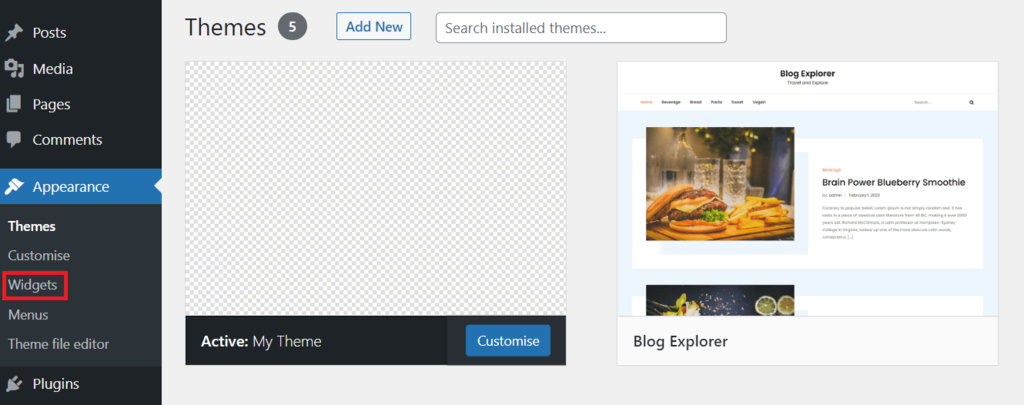
Start by logging into your WordPress dashboard. You need your username and password. The dashboard is where you manage your site. It’s like the control center. Find the “Appearance” section. It’s on the left side. Click it.
Choose “Themes” from the menu. Then click “Add New.” There is a button that says “Upload Theme.” Click it. Select the theme file from your computer. It should be a .zip file. Click “Install Now” to upload it.
Once uploaded, look for the “Activate” button. Click it. Your new theme becomes live. Your site will now look different. Check the front end to see changes. Make sure everything looks good. Adjust settings if needed.
Customizing Theme Appearance
Crafting a unique WordPress site involves adjusting the theme’s appearance. Choose colors, fonts, and layouts that reflect your style. Personalize every detail to match your brand and engage visitors effectively.
Using The WordPress Customizer
The WordPress Customizer helps you change your site’s look. It is simple and fun. You can see changes in real-time. Choose new colors, fonts, and styles. Each click shows what your site will look like.
Adjusting Layout And Design
Change the layout to fit your style. Move sections around. Add or remove sidebars. Choose between one, two, or three columns. Make your site look just right.
Incorporating Brand Elements
Add your logo for a personal touch. Choose a background that matches your brand. Your site’s identity becomes clear. Use your brand’s colors and fonts. Make your site stand out.
Adding Essential Plugins
Enhancing Functionality of your WordPress site is easy with plugins. Try using contact form plugins. They help visitors reach you easily. Add social media plugins. They let users share your content. Use an SEO plugin. It improves your site’s visibility on search engines.
Improving Security is vital for your WordPress site. Install a security plugin. It protects against hacks. Use a backup plugin. It saves your data. Consider a firewall plugin. It blocks unwanted traffic.
Boosting Performance keeps your site fast. Use a caching plugin. It speeds up page loads. Try an image optimization plugin. It reduces image sizes. Consider a database cleaner plugin. It removes unwanted data.
Credit: www.hostinger.com
Creating Core Pages
Crafting essential pages in WordPress begins by selecting a suitable theme. Themes offer a structured design, simplifying website creation. Customize the core pages—home, about, and contact—to align with your brand and engage visitors effectively.
Designing A Home Page
Start by choosing a clean and simple layout. Add a catchy headline. Make sure it tells what your site is about. Include a few images. Images make the page lively. Add a short welcome message. Keep it friendly and warm. Don’t forget to link to other pages. This helps visitors explore more.
Building An About Us Page
Share your story and mission. Tell visitors who you are. Use simple words. Let them know why you started. Talk about your team. Keep it personal. Add a picture or two. Pictures make it real. End with a friendly note. Make visitors feel they know you.
Setting Up A Contact Page
Provide your email and phone number. Make sure they are correct. Add a contact form. This helps visitors reach you fast. Include your address if you have one. A map can help too. Keep the form simple. Just ask for a name, email, and message. Thank visitors for getting in touch.
Optimizing For Seo
SEO plugins help improve your site’s visibility. They guide you to add keywords. Keywords help search engines find your site. Choose a plugin like Yoast SEO or All in One SEO. These plugins are easy to use. They offer tips to improve content. Follow their advice for better results.
Meta descriptions appear in search results. They explain what your page is about. Keep them short and clear. Use important keywords in them. This helps users understand your content. A good meta description can attract more visitors. Remember, it should not be too long.
Page load speed is very important. A slow site can lose visitors. Use tools like Google PageSpeed Insights. They show how to speed up your site. Optimize images to make them smaller. Less data means faster loading. Choose a fast hosting service. It can make a big difference.
Credit: blog.templatetoaster.com
Testing And Launching
Testing and launching your WordPress site ensures everything works smoothly. Check links, images, and plugins for errors. Once verified, publish your site for visitors to explore.
Checking Site Responsiveness
Make sure your site looks good on all devices. Try phones, tablets, and computers. Adjust images and text sizes. Check buttons and links. They should be easy to click. Your site should load fast. Users dislike waiting.
Ensuring Browser Compatibility
Test your site on different browsers. Some common ones are Chrome, Firefox, and Safari. Check if everything works fine. Look for broken images or links. Fix any errors you find. Use tools to help with testing.
Launching The Website
Prepare for launching your site. Double-check all pages. Ensure everything is working. Inform people about your site. Use social media or email. Keep an eye on your site after launch. Fix problems quickly.
Frequently Asked Questions
How Do I Choose A WordPress Theme?
Selecting a WordPress theme involves considering your site’s purpose and audience. Look for themes that offer responsive design, customization options, and good support. Evaluate user reviews and ratings to ensure quality. Prioritize simplicity and clean design to enhance user experience and site performance.
Can I Customize A WordPress Theme?
Yes, you can customize a WordPress theme to suit your needs. Use the WordPress Customizer to change colors, fonts, and layouts. Many themes offer additional settings and options for deeper customization. Consider using child themes or custom CSS for more advanced changes without affecting the original theme.
What Are The Steps To Install A WordPress Theme?
Installing a WordPress theme is straightforward. Navigate to the WordPress dashboard, click on “Appearance,” then “Themes,” and “Add New. ” Search for themes or upload a theme file. Once you’ve found your desired theme, click “Install” and then “Activate” to apply it to your site.
How Can I Ensure My Theme Is Seo-friendly?
To ensure your theme is SEO-friendly, choose themes with clean code and fast loading times. Look for built-in SEO features like schema markup and compatibility with SEO plugins. Responsive design is crucial for mobile optimization, and proper heading structures enhance search engine visibility.
Conclusion
Creating a WordPress site from a theme is simple. Start by choosing a theme that fits your needs. Install it on your WordPress site. Customize the design to make it unique. Add your content, like text and images, to engage visitors.
Use plugins to enhance site functions. Always check your site’s performance and speed. Regular updates keep your site secure. Test it on different devices. This ensures a smooth user experience. With these steps, your WordPress site will be ready. Enjoy sharing your content with the world!


