
Are you looking to customize your WordPress site without the risk of losing your changes with each update? Creating a WordPress child theme is the perfect solution, and you can easily manage this through your cPanel.
Imagine having the flexibility to tweak your website’s design and functionality while keeping the main theme intact. This not only saves you time but also ensures that your site remains unique and aligned with your vision. In this guide, you’ll discover how to effortlessly set up a child theme using cPanel, unlocking a world of customization possibilities.
Stick around, and you’ll soon master a skill that sets your website apart, ensuring it stands out in a sea of cookie-cutter designs.
Credit: wedevs.com
Benefits Of Using A Child Theme
A child theme helps keep your custom changes safe. Even after updates, your changes stay intact. This means your website won’t break. It’s a smart way to save time and effort.
Using a child theme makes your site easy to manage. You can try new looks without worries. If you don’t like the changes, you can go back. No stress, just simple steps.
Many experts recommend using child themes. They offer flexibility and security. You can learn and grow with your site. Make changes, and watch your website shine.
Credit: happyaddons.com
Accessing Cpanel
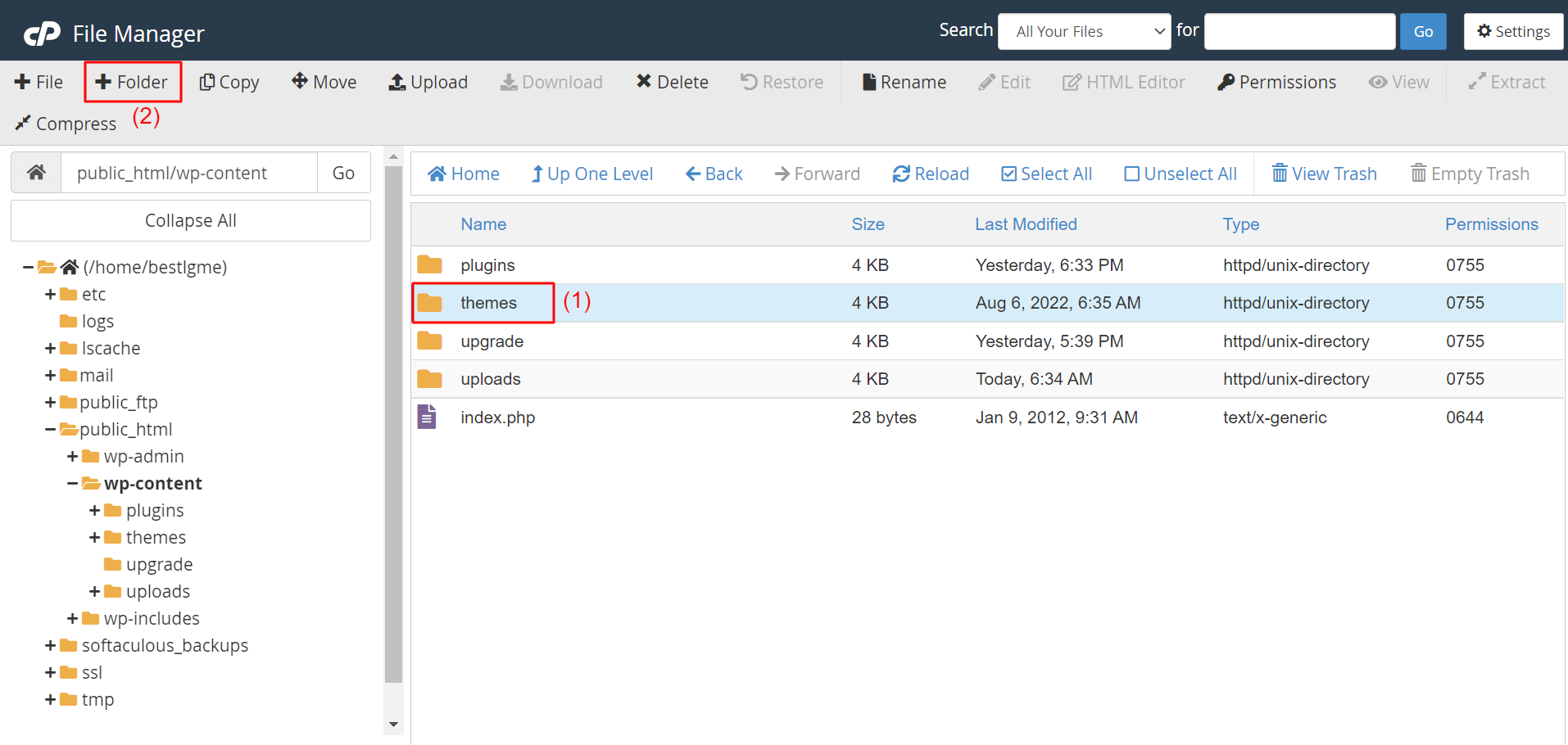
Find your hosting provider’s website. Login with your username and password. Look for the Cpanel link. It is usually easy to spot. Click on it. You will see many options. Look for the File Manager. Click it to open. You will see folders and files. Find the public_html folder. This is where your WordPress files are kept.
Inside, find the wp-content folder. Click on it. This folder holds your themes and plugins. Open the themes folder. Find your active theme’s folder. Create a new folder here. Name it with your theme’s name plus -child. Now, your child theme folder is ready.
Creating A New Directory
First, open your cPanel account. Find the File Manager option. Click on it. Inside, locate the public_html directory. This is where your site files live. Next, look for the wp-content folder. Inside, you’ll see the themes folder. This is where all your themes are kept.
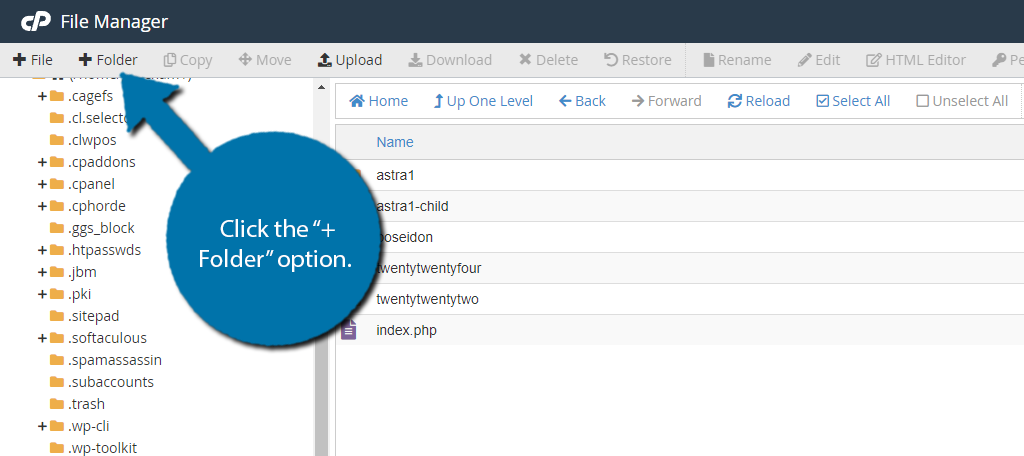
Inside the themes folder, you need a new folder. Name it after your child theme. Use a simple name. For example, mytheme-child. This folder will hold your child theme files. Make sure the name is clear. It helps in identifying the theme later. Keep it simple and short.
Creating The Stylesheet
The stylesheet is called style.css. It tells the theme how to look. Each child theme needs its own stylesheet. The stylesheet starts with a header. This header has special information. It shows the theme’s name, author, and version.
You need to include important details. Start with Theme Name. It is the name of your child theme. Next is Template. This is the parent theme’s folder name. Add Author to show who made the theme. Lastly, add Description to explain what the theme does.
All this information helps WordPress know about your theme. It must be at the top of your stylesheet. This makes sure your child theme works correctly.
Enqueuing The Parent Theme Styles
Editing the functions.php file is important for enqueuing styles. You need to properly add code inside this file. First, open your child theme folder. Then, find the functions.php file. If it does not exist, create a new file named functions.php.
Now, let’s enqueue the parent theme styles. Use the wp_enqueue_style function. This will help load the parent theme’s styles correctly. Write the following code inside functions.php:
function my_theme_enqueue_styles() {
    wp_enqueue_style('parent-style', get_template_directory_uri() . '/style.css');
}
add_action('wp_enqueue_scripts', 'my_theme_enqueue_styles');
This code tells WordPress to load the parent theme’s styles first. It is a simple and effective way. Make sure the code is correct. This ensures your child theme looks like the parent theme.
Credit: www.greengeeks.com
Activating The Child Theme
First, go to your WordPress dashboard. Find the Appearance menu on the left side. Click on Themes. You will see a list of themes. Look for your child theme. Click Activate on the child theme. This makes it your main theme.
Check your website to see the changes. Your site should look like the parent theme. But now, you can make custom changes. Changes in the child theme won’t affect the parent theme.
If you want to edit, go to the Theme Editor in Appearance. Now, you can add your own styles. You can also add new features. This way, your child theme is ready to use.
Testing The Child Theme
Creating a WordPress child theme in Cpanel involves testing its functionality. This ensures compatibility and preserves customizations during updates. Always check your theme’s appearance and features after activation to confirm everything works as expected.
Verifying Style Inheritance
Ensure the child theme inherits styles from the parent theme. Open your website and look for visual changes. Colors and fonts should match the parent theme. The child theme uses the parent theme’s CSS file. If styles don’t look right, check the child’s style.css file. Make sure it imports the parent theme’s styles correctly. Verify that any custom styles are applied without issues. This guarantees your child theme respects the parent theme’s design.
Checking Functionality
Test all features of your child theme. Make sure links, buttons, and sliders work well. Visit different pages and check if they load fast. Look for broken links or missing images. Ensure plugins function smoothly with the child theme. Check if widgets appear as they should. Confirm that navigation menus are intact and clickable. All elements must be operational to ensure a seamless user experience. This is crucial for a stable website.
Customizing The Child Theme
Creating a WordPress child theme through Cpanel allows easy customization without affecting the parent theme. Access Cpanel, navigate to File Manager, and create a new folder for your child theme. Add essential files like style. css and functions. php to begin personalizing your site’s appearance and functionality.
Modifying Css
CSS changes can make your site look better. Open the style.css file in your child theme. Add custom styles here. Changing colors and fonts is easy. Try different styles. Save your work. Check your site. See your changes live. Don’t forget to refresh your browser. Experiment with different designs. Use simple CSS rules. Avoid complex code. Keep it clean and simple.
Adding Custom Functions
Functions add new features. Open the functions.php file. Write your custom code here. You can add new widgets. Create unique menus. Add special pages. Use simple PHP code. Start with basic functions. Test your code often. Save changes before testing. Make backups of your file. Avoid errors by checking code. Keep your functions clear. Try different ideas. See what works best. Experiment with new features.
Frequently Asked Questions
What Is A WordPress Child Theme?
A WordPress child theme inherits styles and functions from a parent theme. It allows you to customize your site’s design without altering the original theme files. This ensures that updates to the parent theme don’t overwrite your customizations, providing a safe way to modify your website’s appearance.
Why Use Cpanel For WordPress Child Theme?
Cpanel simplifies the creation and management of WordPress child themes. It provides a user-friendly interface to access your website’s files. With Cpanel, you can easily upload, edit, and manage theme files, making the process straightforward even for beginners.
How Do I Create A Child Theme Folder?
To create a child theme folder, access your Cpanel file manager. Navigate to the “wp-content/themes” directory. Create a new folder and name it after your child theme. This will serve as the location for your child theme’s files, such as style.
css and functions. php.
What Files Are Needed For A Child Theme?
A child theme requires two main files: style. css and functions. php. The style. css file contains theme information and custom styles. The functions. php file allows you to modify or add functions to your theme. These files ensure your child theme operates correctly and efficiently.
Conclusion
Creating a WordPress child theme in cPanel is straightforward. Follow the steps carefully. Customize your website without losing changes during updates. A child theme keeps your modifications safe. It offers flexibility and control over design. Enjoy experimenting with styles and functions.
Mistakes? No problem. Just switch back to the parent theme. Remember, practice makes perfect. Keep learning and exploring new features. Your website will thank you. Happy designing!


