
Are you ready to take your WordPress site to the next level? Creating a child theme is a smart way to customize your site while keeping your main theme intact.
Whether you’re a seasoned developer or a curious beginner, understanding how to create a WordPress child theme can save you time and headaches. Imagine the freedom of tweaking your site’s design without the fear of losing your changes with each theme update.
In this guide, you’ll discover a step-by-step process to build your own child theme, ensuring your site remains unique and functional. Dive in and unlock the potential to personalize your WordPress site effortlessly. Curious about how easy it can be? Let’s get started!
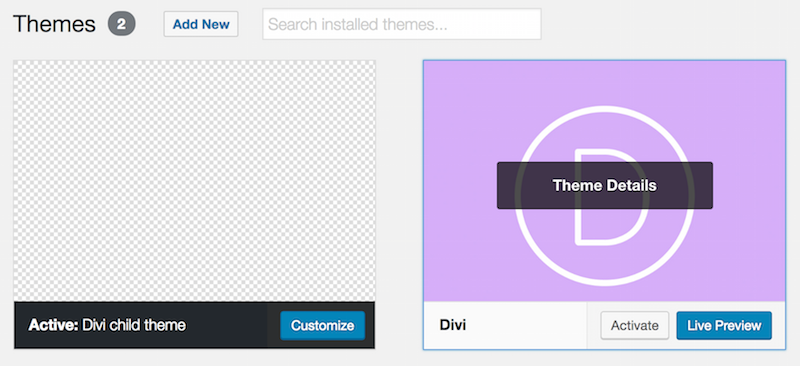
Credit: hangtenseo.com
What Is A WordPress Child Theme?
A WordPress Child Theme is a special type of theme. It lets you change how your site looks and works. You do this without touching the main theme’s files. This is important. It keeps your site safe during updates. The main theme is called the parent theme. The child theme uses it. But, it can also have its own files. These files change the look or functions of the parent theme.
Using a child theme is a smart choice. It protects your work. You can change colors, fonts, and layouts. All without risk. If the parent theme updates, your changes stay safe. So, a child theme is like a safety net. It makes sure your site stays unique and secure.
Benefits Of Using A Child Theme
Child themes keep original themes safe. Changes won’t affect the main theme. Updates won’t erase your work. Customize without worry. Add new styles easily. Child themes are flexible. You can design freely.
They help in learning. Beginners can experiment safely. Mistakes won’t harm the main theme. Learning becomes fun. Child themes are great for teaching. They show how themes work.
Sharing is easy. Share your child theme with friends. Others can use it. It’s simple to install. Everyone can enjoy your design. Child themes make collaboration easy. Teamwork is possible.
Child themes save time. No need to redo changes. Updates are quick. Efficiency improves. Projects finish faster. You focus on creativity, not fixing mistakes.
Choosing The Right Parent Theme
Picking the right parent theme is very important. A good parent theme should be well-coded. It should also be updated often. This keeps your site safe and working well. Check if the parent theme has the features you need. Look at the theme’s reviews. Feedback from users can tell you a lot. Popular themes often have more support. This means you can get help easily if needed. Make sure the theme fits your website’s style. A good match makes your site look nice and feel right.

Credit: www.youtube.com
Setting Up Your Development Environment
Creating a WordPress child theme needs some important tools. A text editor is essential. Use Notepad++ or Sublime Text. These are easy to use. A web browser is also needed. Google Chrome or Firefox work well. Install WordPress on your local server. This is for testing. Use XAMPP or MAMP to create a local server. A File Transfer Protocol (FTP) tool is necessary. FileZilla is a good choice for FTP. With these tools, you can start creating your theme.
Backups are very important. Before changes, make a backup of your site. Use a backup plugin like UpdraftPlus. Store your backup in a safe location. This could be on your computer. Or use cloud storage. Check your backup often. Make sure it is current. This helps if something goes wrong. You can restore everything from your backup.
Creating The Child Theme Folder
First, open the WordPress theme folder. You need to find the folder for your current theme. Inside this, create a new folder. Name it with your theme name followed by “-child”. This is your child theme folder. The name should be simple and clear.
The child theme folder is important. It keeps your changes safe. WordPress updates will not affect it. Keep it empty for now. You will add files later. Make sure the folder is spelled correctly. This is a key step in creating your child theme.
Adding The Style.css File
The style.css file is important for a WordPress child theme. First, create a new file named style.css. Place it in your child theme folder. This file needs specific information at the top. Start with the Theme Name. Next, add the Template, which is the parent theme name. Add Author and Version details. These lines help WordPress recognize your child theme.
Structure Of Style.css
The structure starts with comments. Use comments to describe your theme. It starts with / and ends with /. Keep it simple. Add basic styling rules below the comments. You can change colors, fonts, or layouts here. This file controls your theme’s look.
Enqueuing The Parent Style
Enqueue the parent style in functions.php. This file is in your child theme. Use the wp_enqueue_style function. First, use get_template_directory_uri(). This gets the parent style URL. Then, add the style.css file. This makes sure the child theme uses the parent styles. Always load the parent style first. It’s important for inheritance.
Configuring The Functions.php File
Functions.php is important for child themes. It acts like a toolbox. It helps add features to your site. This file can change how your site works. You can add new widgets. Or change the header and footer. Make sure to edit carefully. Mistakes can break your site.
Purpose Of Functions.php
This file helps with new features. It allows customization without changing the main theme. You can add small code snippets here. These snippets can do many things. They can change how your site looks or works. Always backup before editing this file.
Adding Functions And Features
Adding functions is easy. Copy the code you need. Paste it into functions.php. This might be for a new sidebar. Or a new menu item. Each function has a purpose. Some add style. Others add functionality. Test each function after adding it.
Customizing Templates
Copying template files is easy. Just find the template you want. Copy it to your child theme folder. This keeps your original files safe. Now, you can edit the copied file. Changes will not affect the original.
Modify templates with care. Use a text editor to open files. Look for the part you want to change. Edit only what you need. Save your changes often. Test your site after each change. This helps you find mistakes quickly.
Testing Your Child Theme
Ensuring Compatibility is important for your theme. Begin by checking your theme’s layout. See if it matches the original. Make sure all custom styles are visible. Use the WordPress theme checker plugin. It helps find errors. Fix any issues it shows. Verify that your theme loads quickly. Slow themes can annoy users. It’s crucial to test your theme with different plugins. Some plugins may conflict. Deactivate unnecessary plugins to prevent issues.
Testing Across Devices ensures your theme looks great everywhere. Open your website on a phone. Check the layout and images. Do the same on a tablet. Your theme should adjust to all screen sizes. Make sure buttons are easy to click. Check the text size on all devices. It should be readable. Use tools like Google’s Mobile-Friendly Test. They help find and fix problems.
Tips For Maintaining Your Child Theme
Updating the parent theme is crucial. It keeps your site safe. Always check for new updates. They fix bugs and improve features. Backup your site before updating. This prevents data loss. Test updates on a local server first. Ensure everything works fine. Avoid surprises on your live site. After testing, update the live site. Keep your child theme updated too. It must match the parent theme changes.
Customizations make your site unique. Keep track of changes you make. Use a version control system. It helps manage changes. Note down what each change does. This helps if something breaks. Always test new customizations. Check if they conflict with updates. Some changes might need tweaks after updates. Regularly review customizations. Ensure they still meet your needs.

Credit: www.buildersociety.com
Frequently Asked Questions
What Is A WordPress Child Theme?
A WordPress child theme is a theme that inherits functionality from another theme, called the parent theme. It allows you to modify or add to the functionality of that parent theme. By using a child theme, you can customize your site without affecting the parent theme’s files, ensuring updates won’t overwrite changes.
Why Use A Child Theme In WordPress?
Using a child theme helps you customize your WordPress site safely. It preserves your modifications during theme updates, preventing loss of changes. Child themes allow you to experiment with designs and functions without affecting the main theme. This makes customization easier and safer, providing a robust development environment.
How Do You Create A Child Theme In WordPress?
To create a WordPress child theme, first, create a new folder in your themes directory. Then, add a style. css file with specific header information. Next, create a functions. php file to enqueue the parent theme’s stylesheet. Finally, activate the child theme from your WordPress dashboard to start customizing.
Can Child Themes Affect Website Performance?
Child themes generally do not impact website performance. They inherit most features from the parent theme, ensuring optimal functionality. However, poorly coded customizations in a child theme can slow down a site. It’s crucial to follow best coding practices when modifying or adding new functionalities to maintain performance.
Conclusion
Creating a WordPress child theme is simple and rewarding. It protects your customizations during updates. Follow these steps carefully for best results. Start with a basic understanding of WordPress themes. Use a child theme to experiment safely. Remember, practice makes perfect.
Don’t rush, take your time. Your site will reflect your unique style. Enjoy the process. It’s a journey, not just a task. A child theme is your canvas. Paint it with your creativity. By now, you should feel confident. Go ahead and create your child theme today!


