
Are you looking to add a touch of personalization to your WordPress site? Creating a widget area in your theme is a fantastic way to do just that.
Imagine having the power to customize your site’s layout, making it more engaging for your visitors. You can showcase recent posts, highlight special offers, or simply add extra functionality wherever you like. If the idea of having more control over your website’s appearance excites you, then you’re in the right place.
In this guide, you’ll discover how easy it is to create a widget area in a WordPress theme, unlocking endless possibilities for your site’s design and functionality. Ready to dive in and make your website truly yours? Let’s get started!
Setting Up Your Development Environment
Start by installing a local server. This helps run WordPress on your computer. Use tools like XAMPP or WAMP. These tools are easy to use. Next, download the latest version of WordPress. Set it up on the local server. Follow the instructions on the screen.
Choose a code editor. Popular choices are Visual Studio Code or Sublime Text. These editors make coding easier. They highlight code and offer suggestions. Create a new theme folder in the WordPress themes directory. Name it something unique.
Inside this folder, create a style.css file. Add basic theme information at the top. This includes the theme name and version. Also, create an index.php file. This file controls the theme’s main page. You are now ready to start coding your widget area.
Understanding Widget Areas
Widget areas are spaces in a website theme. These areas can hold widgets. Widgets are small blocks that do tasks. They can show a calendar or search box. Widgets add features to a site. They help users interact with your website. Many themes have widget areas. These areas can be in the sidebar, footer, or header.
Adding widgets is easy. Go to the WordPress dashboard. Click on “Appearance,” then “Widgets.” Drag widgets to the widget area. You can also remove them. Widgets make your site more useful. They help show important information. Use them to make your site better. Widgets are customizable. You can change their order. You can add many widgets to one area.
Editing The Theme’s Functions File
Open your theme’s functions.php file. This file holds many important codes. Find a safe spot to add new code. Make sure it’s outside any existing functions. Use the following code snippet to add a new widget area:
            function your_widget_init() {
                register_sidebar( array(
                    'name'          => 'Your Widget Area',
                    'id'            => 'your-widget',
                    'before_widget' => '',
                    'before_title'  => '',
                ) );
            }
            add_action( 'widgets_init', 'your_widget_init' );
Check your spelling and punctuation. Save your changes to the file. Now, go to the WordPress admin area. See your new widget area in the Appearance section. Always backup your files before changes.
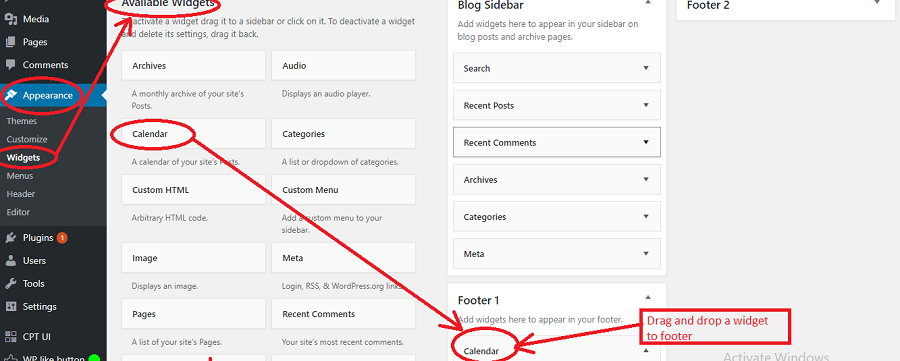
Credit: www.templateonweb.com
Registering A New Widget Area
To create a widget area, first open your functions.php file. This file is found in your theme folder. Use a text editor to open it. Now, add the code to register your widget area. Write this code inside your functions.php file:
function my_theme_widgets_init() {
register_sidebar( array(
'name' => __( 'New Widget Area', 'textdomain' ),
'id' => 'new-widget-area',
'before_widget' => '',
'before_title' => '',
'after_title' = '
',
) );
}
add_action( 'widgets_init', 'my_theme_widgets_init' );
This code tells WordPress to make a new widget area. The widget area will have a name and ID. You can change the name and ID as needed. Save the changes to your functions.php file. Now, check your WordPress dashboard. You will see your new widget area in the Appearance > Widgets section. Adding widgets is easy now.
Adding Widget Area To Theme Templates
Widgets make websites look better. They add useful tools. To make a new widget area, find the theme files. Open the functions.php file. This file helps you add new features. Add code to register a new widget area. Use register_sidebar function. Give it a name and ID. Save the file.
Next, go to the theme template files. Find the right file. Open the template file where you want the widget. Add code to display the widget. Use dynamic_sidebar function. Put the widget ID inside. Save the changes.
Check your site. Go to the admin panel. Find the Appearance menu. Click Widgets. You will see the new widget area. Drag widgets into the new area. Now, your theme has more tools!
Styling The Widget Area
Adding style to your widget area can be fun. Use Custom CSS Techniques to make it unique. Choose colors that match your theme. This helps the widgets look nice. Use borders to separate each widget. This makes them easy to see. You can also add padding. It gives more space inside the widget box. Fonts are important too. Pick ones that are easy to read. Make sure text is not too small.
Think about Responsive Design. Widgets should look good on phones and computers. Try using media queries in CSS. This helps change styles for different screens. You might want to make fonts bigger on phones. Or hide some elements if space is tight. Check your widgets on all devices. This ensures everyone sees them well. Always test your design. Fix any problems you find.
Testing And Debugging
Testing ensures your widget area works well. Use a test site for this. Never test on a live site. First, check if the widget area shows up. Add a simple widget to see it. If it works, you see the widget on your site.
Next, test different widgets. Ensure each one looks right. Check the layout and style. Fix any problems quickly. Use debugging tools to find errors. They help identify what’s wrong. Keep testing until everything works well.
Ask others to test too. They might find things you miss. Testing and debugging take time. But they make your site better. A well-tested widget area works smoothly. It keeps users happy and your site professional.

Credit: www.youtube.com
Common Issues And Fixes
Widgets may not show up as expected. This often happens due to theme compatibility. Themes might not support widget areas. Check your theme settings first. Sometimes, the functions.php file might have errors. Ensure all code is correct there. Missing or incorrect code can cause widgets to fail.
Another issue is widget visibility. Widgets might not appear on some pages. Use the widget visibility settings. This will help control where widgets show. Plugin conflicts are also common. Some plugins may stop widgets from appearing. Disable plugins one by one to check this.
Permissions can also cause problems. Some widgets need special permissions. Check user roles in your WordPress settings. Ensure users have the right permissions. This will often solve many widget issues.
Best Practices For Widget Areas
Widgets make websites look good. They are fun and useful. A great widget area needs planning. First, keep it simple. Too many widgets can confuse users. Choose only useful widgets. This makes your site easy to use. Position is important too. Place widgets in spots where users see them. Make sure they are easy to find. Test your widgets. Make sure they work on all devices. Check on phones, tablets, and computers. Ensure they look nice everywhere. Update your widgets often. New features make them better. This keeps your site fresh. Remember, a clean widget area helps users. It keeps them happy and coming back.
Additional Resources
Creating a widget area in WordPress can be confusing. Many online resources are available to help. WordPress forums are a great place to ask questions. You can learn from others’ experiences. Tutorials on YouTube show step-by-step processes. Watching videos makes learning easier.
Books on WordPress development offer detailed insights. They explain coding and design. Websites like WPBeginner provide helpful articles. They break down complex topics into simple words. Online courses give interactive lessons. They are structured and easy to follow.
Joining WordPress communities can be beneficial. You can share ideas and get feedback. Experienced developers often share tips. Following blogs related to WordPress is useful. They update you on new trends and methods. Use multiple resources for better understanding.

Credit: kinsta.com
Frequently Asked Questions
How Do I Add A Widget Area In WordPress?
To add a widget area, edit your theme’s `functions. php` file. Use the `register_sidebar()` function to define the widget area. Include parameters like name, id, and description. Then, integrate it into your theme’s template files using the `dynamic_sidebar()` function. Save changes and refresh your site.
Can I Create Multiple Widget Areas?
Yes, you can create multiple widget areas. Use the `register_sidebar()` function for each widget area you wish to add. Assign unique ids to each area for easy management. This flexibility allows customization across different sections of your WordPress site, enhancing functionality and user experience.
Is Coding Necessary To Add Widget Areas?
Basic coding is required to add widget areas. You need to modify your theme’s `functions. php` file. Use PHP functions like `register_sidebar()` and `dynamic_sidebar()`. Follow documentation or tutorials for guidance. No advanced programming skills are necessary; just basic understanding suffices.
What Is The Purpose Of Widget Areas?
Widget areas enhance theme functionality. They allow adding features like search bars, recent posts, or social media links. Users can customize their site’s layout without altering theme files. Widget areas improve user interaction, site aesthetics, and functionality, offering a tailored experience for visitors.
Conclusion
Creating a widget area in WordPress enhances your site’s flexibility. It allows you to customize and improve user experience. Widgets make it easy to add features without coding. Follow the steps carefully and test each change. This ensures everything works smoothly.
Remember to save your changes regularly. Regular updates keep your site secure and efficient. A well-structured theme boosts your site’s performance. Stay consistent with your design for a professional look. Explore different widgets to find what suits your site best.
This approach makes your site more engaging and user-friendly. Happy customizing!


