
Ready to build your own website but don’t know where to start? Creating a website with WordPress is easier than you think—and you don’t need to be a tech expert.
Whether you want a blog, a business site, or an online store, WordPress gives you the tools to make it happen quickly and affordably. In this guide, you’ll discover simple steps that will take your idea from zero to a live website that looks professional and works perfectly.
Keep reading, and by the end, you’ll have the confidence and know-how to launch your very own WordPress site with ease.
Credit: wedevs.com
Choosing Between WordPress.com And WordPress.org
Choosing between WordPress.com and WordPress.org is a key step in building your website. Both platforms offer WordPress tools but serve different needs. Understanding their differences helps you pick the right one for your goals.
Free Vs Paid Options
WordPress.com offers a free plan with basic features. You get a website hosted on their servers with a WordPress subdomain. Paid plans remove ads and add more tools.
WordPress.org is free software to download and use. You pay for web hosting and a domain name separately. This gives full control but requires more setup and cost.
Pros And Cons Of WordPress.com
Pros: Hosting and backups are included. You do not worry about security updates. The setup is simple and fast. No technical skills needed.
Cons: Your site shows WordPress.com ads on the free plan. You cannot install plugins or themes freely. Customization is limited. Storage space is smaller.
Pros And Cons Of WordPress.org
Pros: Full control over your website. You can install any plugins and themes. No ads from WordPress. More options for customization and monetization.
Cons: You must buy hosting and domain separately. Setup takes more time and knowledge. You handle backups and security yourself.
Domain And Hosting Considerations
WordPress.com includes hosting in its plans. Free users get a subdomain like yoursite.wordpress.com. Paid users can connect a custom domain.
WordPress.org requires buying hosting from providers like Bluehost or SiteGround. You also need to register a domain name. This adds cost but gives full ownership.

Credit: wordpress.org
Setting Up Your WordPress Account
Setting up your WordPress account is the first step toward building your website. This process depends on the WordPress option you choose. WordPress.com offers an all-in-one platform, while WordPress.org provides more control but requires separate hosting.
Each path has its setup steps. Understanding these helps avoid confusion and saves time. Let’s explore how to create your account and get your site ready to launch.
Signing Up On WordPress.com
Start by visiting the WordPress.com website. Click the sign-up button and enter your email, username, and password. Choose a site address, which will be your web address ending with wordpress.com.
You can select a free plan to begin or pick a paid plan for more features. WordPress.com handles hosting, security, and backups for you. This option suits beginners who want a simple setup without technical tasks.
Selecting A Hosting Provider For WordPress.org
WordPress.org requires you to get a web host. Look for a reliable hosting provider that supports WordPress. Popular choices include Bluehost, SiteGround, and HostGator.
Compare pricing, features, and customer support. Choose a plan that fits your website needs. Hosting providers often offer domain registration as part of their packages.
Installing WordPress Software
Most hosts offer one-click WordPress installation. Log in to your hosting control panel and find the WordPress installer. Follow the instructions to set up your site database and admin account.
After installation, access your WordPress dashboard by visiting yourdomain.com/wp-admin. Here, you can customize your website, add content, and install themes or plugins.
Picking A Domain Name
Choosing the right domain name is a key step in building your WordPress website. It gives your site an identity and helps visitors find you easily. A good domain name should be simple, memorable, and related to your site’s content or purpose.
Choosing A Unique And Relevant Name
Pick a name that stands out and fits your website’s topic. Avoid names that are too long or hard to spell. Use keywords that describe your site clearly. This helps search engines and visitors understand what your site is about. Check if the name is already in use to avoid confusion.
Registering A Domain
Register your domain through a trusted domain registrar. Popular options include GoDaddy, Namecheap, and Google Domains. Registration usually costs a small fee yearly. You will need to provide your contact details during registration. Once registered, you own the domain for the period you paid for.
Using A Subdomain Vs Custom Domain
A subdomain is part of a larger domain, like yoursite.wordpress.com. It is free but less professional. A custom domain is your own unique address, like yoursite.com. It looks more credible and builds trust with visitors. Custom domains require registration and a fee but give better branding.
Choosing A Theme
Choosing the right theme is a key step in building your WordPress website. The theme controls how your site looks and feels. It affects the colors, fonts, and layout. A good theme makes your content easy to read and your site easy to use. This section explains how to pick and set up a theme that fits your needs.
Free Vs Premium Themes
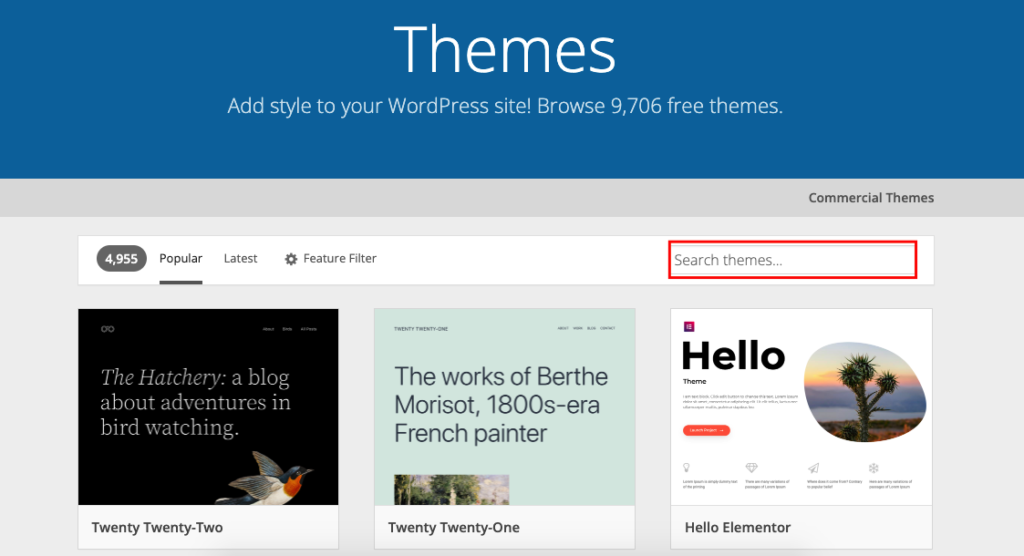
Free themes are available in the WordPress theme directory. They are easy to install and cost nothing. Many free themes work well for simple websites. Premium themes cost money but offer more features. They often include better design options and support. Choose a theme that matches your style and business goals. Check reviews and updates before deciding.
Installing And Activating A Theme
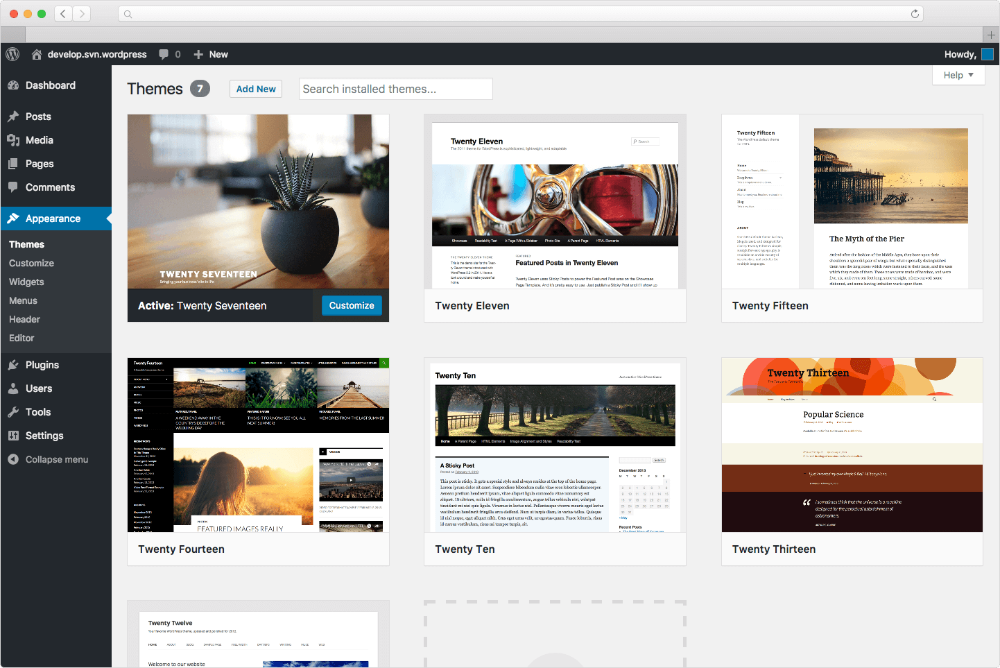
To install a theme, go to your WordPress dashboard. Click on “Appearance” then “Themes.” Use the search bar to find a theme you like. Click “Install” and wait for the process to finish. After installation, click “Activate” to make it your site’s theme. Your website will now display the new design.
Customizing Theme Settings
Most themes have settings you can change. Go to “Appearance” and then “Customize.” Here you can change colors, fonts, and layout options. Add your logo and adjust the header and footer. Preview changes before saving them. Customizing helps your website look unique and match your brand.
Adding Essential Plugins
Adding essential plugins enhances your WordPress website’s functionality. Plugins add features without coding. Choosing the right plugins improves user experience and site performance. This section guides you on picking, installing, and managing vital plugins for your site.
Must-have Plugins For Beginners
Start with plugins that boost security, SEO, and speed. A security plugin protects your site from hackers. SEO plugins help your site rank higher on search engines. Caching plugins improve loading times for visitors. Contact form plugins allow easy communication with users. These are the basics every new site needs.
Installing And Activating Plugins
Go to your WordPress dashboard and click “Plugins.” Select “Add New” to browse available plugins. Use the search bar to find specific plugins. Click “Install Now” to add a plugin. After installation, click “Activate” to enable it. Activated plugins start working immediately on your site.
Managing Plugin Updates
Keep plugins updated for security and performance. Updates fix bugs and add new features. WordPress notifies you when updates are available. Go to the “Plugins” page to update each one. Regular updates prevent conflicts and protect your site from threats.
Creating Your First Pages
Creating your first pages in WordPress lays the foundation of your website. These pages introduce visitors to your content and provide important information. Focus on clear, simple pages that serve your site’s purpose well. Start with a home page, then add about and contact pages. Organize these pages with easy navigation menus. This helps visitors find what they need quickly and keeps your site user-friendly.
Adding A Home Page
The home page is the first thing visitors see. It should clearly show what your site offers. To add a home page, go to your WordPress dashboard and click “Pages” then “Add New.” Name the page “Home.” Use the block editor to add text, images, or videos that explain your site’s purpose. Once done, publish the page.
Next, set this page as your front page. Go to “Settings” then “Reading.” Choose “A static page” and select your new Home page. Save changes. Now visitors land on your home page first.
Creating About And Contact Pages
About and contact pages build trust with your visitors. The About page tells your story or explains your business. Add details that help people connect with you. Follow the same steps: “Pages” > “Add New,” then name it “About.” Add text and images. Publish when ready.
Contact pages let visitors reach you easily. Include a form, email, phone number, or address. Use plugins for simple contact forms or add your details manually. Publish the page once complete.
Setting Up Navigation Menus
Menus help visitors explore your site smoothly. To create a menu, go to “Appearance” then “Menus.” Click “Create New Menu” and name it. Add your Home, About, and Contact pages to the menu. Arrange them in the order you want.
Assign the menu to a location, usually the primary menu area of your theme. Save the menu. Check your site to see the menu live. Now visitors can find your pages easily through the menu.
Publishing Content
Publishing content is the heart of your WordPress website. It allows you to share ideas, stories, and information with your visitors. Creating and managing content effectively keeps your site fresh and engaging. WordPress makes this process easy with its user-friendly tools. Focus on clear, simple posts that connect with your audience. Below are steps to help you publish content confidently on your WordPress site.
Creating Blog Posts
Start by opening your WordPress dashboard. Click on “Posts” and then “Add New.” This opens a blank page for your blog post. Write a catchy title that describes your topic well. Use short paragraphs and simple words. Break your content into sections for easier reading. Add relevant keywords naturally to improve search rankings. Preview your post to check how it looks before publishing. Finally, hit the “Publish” button to share your post with the world.
Using The WordPress Editor
The WordPress editor is a powerful tool for writing and formatting. It uses blocks to help you organize content. Each paragraph, image, or video is a separate block. You can move blocks up or down to change order. Use headings to divide your post and make it scannable. Bold or italicize words to highlight important points. Add links to other pages or websites for extra information. Save your draft often to avoid losing work.
Adding Images And Media
Images and media bring your content to life. Click the “Add Media” button to upload pictures or videos. Choose files from your computer or select from the media library. Add captions to explain images clearly. Use alt text to describe images for better SEO and accessibility. Resize images to fit your layout without slowing down the site. Embed videos by pasting their URL into a block. Visual content keeps readers interested and improves engagement.
Optimizing Website Settings
Optimizing your website settings is a key step in building a successful WordPress site. It ensures your site runs smoothly and ranks well on search engines. Proper settings improve user experience and help your site grow effectively.
Configuring General Settings
Start by setting your site title and tagline. These appear in browser tabs and search results. Set your WordPress and site URLs correctly to avoid errors. Choose the right timezone, date, and time format for your audience. Check the email address for site admin tasks. Enable or disable user registration based on your site’s needs.
Adjusting Permalinks
Permalinks are the URLs for your posts and pages. Choose a structure that is simple and descriptive. The “Post name” option is best for SEO and user-friendliness. Avoid using default numeric links. Clear permalinks help search engines understand your content better. They also make your links easier to share and remember.
Setting Up Seo Basics
Install an SEO plugin to manage key settings easily. Set your homepage to show a static page or latest posts. Write clear and concise meta titles and descriptions for each page. Use keywords naturally in your content and headings. Enable XML sitemaps to help search engines find your pages. Connect your site to Google Search Console for tracking performance.
Securing Your Website
Securing your WordPress website protects it from hackers and malware. A safe site builds trust with visitors and keeps your data intact. Taking simple steps can greatly reduce security risks. Focus on hosting, plugins, backups, and updates to keep your site strong.
Choosing Secure Hosting
Start with a hosting provider known for strong security. Good hosts offer firewalls, malware scanning, and automatic backups. They keep servers updated to block common attacks. Avoid cheap hosts that lack security features. Invest in reliable hosting to protect your website from the ground up.
Installing Security Plugins
Security plugins add extra layers of protection to WordPress. They can block suspicious logins and scan files for malware. Popular options include Wordfence and Sucuri. Set plugins to alert you about threats immediately. Regularly review plugin settings to keep defenses strong.
Regular Backups And Updates
Backups save your site’s data in case of a problem. Schedule backups often, so you never lose recent changes. Use plugins or hosting tools for automatic backups. Update WordPress core, themes, and plugins as soon as updates are available. Updates fix security holes and improve performance.
Launching Your Website
Launching your WordPress website is an exciting step. It means your site is ready for visitors. Before going live, some final tasks ensure your site runs smoothly. These steps help you avoid common problems and make a strong first impression.
Testing Site Functionality
Check all links to make sure they work correctly. Test forms to see if they send messages. Verify that images load fast and appear properly. Browse your site on different devices and browsers. This helps catch errors before visitors find them.
Removing Demo Content
Delete sample posts, pages, and images from your theme. Demo content can confuse visitors and clutter your site. Replace placeholders with your own text and photos. This step gives your site a professional and personal touch.
Announcing Your Launch
Tell friends, family, and followers about your new website. Use social media to spread the word quickly. Write a simple announcement to share your site’s purpose. Encourage visitors to explore and give feedback. This builds early interest and support for your site.
Credit: docs.presscustomizr.com
Frequently Asked Questions
Can I Create My Own Website Using WordPress?
Yes, you can create your own website using WordPress by choosing a domain, design, and customizing it easily.
Why Are People Moving Away From WordPress?
People move away from WordPress due to security risks, plugin issues, slow performance, complex updates, and limited customization without coding.
Is It Free To Create A Website On WordPress?
Yes, creating a website on WordPress. com is free but includes a subdomain and limited features. WordPress. org software is free, but hosting and domain costs apply.
Can A Beginner Make A WordPress Website?
Yes, beginners can easily create a WordPress website using free tools and templates. No coding skills are required.
Conclusion
Creating a WordPress website is easier than you think. Choose your platform, pick a theme, and customize it. Add content that fits your purpose and audience. Keep your site updated and secure for best results. With patience and practice, your website will grow.
Start today and enjoy sharing your ideas online.


