
Ready to build your own website but not sure where to start? Creating a website on WordPress is easier than you think, even if you have no prior experience.
Imagine having a platform that lets you design, customize, and launch your site quickly—without complicated coding or expensive tools. In this guide, you’ll discover simple, step-by-step instructions to help you set up a professional-looking website that fits your needs perfectly.
Keep reading, and by the end, you’ll have the confidence and know-how to bring your ideas online and make your website stand out.
Choosing Hosting And Domain
Choosing the right hosting and domain is the first step to building a WordPress website. These two elements form the foundation of your site. Good hosting keeps your website fast and secure. The domain name is your site’s address on the web. Both must fit your website’s goals and audience.
Selecting A Hosting Provider
Hosting providers store your website files and make them accessible online. Choose a provider with strong uptime and fast servers. Look for one that supports WordPress easily. Customer support is important for beginners. Plans with automatic WordPress updates save time. Consider providers with good security features to protect your site.
Picking A Domain Name
Your domain name represents your brand online. It should be simple, short, and easy to remember. Use words related to your business or topic. Avoid numbers and hyphens to keep it clear. Choose a popular domain extension like .com or .net. This helps visitors trust your website more.
Registering Your Domain
Register your domain through a trusted registrar or your hosting provider. Complete the registration by providing accurate contact details. Choose to protect your privacy with domain privacy options. Pay the registration fee to secure your domain for one year or more. Renew on time to avoid losing your website address.

Credit: gretathemes.com
Installing WordPress
Installing WordPress is the first step to building your website. This process sets up WordPress on your web server. You need WordPress files, a database, and a hosting environment. Installing WordPress is easier than it sounds. There are two main ways to do it: one-click installation and manual installation. Both methods lead to the same result—a ready-to-use website platform.
One-click Installation
Many web hosts offer one-click WordPress installation. This tool automates the setup for you. You only need to log into your hosting control panel. Look for the WordPress or website installer icon. Click it and follow the simple instructions.
Usually, you enter your site name, admin username, and password. The installer creates the database and uploads files automatically. The whole process takes just a few minutes. This method is ideal for beginners or those who want quick setup.
Manual Installation Steps
Manual installation requires more steps but gives you control. Start by downloading the latest WordPress package from wordpress.org. Next, upload the files to your web server using FTP software.
Create a MySQL database on your hosting account. Note the database name, username, and password. Then open your website URL in a browser. WordPress will guide you through the setup wizard.
Enter your database details as prompted. Set your site title and create an admin account. Finish the installation by clicking the install button. This method suits users who want to customize every step.
Accessing The WordPress Dashboard
After installation, you can access the WordPress dashboard. This is where you manage your website content and settings. To enter, add “/wp-admin” to your website URL. For example, www.yoursite.com/wp-admin.
Log in with the admin username and password you created. The dashboard shows menus for posts, pages, themes, and plugins. Spend some time exploring this control panel. It is your site’s command center.
Configuring Basic Settings
Configuring basic settings in WordPress sets a strong foundation for your website. These settings control how your site appears and functions. Spending time here ensures visitors get the right first impression and smooth navigation.
Focus on three main areas: site title and tagline, permalinks, and user accounts. These are easy to adjust but very important for your site’s identity and usability. Follow these steps to make your WordPress site clear and professional.
Setting Site Title And Tagline
The site title is your website’s name. It shows in browser tabs and search results. The tagline is a short phrase that describes your site’s purpose. To set these, go to Settings > General in your WordPress dashboard.
Enter a clear and simple title. Keep the tagline brief and meaningful. These details help visitors understand your site at a glance. They also improve your site’s SEO by telling search engines what your site is about.
Adjusting Permalinks
Permalinks are the URLs for your posts and pages. Clean and descriptive permalinks help visitors and search engines. Go to Settings > Permalinks to choose a format.
Select the “Post name” option. It uses your post title in the URL, making links easy to read and remember. Avoid using default or numeric links as they look confusing and hurt SEO.
Managing User Accounts
User accounts control who can access your WordPress dashboard. You can add new users with different roles like Administrator, Editor, Author, or Subscriber. Go to Users > Add New to create accounts.
Assign roles carefully. Give only trusted people Administrator access. Others can have limited roles depending on their tasks. Managing users well keeps your site secure and organized.
Choosing And Customizing Themes
Choosing and customizing a theme shapes your website’s look and feel. Themes control colors, fonts, and layout. Picking the right theme helps your site look professional and match your style. Customizing it makes your site unique and easy to use. WordPress offers many themes, free and paid. Let’s explore how to browse, install, and customize themes effectively.
Browsing Free And Premium Themes
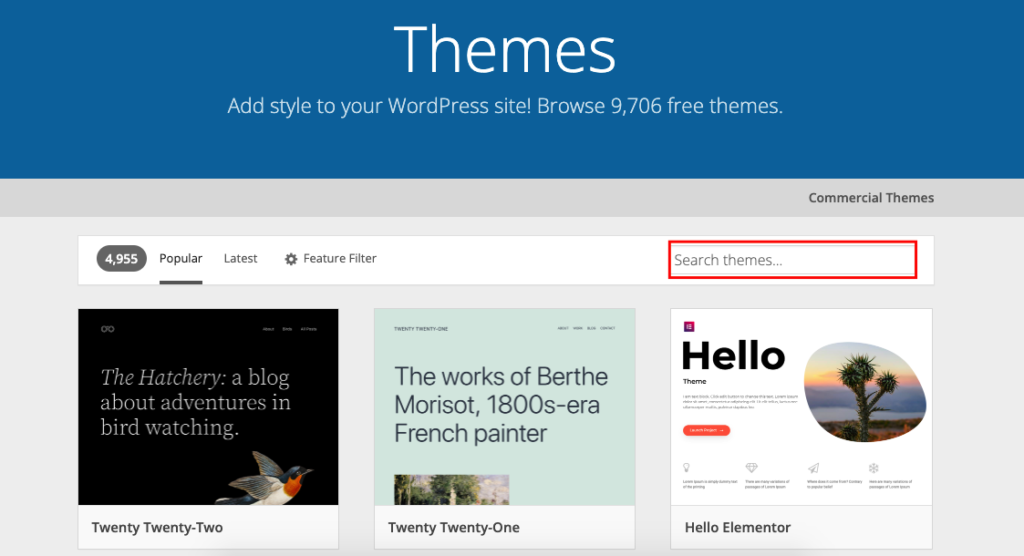
WordPress has thousands of themes for all kinds of websites. Free themes are easy to find in the WordPress theme directory. They are good for beginners and small projects. Premium themes cost money but offer more features and support. They often include advanced designs and tools. Use filters to find themes by style, features, or industry. Preview themes to see how they look on your site before choosing.
Installing A Theme
Installing a theme is simple and quick. From the WordPress dashboard, go to Appearance > Themes. Click “Add New” to search for free themes. For premium themes, upload the theme file in .zip format. After finding or uploading your theme, click “Install.” Then activate it to make the theme live on your site. Check your site to see how it looks with the new theme.
Customizing Appearance And Layout
Use the WordPress Customizer to change your theme’s look. Go to Appearance > Customize in the dashboard. You can change colors, fonts, header images, and menus. Many themes have extra options like layout style or widget areas. Make small changes and preview them before saving. Customizing helps match the website to your brand and improves user experience. Keep designs clean and simple for easy navigation.
Adding Essential Plugins
Adding plugins to your WordPress site improves its features and performance. Plugins are small software pieces that expand what your website can do. They help with SEO, security, speed, and more. Choosing the right plugins makes your site easier to manage and more user-friendly.
Must-have Plugins For Beginners
Start with essential plugins that improve basic functions. A security plugin protects your site from hackers. An SEO plugin helps your site rank better in search engines. A caching plugin speeds up your site. A contact form plugin lets visitors reach you easily. These plugins cover the most important needs for new sites.
Installing And Activating Plugins
To install a plugin, go to your WordPress dashboard. Click on “Plugins” then “Add New.” Use the search box to find the plugin you want. Click “Install Now” on the plugin. After installation, click “Activate” to enable it on your site. Activated plugins start working immediately.
Managing Plugin Settings
Each plugin has its own settings page. Find it in the WordPress dashboard menu. Adjust settings to fit your website’s needs. Some plugins work well with default settings. Others need you to enter API keys or customize options. Save changes after updating settings to apply them.
Creating Website Content
Creating website content is a key step in building your WordPress site. Content tells your visitors what your site is about. It helps search engines understand your site too. Good content keeps people interested and encourages them to explore more.
WordPress offers easy tools to add and manage content. You can create different types of pages and posts. Organizing your content well improves user experience and site navigation. Let’s explore how to add pages and posts, use the block editor, and organize content effectively.
Adding Pages And Posts
Pages are static and hold important information like About or Contact. Posts are dynamic and used for blogs or news updates. To add a page, go to your WordPress dashboard and click “Pages” then “Add New.” For posts, click “Posts” then “Add New.”
Give your page or post a clear title. Write your content in the editor box below. You can add images, links, and other media. Once done, click “Publish” to make it live on your site.
Using The Block Editor
The WordPress block editor lets you build content in pieces. Each piece is called a block. Blocks can be text, images, videos, or buttons. You add blocks by clicking the “+” icon in the editor.
Blocks make it easy to arrange your content. You can move blocks up or down to change order. Customize each block with settings like color or font size. This editor gives flexibility without needing coding skills.
Organizing Content With Categories And Tags
Categories group your posts by broad topics. Tags describe specific details of your posts. Use categories to help visitors find related content quickly. Tags add extra keywords to improve search ability.
Assign categories and tags when creating or editing a post. Keep categories simple and limited. Use tags to highlight important themes or features. Good organization helps your site stay neat and user-friendly.
Optimizing Website For Visitors
Optimizing your WordPress website for visitors boosts user experience and keeps people coming back. A fast, mobile-friendly site with strong SEO helps your audience find and enjoy your content easily. Focus on key areas to improve your website’s performance and reach.
Improving Site Speed
Site speed affects how long visitors stay on your page. Fast loading times reduce bounce rates and increase engagement. Use caching plugins to store copies of your pages. Compress images to smaller sizes without losing quality. Choose a reliable hosting provider with good server response times. Minimize the use of heavy scripts and unnecessary plugins. Test your site speed regularly with tools like Google PageSpeed Insights.
Making Website Mobile-friendly
Many visitors use phones or tablets to browse the web. A mobile-friendly website adapts to different screen sizes. Choose a responsive WordPress theme that adjusts automatically. Check that buttons and links are easy to tap on small screens. Avoid pop-ups that cover content on mobiles. Test your site on multiple devices to ensure smooth navigation. A mobile-friendly site improves user satisfaction and search rankings.
Enhancing Seo Basics
SEO helps search engines understand your website and rank it higher. Use clear, descriptive titles and headings on each page. Add meta descriptions that summarize your content well. Include relevant keywords naturally in your text. Create clean, readable URLs with keywords. Use alt text for images to describe them for search engines. Build internal links between your pages to guide visitors. Keep content fresh and valuable to attract more traffic.

Credit: wordpress.org
Launching Your Website
Launching your WordPress website is an exciting step. It means your site is ready to welcome visitors. Proper preparation ensures your site runs smoothly from day one. This section guides you through key tasks before and after launch.
Testing Website Functionality
Check every link on your site to make sure it works. Test forms to confirm they send information correctly. Look at your site on phones and tablets. Make sure images load fast and display properly. Confirm all buttons and menus respond as expected. Fix any errors or broken elements you find. This testing helps avoid frustrating visitors.
Setting Up Backups And Security
Set up automatic backups to keep your data safe. Use plugins like UpdraftPlus or BackupBuddy for easy backup management. Install a security plugin such as Wordfence or Sucuri. These protect your site from hackers and malware. Change default login details to strong, unique passwords. Keep WordPress, themes, and plugins updated regularly. Security steps protect your site and visitors.
Going Live And Promoting
Remove any “coming soon” page or maintenance mode. Announce your site launch on social media and email lists. Submit your site to search engines like Google and Bing. Share content that highlights your site’s value. Encourage friends and followers to visit and share. Track visitor activity using tools like Google Analytics. Promotion helps attract traffic and grow your audience.
Credit: wedevs.com
Frequently Asked Questions
How To Create A Website On WordPress Step By Step?
Choose a hosting plan and register a domain. Install WordPress via your host. Select a theme and customize it. Add essential plugins and create pages. Publish your website and optimize for SEO.
Can I Create A WordPress Website For Free?
Yes, you can create a free WordPress website using WordPress. com’s free plan. It offers basic themes and customization tools.
Can I Create My Own Website With WordPress?
Yes, you can easily create your own website with WordPress. Choose a domain, pick a design, and customize it without coding. WordPress offers free and paid plans with various themes and tools to build a professional, user-friendly site quickly.
Why Are People Moving Away From WordPress?
People move away from WordPress due to security risks, complex updates, slow performance, and preference for easier, faster website builders.
Conclusion
Creating a WordPress website is easier than it seems. Follow each step carefully and stay organized. Choose a good hosting plan and a simple theme to start. Customize your site with plugins that fit your needs. Keep your content clear and updated regularly.
Practice makes perfect—don’t be afraid to explore. Soon, you will have a website that works well and looks great. WordPress gives you the tools to build your online presence. Start today and watch your ideas come to life.


