
Are you looking to elevate your WordPress theme with a personalized settings page? Imagine having the power to adjust your theme’s look and functionality with ease, all from a dedicated settings page.
This guide is designed just for you, whether you’re a seasoned developer or a WordPress beginner. We’ll walk you through the steps to create a theme settings page that caters to your unique needs, enhancing user experience and giving you full control.
Let’s unlock the potential of your WordPress site together, making it more dynamic and user-friendly. Dive in, and discover how to turn your theme into a masterpiece!
Why A Theme Settings Page Matters
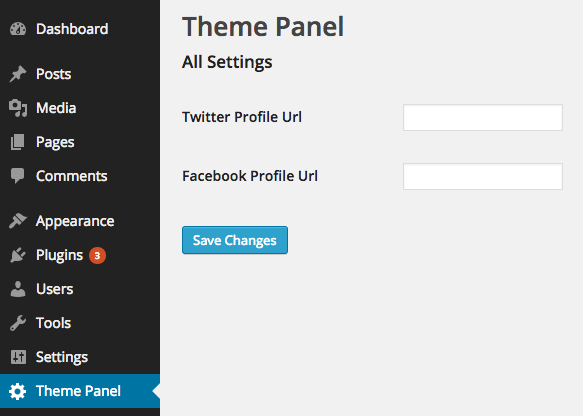
A theme settings page is very important for WordPress users. It helps users manage their website’s look easily. With this page, users can change colors, fonts, and more. This makes the website look unique and special. A settings page also helps users save time. They can make changes quickly without coding. Users feel more in control of their website.
Having a settings page makes the website easy to update. Users can add new features without much effort. This keeps the site fresh and interesting. Most users prefer websites with easy options. It makes their experience better. A good settings page helps achieve this goal.
Credit: www.sitepoint.com
Planning Your Theme Settings
Think about what users need. Color options matter. Fonts can change how a site looks. Layout choices are important. Make a list of features. Features that make sense. Features that help users.
Users want easy settings. Simple menus help them. Clear instructions make it better. Feedback is key. Quick changes save time. Fast loading is important too. Think about mobile users. Mobile is everywhere.
Setting Up The Development Environment
Choosing the right tools is important. Start with a good code editor like Visual Studio Code. It’s easy to use. Install WordPress plugins for better support. Use a local server such as XAMPP or WAMP. These tools help test your WordPress site. Don’t forget a version control system. Git is a popular choice. It keeps track of changes. Use Node.js for JavaScript tasks. These tools make development easier. Choose wisely.
First, download the WordPress package from the official site. Install it on your local server. Set up your database using phpMyAdmin. Create a new database for your site. Connect WordPress to this database. Use a simple config file. Access the WordPress dashboard. Here, you can start building. Install a basic theme. Activate it for your site. Now, you’re ready to create a settings page.
Creating A Basic Settings Page
Adding a menu in WordPress is easy. Start with a simple code. Use the add_menu_page() function. It helps you create a new menu. You need to define a page title and menu title. Also, add a capability and menu slug. Choose an icon for your menu. Finally, decide on the position of your menu. This function does it all for you.
Settings sections group options together. Use the add_settings_section() function. This helps you organize settings. Define a section ID and title. Assign a callback function. This function shows the description of the section. Each section can have many fields. Fields are the actual settings. Organizing settings makes them easy to find.
Using WordPress Settings Api
Creating a theme settings page in WordPress becomes simple with the Settings API. This method allows you to add custom options to your theme, enhancing user customization. The API manages data seamlessly, ensuring settings are stored correctly.
Registering Settings
Creating a theme settings page is fun. First, register your settings. Use the register_setting function. This function links your settings with a name. Choose a simple name. For example, “my_theme_settings”. It helps WordPress manage your settings. Don’t forget to define a sanitization callback. This keeps your data clean and secure. Always remember to test your settings. Ensure everything works smoothly.
Creating Settings Fields
Next, set up your settings fields. Use the add_settings_field function. This function creates fields on your page. Fields can be text boxes, checkboxes, or dropdowns. Ensure each field has a unique ID. This helps WordPress track them. Organize fields clearly. Users will find it easy to navigate. Provide clear labels for each field. This improves user experience.
Customizing The User Interface
JavaScript and CSS play a big role in theme settings. They make the page look nice. JavaScript helps with interactive elements. It can create sliders and buttons. CSS styles these elements. It gives the page color and size. Both are important for a good user experience.
Enhancing User Interaction is key. Users like easy-to-use pages. JavaScript can make actions smooth. CSS can make the layout clean. Together, they improve how users feel. They make the settings page fun to use.
Testing And Debugging
Common Issues can occur during testing. Settings might not save properly. Error messages might appear. Some buttons might not work. Plugins can conflict with your theme. Ensure your theme is up to date. Check for broken links. Inspect the console for errors. Fix issues one by one. Use debugging tools if needed. Thorough testing ensures a smooth experience for users.
Ensuring Compatibility is crucial for a theme. Check compatibility with different browsers. Test your theme on mobile devices. Ensure plugins do not break your theme. Update plugins regularly. Check your theme on different screen sizes. Compatibility ensures your site works for everyone. Testing helps find and fix issues early. Compatibility is important for user satisfaction.
Adding Advanced Features
Adding advanced features enhances your WordPress theme settings page. Create custom options for users to personalize their sites. This approach improves user experience and site functionality.
Dynamic Options With Ajax
AJAX makes theme settings more interactive. It changes settings without refreshing the page. It is fast and easy to use. Users love dynamic options. It saves time and effort. AJAX updates are smooth. They enhance user experience. It is very useful for real-time changes. Users can see updates instantly. AJAX is flexible and powerful. It handles multiple requests at once. This makes it a popular choice for developers.
Multi-language Support
Many users speak different languages. Multi-language support is important. It helps reach a wider audience. Users can choose their preferred language. This makes the theme more accessible. It is easy to add language files. These files contain translations. Developers can use plugins for translations. Language settings are simple to configure. They improve user satisfaction. This feature attracts more visitors. It builds a strong global community.
Optimizing For Performance
Efficient coding makes websites faster. Always use clean and simple code. Avoid redundant lines. They slow down pages.
Limit the use of plugins. Each plugin adds code. This increases load time. Choose only necessary ones.
Use optimized images. Big images take longer to load. Compress images without losing quality. This reduces load time.
Minimize HTTP requests. Fewer requests mean faster load times. Combine files where possible.
Enable caching. Cached files load quicker. Users get faster results.
Use a Content Delivery Network. CDN helps speed up loading. It distributes content globally.
Credit: www.wpexplorer.com
Deploying Your Theme Settings Page
Test your settings page thoroughly. Ensure everything works smoothly. Check for any bugs or errors. Your page must be user-friendly. All users should understand the options easily. Clarity is key. Make sure your design is clean and organized.
Double-check all features. Functionality is very important. Ensure each setting saves properly. Verify that changes appear on the site. Preparing your page well prevents issues later.
User feedback helps improve your page. Ask users for their thoughts. Listen to their suggestions. They might spot problems you missed. Their ideas can enhance your design. Use feedback to make adjustments.
Encourage honest opinions. Feedback is valuable for growth. Consider creating a survey for users. Collect data on user experience. This will guide your improvements. Make changes based on feedback received.
Credit: blog.templatetoaster.com
Frequently Asked Questions
How Do I Access Theme Settings In WordPress?
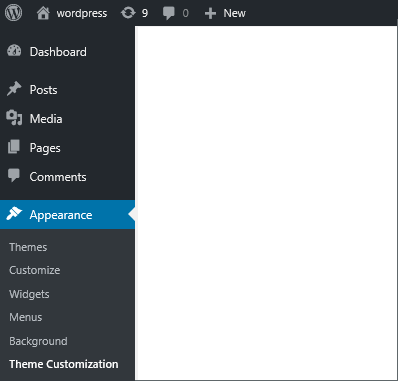
To access theme settings, log into your WordPress dashboard. Navigate to “Appearance” and click “Customize. ” This opens the Theme Customizer, where you can modify settings like colors, fonts, and layouts. Make sure your theme supports custom options for a seamless experience.
Can I Create Theme Settings Without Coding?
Yes, you can create theme settings without coding by using WordPress plugins. Plugins like Advanced Custom Fields or Theme Options create intuitive interfaces. They allow you to add settings easily. Explore plugin repositories to find options that suit your theme customization needs.
What Plugins Help With Theme Settings?
Popular plugins like Advanced Custom Fields and Customizer Custom Controls help with theme settings. They provide user-friendly interfaces to add and manage theme options without coding. Check WordPress plugin directory for more plugins that offer customization capabilities tailored to your specific theme requirements.
How Do I Add Custom Fields To Themes?
To add custom fields, use a plugin like Advanced Custom Fields or Customizer. These plugins enable easy integration of custom fields into your theme. You can create custom fields for content types, taxonomies, and settings, enhancing your theme’s functionality and personalization.
Conclusion
Creating a theme settings page in WordPress is manageable. It enhances user experience. Customizable options make your site unique. Follow the steps outlined in this guide. You’ll gain control over your site’s appearance. Boost your site’s functionality. Keep experimenting with new settings.
Test each change for best results. This process enriches your WordPress skills. Share your insights with others. Enjoy the journey of customization. Your WordPress site can reflect your vision. Simplicity and creativity go hand in hand. Start crafting your personalized theme settings page today.
Your website awaits your touch.


