
Imagine having the power to customize your WordPress site exactly the way you want, without touching a line of code. Sounds like a dream, right?
With theme options, this dream can become your reality. Whether you’re a seasoned developer or just starting out, creating a theme option in WordPress can transform your site’s flexibility and user experience. You might be wondering, “Why should I bother with theme options?
” The answer is simple: control. Theme options give you the control to tweak and tailor your website to fit your unique style and needs. By the end of this guide, you’ll not only know how to create a theme option in WordPress, but you’ll feel confident using these tools to make your website stand out. Ready to dive in and unlock the full potential of your WordPress site? Let’s get started!
Setting Up A Child Theme
Start by opening your WordPress folder. Find the wp-content/themes directory. Here, create a new folder. Name it after your child theme. Keep it short and simple. This folder will hold all your custom files. It is the home for your child theme.
Inside your new folder, create a file. Name it style.css. This file is important. It tells WordPress about your child theme. Open the file. Add a comment at the top. Include the child theme name and template. Save your changes. This connects your child theme to the parent theme.
Now, add a functions.php file in the same folder. This file allows you to add code. Use it to enqueue the parent theme styles. Add a function to link the parent’s styles to the child. This ensures your child theme inherits the parent’s styles. Without it, your child theme may look odd.
WordPress Theme Customizer
The Theme Customizer API lets you change your site’s look. It offers a simple way to make adjustments. Users can see changes instantly. Developers use this tool for adding features. It helps in creating custom options. Many themes use this API for flexible designs. It is a key part of WordPress themes. Learning it can be fun and useful.
Adding support is easy. First, use add_theme_support(). This function enables new features. Next, create settings and controls. These define what users can change. Use the customize_register action hook. It is essential for setting up options. With this, users can adjust colors and layouts. Make sure settings are user-friendly. Clear labels help users understand choices.
Adding Theme Options
Start by adding sections in your theme. Each section groups settings. This helps keep things organized. Use the WordPress Customizer for adding sections. Then, create settings for each section. Settings hold the values. These values change how your theme works. Remember to give each setting a unique ID. This prevents conflicts. Use clear names for better understanding.
Controls are inputs users see. They help users change settings. Use different control types. Text fields for simple words. Dropdowns for multiple choices. Color pickers for selecting colors. Each control should match its setting. This makes your theme user-friendly. Add controls using the WordPress Customizer API. Ensure each control has a label. Labels explain what the control does.
Always check user inputs. This keeps your theme safe. Validation checks if input is correct. If not, it rejects the input. Use WordPress functions for validation. For example, sanitize_text_field for text inputs. This function removes unwanted characters. Clean inputs protect your theme. They also prevent errors. Always validate before saving data.
Credit: www.sitepoint.com
Implementing Theme Options
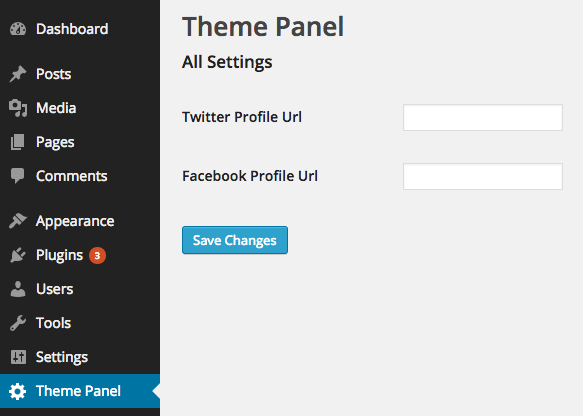
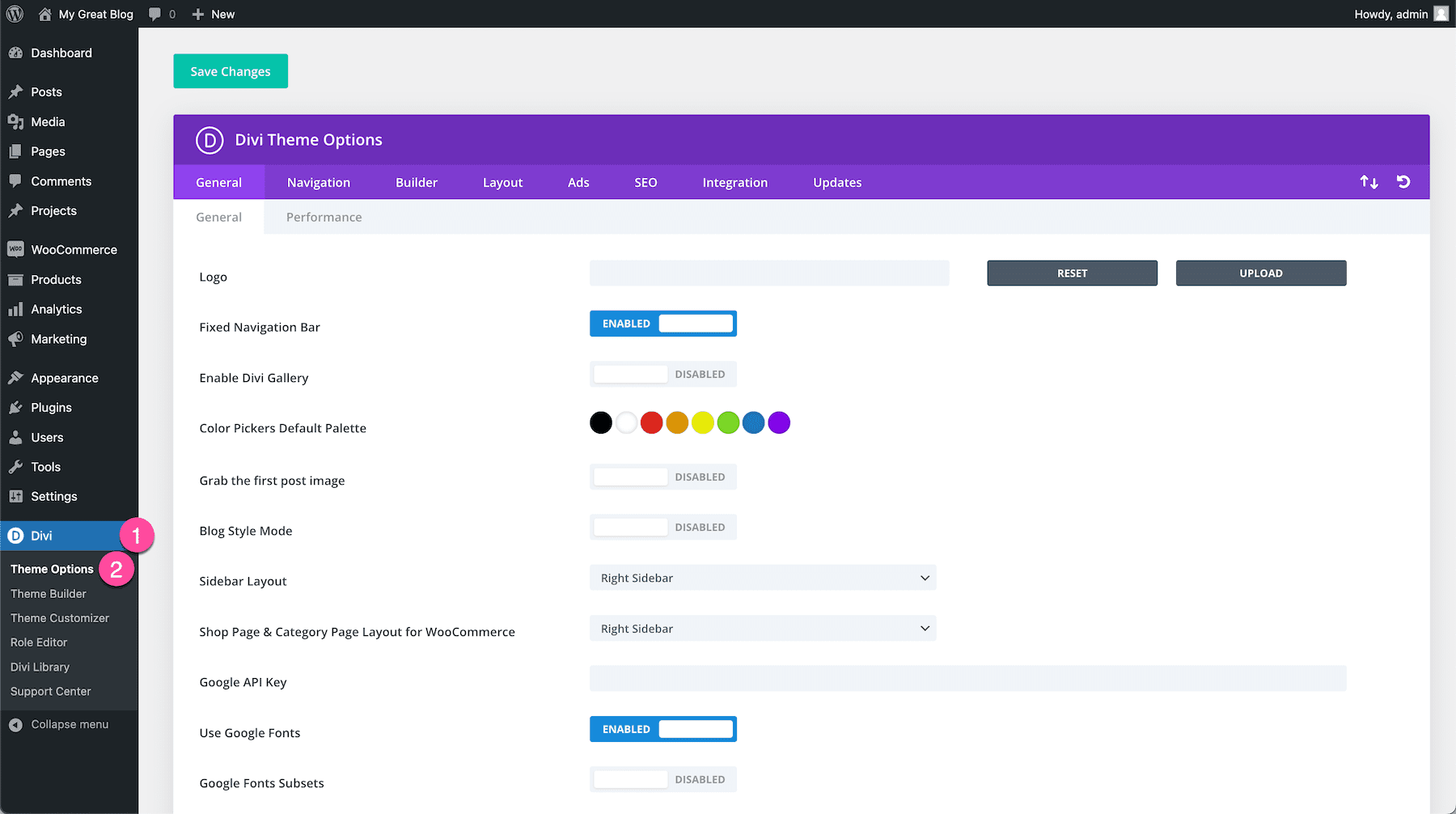
Creating theme options in WordPress allows customization without coding. Users can easily modify colors, fonts, and layouts. Enhance user experience by adding intuitive settings panels in the WordPress dashboard.
Accessing Options In Theme Files
To add theme options, open the functions.php file. Use the add_theme_page() function. This function creates a new page in the admin panel. Always remember to check user permissions. This ensures only admins can access settings. Save your options in the wp_options table. This table stores all theme settings safely.
Utilizing Options In Templates
Options help customize templates easily. Use the get_option() function. This function retrieves saved options from the database. Use these options to change text, colors, or layouts. It makes the theme adaptable to user needs. This flexibility enhances user experience.
Dynamic Css With Theme Options
Create CSS based on user preferences. Use options to change styles dynamically. First, gather all needed options. Next, output CSS in the theme’s header. Inline styles can be applied using PHP. This approach keeps styles consistent with user choices. Always test changes for responsiveness.
Testing And Debugging
Discover how to create a theme option in WordPress through effective testing and debugging. Ensure your theme functions smoothly by identifying and fixing errors. Enhance user experience by making your theme customizable and bug-free.
Common Errors And Solutions
Errors can pop up in WordPress. They can be frustrating. A common issue is a white screen of death. This happens when the screen turns white. No error message shows. Check for plugin conflicts first. Deactivate all plugins. Then, activate them one by one. Another issue is a broken theme. It can break after an update. Roll back to a previous version. This often solves the problem. Syntax errors are also common. They occur in the theme’s code. Check for missing semicolons or brackets. Fix these mistakes to solve the error.
Ensuring Cross-browser Compatibility
Browsers can display websites differently. It’s crucial to test on different browsers. Use Google Chrome, Firefox, and Safari. Check for layout issues. Fonts might look different. Colors might change. Use CSS fixes to ensure consistency. Tools like BrowserStack can help. They simulate different browsers. This ensures your theme looks the same for everyone.

Credit: webdesignerdepot.com
Enhancing User Experience
Streamlining option panels can make users happy. They find what they need fast. Less clutter means less confusion. Clear labels help users understand quickly. Group similar options together. It makes finding things easier. Users will not feel lost. They enjoy a smooth experience.
Providing contextual help aids users at every step. Add small notes or tips near options. This helps users know what each option does. Users feel more confident. They can make choices without fear. Help should be easy to find. Avoid using big words. Simple tips are the best.
Advanced Customization Tips
JavaScript makes your theme interactive. Change colors, fonts, and more easily. Users see changes in real-time. Use simple scripts to update settings. Create a dynamic experience. Enhance user engagement. Keep the interface smooth. Code should be clean and efficient. Avoid complex functions. Focus on simplicity and speed.
Plugins add features to your theme. Choose plugins carefully. Some plugins may slow down your site. Popular plugins often get updates. Look for plugins with good reviews. Check plugin compatibility with your theme. Install plugins through WordPress dashboard. Activate them to use features. Customize plugin settings for best results. Always backup your site before changes. Regular updates keep plugins safe.
Credit: www.elegantthemes.com
Frequently Asked Questions
How To Add Theme Options In WordPress?
To add theme options in WordPress, use the `add_theme_page` function. This function helps create a settings page in the admin panel. From there, utilize the WordPress Settings API to define and manage your custom options effectively.
What Are Theme Options In WordPress?
Theme options in WordPress are customizable settings allowing users to modify the design and functionality of their theme. These options provide flexibility, enabling changes to layout, colors, fonts, and other elements without coding knowledge.
Why Use Theme Options In WordPress?
Using theme options in WordPress enhances user experience and customization. They allow non-technical users to personalize their website easily. Theme options also offer a streamlined way to modify settings without altering core files, ensuring future updates won’t overwrite changes.
Can Theme Options Affect Website Performance?
Yes, poorly coded theme options can affect performance. Inefficient scripts or excessive options may slow down your site. Ensure your theme options are optimized and minimal to maintain fast loading times and a smooth user experience.
Conclusion
Creating theme options in WordPress can simplify your customization process. It allows personal adjustments without altering core files. This flexibility keeps your site updated and secure. Users can easily change settings from the dashboard. No coding skills needed. It offers control over design elements like colors and fonts.
Your site reflects your brand. Experiment with different styles and layouts. Enhance user experience and engage visitors more effectively. Begin with simple options, then explore advanced features. Keep learning and adapting. Your website’s potential is endless. Start implementing theme options today for a personalized touch.


