
Are you looking to build trust and credibility for your website? Creating a testimonial page using the WordPress Divi Theme is a powerful way to showcase what your clients love about your work.
Imagine potential customers visiting your site and being greeted by genuine, glowing reviews that highlight your expertise and reliability. It’s a compelling strategy that could turn casual visitors into loyal clients. With the Divi Theme, you have the tools to design a sleek, captivating testimonial page effortlessly.
Whether you’re a seasoned developer or a WordPress newbie, this guide will walk you through each step, making the process smooth and straightforward. By the end of this article, you’ll know how to craft a page that not only looks professional but also resonates with your audience’s needs and desires. Ready to elevate your website’s credibility? Let’s dive in.
Setting Up Divi Theme
Download the Divi Theme from the official website. Save the file on your computer. Go to your WordPress dashboard. Click on “Appearance” and then “Themes”. Click the “Add New” button at the top. Choose the “Upload Theme” option. Select the Divi file you saved. Click on “Install Now”. Wait for the theme to upload and install. Once done, click “Activate”. Your Divi Theme is now ready!
Divi Builder helps create beautiful pages. Go to the WordPress dashboard. Find the “Pages” option. Click on a page or create a new one. Locate the button that says “Use Divi Builder”. Click it to activate. The Divi Builder interface will open. You can now start designing. Use the tools and options to make your page unique. Building with Divi is fun and easy!
Credit: wpzone.co
Designing The Testimonial Page
Start by selecting a simple layout. Grid or list layouts work well. Keep the design clean. Make sure it’s easy to read. Each testimonial should be easy to find. The layout must fit your website style. Consistency is key. Visitors should feel comfortable. They need to enjoy reading testimonials. Use clear fonts and colors. Make navigation simple. Good layouts make users happy.
Adjust the page settings for best results. Set the background color. Choose fonts that are easy to read. Add images if needed. Make sure they are high quality. You can add borders around testimonials. This makes them stand out. Adjust spacing for a neat look. Make sure the page loads fast. Nobody likes slow pages. Check for mobile responsiveness. People use phones a lot. The page should look good on all devices.
Adding Testimonial Module
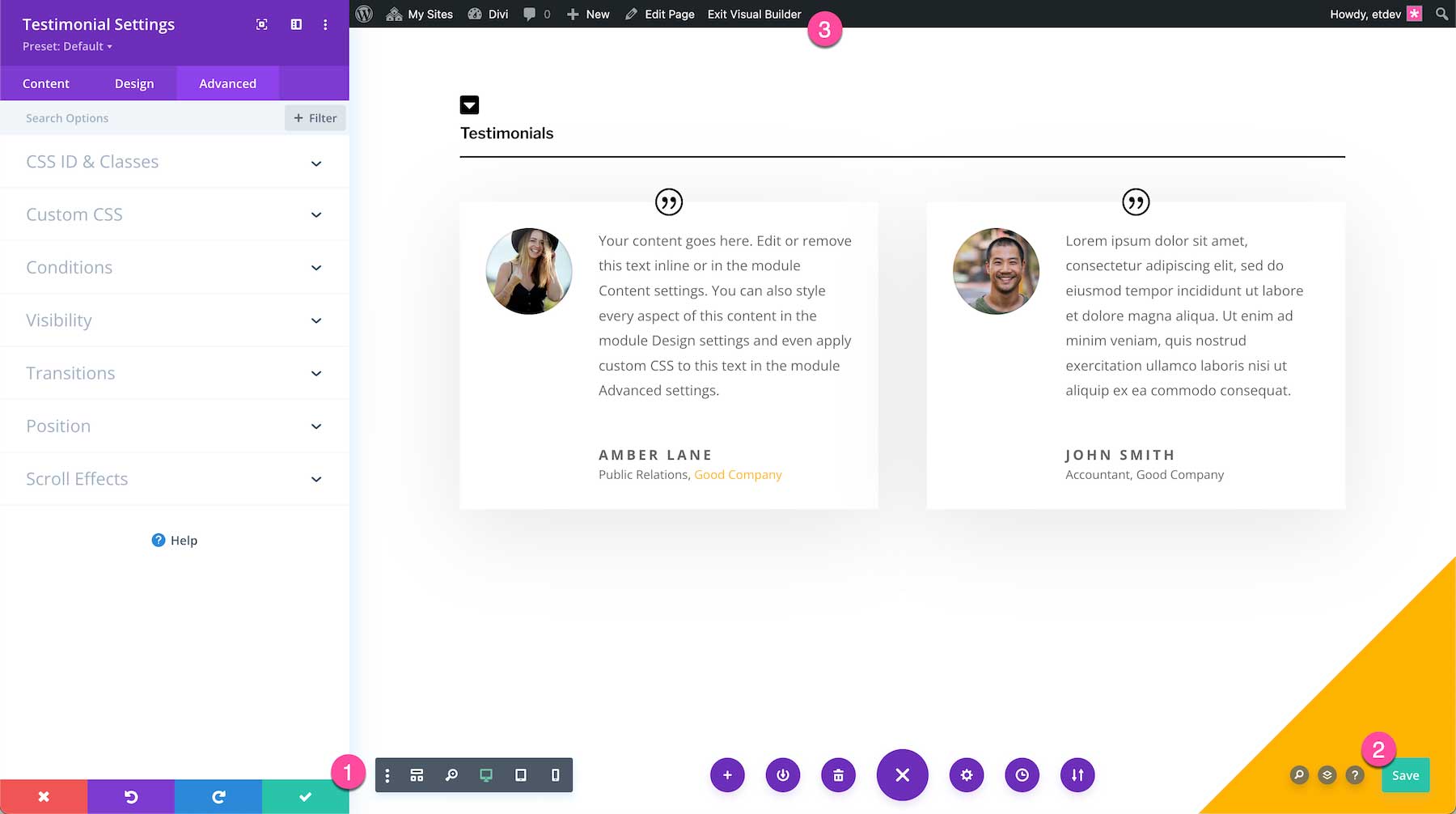
First, open the Divi Builder. Look for the Module Library. It’s on the left side. Scroll down to find the Testimonial Module. Click on it. The module will now appear in your builder.
Drag the module to your page. Drop it in the desired section. Customize the text fields. Add names and quotes. Adjust the design settings. You can change colors and fonts. Preview your changes. Make sure it looks good. Save your work. Now your testimonial is part of the page.
Customizing Testimonials
Create a stunning testimonial page using the Divi Theme in WordPress. Customize layouts to showcase client feedback. Enhance credibility with visually appealing designs and easy-to-follow steps.
Editing Content
Change the text in the testimonial section. Click the text box to edit. Make sure the words are simple and clear. Use short sentences for easy reading. Check for spelling mistakes before saving.
Styling Options
Pick colors that match your site. Use the Divi Builder to choose fonts. Make sure the font size is easy to read. Add bold or italic for special words. Keep the style clean and neat.
Adjusting Layout
Arrange testimonials in a grid or a list. Use the layout option in Divi. Make sure it looks good on phones and computers. Keep the layout simple and tidy.
Enhancing With Additional Features
Creating a testimonial page using the WordPress Divi Theme is simple. Customize layouts, add engaging content, and use Divi modules to showcase client feedback effectively. Enhance your page with features like sliders and grids for a dynamic presentation.
Incorporating Images
Images make your page look pretty. They can tell a story. Adding images of happy customers boosts trust. People love seeing real faces. Use clear, bright pictures. Make sure they are not blurry. Pick images that fit well with your text. This helps readers understand better.
Utilizing Animation Effects
Animation effects add fun to your page. They catch eyes quickly. Simple animations like fading in work well. They make content lively. Use effects sparingly. Too many can be distracting. Keep it balanced. Make sure the effects don’t slow your page. Fast pages keep visitors happy.
Optimizing For Mobile
Create an engaging testimonial page using the WordPress Divi theme. Ensure easy navigation and responsive design for mobile users. Highlight customer feedback with clear, readable fonts and appealing layouts to enhance user experience.
Responsive Design Settings
Mobile users are everywhere. Make sure your website looks good. Use responsive design settings in Divi. This helps your page fit all screens. Big or small, it should look great.
Adjust font sizes. Make buttons easy to click. Check images. They must resize well. Use the Divi tools. They are easy to find. You can change settings fast.
Testing On Multiple Devices
Test your site on many devices. Try phones, tablets, and computers. Each device may show your page differently. Use free tools like Google’s Mobile-Friendly Test. They help you see any problems. Fix them to make sure everyone has a good experience.
Finalizing And Publishing
Create a testimonial page using WordPress Divi Theme by finalizing and publishing your design. Ensure all testimonials are accurate and visually appealing. Check the layout before publishing to maintain a professional look.
Reviewing The Page
Check every detail on your testimonial page. Make sure all names and quotes are correct. Look for any spelling mistakes. Preview the page in different devices. This ensures it looks good everywhere. Consider asking a friend to look at it. They might see something you missed.
Publishing The Testimonial Page
Once everything is perfect, click the publish button. Your page will be live for everyone to see. Share the link on social media. Tell your friends about it. People love reading what others say. This builds trust and shows your good work.
Credit: wpzone.co
Promoting Your Testimonial Page
Use social media to spread the word about your testimonial page. Share a link on your profiles. Ask friends and followers to check it out. Tell them why it’s special. Post at times when people are online. This helps more people see it. Use images to catch attention. A picture can say a lot. Write a short message with the link. Keep it simple and clear. Encourage your followers to share it too.
Add a link to your page in emails. This can be in your signature. So, every email you send has the link. Tell people why they should visit. Explain the page has real opinions from real people. This builds trust. Make the link easy to see. Use a different color or bold text. This way, people notice it. Keep the email message short and sweet. Let the link do the talking.
Credit: www.elegantthemes.com
Frequently Asked Questions
How To Add Testimonials In Divi Theme?
To add testimonials in Divi, use the built-in testimonial module. Customize the layout, text, and design to match your site. Drag and drop the module into your desired page section. Ensure to include client names and feedback for authenticity.
Can I Customize Testimonial Layout In Divi?
Yes, Divi allows full customization of testimonial layouts. Adjust colors, fonts, and spacing using the Divi Builder. Modify each testimonial’s style to align with your site’s design. Use custom CSS for advanced styling options.
Are Divi Testimonials Mobile-friendly?
Divi’s testimonial module is responsive and mobile-friendly. It automatically adjusts to different screen sizes. Testimonial sections display correctly on mobile devices. You can preview and tweak design settings for mobile optimization.
Is It Possible To Import Testimonials In Divi?
You can import testimonials using Divi’s import/export functionality. Export testimonials from another source as a JSON file. Then, import this file into Divi. Ensure data formats align for successful import.
Conclusion
Creating a testimonial page with WordPress Divi theme is simple. Start by selecting the right layout. Add customer reviews and photos. Make sure you keep the design clean. Focus on readability. Highlight honest feedback. Use Divi’s modules for easy customization.
Testimonials build trust and credibility. They help visitors decide quickly. Ensure mobile-friendly design for wider reach. Keep updating the page with new testimonials. This keeps content fresh and relevant. Your testimonial page can enhance user experience. It also boosts engagement.
A well-crafted page can elevate your brand’s reputation.


