

Want to build your own website but don’t know where to start? You’re in the right place.
Creating a site with WordPress is easier than you think, even if you have no technical skills. Imagine having full control over your site’s look and content, attracting visitors, and growing your online presence—all without feeling overwhelmed. You’ll discover simple steps to set up your WordPress site quickly and confidently.
Ready to turn your ideas into a real website? Let’s dive in!
Choosing A Domain And Hosting
Choosing a domain and hosting is the first step to create a WordPress site. Your domain is your website’s address. Hosting is the service that stores your website files and shows them online. Both must be chosen carefully for your site to run well.
Selecting The Right Domain Name
Pick a domain name that is short and easy to remember. Use simple words related to your site’s topic. Avoid numbers and special characters. Check if the name is available using domain search tools. Choose a domain extension like .com or .net. These are familiar and trusted by users.
Picking A Reliable Hosting Provider
Find a hosting provider with good speed and uptime. A slow site loses visitors quickly. Check if the host supports WordPress easily. Look for 24/7 customer support to help with problems. Compare prices and features before deciding. Choose a host with easy-to-use control panels.
Setting Up Your Hosting Account
Sign up with your chosen hosting provider. Enter your domain name during signup to link it. Choose a hosting plan that fits your site needs. Complete the payment process to activate your account. Access your hosting control panel to manage files. Install WordPress using one-click installers offered by most hosts.
Installing WordPress
Installing WordPress is the first step to create your website. It sets up the platform where you will build your content. There are two main ways to install WordPress. Each method suits different levels of experience and control. Choose the one that fits your needs.
Using One-click Installers
One-click installers make WordPress setup very easy. Many web hosts offer this tool in their control panel. You just pick WordPress, fill in a few details, and click install. The system does all the work for you. It sets up the database and files automatically. This method saves time and avoids technical steps. It is perfect for beginners or those who want a quick start.
Manual Installation Process
Manual installation gives you full control over your WordPress setup. Start by downloading the WordPress package from the official website. Upload the files to your hosting server using FTP. Create a database for WordPress on your host control panel. Then, run the WordPress installer by visiting your website URL. Follow the instructions to connect to the database. This method requires some technical knowledge. It suits users who want to customize their installation deeply.
Configuring Basic Settings
Configuring the basic settings in WordPress is the first step to building your site. These settings control how your site looks and works. They help improve your site’s usability and search engine ranking. Taking time to set these correctly saves problems later. Let’s explore three key areas to configure.
Setting Site Title And Tagline
The site title is the name visitors see in browsers and search results. The tagline is a short phrase that describes your site’s purpose. Both appear in the header and help with branding. Choose clear, simple words that explain your site. You can change these anytime in the WordPress dashboard under Settings > General.
Adjusting Permalinks
Permalinks are the URLs for your pages and posts. A clean, readable URL helps visitors and search engines. WordPress offers several formats for permalinks. The “Post name” option is best for most sites. It shows the title in the URL, like www.yoursite.com/sample-post. Change this under Settings > Permalinks. Save changes to apply the new URL structure.
Managing User Roles
WordPress allows multiple users with different roles. Each role has specific permissions, like editing or publishing. Assign roles carefully to protect your site. Common roles include Administrator, Editor, Author, Contributor, and Subscriber. You can add or edit users in Users > All Users. Keep control over who can change your site content.
Credit: duplicator.com
Choosing And Customizing A Theme
Choosing and customizing a theme shapes your website’s look and feel. It affects how visitors see your content and navigate your pages. A good theme matches your site’s purpose and style. Customizing the theme lets you add personal touches and improve user experience. This section guides you through finding, installing, and customizing a theme on WordPress.
Finding A Suitable Theme
Start by exploring the WordPress theme directory. It offers free themes with different styles and features. Use keywords related to your website topic to narrow choices. Check theme ratings and reviews for quality and support. Preview themes to see how they look on desktop and mobile. Choose a theme that fits your content and audience.
Installing Your Theme
Go to your WordPress dashboard and click “Appearance.” Select “Themes” and then “Add New.” Upload a theme if you downloaded one outside WordPress. Click “Install” and wait for the process to finish. Activate the theme to make it live on your site. Confirm everything loads correctly on your pages.
Customizing Appearance
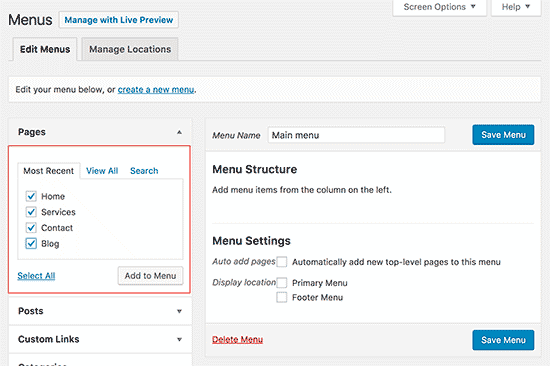
Open the “Customize” option under “Appearance” in the dashboard. Adjust colors, fonts, and layout to match your brand. Add a logo and change the header or footer styles. Modify menus and widgets to improve navigation. Use live preview to see changes before saving. Keep the design simple and user-friendly for best results.
Adding Essential Plugins
Plugins bring extra features to your WordPress site. They help improve performance, security, and design. Choosing the right plugins is key for a smooth website experience. This section covers how to add essential plugins.
Must-have Plugins For Functionality
Start with plugins that boost site speed and security. A caching plugin like WP Super Cache speeds up loading times. Use a security plugin such as Wordfence to protect your site from attacks. SEO plugins like Yoast SEO help improve search engine rankings. Contact form plugins enable visitors to reach you easily. These plugins cover the basics of functionality every site needs.
Installing And Activating Plugins
Go to your WordPress dashboard and click on Plugins. Select “Add New” to browse the plugin library. Use the search bar to find the plugin you want. Click “Install Now” to add it to your site. After installation, click “Activate” to start using the plugin. Repeat this for all your essential plugins. Keep plugins updated to avoid compatibility issues.
Configuring Plugin Settings
Once activated, each plugin needs setup. Open the plugin settings from the dashboard menu. Follow on-screen instructions or use default settings for quick setup. Adjust options like security levels, caching times, or SEO keywords. Test the plugin to ensure it works as expected. Proper configuration helps your site run smoothly and safely.
Creating Key Pages
Creating key pages is vital for your WordPress site. These pages help visitors understand your site and find what they need. Focus on clear, simple content that guides users easily.
Building A Home Page
The home page is the first thing visitors see. It must be welcoming and clear. Use a clean design with a strong headline. Show your main message and what your site offers. Add a few images or a slider to catch attention. Keep navigation simple to help users explore.
Setting Up About And Contact Pages
The About page tells visitors who you are. Share your story and your site’s purpose. Use friendly, straightforward language. The Contact page lets visitors reach you easily. Include a contact form, email, and phone number. Add social media links for more options. Make sure these pages are easy to find in your menu.
Adding Blog Posts
Blog posts keep your site active and interesting. Write posts about your niche or topics your audience cares about. Use short paragraphs and clear headings. Add images to make posts more engaging. Update regularly to keep visitors coming back. Tag posts with relevant keywords to help search engines find them.
Optimizing For Seo
Optimizing your WordPress site for SEO is essential to attract visitors from search engines. SEO helps your site rank higher and get noticed. Small changes can make a big difference in search results.
Focus on tools, content, and structure. Each part plays a role in improving your site’s visibility. Let’s explore easy steps to boost your SEO on WordPress.
Installing Seo Plugins
SEO plugins simplify the optimization process. Popular plugins like Yoast SEO and Rank Math offer easy settings. They help manage keywords, meta descriptions, and readability.
These plugins guide you on improving your posts. They check for SEO issues and suggest fixes. Installing one plugin saves time and improves your SEO efforts.
Optimizing Content And Images
Content must be clear, useful, and include keywords naturally. Use short sentences and simple words. Break text into small paragraphs for easy reading.
Images need proper titles and alt text. Alt text helps search engines understand images. Compress images to improve site speed, which affects SEO ranking.
Setting Up Xml Sitemaps
XML sitemaps tell search engines about your site structure. They help search engines find and index pages faster. Most SEO plugins create sitemaps automatically.
Submit your sitemap to Google Search Console. This step improves your site’s crawling and indexing. Keep your sitemap updated as you add new content.
Securing Your Website
Securing your website is a key step in creating a WordPress site. Protecting your site keeps your data safe. It also builds trust with visitors. A secure website reduces the chance of hacking and data loss. Focus on simple but strong security steps. These help keep your site safe and running smoothly.
Implementing Ssl Certificates
SSL certificates encrypt data between your site and visitors. This stops hackers from stealing sensitive information. Most hosting providers offer free SSL certificates. Activate SSL to change your site address from HTTP to HTTPS. This small step improves security and search rankings. Visitors see a padlock icon in the browser. This shows your site is safe to use.
Setting Up Backups
Backups save copies of your website data. They protect you if something goes wrong. Regular backups let you restore your site quickly. Use plugins or hosting tools to schedule automatic backups. Store backup files in a separate location. This keeps your data safe from server issues. Test backups to ensure they work before you need them.
Using Security Plugins
Security plugins add extra layers of protection to WordPress. They scan for malware and block suspicious activity. Many plugins offer firewall and login protection features. Choose plugins with good reviews and regular updates. Configure settings to limit login attempts and monitor changes. Security plugins help catch threats early and keep your site secure.
Launching And Promoting Your Site
Launching and promoting your WordPress site is a key step. It helps you reach visitors and grow your audience. Before sharing your site, ensure it works perfectly. Then, use social media to tell people about your new site. After launching, keep an eye on your site’s performance. This keeps your site fast and user-friendly.
Testing Before Launch
Check all pages for errors and broken links. Test your site on different devices like phones and tablets. Make sure it loads quickly. Verify all forms and buttons work. Check spelling and grammar for a professional look. Fix issues before making your site public.
Sharing On Social Media
Post your site link on platforms like Facebook and Twitter. Write short, clear messages to attract visitors. Share updates and new content regularly. Join groups related to your site’s topic. This helps you connect with interested people. Encourage friends and followers to share your site.
Monitoring Site Performance
Use tools like Google Analytics to track visitors. Watch which pages get the most views. Check how long people stay on your site. Look for any drop in traffic. Fix problems quickly to keep visitors happy. Regular monitoring helps your site grow steadily.
Credit: www.elegantthemes.com

Credit: cmsminds.com
Frequently Asked Questions
What Is The First Step To Create A WordPress Site?
The first step is choosing a reliable hosting provider. Then, install WordPress either manually or using one-click installers. This sets the foundation for your website.
How Do I Pick The Best WordPress Theme?
Choose a theme that matches your site’s purpose. Ensure it’s responsive, lightweight, and SEO-friendly. Check user reviews and update frequency for reliability.
Can I Create A WordPress Site Without Coding Skills?
Yes, WordPress offers a user-friendly interface and drag-and-drop builders. You can customize designs and add features without coding knowledge.
How Important Are Plugins For WordPress Sites?
Plugins add essential features like SEO, security, and performance. They extend your site’s functionality without needing custom development.
Conclusion
Creating a WordPress site is easier than it seems. Choose a good hosting service and install WordPress. Pick a theme that fits your style. Add plugins to improve your site’s features. Write clear content that visitors will enjoy. Keep your site updated and secure.
With patience and practice, your website will grow. Start today and watch your ideas come alive. Simple steps lead to a great site.


