
Imagine having the power to design a sleek and modern website that showcases everything on a single page. No more cumbersome navigation or endless clicks.
A single-page WordPress theme can make this a reality, and it’s simpler than you might think. Whether you’re a seasoned developer or a curious beginner, learning how to create a single-page WordPress theme can open up a world of possibilities for your website.
You’ll discover how to streamline your content, enhance user experience, and create an engaging online presence that captures your audience’s attention from the first scroll. Ready to dive in and transform your digital space into a seamless, captivating experience? Let’s get started!
Planning Your Theme
Start by listing the features you need. Think about menus, buttons, and images. Consider any special animations or effects. Make sure the theme is responsive. This helps it look good on all devices. Loading speed is important too. A fast theme keeps users happy. SEO features can help your site rank better. Always check for compatibility with popular plugins. This ensures your theme works with others.
Pick a style that matches your content. Simple designs are often best. They load faster and look clean. Colors should be easy on the eyes. Avoid too many fonts. They can make your site look messy. Images should be high quality. They make your site look professional. Keep the layout easy to navigate. Users should find what they need quickly.

Credit: crocoblock.com
Setting Up The Development Environment
Start by installing WordPress locally to begin creating your single-page theme. Choose a reliable code editor for easy editing. Ensure all necessary plugins and tools are ready for a smooth development process.
Installing WordPress Locally
First, download WordPress. Get the latest version from the official site. Next, install a local server. Popular choices are XAMPP or MAMP. These tools help run WordPress on your computer. Start the server application. Create a new database for WordPress. Use phpMyAdmin for easy setup. Then, unzip the WordPress files. Place them in the server’s root folder. Open your browser. Go to the server URL. Follow the steps to install WordPress. Provide database details during setup. Your local WordPress site is ready.
Selecting Essential Tools
Choose a good text editor. Examples include Atom or Visual Studio Code. These editors help write code easily. Install a browser for testing. Chrome or Firefox are popular. Add developer tools to your browser. They help debug and test your theme. Use Git for version control. It keeps track of your changes. Consider tools like Sass for styling. They make CSS easier to manage. A simple setup ensures smooth development.
Creating The Theme Structure
First, make a new folder for your theme. Name it something simple. This folder will hold all theme files. Keep it organized. Use clear names for each file.
Inside your theme folder, create essential files. Start with style.css. This file is for your theme’s style. Next, make index.php. It shows your content on the page. Then, add functions.php. This file adds extra features to your theme.
These files are key. They make your theme work. Without them, the theme won’t load. Make sure each file is saved correctly. Check their names twice.
Designing The Page Layout
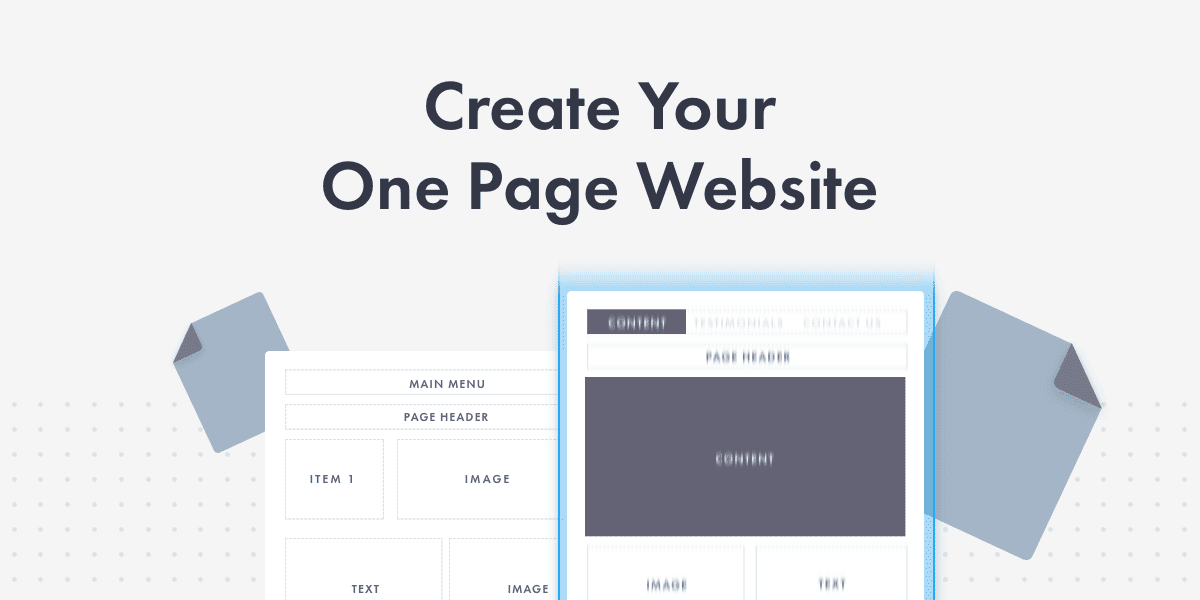
The header is the top part of your page. It usually holds the logo and menu. A simple design works best. Keep the logo clear and easy to see. Use a clean font for the menu. This helps visitors find things quickly. Add a search bar if needed. This makes it easier to find more content.
The content area is where main information lives. Break content into small sections. Use headings and subheadings to guide readers. Add images to make the page look nice. Images should be clear and relevant. Keep text simple. Too much text is hard to read. Use bullets for lists. This helps in keeping it tidy.
The footer sits at the bottom of the page. It can have contact info and social media links. Some people add a quick menu here too. A copyright note is also common. Make sure the footer is not too crowded. It should be easy to read.
Incorporating Responsive Design
Media queries help adjust the theme for different screen sizes. They make the site look good on phones, tablets, and computers. Use breakpoints to change styles at certain screen widths. CSS rules apply only when conditions are met. This helps in making the theme responsive.
Testing ensures the theme works well everywhere. Check the site on phones, tablets, and computers. Look for problems with layout or text. Fix any issues found. Testing improves user experience. Happy users visit more often.
Credit: www.proteusthemes.com
Adding Dynamic Content
WordPress loops help show posts on a page. These loops are very important. They decide which posts to display. Use PHP code to set them up. You can choose posts by date, category, or tag. This makes your page show fresh content. Always keep your loops simple. This helps your site load fast.
Custom fields add extra details to posts. They make content more interesting. Add fields for images, links, or text. This adds more value to your posts. You can edit these fields in the WordPress admin area. Custom fields help make each post unique. Use them to stand out from other sites.
Styling With Css
Creating a single page WordPress theme with CSS involves crafting cohesive design elements. Focus on layout simplicity and visual appeal. Enhance user experience through responsive design and consistent styling.
Organizing Your Stylesheet
CSS keeps your webpage pretty. It changes colors and shapes. Organize your stylesheet neatly. Use comments to label sections. This helps find styles fast. Group similar styles together. Try using a naming system. This makes it easy to read. Avoid messy styles. Clean code saves time later. Keep your stylesheet tidy. It helps when fixing errors. Organized CSS is easier to update. Your site will look better and work well.
Implementing Custom Styles
Custom styles make your page unique. Use CSS to design parts of your site. Change text color and size. Make buttons stand out. Style images with borders. Add padding to elements. Try different fonts for headings. Be careful with bright colors. Keep it simple and clear. Test styles on different devices. See how they look on phones. Adjust if needed. Custom styles give your site personality. Your webpage should look good and be easy to use.
Enhancing With Javascript
Discover how to craft a single-page WordPress theme using JavaScript for dynamic content. This approach enhances user experience, making your site faster and more interactive.
Adding Interactive Elements
JavaScript makes web pages come alive. It adds interactive elements that engage users. For example, you can create sliders or pop-up messages. This makes a site more dynamic. Interactive features keep visitors on the page longer. They make the experience more fun and memorable. JavaScript is like magic for web pages. It changes how users feel about a site.
Ensuring Compatibility
JavaScript must work on all browsers. Each browser may interpret code differently. Testing is important to ensure compatibility. Sometimes, using polyfills can help. These are like fixes for older browsers. They ensure everyone sees the same features. Also, check on different devices. Phones, tablets, and computers must all show the site properly. This ensures a smooth experience for all users. Compatibility keeps the website accessible to more people.
Optimizing For Performance
Crafting a single-page WordPress theme requires careful planning for speed and efficiency. Focus on minimal design elements to ensure fast loading times. Prioritize essential features, avoiding unnecessary plugins to enhance performance and user experience.
Minimizing File Sizes
Large files slow down your site. Shrinking them is crucial. Use tools to compress images. Make CSS and JavaScript smaller. Keep file sizes small. It helps your site load fast. Fast loading is good for users. It also improves SEO.
Leveraging Caching Techniques
Cache helps to save time. It keeps data ready for use. Install a caching plugin. It stores parts of your site. This makes your site load faster. Users enjoy quick sites. It saves server resources too. Fast sites rank better on search engines.
Testing And Debugging
Crafting a single page WordPress theme involves careful testing and debugging. Identify errors early to ensure smooth performance. Simplify code and check compatibility across devices for optimal user experience.
Validating Code
Check your code for errors. Use tools like W3C Validator. Find mistakes quickly. Make sure your code follows standards. This helps your theme work well. Good code is easy to read. It is also easy to fix.
Resolving Common Issues
Fix broken links first. They can confuse users. Check for missing images. Make sure all files load properly. Test your theme on different browsers. Some browsers show things differently. Use tools to check speed. Fast themes keep users happy. Finally, ensure your theme is responsive. It should look good on phones and tablets.
Deploying Your Theme
Crafting a single page WordPress theme involves deploying your theme seamlessly. Begin by organizing your files and folders. Ensure each element is optimized for performance and responsiveness.
Preparing For Launch
First, check your theme for any errors. Use the WordPress theme checker plugin. This tool helps find mistakes. Next, test the theme on different devices. Make sure it looks good on phones and tablets. Check the loading speed too. A fast theme is important. Then, write good documentation. Explain how to use the theme. This helps users a lot. Finally, have a backup ready. Save your theme files safely.
Submitting To WordPress Repository
Start by creating a WordPress account. You need this to submit your theme. Next, go to the WordPress theme directory. Click on “Submit Your Theme”. Upload your theme files. Ensure they are in a ZIP file. Fill out all required details. Add a clear theme description. Include tags to help users find your theme. Now, wait for the WordPress team to review. They will check your theme for quality. If approved, your theme goes live!

Credit: crocoblock.com
Frequently Asked Questions
What Is A Single Page WordPress Theme?
A single page WordPress theme displays all content on one page. It enhances user experience with smooth scrolling and easy navigation. These themes are ideal for portfolios, small businesses, and personal blogs. They help keep visitors engaged by minimizing page load times and simplifying the browsing process.
How Do I Start Creating A WordPress Theme?
Begin by planning your theme layout and features. Use WordPress theme development tools like Underscores or Elementor. Create a child theme for customization. Develop and test your theme locally before deploying. Always ensure your theme is responsive and SEO-friendly for best results.
Which Plugins Enhance Single Page Themes?
Plugins like Elementor and WP Page Builder simplify single page theme creation. Use Yoast SEO for optimizing content. Implement caching plugins like W3 Total Cache for faster loading. Gravity Forms can add interactive forms, while WooCommerce enables e-commerce functionality seamlessly.
Can I Customize My Single Page Theme?
Yes, customizing a single page theme is possible. Use WordPress Customizer for basic adjustments. Advanced changes require CSS or PHP editing. Utilize page builders like Elementor for easy layout modifications. Always backup your site before making significant changes to avoid data loss.
Conclusion
Creating a single page WordPress theme is straightforward. Start with clear planning. Design a simple layout that suits your content. Use clean code for fast loading. Ensure mobile responsiveness for better user experience. Test thoroughly before launching. Keep updates frequent to maintain security.
With these steps, your site can stand out. Engage visitors with easy navigation. Prioritize user-friendly design. Every element should serve a purpose. Remember, simplicity often wins. Happy designing!


