
Are you looking to enhance your WordPress website with a sleek and functional sidebar? If you’re using the Zakra theme, you’re in luck!
Crafting a sidebar that’s both visually appealing and highly functional can significantly improve your site’s navigation and user experience. In this guide, you’ll learn step-by-step how to create a sidebar in WordPress using the versatile Zakra theme. Imagine having a site where your visitors can effortlessly find what they’re looking for, boosting your engagement and keeping them coming back for more.
Dive in, and discover how easy it is to give your website the edge it needs. Your perfect sidebar is just a few clicks away!
Zakra Theme Overview
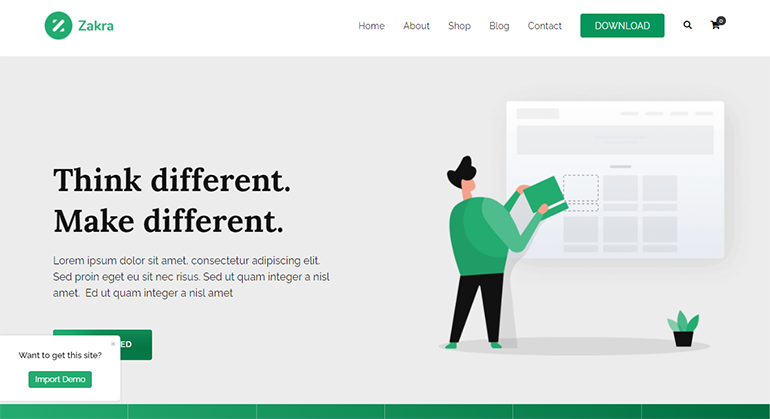
The Zakra theme is a popular choice for WordPress users. It’s lightweight and versatile, making it a great option. Many users like it for its customization options. With Zakra, you can create a beautiful site with ease.
This theme is also responsive. It looks good on both computers and phones. You can change the layout and colors to fit your needs. Zakra is SEO-friendly, helping your site get found online. It also works well with many plugins. This makes it easy to add new features to your website.
Another reason people choose Zakra is its speed. Fast-loading pages keep visitors happy. The theme is also easy to set up. Even beginners can use it without much help.
Installing Zakra Theme
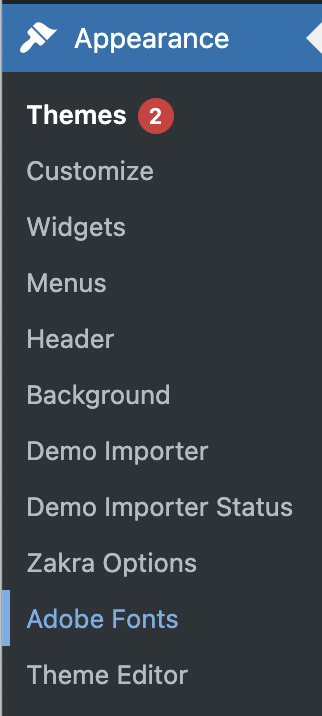
Zakra theme is popular for WordPress. First, go to the WordPress dashboard. Click on Appearance and select Themes. Next, click Add New at the top. Use the search bar to type Zakra. Find the theme and click Install. Wait for the installation to finish.
After installing, click Activate to use Zakra. The theme will change your site’s look. Explore the Customization options. Zakra offers many features. Customize your site with ease. Change colors and fonts. Add widgets and menus. Make your site unique and beautiful.
Zakra theme makes websites fun. It is easy to use. Follow these steps to install it. Your WordPress site will look great. Enjoy designing your site. Zakra theme is ready to help.
Activating Theme Features
To create a sidebar in the Zakra Theme, activate the theme features. First, go to your WordPress dashboard. Click on Appearance and then Themes. Locate the Zakra Theme and click on Activate. This enables all the features of the theme.
After activation, visit the Widgets section under Appearance. Here, you can add or remove widgets to your sidebar. Simply drag and drop the widgets you need. Use the Zakra’s custom widgets for better design. Ensure your widgets are placed in the Sidebar area.
To see changes, visit your website’s front-end. The sidebar should now appear with the selected widgets. If not, double-check your widget settings. This process helps in customizing your website easily with the Zakra Theme.
Understanding WordPress Sidebars
A WordPress sidebar is a space on your website. It holds widgets and other elements. These elements help improve user experience. Sidebars can include menus, search bars, and recent posts. They offer a way to navigate easily. Sidebars make your site look neat and tidy.
The Zakra theme supports custom sidebars. You can add or remove widgets as needed. It allows full control over the sidebar content. Sidebars can be on the left or right. Some themes allow sidebars at the bottom too.
Widgets in sidebars are easy to manage. Just drag and drop them. You can also add custom HTML to widgets. It is a simple way to personalize your site. Sidebars are useful for both design and functionality.
Accessing Widget Settings
Start by opening your WordPress dashboard. Find the Appearance tab on the left. Click it to see more options. Choose Widgets from the list. This is where you manage your sidebar. Look for the Zakra theme settings. Add new widgets here. Drag them to your sidebar area. You can rearrange them as you like. Save changes when done. This keeps your sidebar updated. Make sure widgets are active. Check for the display settings. Some widgets need special settings. Explore the available widget types. Each serves a different purpose. Customize according to your needs. Always save your changes. This ensures everything works well.
Adding New Widgets
Creating a sidebar is fun with the Zakra theme. Start by logging into your WordPress dashboard. Go to Appearance and then click on Widgets. You will see a list of available widgets. Drag and drop your chosen widgets to the sidebar area. Each widget has its own settings. Click on the widget to customize it. You can add a title and content to the widget. Make sure to save your changes.
Want to remove a widget? Simply click on the widget and select Delete. This process is simple and fast. You can also reorder widgets by dragging them up or down. This helps in organizing your sidebar. Experiment with different widgets. Find what works best for your site. Enjoy the flexibility and simplicity of the Zakra theme.
Customizing Sidebar Appearance
The Zakra Theme offers many color options. Pick a color that fits your website’s look. Choose easy-to-read fonts. They should match your site’s style. Try different combinations. Find what looks best. Colors and fonts change how your sidebar feels. Make it unique and fun.
Adjust the layout to fit your content. Use space wisely. Don’t overcrowd the sidebar. Keep it neat and tidy. Add enough space between items. This makes it easier to read. A good layout is key for a clean look. Balance is important. Everything should be in its place. This helps visitors find things quickly.
Assigning Sidebar To Pages
To add a sidebar in Zakra, first, open your WordPress dashboard. Go to the “Pages” section. Click on the page you want to edit. On the right-hand side, find the “Page Attributes” option. Here, select the “Sidebar” layout. Zakra allows you to choose different sidebar positions. You can have it on the left or right. This choice affects how your page looks. After selecting, click “Update” to save changes. Your page will now have a sidebar.
Sidebars can hold widgets. Widgets add functionality to your site. You can include search bars, recent posts, and more. To manage widgets, go to “Appearance” and then “Widgets” in your dashboard. Drag and drop widgets into your sidebar area. This makes your website more interactive. Be sure to check how it looks on different devices. Mobile views might need adjustments.
Utilizing Zakra Widgets
Zakra theme offers many widgets for your sidebar. First, go to the WordPress dashboard. Click on Appearance and then Widgets. Here, you can see different widget options. Drag the widget you like to the sidebar area. This process is simple and easy.
Zakra widgets allow you to add text, images, or menus. You can also add a search bar or recent posts. Customize these widgets to fit your website’s needs. Adding widgets enhances the user experience. They make your website look professional and organized.
Always remember to save changes. Check your site to see how the sidebar looks. Adjust the widgets as needed. This ensures a smooth and user-friendly interface. With Zakra, creating a sidebar is fun and simple.
Credit: wpmarmite.com
Testing Sidebar Functionality
Check if the sidebar works. Add widgets to the sidebar area. Use Zakra theme customizer. Click on ‘Widgets’ in the menu. Choose the sidebar option. Add different widgets to test. Include text, images, or links. Refresh the page to see changes. Ensure widgets appear correctly. Adjust settings if needed.
Click on each widget to test. Confirm links and text display properly. Ensure images load and look good. Test sidebar on different devices. Use a computer, tablet, and phone. Make sure it is responsive. Check for any display issues. Fix any problems you find. Widgets should be easy to use. Make the sidebar helpful for visitors.
Troubleshooting Common Issues
Widgets might not work well together. This can cause display problems. Check if your widget is updated. Old widgets often cause issues. Look at the widget settings. Incorrect settings can lead to errors. Try deactivating plugins. Some plugins may interfere with widgets. If one plugin causes trouble, find another.
Check for display errors in your sidebar. Sometimes content appears jumbled. This might be due to theme settings. Adjust these settings for a better look. Ensure your theme is compatible with WordPress. An old theme may not show content correctly. Regular updates help fix display issues. Always back up your site before changes.
Credit: zakratheme.com
Credit: kb.hosting.com
Frequently Asked Questions
How To Add A Sidebar In Zakra Theme?
To add a sidebar in the Zakra theme, navigate to Appearance > Widgets in the WordPress dashboard. Select the widgets you want and drag them to the Sidebar area. Save your changes to display the sidebar on your site. Zakra allows customization for widget placement and design.
Can Zakra Theme Support Custom Sidebars?
Yes, Zakra theme supports custom sidebars. You can create and manage them using the Customizer. Navigate to Appearance > Customize > Widgets to add new sidebars. Zakra offers flexibility to design sidebars as per your site’s requirements, enhancing user experience and site functionality.
How Do I Customize Sidebar Layout In Zakra?
Customizing sidebar layout in Zakra is simple. Go to Appearance > Customize > Layout. Here, you can adjust sidebar position, width, and style. Zakra provides options to personalize the sidebar for different pages, ensuring your site’s design is consistent and appealing.
Is Zakra Theme Compatible With Woocommerce Sidebar?
Yes, Zakra theme is fully compatible with WooCommerce sidebars. You can add WooCommerce widgets to your site’s sidebar for enhanced functionality. Go to Appearance > Widgets and drag WooCommerce widgets to your sidebar. Zakra ensures seamless integration for an efficient online store experience.
Conclusion
Creating a sidebar in WordPress with Zakra is straightforward. You can customize it easily. Add widgets to enhance functionality. Experiment with layout options to fit your design. Ensure the sidebar complements your website’s theme. Keep it organized for better user experience.
Zakra offers flexibility with sidebar settings. Adjust them to meet your needs. Remember, a well-designed sidebar boosts engagement. It helps visitors navigate your site smoothly. Take advantage of Zakra’s features for a professional look. Happy customizing your WordPress sidebar!


