
Are you looking to give your WordPress website a unique touch? Creating a custom page template might just be the game-changer you need.
Imagine having the power to design pages that perfectly fit your vision, without the constraints of a standard theme. It’s like having a blank canvas where you can paint your website exactly the way you want. Sounds exciting, right? But here’s the catch: navigating through WordPress to create a page template can feel like a daunting task.
The good news? You don’t need to be a tech wizard to master it. In this guide, we’ll walk you through the process, step by step, making it easy and accessible for you. By the end, you’ll be equipped with the knowledge to craft a page template that stands out and serves your goals. Curious about how you can make this happen effortlessly? Let’s dive into the world of WordPress page templates and unleash your website’s full potential. Keep reading to find out how you can elevate your site’s design and functionality with just a few simple steps.
Choosing The Right Theme
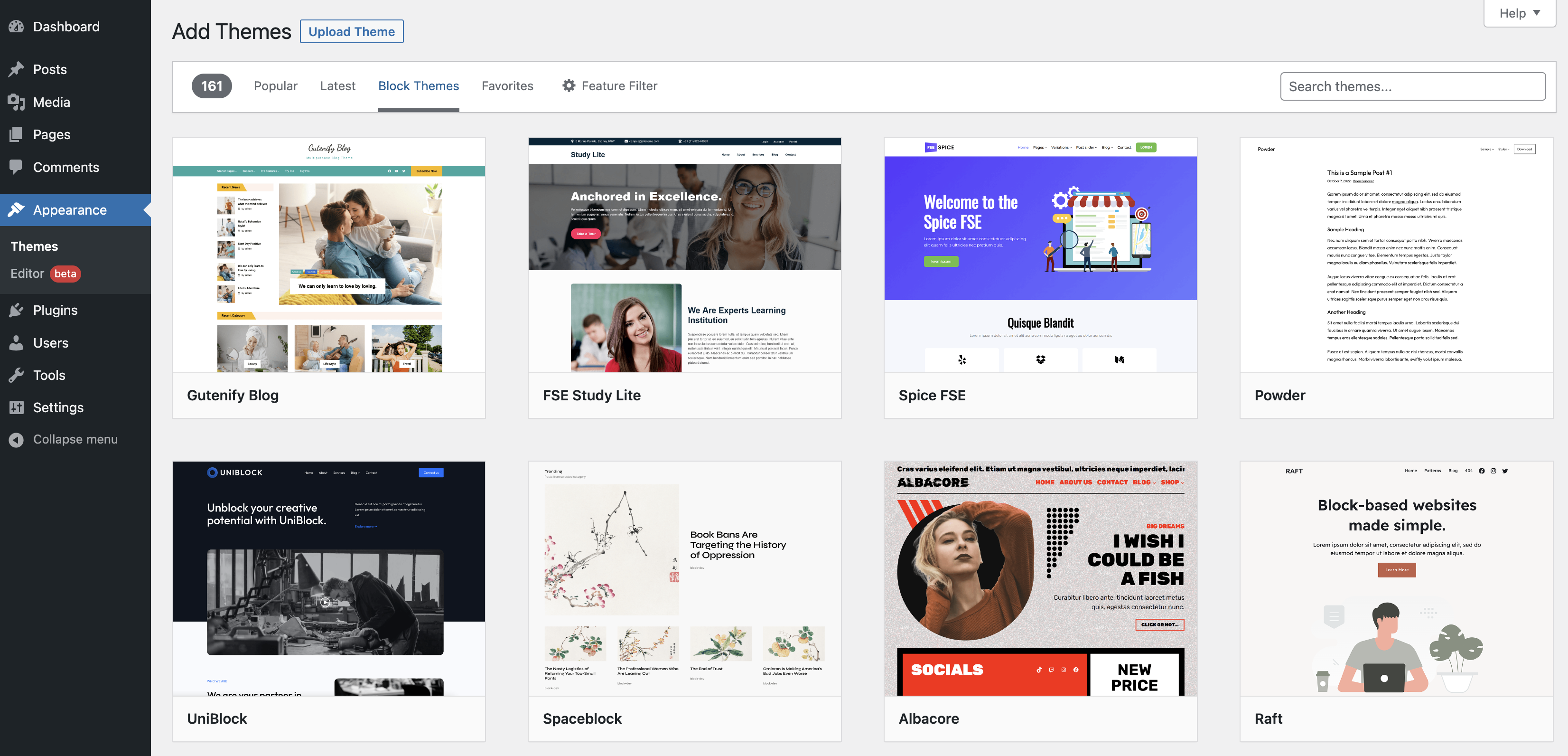
Picking a theme is fun. Themes change how your site looks. Some themes are free. Some cost money. Free themes are good for beginners. Paid themes offer more options. Check if a theme is mobile-friendly. Many users browse on phones. A slow theme can turn users away. Always read reviews before choosing. Reviews tell you what others think. Look at the theme’s last update date. Recent updates mean the theme is still cared for. Themes with no updates might have bugs.
Credit: wordpress.org
Setting Up A Child Theme
A child theme is important for changes in WordPress. It keeps your main theme safe. First, create a new folder in your themes directory. Name it like your main theme. Add “-child” at the end. Inside this folder, make a new style.css file. This file should have a header with your theme details. Write the name, description, and author.
Next, make a functions.php file in the child theme folder. This file will call the parent theme styles. Use the wp_enqueue_scripts action. Add a function to enqueue the parent theme’s stylesheet. This helps in keeping styles intact.
Activate the child theme in WordPress. Go to the themes section in the dashboard. Find your child theme and click activate. Now you can make changes safely.
Creating A New Page Template File
Start by opening the WordPress theme folder. Inside, find the template files. Create a new file and give it a special name. The name should be clear and specific. Use letters and numbers only. Avoid spaces or special symbols.
The template file needs a unique name. This name helps you find it later. It should relate to the page’s purpose. For example, name it custom-page.php if it’s a custom page. Save this file in the theme folder.
The template file needs a header. This is a comment block at the top. Write Template Name in the header. It tells WordPress about the template. Use this format:
php
    /
    Template Name: Custom Page
    /
    ?
This header is important. Without it, WordPress won’t recognize the template. Make sure to save the file again.
Customizing The Template Layout
Add your own HTML code to the template. This helps make your page unique. Place your HTML in the right spots. This way, everything looks neat. Ensure the code is correct. Errors can make the page look bad. Use a text editor to write your HTML. This makes it easier to spot mistakes.
CSS makes your page look nice. Use CSS styles to change colors and fonts. You can also adjust sizes and layouts. Write your CSS in a separate file. Link this file to your template. This keeps your code clean. Test your styles after writing. This helps ensure everything works well.
Incorporating Php For Dynamic Content
PHP helps in adding dynamic content to WordPress pages. WordPress functions make this task easier. Functions like get_header() and get_footer() are useful. They pull common parts of the site. Page templates use these functions. They make pages look uniform. It’s crucial to fetch custom fields. Custom fields add unique data. Examples include author names or dates. Use get_post_meta() to fetch them. This function gets data tied to posts. The data is then shown on the page. This makes each page different. Yet still part of the site. Custom fields make content special. They add personal touch to pages.
Using Template Tags
Template tags help show post details in WordPress. They make content appear nicely on a page. The the_content() tag is important. It shows the post’s main text. Use it inside the loop to display content. Each post gets its own space on the page. Tags like the_title() show post titles. They make pages look neat and organized. These tags work together to make pages better.
Loops repeat actions in WordPress. They help show posts in order. The loop starts with while and ends with endwhile. Inside the loop, use template tags. They bring posts to life. Loops make sure every post shows up. It’s like a cycle that never stops. Loop functions are simple but powerful. They keep your page fresh and updated. Loops keep posts in line and ready to read.
Assigning The Template To A Page
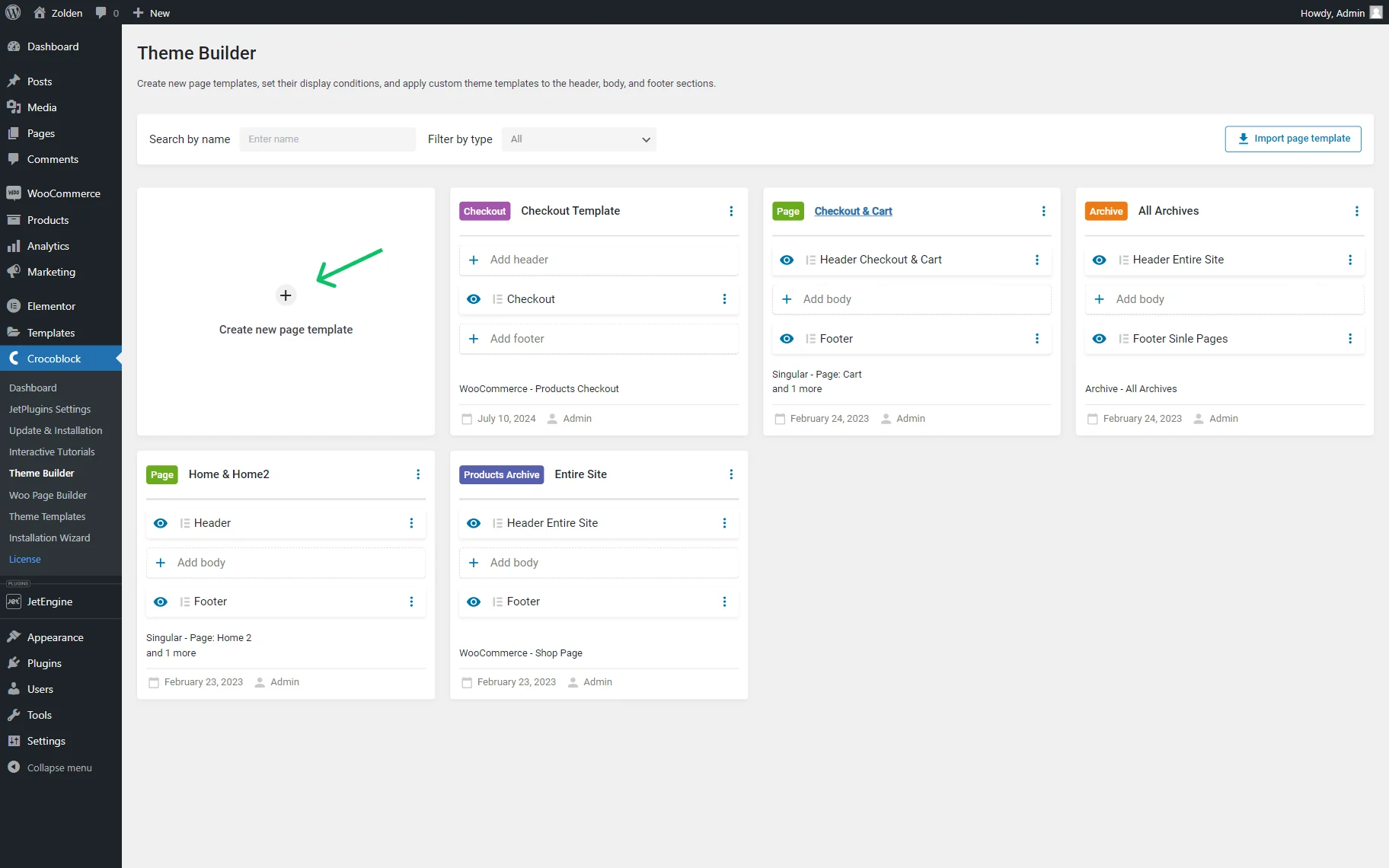
To assign a template, first go to your WordPress dashboard. Find the page you want to edit. Click on it to open the editing screen. On the right side, see the Page Attributes section. Find the Template dropdown menu. Select the template you need. Save your changes by clicking Update. Your page will now use the new template.
Templates give pages a custom look. They can change how a page looks and works. Using templates is easy. Make sure you choose the right one. The right template makes your page look great. It also helps your website work better. Templates are a key part of WordPress themes.
Credit: crocoblock.com
Testing And Debugging
Checking Compatibility is important for your theme. Check how your template works. Test it on different devices. Make sure it looks good on phones. Try it on tablets too. Check browsers like Chrome and Firefox. See if the template works well. It should not break or look odd. Look at the page speed. Slow pages can be frustrating. Improve it to keep users happy.
Resolving Common Issues is key. Sometimes, errors happen. They can be small or big. Check for broken links. They can confuse visitors. Fix them quickly. Look for missing images. They make the page look bad. Replace them with correct ones. Check for font issues. Make sure text is easy to read. If something doesn’t work, review your code. Mistakes can be simple. Correct them for better performance.
Best Practices
Make sure your page looks good on all devices. Test on both mobile and desktop. Use flexible layouts that adapt to screen sizes. Check images and texts. They should not overflow. Use percentage widths instead of fixed widths. This helps in adjusting to different screens. Ensure buttons are large enough to tap on a phone.
Speed is important for users. Keep your page light. Avoid too many images or videos. Use compressed images to reduce size. Minimize CSS and JavaScript files. This makes the page load faster. Use a cache plugin. It helps in loading the page quickly. Remove unnecessary plugins and scripts. They can slow down the site.

Credit: docs.themeisle.com
Frequently Asked Questions
How Do I Create A Page Template In WordPress?
To create a page template, start by creating a new PHP file in your theme folder. Add the template name at the top using a comment. Customize the file with your desired layout and save it. You can then select the template when creating or editing pages in WordPress.
Can I Customize WordPress Page Templates Easily?
Yes, WordPress page templates are customizable. You can modify the PHP file to change the layout, design, and functionality. Use HTML, CSS, and PHP code to tailor the template to your needs. Ensure the template is saved in your theme folder to access it in WordPress.
What Is A WordPress Child Theme?
A WordPress child theme is a theme that inherits properties from another theme, called the parent theme. It allows you to modify and customize the parent theme without affecting its functionality. Child themes are ideal for adding custom page templates and styles while keeping the parent theme intact.
Why Use Page Templates In WordPress Themes?
Page templates offer flexibility in design and layout for different pages. They allow unique styling and functionality for specific pages. Using templates helps create a consistent look across your site and provides control over how content is displayed. They are essential for tailored user experiences.
Conclusion
Creating a custom page template enhances your WordPress theme. It adds flexibility. You can customize the layout to suit your needs. Change how your pages look without altering the main theme. This boosts your site’s unique feel. It’s a great way to stand out.
Remember to test your template thoroughly. Ensure it works smoothly on all devices. Keep learning and experimenting. WordPress offers many possibilities. Dive deeper into its features. Your site can be both functional and visually appealing. Happy designing!


