
Are you looking to give your WordPress site a fresh, custom look? Creating a new theme folder in WordPress might sound like a task reserved for developers, but it’s much simpler than you might think.
Imagine having complete control over the design and functionality of your website. By the end of this guide, you’ll have the confidence and skills to start designing a theme that reflects your unique style. You might be surprised at how easy it can be to make your website stand out from the crowd.
So, if you’re ready to take your WordPress skills to the next level and create a site that truly represents you, keep reading. Your perfect theme is just a few steps away.

Credit: www.sitepoint.com
Setting Up Your Development Environment
First, download the WordPress files from the official site. Use a tool like XAMPP or MAMP to set up a local server. After installation, move the WordPress files to the htdocs folder. Open your browser and go to localhost/wordpress. Follow the simple steps to complete the setup.
Pick a code editor that’s easy to use. Some good choices are Visual Studio Code or Sublime Text. These editors have helpful features. They make coding easier with syntax highlighting and autocompletion. Try a few editors and see which you like best.
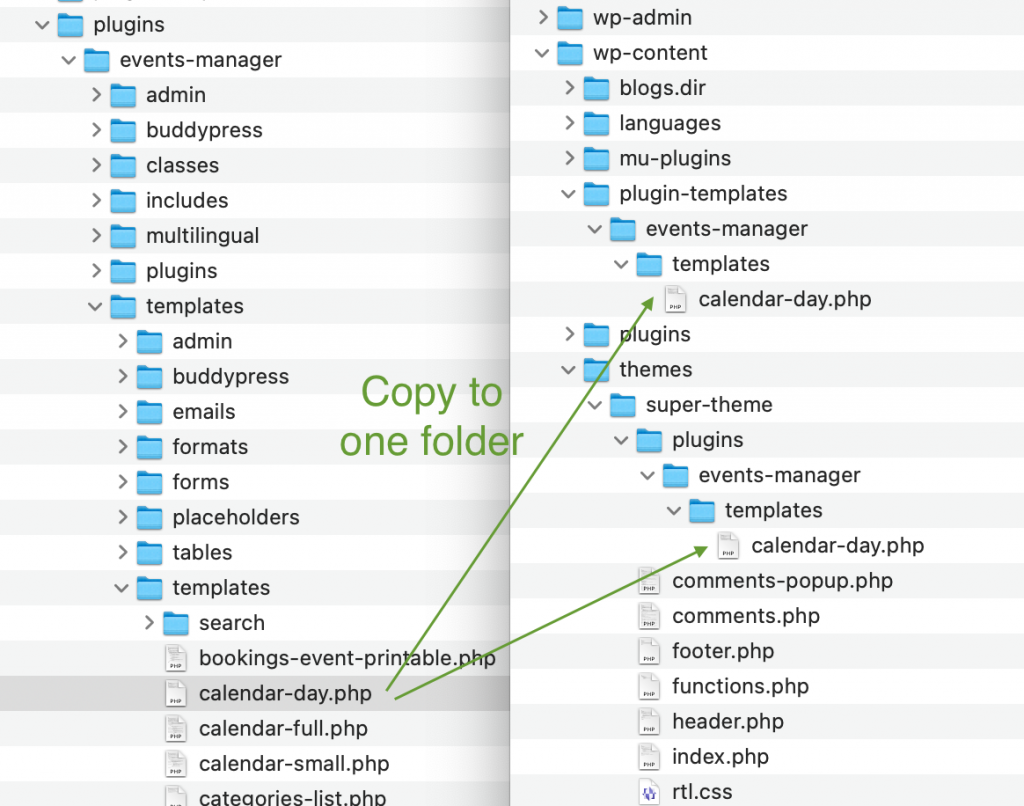
WordPress has many files and folders. The main files are in the root directory. Important folders include wp-content, wp-includes, and wp-admin. Themes are in the wp-content/themes folder. Knowing these files helps you create and edit themes.
Creating A New Theme Folder
Open the WordPress Dashboard first. Find the Appearance tab on the left. Click on it, then choose Themes. Here, you can see your theme list. To access files, use a File Manager or FTP client. Navigate to the wp-content folder. Inside, you’ll find the themes directory. This is where your new theme folder will go.
Your theme folder needs a unique name. Avoid using spaces or special characters. Choose a name that reflects your site’s purpose. Keep it simple and clear. A good name helps you remember its function. For example, use mycustomtheme or blogtheme. This naming makes it easy to identify later.
Every theme needs some files. Begin with style.css. This file handles the theme’s appearance. Add index.php next. It is the main template file. Include functions.php. This file adds features to your theme. You also need a screenshot.png. This image shows your theme preview. These files ensure your theme works well.
Setting Up Style And Structure
The style.css file is very important. It controls how your site looks. In this file, add your theme’s name and details. Write simple CSS rules to design your site. Keep it neat and organized. This helps your theme work well.
The index.php file is the main page of your theme. It shows your posts and pages. Start by opening a PHP tag. Then, add the loop to display posts. This file is like the heart of your theme. Make sure it works correctly.
Other template files are important too. Files like header.php and footer.php. These files help in showing the header and footer on each page. Use get_header() to include the header. Use get_footer() to include the footer. This makes your theme look complete and professional.
Credit: www.wpzoom.com
Configuring Theme Functions
Creating a new theme folder in WordPress involves accessing your site’s directory via FTP or a file manager. Start by navigating to wp-content/themes and add a new folder with your desired theme name. This folder will house essential files like style.
css and functions. php, laying the foundation for your custom theme.
Crafting The Functions.php File
The functions.php file is like the brain of your theme. You can add custom functions here. It helps in adding new features to your theme. Start by creating a new file named functions.php. Place it in your theme folder. This file must start with <?php. Each function should be wrapped in PHP tags. This way, your theme can call these functions. Keep your code simple and clean.
Enqueuing Styles And Scripts
Styles and scripts make your theme look pretty. Use the wp_enqueue_style() function. It helps to add CSS files. For JavaScript, use wp_enqueue_script(). These functions ensure files load in the right order. Add them inside the functions.php file. Always give unique names to your styles and scripts. This helps avoid conflicts. Keep your site fast by loading only necessary files.
Adding Theme Support Features
Themes can support many features. Use add_theme_support() to enable them. This function goes in the functions.php file. Add support for post-thumbnails to show featured images. Enable custom-logo for a site logo. Support for title-tag lets WordPress manage page titles. Choose features that suit your theme. This makes your theme more powerful and flexible.
Customizing Your Theme
Using WordPress Customizer helps you make your theme look great. It’s easy to use. Find it in your dashboard. Click on ‘Appearance’ and then ‘Customize’. You can change colors, fonts, and more. See changes live. No coding skills needed. Save changes with one click.
Incorporating Widgets and Menus is fun. Widgets add extra features. You can add them to sidebars. Menus help navigate your site. Go to ‘Appearance’, then ‘Widgets’. Drag and drop widgets to use them. For menus, click ‘Menus’. Create menus easily. Add pages or links.
Developing Custom Templates gives your site a unique look. Create templates for pages or posts. Use a code editor to write your template. Save it in your theme folder. Name it carefully. WordPress will find it. Custom templates help your site stand out.
Testing And Debugging
WordPress debugging tools help find errors in themes. Use WP_DEBUG to see error messages. They show you what’s wrong. Another tool, Debug Bar, gives more details. It shows the queries and cache. This helps improve the theme’s performance. Always check error logs. They provide insights into hidden issues. Fixing these makes the theme better.
Test your theme in different browsers. Each browser might show your site differently. Try using Chrome, Firefox, and Safari. This ensures your site looks good everywhere. Make sure all elements appear correctly. Sometimes, styles can break. Fix these issues quickly. Everyone should see your site as intended.
Mobile responsiveness is crucial for modern websites. Many people use phones to browse. Your theme must adapt to small screens. Check the layout on tablets and phones. Ensure buttons are easy to click. Text should be readable without zooming. Improving mobile view enhances user experience. It helps keep visitors on your site longer.
Activating Your Theme
Creating a new theme folder in WordPress involves navigating to the wp-content/themes directory. Add your new folder and include essential files like style. css and index. php. This setup forms the foundation for your custom theme.
Uploading Your Theme To WordPress
First, go to your WordPress dashboard. Click on “Appearance” and then “Themes”. Choose the “Add New” button at the top. Next, click on the “Upload Theme” button. Browse for your theme file. Make sure it’s a .zip file. Click “Install Now”. Wait for the upload to complete. Once done, click “Activate” to use your new theme.
Switching Themes In WordPress Admin
Go to your dashboard and click on “Appearance”. Then, select “Themes”. All installed themes will show up here. Find the one you want. Click on “Activate” under the theme. Your site now uses the new theme. Check your site to see the changes.
Troubleshooting Activation Issues
Sometimes, themes do not activate. Check if the theme is compatible with your WordPress version. Look for any error messages. These can guide you on what went wrong. Ensure all theme files are complete. Try deactivating plugins that might cause conflicts. Reactivate the theme again. Contact the theme developer if problems continue.
Credit: wp-events-plugin.com
Frequently Asked Questions
How Do I Create A Theme Folder In WordPress?
To create a theme folder, access your WordPress directory via FTP. Navigate to `wp-content/themes/`. Create a new folder with your theme’s name. Ensure it has a unique name not used by other themes. This folder will store all theme files, including PHP, CSS, and images.
What Files Are Needed For A WordPress Theme?
A WordPress theme requires at least two files: `style. css` and `index. php`. `style. css` contains theme metadata and styling rules. `index. php` is the main template file. Optionally, include additional files like `functions. php` and `header. php` for more functionality and structure.
Can I Create A Theme From Scratch?
Yes, you can create a theme from scratch. Start by setting up a new theme folder. Include essential files such as `style. css` and `index. php`. Customize your theme by adding PHP templates and CSS styles. You can also use WordPress codex for detailed guidance.
Why Create A Custom WordPress Theme?
Creating a custom theme offers several benefits. It allows for unique design tailored to your brand. You can enhance performance by including only necessary features. Custom themes provide flexibility, enabling specific functionality and aesthetics. They also help improve SEO through optimized code and structure.
Conclusion
Creating a new theme folder in WordPress is simple. Follow the steps carefully. Customize your site to match your vision. Experiment with styles and design. Personalize the layout to fit your brand. Remember, practice makes perfect. Keep learning and exploring new techniques.
You can enhance your website’s appeal. Make your site stand out. Your WordPress skills will grow over time. The more you work, the better you get. Enjoy the process. Your efforts will pay off. Start today. Your new theme folder awaits.
Happy designing!


