
Are you ready to give your WordPress site a unique look without losing the functionality of your favorite theme? Creating a child theme is the perfect solution for you.
With a child theme, you can customize your site’s appearance and still receive updates from the parent theme. Imagine having the freedom to tweak designs without the fear of breaking your site. You’ll discover the step-by-step process to create a new child theme in WordPress.
Don’t worry if you’re not a tech expert; this guide will break it down into simple, manageable steps. You’ll learn how to personalize your site while keeping its core intact. Dive in and unlock the potential to make your WordPress site truly yours.
What Is A Child Theme?
A child theme is a theme that inherits features from another theme. The main theme is called the parent theme. With a child theme, you can change styles without touching the parent theme. This keeps your changes safe during updates.
Creating a child theme is a smart choice. It helps in keeping customizations separate. This ensures your website remains unique and updated. Many developers use child themes for flexibility and safety. They are easy to create and maintain. Anyone can learn how to make them. Just follow simple steps and enjoy a personalized website.
Benefits Of Using Child Themes
Child themes help keep original designs safetouching the main theme. If a theme update happens, your changes stay. This is a big advantage. It saves work and stress.
They make customization easier. You can add or change features. It won’t affect the main theme. This gives freedom. You can try new ideas. Mistakes are easy to fix. Just go back to the original.
Using child themes is good for learning. Beginners find them helpful. They can learn without fear. Mistakes are part of learning. Child themes make it safe. You can start small and grow.
Preparing Your Environment
Set up your workspace by organizing files for easy access. Install a code editor to modify theme files. Familiarize yourself with WordPress file structure to seamlessly create a new child theme.
Tools And Software Needed
A good start is a code editor. Try using Visual Studio Code. It is very popular. You will also need FileZilla. This helps in transferring files. Another tool is WordPress itself. Download it from the official site. Lastly, a good web browser is essential. Most people like Google Chrome.
Setting Up A Local Development Environment
Begin by installing a local server. XAMPP is a great choice. This lets you run WordPress on your computer. Follow the setup guide carefully. Next, create a new folder for your child theme. Name it anything you like. Open your code editor. Start by creating a style.css file. This file is important. Add your custom styles here. Save all changes often.
Credit: www.cloudways.com
Creating A New Child Theme Folder
Start by making a new folder in your WordPress themes directory. This is often found in wp-content/themes. Name this folder after your theme. Add “-child” to the end. For example, if your theme is “OceanWP,” name the folder “OceanWP-child.” This helps you know which is the parent theme.
The folder name is important. It should be simple and clear. Avoid using special characters. Keep it lowercase. Use dashes to separate words. This makes it easy to read. A clear name helps you find the folder quickly.
Inside the child theme folder, create a new file. Call it style.css. This file is for styling changes. Also, make a file named functions.php. This file is for adding extra features. Keep your files organized. Use folders for images and scripts. This keeps everything neat and tidy.
Configuring The Style.css File
Creating a new child theme in WordPress requires configuring the style. css file. This step involves defining the theme’s name and template. It ensures the child theme inherits styles from the parent theme.
Adding Theme Information
Start by adding a comment at the top of the style.css file. This comment tells WordPress important details about your theme. Write the theme name, parent theme name, and author name. Include the theme URL and description. Use simple words to describe your theme. This comment helps WordPress understand your theme.
Importing Parent Theme Styles
Import parent theme styles to use its design. Write the code @import url(“../parent-theme/style.css”); in your style.css file. This code copies the parent theme styles. It makes your child theme look like the parent theme. This step is important for keeping the same design. You can change styles later in the child theme. This makes your theme unique.
Setting Up The Functions.php File
It’s easy to start with the functions.php file. This file helps add new features. Begin by creating a new file named functions.php in your child theme folder. Use a text editor for this. Simple is best.
It’s important to include the parent theme’s styles. Use the wp_enqueue_style function for this. Add the function in your functions.php file. This makes sure your child theme looks right. Without it, your theme may break.
Custom functions bring new features to your theme. You can add them in functions.php. Keep your functions simple. Test each function after adding it. This ensures everything works well. If a function fails, check for mistakes. Even one small error can cause big problems.
Customizing Your Child Theme
Copy the template file from the parent theme. Place it in the child theme folder. This overrides the parent template. Make sure the file names match exactly. Check your website. See the changes in action. Now, your child theme uses its own template. Always test after changes. This ensures everything works smoothly.
Create a new CSS file in your child theme. Name it style.css. Add your custom styles here. Use CSS to change colors and fonts. You can also adjust sizes and layouts. Link the new CSS file in your child theme’s functions.php. Your site now displays your custom styles. Always preview changes. This makes sure your styles look right.
Use functions.php to add features. Write new PHP code here. Introduce custom widgets or shortcodes. You can also add new menus. Make your site unique with these features. Test new features after adding them. This helps to ensure they work without errors. Keep your code simple. This reduces chances of bugs.
Credit: www.wpbeginner.com
Testing Your Child Theme
Creating a new child theme in WordPress involves copying parent theme files and customizing them. Test your child theme by activating it and checking functionality. Make adjustments to ensure compatibility and preserve site aesthetics.
Checking For Errors
Errors can make your theme look bad. Use tools to find them. Check your theme files for mistakes. Look for missing semicolons or wrong brackets. Fix errors before using the theme. Test the theme on a local server. Make sure everything works fine. A clean theme is a happy theme.
Ensuring Responsiveness
Responsive themes look good on all devices. Check your theme on phones and tablets. Adjust settings for small screens. Use media queries to control layout. Test images and text size. Fix any layout issues. A responsive theme keeps users happy.
Cross-browser Testing
Browsers show themes differently. Test your theme on Chrome, Firefox, and Safari. Check for broken elements. Look for issues with fonts or colors. Fix any problems you find. A good theme works on all browsers. Users will have a smooth experience.
Activating Your Child Theme
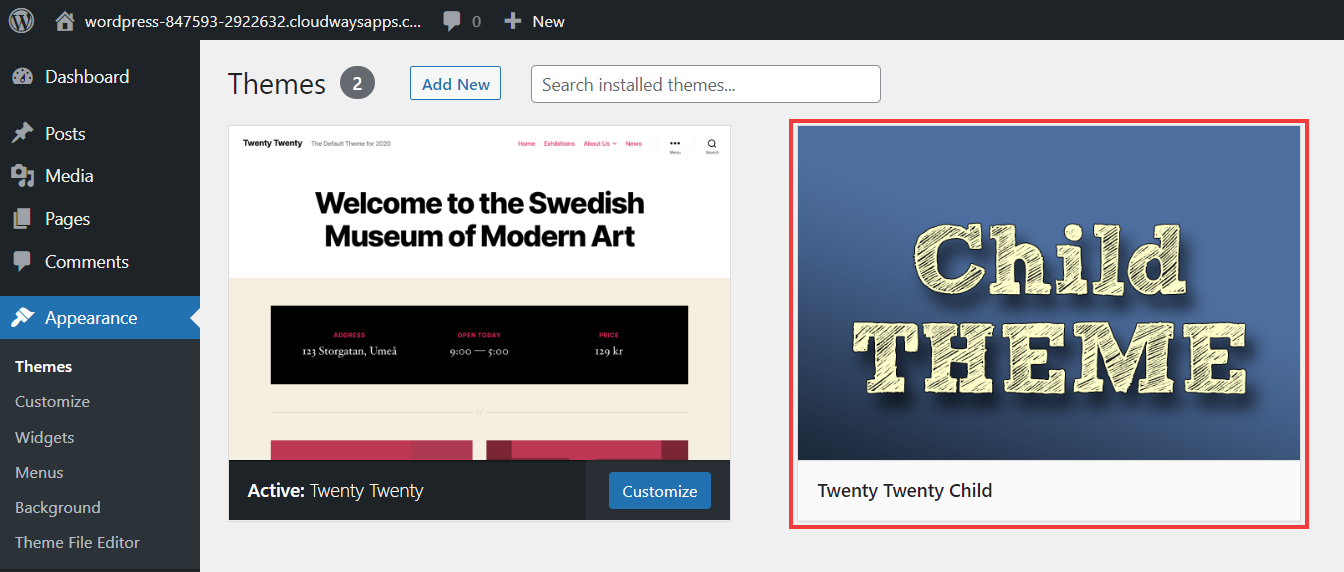
Creating a new child theme in WordPress is simple. First, make a new folder in your themes directory. Then, add a style. css file and functions. php file to this folder. Finally, activate your new child theme in WordPress under the Appearance tab.
Using The WordPress Admin Panel
Open the WordPress dashboard. Find the Appearance menu on the left. Click on Themes. You will see a list of themes. Look for your new child theme. Click on Activate under your child theme. Your theme is now active. Check your site to see changes.
Troubleshooting Activation Issues
Sometimes themes do not activate. First, make sure the child theme files are correct. Check the style.css file. It must have the parent theme’s name. Look for errors in the functions.php file. Files must be in the child theme folder. Refresh the WordPress dashboard. Try to activate again. If issues remain, check the support forums. Many users share their solutions there.

Credit: developer.wordpress.org
Maintaining Your Child Theme
Creating a new child theme in WordPress ensures customization without losing updates. Begin by accessing your WordPress directory and create a new folder for your child theme. Add a style. css and functions. php file to define your theme’s design and functionality.
Updating Parent Themes
Always update the parent theme first. Check for updates often. New updates fix bugs. They also improve security. After updating, check your child theme. Ensure it works well. Sometimes new updates break things. Test your website thoroughly. Look for errors or missing parts. If something’s wrong, fix it quickly. This keeps your site safe and smooth.
Backing Up Your Child Theme
Make backups often. Backups save your work. Use a plugin or do it yourself. Save copies on your computer. Use a cloud service for extra safety. Backups protect your theme from accidental changes. They also help if updates go wrong. Restoring a backup is easy. Just upload the saved files. Always have a recent backup ready. This ensures you never lose your work.
Frequently Asked Questions
What Is A WordPress Child Theme?
A WordPress child theme is a sub-theme that inherits functionality from a parent theme. It allows you to modify styles and functions without altering the original theme files. This ensures that updates to the parent theme do not overwrite your customizations, providing a safe way to personalize your site.
How Do I Create A Child Theme Folder?
To create a child theme folder, access your WordPress directory via FTP or file manager. Navigate to the “wp-content/themes” directory. Create a new folder for your child theme, naming it appropriately. Inside, create a style. css file and a functions.
php file to start building your child theme.
Why Use A Child Theme In WordPress?
Using a child theme in WordPress allows for safe customization. It ensures that modifications are not lost during theme updates. Child themes help maintain the integrity of the original theme while allowing you to tweak design and functionality according to your preferences.
Can I Customize A Child Theme Easily?
Yes, customizing a child theme is easy. You can modify styles in the style. css file and add functions in functions. php. This setup allows you to personalize your theme’s appearance and functionality without altering the parent theme’s core files, ensuring customizations remain intact after updates.
Conclusion
Creating a child theme in WordPress is simple and rewarding. It protects your customizations during updates. This process enhances your site’s flexibility and design. Start with a parent theme; create a folder and style sheet. Activate the child theme and test it thoroughly.
Use this method to maintain your site’s unique look. Ensure you follow each step carefully. This approach offers peace of mind and control. Experiment with styles and layouts. Enjoy a personalized WordPress experience. Happy theming!


