
Ever visited a website and felt like you were navigating a maze to find what you needed? A well-structured mega menu can be the solution to that problem.
If you’re looking to enhance your WordPress theme with a user-friendly mega menu, you’re in the right place. Imagine giving your visitors a seamless browsing experience where everything they need is just a click away. In this guide, you’ll discover step-by-step how to create a mega menu that not only looks impressive but also boosts your site’s usability.
Whether you’re a beginner or have a bit of experience with WordPress, this article will empower you to transform your site’s navigation. Don’t let your visitors get lost—let’s make your website more engaging and intuitive together. Read on, because every click matters!
Credit: wpengine.com
Choosing The Right Plugin
Selecting the right plugin is crucial for creating a mega menu in a WordPress theme. Look for plugins offering intuitive customization, responsive design, and compatibility with your theme. These features ensure a seamless user experience and enhance site navigation.
Popular Mega Menu Plugins
Many plugins can help make a mega menu. Some are very popular with users. They are also easy to use. These plugins have many features and benefits.
| Plugin Name | Features | Benefits |
|---|---|---|
| Max Mega Menu | Drag-and-drop builder | Easy menu creation |
| UberMenu | Responsive design | Looks good on all devices |
| WP Mega Menu | Customizable styles | Match your site’s look |
Each plugin has its own unique features. Choose one that meets your needs. It should also suit your website’s design.
Installing The Mega Menu Plugin
First, open your WordPress dashboard. Click on Plugins in the menu. Select Add New. In the search bar, type Mega Menu. You will see many options. Choose the plugin you like. Click on Install Now. Wait for the installation to finish. It’s easy and quick.
Once the plugin is installed, you need to activate it. Go to the Installed Plugins section. Find the Mega Menu plugin. Click on Activate. Your plugin is now active. You can start using it. It will help you create a big menu. Your visitors will love it.
Configuring Mega Menu Settings
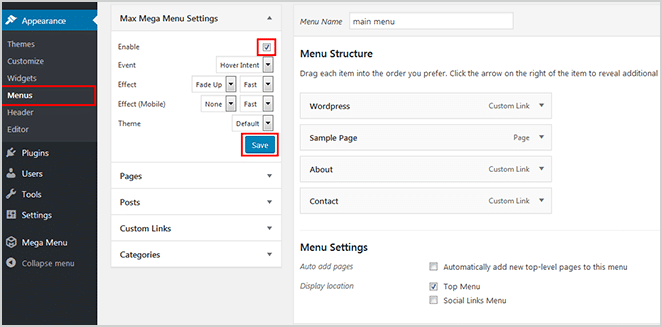
Start by logging into your WordPress dashboard. Find the “Appearance” option. Click it to see the “Menus” option. This is where you can make changes. Click on “Menus” to open the Menu Settings. This is your control center for menus. You can add items or change settings here.
Choose the menu you wish to edit. Look for the layout options. This allows you to select different styles. You can pick between horizontal or vertical layouts. Add custom links or categories to your menu. This makes your menu more useful. Remember to save your changes. This updates your site with the new layout.
Designing The Mega Menu
Crafting a mega menu in a WordPress theme enhances site navigation. Utilize drag-and-drop builders for easy design. Incorporate categories and subcategories to organize content effectively.
Choosing Colors And Fonts
Pick colors that match your website theme. Use colors that are easy to see. Make sure the text is readable. Choose fonts that are simple and clear. Bold fonts can help highlight important text. Keep font sizes large enough to read. Consistency is key in design. Use the same style throughout the menu. This helps users navigate easily.
Adding Images And Icons
Images make your mega menu more appealing. Choose clear and relevant pictures. Icons can represent actions or categories. They help users understand the menu better. Keep images and icons small. This will save space and keep the menu tidy. Use images that load quickly. Slow images can frustrate users. Remember, less is more in design.
Adding Content To The Mega Menu
Group similar items together. This makes finding things easy. Use categories for clear sections. Keep the titles short and simple. Limit the number of categories. Too many can confuse users. Arrange items based on importance. Put the most visited items at the top.
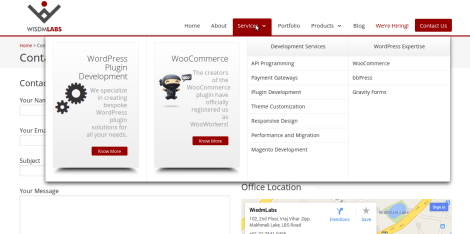
Widgets add extra features to menus. Choose widgets that fit the menu theme. Use shortcodes for special functions. Shortcodes make adding elements easy. Check compatibility before using widgets. Some may not work with your theme. Test widgets and shortcodes after adding. Ensure they display correctly.
Credit: wisdmlabs.com
Responsive Design Considerations
Ensuring Mobile Compatibility is crucial for any website. Many people browse on phones and tablets. A mega menu should fit on small screens. Use a flexible layout that adjusts size and position. Test the menu on different devices. Check how it looks on phones, tablets, and laptops. A good design works well everywhere. Make sure text is easy to read. Buttons should be easy to click. This helps users find what they need quickly.
Testing Across Devices ensures the menu works properly. Test on many browsers and devices. Chrome, Firefox, and Safari are popular browsers. Use tools to check how it looks. Ask friends to test on their phones. Make changes if they find problems. Regular testing keeps the menu user-friendly. This boosts user satisfaction. Happy users return to your site often.
Troubleshooting Common Issues
Creating a mega menu in WordPress often leads to alignment issues. Adjusting theme settings can resolve these. Missing items frequently result from incorrect menu assignments; verify your menu location settings to fix this.
Resolving Display Problems
Display problems can be frustrating. Menus may not show up properly. Check the menu settings first. Ensure correct theme settings. Sometimes, CSS styles hide menus. Review your custom CSS. Adjust if needed. Browser cache can cause issues. Clear your cache often. Responsive design matters. Test your menu on different devices. Mobile views can be tricky. Some items may not appear. Adjust your menu layout for better mobile visibility. Always update your theme and plugins. This helps fix bugs.
Fixing Plugin Conflicts
Plugins can conflict with your menu. Deactivate plugins one by one. Check if the menu works. Identify the problematic plugin. Some plugins change menu styles. Others might block menu functions. Use plugins that are compatible with your theme. Check plugin updates regularly. Sometimes, an update fixes conflicts. Consider using fewer plugins. More plugins increase conflict chances. Always backup your site before changing plugins. This saves your work in case of problems.

Credit: wpengine.com
Frequently Asked Questions
How Can I Add A Mega Menu In WordPress?
To add a mega menu, use a plugin like Max Mega Menu or UberMenu. Install the plugin and configure it under “Appearance” > “Menus”. Customize your menu structure, add widgets or images, and save changes. These plugins offer flexible design options to create a visually appealing mega menu.
What Is The Purpose Of A Mega Menu?
A mega menu organizes large amounts of content in a streamlined way. It enhances user navigation by displaying multiple links or categories in a single dropdown. This design helps users find information quickly, reducing search time and improving site usability and engagement.
Are Mega Menus Mobile-friendly?
Yes, most modern mega menu plugins are mobile-friendly. They adapt to various screen sizes, ensuring a seamless user experience. Ensure your WordPress theme and plugin support responsive design. Test your site on different devices to verify proper functionality and appearance across all platforms.
Can I Customize Mega Menu Styles?
Absolutely, mega menu plugins offer customization options. You can adjust colors, fonts, and layout styles to match your theme. Use the plugin settings or custom CSS for advanced styling. Tailor your menu’s appearance to enhance branding and improve the site’s aesthetic appeal.
Conclusion
Creating a mega menu in WordPress is simpler than it seems. Follow the steps to enhance your site’s navigation. A well-structured menu improves user experience. Visitors find information easily. This encourages them to explore more pages. Customizing your mega menu suits your site’s needs.
Use plugins for added functionality. Choose a theme supporting mega menus for better results. Regular updates keep your menu fresh. Practice makes perfect, so tweak until satisfied. Remember, a clean menu design attracts users. Make your website easy to navigate.
Happy building!


