
Are you looking to enhance your website’s navigation and improve user experience? Creating a drop-down menu in your WordPress theme might just be the solution you need.
A well-designed drop-down menu not only makes your site look professional but also helps visitors find what they’re searching for quickly and easily. Imagine guiding your audience through your content seamlessly, leading to longer visits and higher engagement. In this guide, you’ll discover step-by-step instructions to set up a drop-down menu in your WordPress theme, even if you have no prior coding experience.
Stick around, and you’ll be on your way to transforming your website into a user-friendly platform that keeps your visitors coming back for more.
Credit: wedevs.com
Choosing The Right Theme
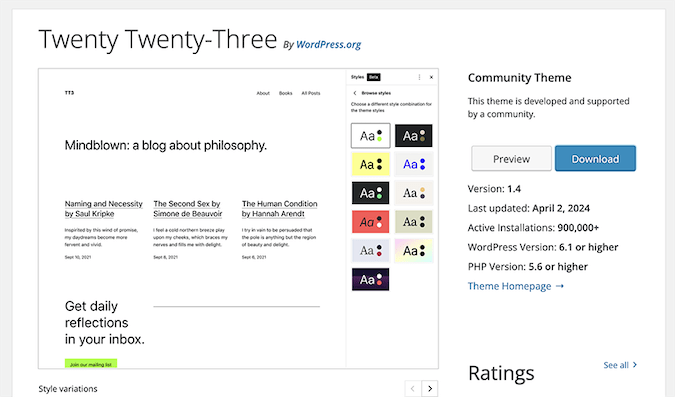
Selecting a WordPress theme is important. Not all themes support drop-down menus. Check theme details before installing. Look for themes with menu options. Some themes are more user-friendly. Free themes can work, but premium themes offer better support. Always read reviews from other users. This helps find any issues with the theme. A good theme makes your site look nice. It also helps with site navigation.
Ensure the theme is compatible with the latest WordPress version. Updates happen often. A theme that works today might not work tomorrow. Check for updates regularly. Compatibility ensures plugins work well. This includes drop-down menu plugins. Without this, your site might break. Support forums can help. Ask questions if unsure.
A responsive design is key. Visitors use different devices. Your menu should work on phones, tablets, and computers. A non-responsive menu can confuse users. This might cause them to leave your site. Always check the demo of the theme. See how it looks on small screens. A good theme automatically adjusts. This makes your site user-friendly.
Setting Up The Menu Structure
First, open the WordPress dashboard. Click on Appearance then Menus. Create a new menu by clicking the Create a new menu button. Add menu items using pages, categories, or custom links. Each item can be dragged to rearrange. Don’t forget to save the menu.
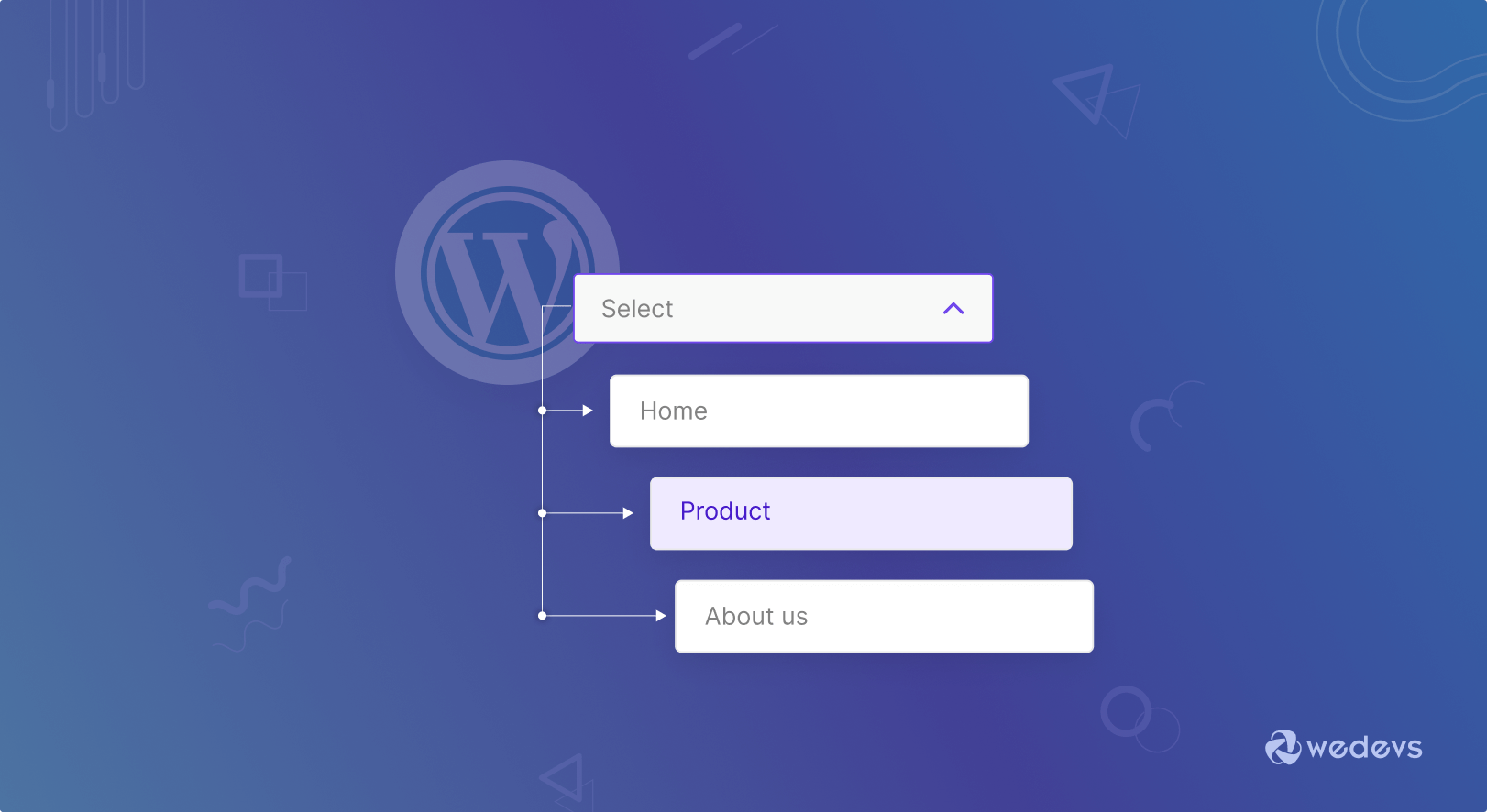
Drag items under others to create a drop-down menu. This forms a hierarchy. The top item becomes the main menu. The items below become the sub-menu. You can add more levels to make multi-level menus. Keep it simple for easy navigation.
Adding Dropdown Functionality
Creating a dropdown menu in a WordPress theme enhances navigation. Use the menu editor to add items, then adjust settings for dropdown functionality. Customize styles using CSS for a seamless user experience.
Using WordPress Menu Settings
WordPress makes menu setup easy. First, go to your dashboard. Find the Appearance tab. Click on Menus. You can see your menu items. To add a dropdown, drag a menu item below another. Indent it slightly. This creates a submenu. Save changes. Check your site. The menu should show your new dropdown. This is a simple way to organize content. You can add more submenus. Make your site neat and tidy.
Customizing With Css
CSS can style your dropdown menu. It changes the look. Start by opening your theme’s CSS file. Use the customizer for easy access. Find the menu section. Add new rules for dropdowns. Change colors and sizes. Make them look nice. Use CSS to add hover effects. This makes menus more engaging. Your dropdown will look unique.

Credit: wpmarmite.com
Utilizing Plugins For Enhanced Features
Plugins make creating a drop down menu easy. There are many options. Max Mega Menu is a popular choice. It is easy to use. WP Mega Menu is another great option. Both offer customizable features. Responsive Menu is useful for mobile-friendly designs. Look for plugins with good reviews. This ensures reliability and support.
After installation, configure the plugin. Go to the settings page. Choose the menu you want. Customize colors and fonts. Set up sub-menu items if needed. Check the preview before saving. Make sure it looks good on all devices. Test the menu links.
Testing And Debugging
Creating a dropdown menu in a WordPress theme involves testing and debugging to ensure smooth functionality. Verify each menu item displays correctly and links work as expected. Debugging helps identify issues, ensuring a seamless user experience on your website.
Checking Browser Compatibility
It’s important to check your menu on different browsers. Chrome, Firefox, and Safari are popular ones. Some browsers might show the menu differently. Test on Windows, Mac, and Linux. This helps find issues early. Keep updating your browser versions. This ensures everything works smoothly.
Ensuring Mobile Friendliness
Many people use phones to browse websites. Make sure your menu works well on mobile devices. Use responsive design techniques. This keeps the menu easy to use on small screens. Test on Android and iOS devices. Check how the menu looks in portrait and landscape view. Adjust any elements that don’t fit well. This ensures users have a good experience.
Enhancing User Experience
Creating a drop-down menu in a WordPress theme improves navigation and user experience. Simple steps can guide you to design a functional and visually appealing menu. Enhance your website’s accessibility with organized categories and easy-to-find content.
Design Tips For Usability
Keep the menu simple. A simple menu is easy to use. Use clear labels for each option. Clear labels help users find what they need. Limit the number of items. Too many items can confuse users. Organize items logically. Logical order helps users navigate.
Accessibility Considerations
Ensure your menu is accessible. Use keyboard-friendly navigation. Some users cannot use a mouse. Make sure the menu is readable. Use high contrast colors for text. High contrast colors are easier to see. Test the menu with screen readers. Screen readers help users with vision issues. Provide alt text for images. Alt text describes images for those who cannot see them.
Credit: www.crazyegg.com
Frequently Asked Questions
How Do I Add A Dropdown Menu In WordPress?
To add a dropdown menu in WordPress, go to your dashboard. Navigate to Appearance > Menus. Create a new menu or edit an existing one. Add parent and child items by dragging them. Save your changes to implement the dropdown structure on your site.
Can I Customize WordPress Dropdown Menu Styles?
Yes, you can customize dropdown menu styles in WordPress. Use CSS to change fonts, colors, and layouts. Navigate to Appearance > Customize, then use the Additional CSS section. This allows you to tailor the menu to fit your theme’s design.
What Plugins Help Create Dropdown Menus?
Several plugins enhance dropdown menu creation in WordPress. Popular ones include Max Mega Menu and UberMenu. These plugins offer advanced styling and functionality options. They simplify menu management and customization without needing extensive coding skills.
Why Isn’t My Dropdown Menu Working?
Dropdown menu issues often stem from theme conflicts or JavaScript errors. Check if your theme supports dropdowns. Ensure all plugins are updated and compatible. Debug by disabling plugins one by one to identify conflicts. Review console errors for any JavaScript issues.
Conclusion
Creating a dropdown menu in WordPress is quite simple. Follow the steps outlined, and your site will be more user-friendly. A dropdown menu helps visitors find content easily. It improves navigation and enhances user experience. Practice makes it easier. Start with basic options, then customize.
Experiment with styles and settings. Test your menu to ensure it works smoothly. Keep your design simple and effective. A well-organized menu attracts more visitors. Encourage them to explore your site fully. Remember, a tidy menu reflects a professional website.
Happy designing!


