
Are you looking to enhance your WordPress Newspaper theme with a unique touch? Customizing your sidebar can be a game changer.
It’s like adding a personal signature to your website, making it not only functional but also visually appealing and tailored to your audience’s needs. Imagine guiding your visitors exactly where you want them to go, highlighting the most important content, or even showcasing advertisements and promotions that catch the eye.
In this guide, you’ll discover how to create a custom sidebar in the WordPress Newspaper theme, transforming your website into a more engaging and effective platform. Stick around to learn the step-by-step process that will empower you to take full control of your site’s layout, ensuring that your content stands out and resonates with every visitor.

Credit: themeforest.net
Choosing The Right Widgets
Selecting the right widgets is crucial for your sidebar. Widgets are small tools on your website. They help display information. Popular widgets include search bars, recent posts, and categories. Each widget serves a different purpose. Think about what your visitors need most. Choose widgets that add value to their visit. Avoid cluttering the sidebar with too many widgets.
Keep it simple. Users appreciate a clean and organized look. Test different widgets to see what works best. Change them as needed. Use widgets that load quickly. Speed is important for a good user experience. Remember, the right widgets can improve your site’s functionality. They make it easier for users to find what they need.
Accessing Theme Options
Accessing the Theme Options in WordPress is simple. First, log into your WordPress dashboard. Look for the Newspaper Theme in the menu. Click on it. You will see many options. Find the one that says Sidebar. Click it to open. You can now start to customize.
Choose what you want to show in your sidebar. You can add widgets. Widgets are small boxes. They show information or content. Popular choices include search bars or recent posts. Drag and drop these into your sidebar.
Remember to save your changes. Look for the Save button. It is usually at the top or bottom. Click it. Your new sidebar should now show on your website.
Creating A New Sidebar
To create a new sidebar, visit the WordPress dashboard. Click on Appearance, then select Widgets. Look for the Create New Sidebar button. Click it. A new window will open. Enter a name for your sidebar. This name should be easy to remember. After naming, click Create Sidebar.
Now, your sidebar is ready. You can add widgets to it. Choose the widgets you like. Drag them to your new sidebar. Arrange them in any order. Save your changes. Your custom sidebar is now set up. It’s ready to be used on your site.

Credit: www.youtube.com
Customizing Sidebar Settings
Creating a custom sidebar in the WordPress Newspaper theme enhances user experience. Navigate to Appearance, then Widgets, to begin customizing. Add desired elements like menus, social icons, or recent posts for a personalized touch.
Adjusting Width And Position
Changing the width of your sidebar is easy. Go to the theme settings. Find the sidebar options. Choose a size that fits your design. You can also move the sidebar. Place it on the left or right. This helps in better organizing your content. A well-placed sidebar makes a website look neat.
Adding Backgrounds And Borders
A colorful background can make your sidebar pop. Choose from solid colors or patterns. Borders can add a nice touch too. They help in separating the sidebar from the main content. Simple changes like these can enhance your site’s appearance. Make your sidebar stand out with these tweaks.
Adding Content To Sidebar
Social media links are very important. They help visitors find your pages. Add links to Facebook, Twitter, and Instagram. Use the sidebar for these links. Make them easy to see. Bold the links for better visibility. People love clicking on social media icons. Keep them simple and clear.
Advertisements can be added to the sidebar. They provide extra income. Choose ads that fit your site theme. Keep them neat and organized. Bold the important parts of the ads. Ensure they are not too flashy. Simple ads work best. Place them in a way that doesn’t distract. Visitors should find them useful, not annoying.
Assigning Sidebar To Pages
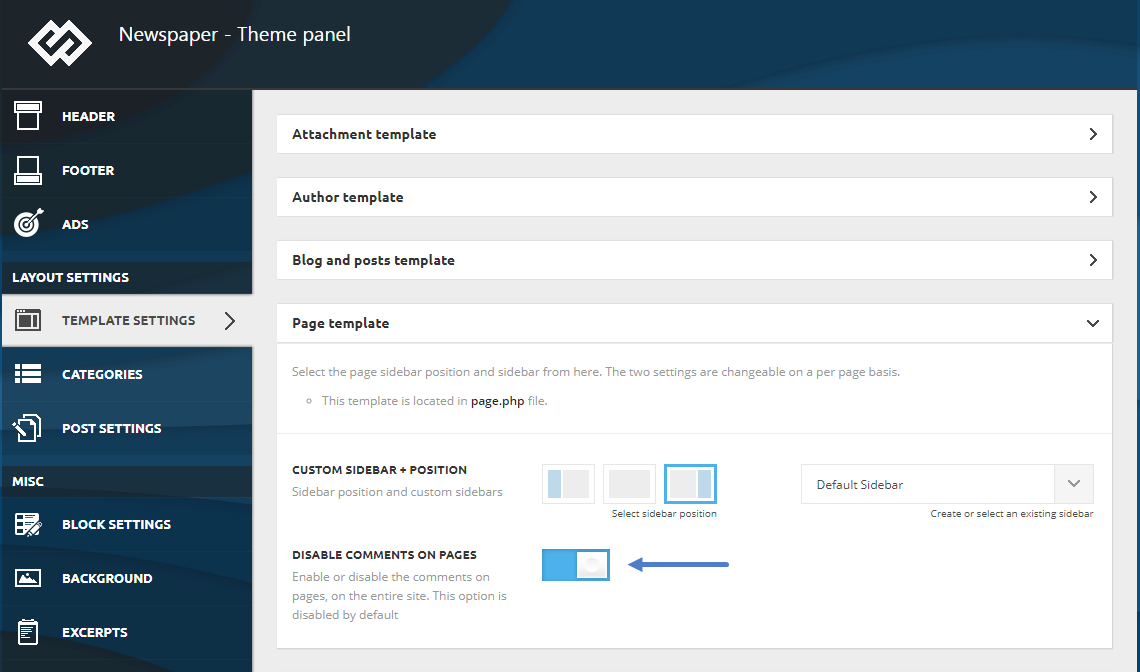
Page templates help to give each page a unique look. With the Newspaper theme, you can assign a custom sidebar to these templates. First, go to the WordPress dashboard. Then, select the page you want to edit. Now, look for the page template option. Choose a template that supports sidebars. This action enables you to add different widgets. Make sure to save changes. Your page now has a custom sidebar.
Conditional logic helps to show sidebars only on certain pages. To use this, you need a plugin. A plugin like Widget Logic is perfect for this task. Once installed, open the widget settings. You will see a new box for logic conditions. Add conditions like is_page() to decide where the sidebar appears. This way, you control which pages show your sidebar.
Testing And Troubleshooting
Crafting a custom sidebar in the WordPress Newspaper Theme involves navigating to the theme’s widget settings. Select “Appearance” and then “Widgets” from the dashboard. Add desired widgets to your new sidebar by dragging and dropping. Test and troubleshoot any issues to ensure a seamless user experience.
Checking Responsiveness
Make sure your sidebar looks good on all devices. Use different gadgets to see the sidebar. Check it on a phone, tablet, and computer. Does it look nice? Can you see all the buttons? If anything looks off, adjust the size. Ensure each part fits well. This helps everyone enjoy your site.
Resolving Common Issues
Sometimes, things go wrong with the sidebar. Maybe links don’t work. Or the sidebar is missing. First, look for mistakes in the code. Double-check every line. Update your plugins and themes. Often, updates fix problems. If the issue stays, ask for help in online forums. Many people share tips there. You can find a solution fast.
Credit: forum.tagdiv.com
Enhancing Sidebar With Plugins
Plugins make sidebars more useful. They add widgets and tools. Popular plugins help with this task. Choose a plugin that fits your needs. Many people like Custom Sidebars. It is easy to use. Another good choice is Widget Options. It has many features. These plugins work well with the Newspaper Theme. They help you make a unique sidebar.
Popular Plugin Recommendations
- Custom Sidebars
- Widget Options
- Content Aware Sidebars
- WooSidebars
Plugin Installation Steps
- Open your WordPress dashboard.
- Click on Plugins.
- Select Add New.
- Search for your chosen plugin.
- Click Install Now.
- Activate the plugin.
- Go to Appearance and find Widgets.
- Set up your custom sidebar.
Ensuring Compatibility
Verifying Theme Updates is crucial for your sidebar. Check for any new changes in the Newspaper theme. These updates ensure your sidebar works smoothly. Visit the theme’s update page regularly. This helps in keeping track of new features. Update the theme if there’s a new version available. This avoids glitches and improves performance. A well-updated theme supports custom sidebars effectively.
Testing on Different Devices is vital. Your sidebar should look good everywhere. Use a desktop, tablet, and smartphone for tests. Check how the sidebar appears on each device. Make sure the layout is neat and accessible. A responsive design attracts more users. Fix any issues immediately if the sidebar looks odd. This ensures a consistent user experience across all platforms.
Frequently Asked Questions
How Do I Add A Sidebar In Newspaper Theme?
To add a custom sidebar in the Newspaper theme, navigate to the WordPress dashboard. Go to Appearance > Widgets. Click on “Add Sidebar” and name your sidebar. Drag and drop widgets into your new sidebar. Assign it to specific pages using the theme’s settings.
Can I Customize Sidebar Widgets Easily?
Yes, you can customize sidebar widgets easily in the Newspaper theme. Simply navigate to Appearance > Widgets in your WordPress dashboard. Drag widgets into your sidebar and configure each widget’s settings. Use custom HTML or CSS for advanced customization and styling.
What Are The Benefits Of A Custom Sidebar?
A custom sidebar offers numerous benefits. It allows you to showcase important information or ads. You can enhance user experience by displaying related posts or categories. Custom sidebars improve website navigation, increase engagement, and boost conversion rates.
How Can I Assign Sidebars To Pages?
To assign sidebars to specific pages, go to the WordPress dashboard. Navigate to Appearance > Widgets. Use the Newspaper theme’s settings to select the sidebar for each page. This ensures relevant content is displayed, enhancing user experience and engagement.
Conclusion
Creating a custom sidebar in the WordPress Newspaper theme is easy. Follow simple steps to make your website more unique. Custom sidebars help organize content neatly. They improve user experience by showing important links. You can add widgets for extra features.
Change styles to match your site design. Test your sidebar to ensure it looks good on all devices. Adjust as needed for best performance. Regular updates keep your site fresh and engaging. Start customizing your sidebar today for a better website experience.


