
Are you looking to customize your WordPress site without the risk of losing your changes with every update? Creating a child WordPress theme is the perfect solution.
It’s like having a safety net for your website’s design. Imagine being able to tweak your site’s appearance and functionality while keeping the original theme intact. This way, you can experiment freely, knowing that your customizations are protected. In this guide, you’ll discover exactly how to set up a child theme, ensuring your creative efforts are preserved.
Get ready to take control of your WordPress site in a way that’s both powerful and worry-free. Keep reading, and unlock the secret to safe and effective website customization.
Credit: www.cloudways.com
What Is A Child Theme
A Child Theme is a small part of a WordPress theme. It helps you change things without touching the main theme. This keeps the main theme safe and unchanged. Your changes stay even when the main theme updates. This is important. You won’t lose your work.
Making a child theme is simple. You need a new folder. This folder holds two files. The first is style.css. The second is functions.php. These files tell WordPress about your child theme. They also tell how it works.
Benefits Of Using A Child Theme
A child theme protects your custom changes. It saves you from losing changes during theme updates. Simple. Safe. Effective.
Customizing is easy with child themes. Make changes without touching the main theme. Freedom to tweak without fear.
Maintain the original theme’s features. No need to build from scratch. Enjoy existing designs and functions. Efficient and convenient.
Child themes are perfect for beginners. No complex coding needed. User-friendly for non-tech users.
Experiment with new designs. Test ideas without risk. Creative space to explore.
Share your child theme with others. Help friends or clients easily. Collaboration made simple.
Preparing Your Environment
Creating a child WordPress theme begins with setting up a proper environment. Ensure your tools, like text editors and FTP clients, are ready. This foundation is essential for smooth development and customization.
Setting Up A Local Development Site
Begin by installing a local server environment like XAMPP or WAMP. These tools help you run WordPress on your computer. First, download and install the software. Next, create a new database for your site. This is where WordPress will store all the site’s data. Remember to set up a username and password. Install WordPress by downloading the files from the official site. Then, extract them to the local server’s directory. Finally, run the WordPress setup wizard in your browser. This sets up your local site.
Choosing A Parent Theme
Select a parent theme that fits your needs. Choose a theme that has good reviews and regular updates. Make sure it matches your website’s style and purpose. Browse the WordPress theme directory for options. You can also explore third-party theme providers. Download and install the chosen theme on your local site. Remember, the parent theme must remain active. This ensures your child theme inherits its features.
Creating The Child Theme Folder
First, open your WordPress directory. Look for the folder called wp-content. This is where all themes are stored. Inside, find the themes folder. This is where you will create your child theme.
Make a new folder. Name it something like my-child-theme. The name should relate to the parent theme. Keep it simple and clear.
Remember, a child theme needs two files. The first file is style.css. The second is functions.php. These files will be added later. But first, the folder must be ready. This step is easy and important.
Creating The Style.css File
The style.css file is important for a WordPress theme. It tells WordPress about the theme. Start with adding a few lines of code. The code should have the theme’s name and description. Also, include the template and version number. This helps WordPress know it is a child theme.
Importing the parent theme’s styles is easy. Add a line in the style.css file. Use the @import rule. This brings in the parent theme styles. Now, the child theme looks like the parent theme. You can change styles in the child theme later. This makes the child theme different.
Credit: wpengine.com
Creating The Functions.php File
The functions.php file is like a toolbox. It helps your child theme work. You need to create this file in the child theme folder. Use a simple text editor for this task.
Adding styles from both themes is important. Use the wp_enqueue_style function to do this. First, load the parent theme style. Then, load the child theme style. This makes sure all styles show correctly. Here is a simple code:
php
        function my_theme_enqueue_styles() {
            wp_enqueue_style('parent-style', get_template_directory_uri() . '/style.css');
            wp_enqueue_style('child-style', get_stylesheet_directory_uri() . '/style.css', array('parent-style'));
        }
        add_action('wp_enqueue_scripts', 'my_theme_enqueue_styles');
        ?
Activating The Child Theme
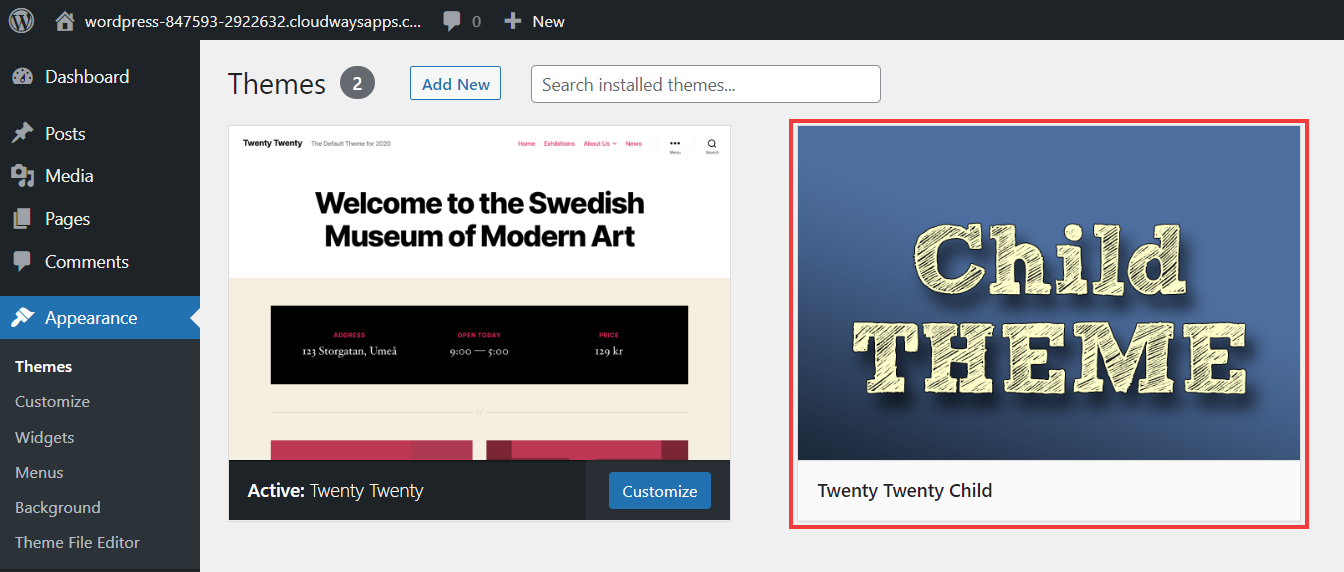
First, navigate to your WordPress dashboard. Find the Appearance section. Click on Themes. You will see a list of themes. Locate your child theme. It should be there. Hover over it. Click Activate. Your child theme is now active.
Check your site. Make sure everything looks right. Sometimes themes may need adjustments. Make small changes if needed.
Always keep backups. They help if something goes wrong. Regularly update themes. It keeps your site secure. Child themes are safe. They won’t affect the main theme. Enjoy customizing your site with ease!
Customizing The Child Theme
Custom CSS makes your child theme unique. Begin by locating the style.css file in your child theme folder. Add your CSS rules here. This will change the look of your site. Use the Inspect Element tool in your browser. It helps you find the right CSS elements to modify. Always save your changes. Then, refresh your site to see the new styles. Test different CSS properties to achieve desired effects. Your site will have a new, fresh look.
Theme templates control how your site looks. Copy a template file from the parent theme to your child theme folder. Make changes to the copied file. This keeps the parent theme intact. Use a code editor to edit the file. Simple changes can have big effects. Always check the changes on your site. If something breaks, you can fix it by reverting to the original file. Being careful is key to successful edits.
Testing And Debugging
Creating a child WordPress theme involves testing and debugging to ensure functionality. Start by copying the parent theme’s essential files. Modify the styles and functions while checking for errors. This process helps maintain customizations during updates.
Checking For Errors
Errors can make your site act funny. Use tools to find bugs. Error logs are helpful. They tell you what’s wrong. Check your code for mistakes. Small errors can cause big problems. Fix them one by one. Patience is key here. Make sure everything works fine.
Ensuring Compatibility
Your child theme must fit with the parent theme. Also, it should work on all browsers. Test on Chrome, Firefox, and Safari. Use responsive design to fit all screens. Check on phones, tablets, and desktops. Make sure plugins work too. Compatibility is very important for a smooth user experience. Always keep your themes updated.
Credit: www.cloudways.com
Best Practices
Regular updates are crucial for your child theme. Updates ensure your theme stays compatible. Compatibility is key for plugins and WordPress updates. Always check for new updates. Update your theme files if needed. Don’t forget to back up your work before updating. Backups prevent loss of important changes. This simple step saves time and stress.
Documenting changes helps keep track of edits. Make notes of all changes you make. Use a simple text file for this. Record every edit and update. This helps if you need to revert changes later. Documentation is also useful for future reference. It makes understanding past edits easier. Keeping a record saves effort in the long run.
Frequently Asked Questions
What Is A Child WordPress Theme?
A child WordPress theme inherits the functionality of a parent theme. It allows users to modify or add features without altering the original theme files. This ensures updates to the parent theme don’t overwrite customizations, providing a safe way to personalize a site.
Why Create A Child Theme In WordPress?
Creating a child theme helps preserve customizations during updates. It provides a structured way to make changes without affecting the parent theme files. This approach ensures stability and flexibility in maintaining and upgrading your WordPress site.
How Do I Start Creating A Child Theme?
To start, create a new folder in your themes directory. Add a style. css file with a header specifying the parent theme. Include a functions. php file for additional functionalities. Activate your child theme through the WordPress admin panel.
Can I Customize Any WordPress Theme?
Yes, you can create a child theme for any WordPress theme. This allows you to add custom styles and functionalities. Ensure compatibility by checking the parent theme’s documentation for potential limitations or specific guidelines.
Conclusion
Creating a child WordPress theme is simple and beneficial. It preserves your customizations safely. You get updates without losing changes. Your site stays secure and up-to-date. Start by setting up a new theme folder. Copy essential files from the parent theme.
Modify them as needed. Don’t forget to add a style. css file. Activate your child theme through WordPress dashboard. Enjoy a personalized, stable website. Keep learning and exploring. Your WordPress skills will grow over time. Practice makes perfect. Soon, you’ll customize themes like a pro.
Happy designing!


