
Are you ready to take your WordPress website to the next level? Creating a child theme is your ticket to customizing your site without the risk of losing your changes during updates.
Imagine having the freedom to tweak your design, layout, and functionality to perfectly fit your vision, all while maintaining the safety net of the parent theme. Sounds like a dream, right? In this guide, you’ll discover how easy it is to build your very own child theme, even if you’re not a coding wizard.
This step-by-step process will empower you to make your website uniquely yours, ensuring it stands out in the crowded digital landscape. Ready to dive in and unlock the potential of your site? Keep reading and learn the secrets to crafting a WordPress child theme effortlessly.
What Is A Child Theme
A child theme is a small theme that depends on a main theme. It allows you to change your website’s look without breaking the main theme. This means you can update the main theme without losing your changes.
Child themes use a style.css file. This file changes the look and feel of your site. They also have a functions.php file for adding special features. Both files work with the main theme.
Many people use child themes to keep their sites fresh. They are easy to set up and don’t need many files. This makes them a popular choice for beginners.
Benefits Of Using A Child Theme
Child themes keep your site safe. They let you update the parent theme easily. Changes stay even after updates. No need to worry about losing edits. This saves you time.
Customization is easy with child themes. You can change styles without harm. Make your site unique with less effort. It helps in learning theme development. Beginners find it helpful.
Using a child theme is smart. It protects your work. Keeps your site fresh and secure. You learn more about themes. It makes website building fun and easy.
Setting Up The Environment
Picking a parent theme is crucial. It affects design and features. Themes like Twenty Twenty-One are stable. They are easy to work with. Check updates and support. These help in future changes. A parent theme should be compatible with child themes. This ensures smooth operation. Review popular themes. Read user feedback. This gives insights into theme performance. Consider your website’s purpose. Align it with the theme features.
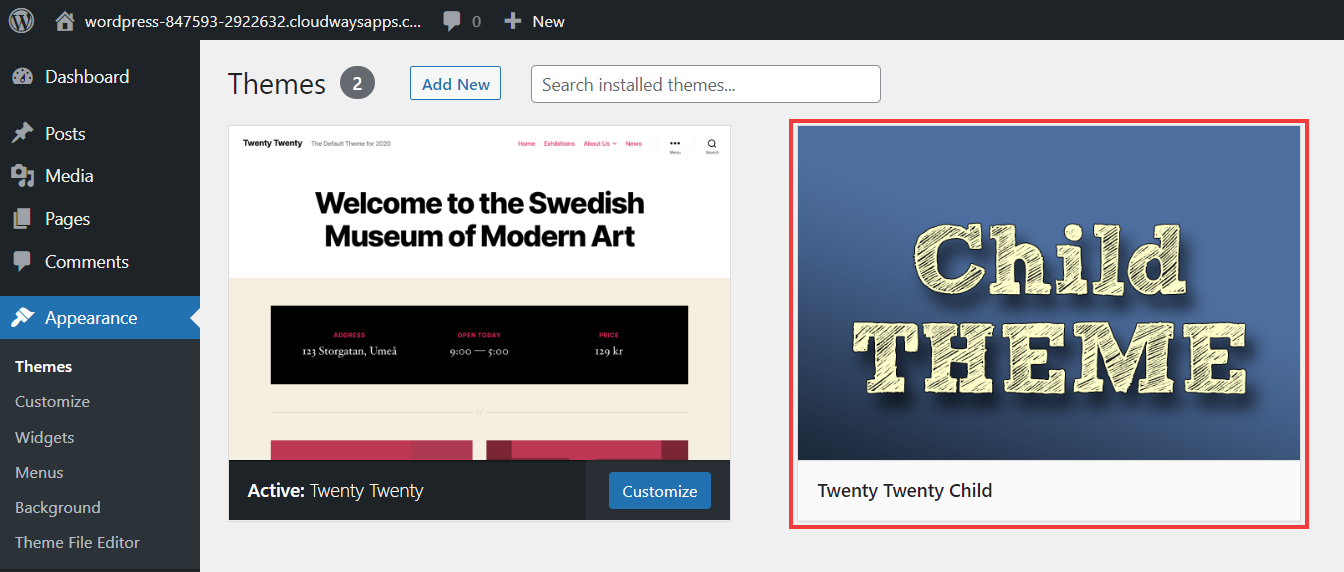
Basic tools are essential. Install WordPress on your local server. Use software like MAMP or WAMP. They help run WordPress locally. Text editors like Notepad++ or Visual Studio Code are needed. They make coding easier. FTP clients like FileZilla help transfer files. These tools are free and user-friendly. Ensure compatibility with your computer. Check system requirements before downloading.
Credit: www.cloudways.com
Creating A Child Theme Directory
Naming conventions are important in child themes. The directory name should be clear and simple. It should resemble the parent theme name. This helps in easy identification. A common format is parent-theme-child. This shows it’s a child of the parent theme. Use lowercase and avoid spaces. Hyphens are better for separation. They make the name readable. For example, twenty-twenty-child is a good name. It follows all the rules.
Directory structure is also crucial. Start by creating a new folder. This folder will hold all child theme files. Inside, create a style.css file. This file is necessary for WordPress to recognize the child theme. Add a functions.php file too. This file is used for adding custom functions. These files ensure the child theme works properly.
Adding A Style.css File
The CSS file structure is essential for a child theme. It starts with a comment section. This section describes the theme. Include name, description, and author. After the comment, write the CSS rules. These rules make the theme look nice. Use selectors, properties, and values. Keep it organized. This helps in finding things quickly.
Enqueuing The Stylesheet
Enqueueing means loading the stylesheets. It is done in functions.php. Use the wp_enqueue_style function. This links the stylesheet to the theme. First, define the function. Then, add action to load the stylesheet. Use get_stylesheet_directory_uri() to get the path. This ensures the CSS is applied correctly.
Creating A Functions.php File
The functions.php file is like a helper for your theme. It allows you to add or change functions. These functions can customize the theme. This file is important for a child theme. It helps keep changes even when the parent theme updates.
You can start with simple code snippets. For example, you can add a function to change the login logo. Or, you can create a new sidebar. Always remember to use PHP tags. Like <?php at the start and ?> at the end. This tells the server that the file contains PHP code.
Modifying Templates
Create a child theme in WordPress to safely modify templates without losing changes during updates. This process involves creating a new directory, adding a style. css file, and an optional functions. php file. Customize designs easily while maintaining the stability of the parent theme.
Copying Parent Templates
Copying parent templates is easy. Go to the parent theme folder. Find the file you want to copy. Make a copy of this file. Save it in your child theme folder. This way, you can change it. The original stays safe in the parent folder. This is important. It helps you not break the site.
Customizing Template Files
Customizing template files is fun. Open the copied file. Use a text editor. You can change the HTML or CSS. Add your own style. Make it look different. You can also change the PHP code. Be careful with PHP. It controls many things. Always test your changes. Make sure everything works.
Credit: wedevs.com
Testing And Troubleshooting
Creating a child theme in WordPress enhances website customization. Begin by setting up a new theme folder. Add a style. css file and functions. php file. Test and troubleshoot to ensure smooth functionality.
Common Errors
Errors can happen when creating a child theme in WordPress. Missing styles is a frequent issue. Check if the style.css file is linked properly. Another common error is broken layouts. This may occur if the parent theme updates. Always ensure your child theme is compatible. Watch out for unresponsive designs. This can affect user experience on different devices. Verify the media queries are correct. Sometimes, plugins conflict with child themes. Disable plugins one by one to find the problem. Keep track of the errors you face. This helps in finding solutions faster.
Debugging Tips
Debugging is important for fixing errors. Start with error logs. They show what went wrong. Use a debugging tool in WordPress. It helps identify issues. Test your site after every change. This ensures everything works. You can try disabling plugins to see if they cause issues. Check your functions.php file for mistakes. Sometimes small errors can cause big problems. Keep your code clean and organized. This makes debugging easier. Test on different browsers and devices. This ensures your theme is responsive. Always backup your site before making changes. This prevents data loss.
Best Practices For Child Themes
Creating a child theme in WordPress ensures safe customization. Start by making a new folder in your themes directory. Copy the parent theme’s style. css file, then adjust the Theme Name and Template. Add any custom functions in the new functions.
php. This keeps your changes intact during parent updates.
Maintaining Compatibility
Keep your child theme working with new updates. WordPress updates often, so check for changes. Compatibility is key for smooth operation. Always test your child theme after updates. This helps find any broken features. Fix them right away to avoid issues.
Use parent theme functions in your child theme. This ensures your child theme stays compatible. Avoid editing parent theme files directly. Instead, use hooks and filters in your child theme. This makes future updates easier and safer.
Regular Updates
Regular updates keep your child theme secure. They also ensure it runs smoothly. Always backup your files before updating. This way, you won’t lose your work. Check for updates regularly. Update your WordPress and plugins too.
Stay informed about new WordPress features. This helps you use the best tools. Keeping your theme updated protects it from bugs. It also guards against security risks. Regular updates improve performance and user experience.
Credit: wpengine.com
Frequently Asked Questions
What Is A Child Theme In WordPress?
A child theme in WordPress is a theme that inherits functionality from a parent theme. It allows you to modify styles and layouts without altering the parent theme. This ensures that your customizations are preserved during theme updates, maintaining the site’s design and functionality efficiently.
Why Create A Child Theme In WordPress?
Creating a child theme helps you safely customize your WordPress site. It prevents losing changes during parent theme updates. This approach keeps your site secure and up-to-date while allowing flexibility in design. It’s an essential practice for developers to maintain a stable and personalized website.
How Do I Create A Child Theme?
To create a child theme, first create a new folder in your WordPress themes directory. Add a style. css file with details about your child theme. Link it to the parent theme using a Template tag. Optionally, add functions. php for additional features.
Activate the child theme via the WordPress admin panel.
Can I Customize A Child Theme Safely?
Yes, customizing a child theme is safe. It preserves your changes during parent theme updates. You can modify styles, add functions, and tweak templates without affecting the core theme files. This method ensures your customizations remain intact, promoting a stable and personalized WordPress site.
Conclusion
Creating a child theme in WordPress is straightforward. Start with copying your parent theme. Add your customizations without affecting the original theme. This approach keeps your website stable during updates. Your site remains stylish and secure. Child themes offer flexibility and control.
No need to worry about losing changes. This method is ideal for beginners and experts alike. You can enhance your site with confidence. Keep exploring new design possibilities. Customize freely while maintaining stability. Your WordPress journey becomes smoother and enjoyable.
Happy designing and developing!


