
Imagine having a WordPress site that truly reflects your unique style, without losing the benefits of regular updates. With a child theme, you can make customizations to your site while keeping your main theme intact.
If you’re using the WordPress Twenty Sixteen theme, you’re in luck! It’s a fantastic base for creating a child theme. By the end of this guide, you’ll know exactly how to set up your own child theme and start customizing to your heart’s content.
Curious about how to maintain your site’s identity while ensuring it stays current? Read on, because this guide is designed with you in mind. You’ll discover simple steps that anyone can follow, even if you’re not a tech wizard. Let’s dive in and unlock the potential of your WordPress site together!

Credit: learn.wordpress.org
What Is A Child Theme
A child theme is like a small helper. It works with a main theme. It lets you make changes without breaking the original. This is great for trying new ideas. You can add colors or layouts. The main theme stays safe.
Using a child theme is smart. It saves your work when updating. Updates won’t erase your changes. This makes it easy to keep your website fresh. It’s like having a special toolbox. You can change things and keep control. Many people use child themes. They are popular because they are safe and flexible.
Benefits Of Using A Child Theme
Child themes help make website changes easy. They keep the original theme safe. This means updates will not erase your work. You can try new designs without worry. Mistakes won’t break your site. This is great for beginners. The main theme stays untouched.
Using a child theme is smart for future changes. You can update the parent theme safely. Your customizations remain safe. No need to redo work after updates. This saves time and effort.
Child themes are also good for learning. You can test ideas freely. Learning by doing is fun. You see changes live on your site. This boosts creativity and confidence.
Prerequisites For Creating A Child Theme
A basic understanding of WordPress is needed. WordPress dashboard navigation is important. Familiarity with HTML and CSS helps. You will need a text editor. Notepad or Sublime Text work well. A file transfer tool is also useful. FileZilla is a popular choice. Ensure you have access to your WordPress files. This may require hosting details. Ensure you have the parent theme installed. The Twenty Sixteen theme should be active. Backup your website before starting. This is a safe step. Mistakes can be fixed if backed up. A clear plan is helpful. Know what changes you want. Sketch your design ideas. Having a checklist is a smart idea. It keeps you organized.

Credit: learn.wordpress.org
Setting Up Your Development Environment
A local server is needed to test themes. Install a server like WAMP or XAMPP. These tools help run WordPress on your computer. They are free and easy to use. Download and follow the setup steps. Open the control panel and start Apache and MySQL. This will make the server ready.
You need the Twenty Sixteen theme. Go to the WordPress theme directory. Look for the theme and click download. Save the file on your computer. This theme will act as the parent theme. You will create a child theme based on it. Make sure the file is in a safe place.
Creating The Child Theme Directory
Start by making a new folder. This folder will hold your child theme files. Name the folder twentysixteen-child. Choose a location easy to find.
Inside this folder, add a style.css file. This file will hold your theme’s styles. Write the following at the top:
- Theme Name: Twenty Sixteen Child
- Template: twentysixteen
Add a functions.php file next. Use this to add special functions. This file helps in loading parent theme styles. Keep your files organized.
Adding The Style.css File
The style.css file is very important. It tells WordPress about your child theme. Start with a CSS comment header. This tells WordPress details about your theme. Include the theme’s name, description, and version. Also, add your name as the author. It looks like a note, not code. This helps WordPress recognize your child theme.
Next, import the parent theme styles. This makes your child theme look like the parent. Use the @import rule. Write it at the top of your style.css file. This line pulls styles from the parent theme. It keeps your child theme updated with parent changes. Your child theme can then add or change styles. This is how you keep everything in sync.
Setting Up Functions.php
Add a new file called functions.php in your child theme folder. This file helps you connect styles. Write a function to link the parent theme’s style. Use wp_enqueue_style to add the styles. Make sure the function is in functions.php. Use the get_template_directory_uri() function. This gets the parent theme’s URL. Wrap the function in a conditional check. This ensures it runs only on the front end.
Custom functions make your site unique. Add them in functions.php. Functions can change how your site works. They can add new features. Always test new functions. Problems may arise if they aren’t correct. Use clear, simple code. It makes your site easy to manage. Backup your site before big changes. Safety first!
Activating The Child Theme
To activate the child theme, upload it to WordPress. First, navigate to the themes section. Then, click on the Add New button. Choose the Upload Theme option. Select the child theme file from your computer. Click Install Now. After installation, activate the theme. Now, the child theme is ready.
Uploading To WordPress
Uploading the child theme is easy. Go to the WordPress dashboard. Find the Appearance tab. Click on Themes. Then, choose Add New. Select Upload Theme. Browse for the child theme file. Click Install Now to upload it.
Selecting The Child Theme
After uploading, select the child theme. Go to the Themes section. Find the child theme. Click on the Activate button. The child theme is now live. Changes are visible on your site.
Customizing The Child Theme
Creating a child theme for WordPress Twenty Sixteen involves a few simple steps. Start by making a new folder in your WordPress themes directory. Add a style. css and functions. php file to the folder. Customize your child theme to change styles without altering the parent theme.
Modifying Template Files
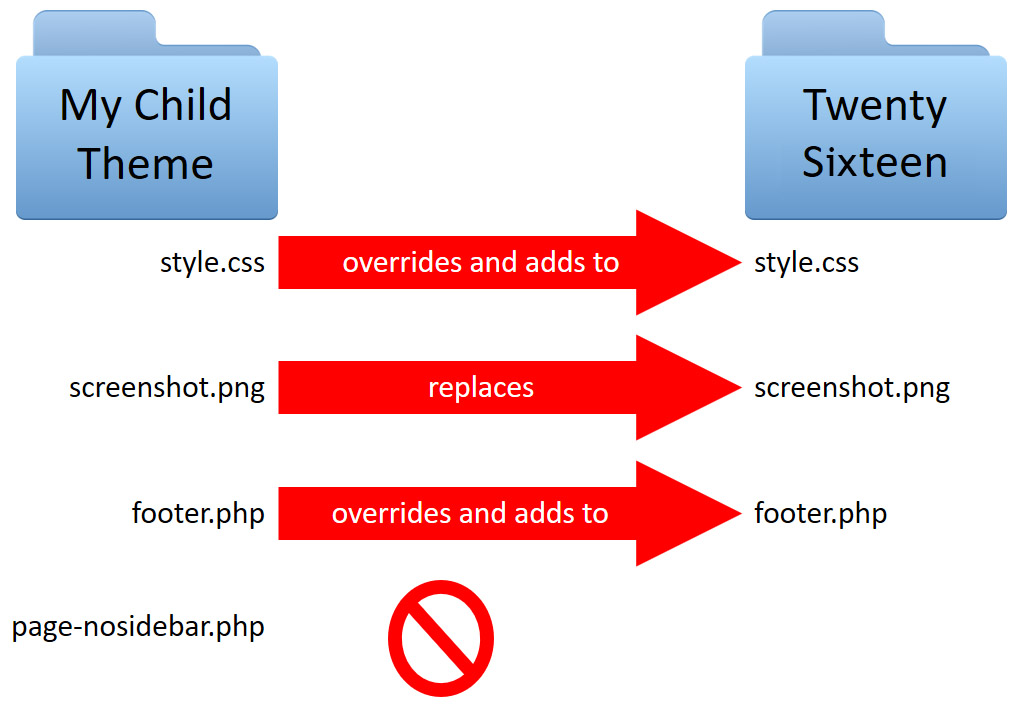
Template files decide how your site looks. You can change them. Copy the file from the parent theme. Paste it into the child theme folder. Edit it there. This way, the original file stays safe. Backup the original file before changing it. This helps if something goes wrong. Use a simple text editor for changes. Make sure to save the file after editing. Refresh your site to see changes.
Adding Custom Css
Custom CSS changes how your site looks. Add your CSS in the child theme’s style.css file. Use CSS to change colors, fonts, and layouts. Keep your CSS code short and neat. Comment your CSS to remember what it does. This helps you or others understand it later. Save the file and refresh the site. Check if the changes look good. If not, change the code again.
Credit: learn.wordpress.org
Testing And Troubleshooting
Creating a child theme for WordPress Twenty Sixteen involves copying and modifying the parent theme. Start by setting up a new folder in your themes directory. Add a style. css file to override styles as needed. Lastly, ensure functionality by troubleshooting any errors.
Common Issues
Creating a child theme can lead to some issues. A common problem is the theme not displaying correctly. This happens if the CSS file is not loaded. Another issue is missing template files. This can cause your site to break. Ensure all files are in the right place. Sometimes, changes do not show up. This is often due to cache. Clear your browser cache to see changes.
Debugging Techniques
Debugging helps find and fix problems. Use the WordPress debug mode to see errors. Add this line to your wp-config.php file: define('WP_DEBUG', true); This will show any errors on your site. Check the browser console for errors too. Right-click and select “Inspect” to open it. Look for any red error messages. These are clues to what might be wrong.
Frequently Asked Questions
What Is A Child Theme In WordPress?
A child theme in WordPress is a sub-theme that inherits functionalities and styles from another theme, called the parent theme. It allows you to make modifications without altering the parent theme files. This helps in preserving changes even when the parent theme is updated, ensuring your customizations remain intact.
Why Create A Child Theme For Twenty Sixteen?
Creating a child theme for Twenty Sixteen lets you customize the theme safely. You can tweak design elements, add features, or modify code without touching the parent theme. This approach ensures that your changes remain unaffected when the parent theme updates, maintaining the theme’s integrity and your customizations.
How Do You Set Up A Child Theme?
To set up a child theme, create a new folder in the themes directory. Add a style. css file with a header specifying the parent theme. Create a functions. php file to enqueue the parent theme’s styles. Activate the child theme from the WordPress dashboard to start customizing safely.
What Files Are Needed For A Child Theme?
A child theme requires at least two files: style. css and functions. php. The style. css file should contain a header specifying the parent theme. The functions. php file is used to enqueue the parent theme’s styles. You can add other template files to override specific parent theme files as needed.
Conclusion
Creating a child theme in WordPress boosts your site’s flexibility. It’s simple and lets you customize without harming the original theme. You gain control over design and functionality. Just follow the steps carefully. Your site will remain unique and up-to-date.
Remember to test your child theme. Ensure everything works smoothly. This process helps maintain your website’s integrity. It also enhances user experience. You can enjoy creative freedom with minimal technical hurdles. Stay updated with theme changes. Implementing a child theme is a wise choice for any WordPress user.


