
Are you looking to customize your WordPress website without risking the loss of your changes during updates? Creating a child theme is the perfect solution.
Specifically, if you’re using the Twenty Fourteen theme, crafting a child theme can offer you the flexibility to tweak and enhance your site while keeping the original theme intact. In this guide, you’ll discover the step-by-step process to create a child theme for WordPress Twenty Fourteen.
By the end of this article, you’ll have the tools you need to safely modify your website’s design and functionality. Imagine the satisfaction of seeing your unique vision come to life on your site, all while ensuring stability and security. Let’s dive into the simplicity of creating a child theme and unlock your website’s potential.
Benefits Of A Child Theme
A child theme keeps your original theme safe. You can make changes without fear. The main theme stays untouched. This is very useful. It ensures your site stays stable. No worries about losing your changes. Updates won’t erase your work.
Updates are smooth with a child theme. The parent theme can update easily. Your site won’t break. This keeps your site secure. You get the latest features without hassle. It’s a smart way to manage changes.
Customize your site freely with a child theme. You have the freedom to experiment. Add new features and styles. Your creativity can shine. The child theme allows these changes. Your site becomes unique and personal.

Credit: techspawn.com
Setting Up Your Environment
Creating a child theme needs some tools. Text editor is important. Use editors like Notepad++ or VS Code. A web browser helps test your theme. FTP client like FileZilla is useful. It helps upload files to the server. WordPress must be installed. This is crucial for testing your theme.
Local setup means working offline. XAMPP or WAMP can help. These tools make your computer act like a server. Install WordPress locally. This lets you test safely. You won’t risk breaking a live site. Database setup is needed for WordPress. Use tools to manage it easily.
Creating The Child Theme Directory
First, make a folder for your child theme. This folder is where you will keep all your files. It helps to keep things organized. The folder should be in the wp-content/themes directory. This is where all themes are stored in WordPress.
Naming Conventions
Name your folder something easy to remember. It should relate to your theme. A common way is to use the parent theme name and add “-child”. For example, if your parent theme is “twentyfourteen”, name it “twentyfourteen-child”.
Folder Structure
| Folder | Purpose |
|---|---|
| twentyfourteen-child | Root folder for child theme |
| style.css | Stylesheet for the child theme |
| functions.php | PHP functions for the child theme |

Credit: wordpress.org
Configuring The Style Sheet
Creating a child theme for WordPress Twenty Fourteen involves configuring the style sheet. First, copy the parent theme’s style. css into your child theme directory. Next, customize your child theme’s style. css to change the design while preserving the original theme.
Style.css File
Creating a child theme for WordPress Twenty Fourteen is easy. Start by making a new folder. Name it something like “twentyfourteen-child”. Inside, create a new file. Call it “style.css”. This is your style sheet.
In “style.css”, add some lines. The first line should be: / Theme Name: Twenty Fourteen Child /. The next line is: Template: twentyfourteen. These lines tell WordPress it’s a child theme.
Parent Theme Import
To use the parent theme’s styles, add another line. Use this: @import url("../twentyfourteen/style.css");. This line imports the parent theme’s styles. It helps keep your child theme neat and consistent. Now, you can add your own styles below this line.
Enqueuing Parent And Child Styles
To link styles, use functions.php file. This file controls how your theme works. Adding styles in the right way is crucial.
First, open the functions.php file. Then, add code to link styles. Use the wp_enqueue_style() function for this. This function helps you connect parent and child styles.
Make sure the parent style loads first. Then, load the child style. This order is important. It makes sure the child style can change the parent style if needed. Here is the code example:
| Code | Description |
|---|---|
wp_enqueue_style('parent-style', get_template_directory_uri() . '/style.css'); |
Load parent style first. |
wp_enqueue_style('child-style', get_stylesheet_directory_uri() . '/style.css', array('parent-style')); |
Load child style after parent. |
Using this method keeps your site stable. It helps in making changes safely.
Customizing The Child Theme
Creating a child theme for WordPress Twenty Fourteen allows easy customization without altering the original theme. Start by copying essential files into a new folder, preserving design elements while enabling unique modifications. This method ensures updates won’t overwrite custom changes, maintaining your site’s personalized look.
Adding Custom Css
Use custom CSS to change the look of your site. First, find the style.css file in your child theme. Open it in a text editor. Add your CSS rules here. For example, change the background color with this code: body { background-color: #f0f0f0; }. Save the file. Refresh your site to see changes. Custom CSS helps personalize your theme easily.
Modifying Templates
Copy template files from the parent theme. Place them in your child theme folder. For example, start with header.php or footer.php. Edit these files in a text editor. Add or change HTML and PHP code. Save your changes. This way, you can alter layouts without affecting the main theme. Always back up your files before changes. This keeps your work safe.
Testing The Child Theme
Creating a child theme for WordPress Twenty Fourteen lets you customize your site without altering the original theme. Test your child theme by activating it in the dashboard and checking for design consistency. This ensures your customizations are safely applied and your website looks great.
Checking For Errors
Always check your child theme for any errors. Use the WordPress debugging tool. This tool helps spot mistakes. Enable WP_DEBUG in the wp-config.php file. Look for red flags in your theme. These might be syntax errors or missing files. Fixing errors makes your site safe and smooth.
Ensuring Responsiveness
Make sure your child theme is responsive. Test on different devices. Check on phones, tablets, and computers. Each device should display the theme correctly. Use tools like Google Mobile-Friendly Test. This tool shows if your site is mobile-ready. A responsive theme is good for all users. It helps in keeping visitors happy.
Activating Your Child Theme
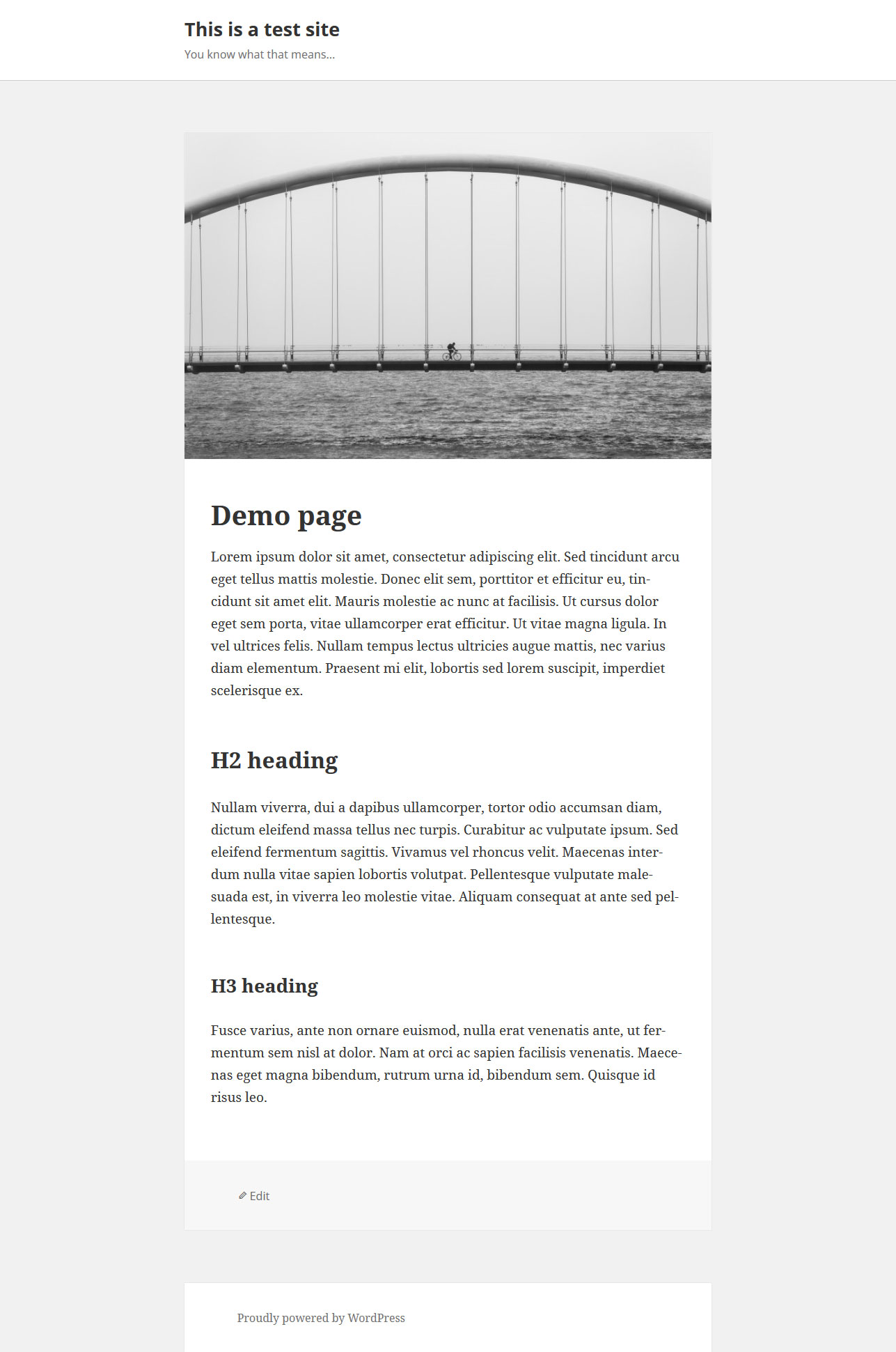
Open your WordPress Dashboard. Find the section called Appearance. Click on it. Look for the option called Themes. Click on Themes. Your child theme should be there. Find it. Click on Activate. Your child theme is now active.
Go to the front of your website. Check if the changes are visible. Look for the new features or styles. If they are present, your theme is working. If not, repeat the activation steps. Double-check each step. Ensure everything is correct. Your site should show the new theme.
Credit: www.smashingmagazine.com
Frequently Asked Questions
What Is A Child Theme In WordPress?
A child theme allows you to modify and customize a parent theme without altering its core files. It ensures your customizations remain intact after updates. Child themes are essential for maintaining site stability and performance while allowing for creative flexibility.
How To Create A WordPress Child Theme?
To create a child theme, start by creating a new folder in your themes directory. Add a style. css file with Template header pointing to the parent theme. Include a functions. php file to enqueue parent styles and scripts.
Why Use Twenty Fourteen Child Theme?
Using a Twenty Fourteen child theme lets you customize your site while preserving the original design. It ensures updates don’t overwrite your changes. This approach offers flexibility and security without compromising functionality or aesthetics.
Can A Child Theme Affect Website Performance?
A well-coded child theme should not negatively impact website performance. It uses the parent theme’s resources efficiently. Ensure your code is optimized and avoid unnecessary customizations to maintain speed and responsiveness.
Conclusion
Creating a child theme in WordPress Twenty Fourteen offers flexibility. You can customize your site while preserving the original theme. This keeps your website unique without losing updates. Follow steps carefully to ensure smooth setup. Test your child theme after each change.
This helps catch errors early. With patience, you can achieve a personalized look. Your site will stand out with minimal effort. Remember, small changes can make a big difference. Enjoy your WordPress journey with a custom child theme.


