
Are you ready to take your WordPress skills to the next level? Creating a child theme through the command line might sound like a task for tech wizards, but it’s easier than you think.
Imagine having the power to customize your site without the fear of losing your tweaks with every theme update. This guide will walk you through the process step-by-step, demystifying the command line and empowering you to craft a unique look for your site.
Not only will you gain a new skill, but you’ll also enhance your site’s performance and security. Intrigued? Let’s dive into how you can easily create a child theme and give your WordPress site that personal touch you’ve been dreaming of.
Benefits Of Using A Child Theme
Creating a child theme in WordPress offers many advantages. It protects your original theme from changes. This means your customizations stay safe during updates. You can easily update the parent theme without worries. The child theme helps you learn and experiment. You can try new ideas without affecting the main site. It is perfect for beginners and developers alike. A child theme allows you to add new features. You can also change the design easily. It makes your site more flexible and unique.
Using a child theme is also a great way to organize your files. You keep your changes in a separate folder. This keeps things tidy and easy to manage. Troubleshooting is simpler too. You know exactly where to find your custom code. This saves time and effort.
In short, a child theme is smart and safe. It gives you control and peace of mind.
Prerequisites For Creating A Child Theme
Creating a child theme needs basic tools. First, install WordPress on your computer. You need a code editor. You can use Notepad++ or Visual Studio Code. A command line interface is also needed. Use Terminal for Mac or Command Prompt for Windows. Have FTP access ready. This helps transfer files. Make sure PHP is installed. It helps run WordPress.
A child theme needs a parent theme. This is the main theme. It provides styles and features. Learn about the parent theme. Know its functions and design. Find the style.css file. It holds all the CSS rules. Read the theme’s documentation. It helps understand the theme better. Check for updates. Parent themes can change over time.
Setting Up The Development Environment
Create a WordPress child theme using the command line effortlessly. Start by installing Node. js and NPM. Run simple commands to set up and customize your theme.
Installing Necessary Software
To begin, install the latest version of WordPress. Make sure your computer has PHP and MySQL installed. These are essential for WordPress. Check your system for a compatible web server, like Apache or Nginx. Use a tool like XAMPP or MAMP for easy setup. Install a code editor, such as Visual Studio Code or Sublime Text. These editors help you write and edit code. Keep your software up-to-date for best performance.
Accessing The Command Line Interface
Find the command line on your computer. On Windows, use Command Prompt. On Mac, use Terminal. Open the command line by typing its name in the search box. Learn basic commands like cd to change directories. Practice typing commands to get comfortable. The command line lets you control your computer with text instructions. It’s a powerful tool for developers.
Credit: docs.pantheon.io
Creating The Child Theme Directory
The child theme needs a home. This home is a folder. It should live in the wp-content/themes directory. This is where WordPress looks for themes. Pick a name for your child theme. It should make sense to you. This name helps you remember its purpose.
Open your command line tool. Use the mkdir command to make a new folder. Type mkdir, then your folder name. Press Enter. Your new directory is ready. Check the directory list. Use ls to see if your folder is there. This confirms the folder’s creation. Now, you can start building your theme.
Adding The Style.css File
First, create a new folder for the child theme. Inside the folder, add a file named style.css. This file is important. It tells WordPress about the theme. It also adds styles to the child theme. Without it, the theme will not work properly.
Writing The Theme Header
The theme header is the first part of style.css. It has special information. Like the theme’s name and description. Also, the parent theme’s name. Use this format:
/
 Theme Name:   My Child Theme
 Template:     Parent Theme Name
/
Make sure to replace with your own theme names. This helps WordPress recognize your theme.
Enqueuing Parent Styles
Use a file named functions.php to add parent styles. This file should be in the child theme folder. Add this code inside:
php
function my_child_theme_enqueue_styles() {
    wp_enqueue_style('parent-style', get_template_directory_uri() . '/style.css');
}
add_action('wp_enqueue_scripts', 'my_child_theme_enqueue_styles');
?
This code loads the parent theme’s styles. It makes sure the child theme looks right. Do not skip this step. It is very important.
Creating The Functions.php File
The functions.php file is like a toolbox. It holds special functions for your theme. This file helps add new features. It lets you change things in your WordPress theme. Without it, changes might not work well. Each child theme needs this file. It helps to load the parent theme’s styles.
You can add custom functions here. They help make your site unique. Write your code inside this file. Use it for small tweaks and changes. Be careful with coding errors. They can break your theme. Always check your changes work well.
Activating The Child Theme
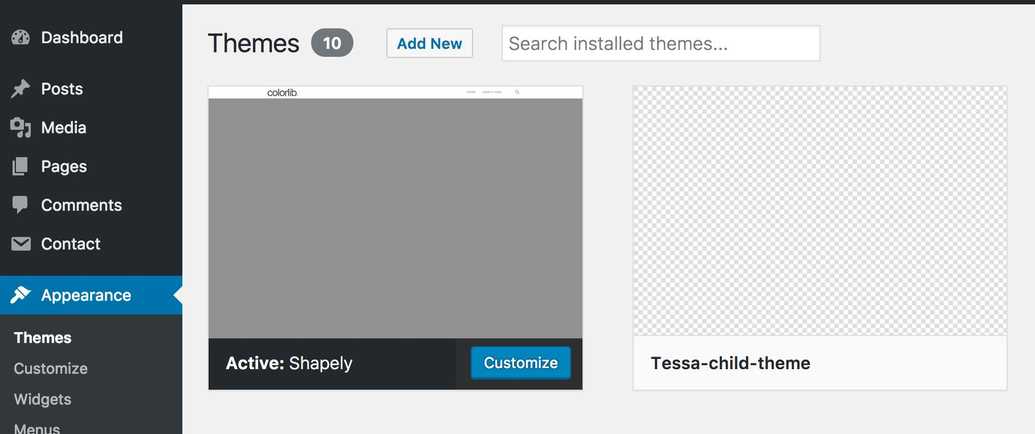
Open your WordPress dashboard. Go to Appearance and click on Themes. You will see a list of themes. Find your child theme in the list. Click on Activate. Your child theme is now active. Make sure your parent theme is also installed. This helps the child theme work well.
Use the WP-CLI tool. First, open your command line tool. Type wp theme list to see all themes. Find your child theme in the list. Next, type wp theme activate child-theme-name. Replace child-theme-name with your theme’s name. Press Enter. Your child theme is now active. This method is fast and easy.
Testing And Troubleshooting
Creating a child theme in WordPress using the command line simplifies customization. Use basic commands to clone and modify parent themes. Ensure your changes stay intact during updates, enhancing site flexibility and design options.
Checking For Errors
Ensure the child theme works well. Run tests using the command line. Look for any errors or warnings. If you see errors, note them down. Check the style.css and functions.php files. Look for missing brackets or semicolons. Correct any mistakes you find. Make sure the parent theme is active. Verify the child theme is linked correctly. Check the WordPress dashboard. Ensure everything appears normal.
Debugging Common Issues
Some themes may not load properly. Check the error logs for clues. Look for missing or incorrect files. Ensure you have the latest WordPress version. Update if needed. Clear the browser cache. This helps display changes. If problems persist, deactivate plugins. Reactivate them one by one. Watch for conflicts. Seek help from WordPress forums. Many users share solutions there.
Best Practices For Child Themes
Creating a child theme in WordPress via command line simplifies customization. Start by accessing your server using SSH. Then, create a new directory within the themes folder and add a style. css file to define your theme’s name and template.
Maintaining Code Quality
Keeping your code clean is very important. Use clear and simple names. Comment your code to explain what it does. This helps others and future you. Indent lines to show structure. It makes reading easier. Avoid hard-coding values. Use variables instead. This keeps your code flexible.
Check your theme regularly. Fix any errors you find. This improves performance. Use tools to test your code. They catch mistakes early. Follow WordPress coding standards. This ensures quality. Using these tips keeps your code strong and easy to understand.
Staying Updated With Parent Themes
Always use the latest parent theme version. This keeps features fresh. Update regularly to fix bugs and security holes. Check the parent theme’s change log often. Adapt your child theme as needed. This prevents issues later.
Test updates on a local site first. This avoids breaking your live site. Back up your site before updating. This keeps your work safe. Stay informed about updates. This ensures your theme works well.
Credit: docs.pantheon.io
Credit: www.scalahosting.com
Frequently Asked Questions
What Is A WordPress Child Theme?
A WordPress child theme lets you modify a parent theme safely. It allows customizations without losing changes during updates. Use it to add new features or styles to your site while keeping the original theme intact. Creating a child theme involves using a separate directory and stylesheet.
Why Use The Command Line For Child Themes?
Using the command line speeds up the process and reduces manual errors. It offers more control over file creation and editing. For developers, it’s efficient and integrates well with version control systems. The command line is ideal for repetitive tasks and managing larger projects.
How Do I Start Creating A Child Theme?
Begin by accessing your site via SSH or terminal. Navigate to the themes directory in WordPress installation. Create a new folder for your child theme. Add a style. css file and import the parent theme’s styles. Use functions. php to enqueue the parent theme’s styles properly.
Is Coding Knowledge Required For Child Themes?
Basic coding knowledge is helpful but not mandatory. Familiarity with HTML, CSS, and PHP makes customization easier. Many tutorials and resources are available online for beginners. Understanding WordPress structure and functions can enhance your child theme creation experience.
Conclusion
Creating a child theme through command line is simple. It saves time and offers flexibility. You can customize your site easily. No more hassle with manual file uploads. Just follow the steps carefully. Start by setting up your server environment.
Then, navigate to your WordPress directory. Remember, backup your site before changes. Mistakes can happen. Child themes protect your original design. They allow for easy updates. Now, you have full control over your theme. Enjoy the process and enhance your WordPress skills.
Experiment and learn more. Happy coding!


