
Creating a child theme for your WordPress site can seem like a daunting task, especially if you’re not a developer. But what if I told you there’s a straightforward way to do it using a plugin?
Imagine being able to customize your website’s design and functionality without the fear of losing your changes during updates. With a child theme, you can achieve just that! You might be wondering why you should bother with a child theme.
Well, it’s all about keeping your site safe and maintaining the flexibility to tweak things as your brand evolves. By the end of this article, you’ll have the confidence to create a child theme using a WordPress plugin, ensuring your site stays unique and secure. Ready to dive in and discover how you can enhance your WordPress site effortlessly? Let’s get started!
What Is A Child Theme?
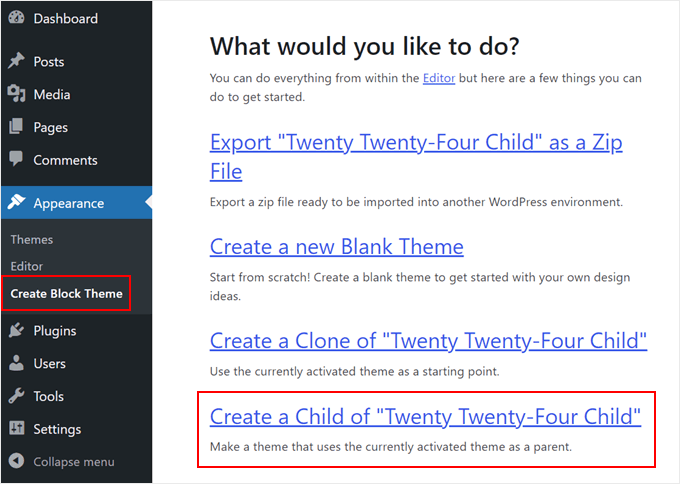
A child theme is a small part of a bigger theme. It lets you change things. No need to touch the main theme. You can add new styles. You can also add new functions. This keeps your main theme safe. If you update the main theme, changes stay safe. You make all changes in the child theme. It is like a mini-theme. Easy to use and manage. It keeps your website fresh. No worries about losing work. It is perfect for beginners. Simple and easy to learn. A great way to start learning themes.
Credit: www.wpbeginner.com
Benefits Of Using A Child Theme
Child themes are great for making changes. They keep the original theme safe. You can update the main theme without losing changes. This is very helpful. It saves time and worry.
Child themes are easy to use. You can change colors, fonts, and layout. This makes your site look unique. It’s like making a special outfit for your website.
Using a child theme is smart. It keeps your site secure. Your work stays safe when the theme updates. You also learn more about coding. This helps you grow your skills.
Child themes are great for testing new ideas. You can try new things without breaking your site. This helps you learn what works best.
Setting Up Your Development Environment
Selecting the best tools is crucial. Start with a good code editor. Visual Studio Code is popular and free. Sublime Text is fast and lightweight. Both work well for coding. Next, consider version control. Git helps track changes. It’s useful for collaboration. Many developers use GitHub for hosting projects. These tools make development smoother.
Some software is essential for development. WordPress must be installed locally. Use XAMPP or MAMP to create a local server. This allows you to test changes safely. Next, install Node.js. It helps in managing packages. npm comes with Node.js and is useful for installing dependencies. With these, you’re ready to start creating a child theme.
Credit: happyaddons.com
Creating A New Plugin
A plugin has a special structure. It is like a folder. Inside, there are files. These files tell WordPress what to do. The main file is important. It has a name ending with .php. This file has special code at the top. The code tells WordPress about your plugin. You need to write this code correctly. It helps WordPress understand your plugin.
First, create a new folder. Name it after your plugin. Inside, make a new file. Call it the same name with .php at the end. Open this file. Type this code at the top:
php
    /
    Plugin Name: My Child Theme Plugin
    Description: A simple child theme plugin.
    Version: 1.0
    Author: Your Name
    /
    ?
This code tells WordPress about your plugin. It includes the plugin’s name and author. Also, it tells what the plugin does. Now, your plugin is ready to grow!
Adding Child Theme Functionality
Enhancing WordPress with child theme functionality allows for safe customization. Crafting a child theme plugin involves creating a new directory, copying essential files, and adding custom code. This method preserves original themes during updates, offering a secure way to personalize your site.
Enqueuing Styles And Scripts
Start by creating a functions.php file in your child theme. This file will help in adding styles and scripts. Use the wp_enqueue_style function. This function loads your child theme’s stylesheet. It makes sure it loads after the parent theme. For scripts, use wp_enqueue_script. It is important to use the correct handles for styles and scripts. This ensures everything works smoothly.
Overriding Parent Theme Files
Child themes allow overriding of parent theme files. Copy any file from the parent theme to the child theme folder. Make changes in the child theme file. Your changes will override the parent theme. It is best to only copy files you need to change. This keeps your child theme lightweight and easy to manage.
Customizing The Child Theme
Template files are essential for a child theme. They allow you to tweak the look of your site. Copy the original file from the parent theme. Paste it into the child theme folder. Edit the copied file to make changes. Use a text editor for this task. Save your changes carefully. Your site will reflect the new look.
Custom functions enhance your child theme. They let you add unique features. Use the functions.php file in your child theme. Write your code there. Start with basic functions. Test them thoroughly before using them. Functions can change how your site works. Make sure they are well-written. They should improve your site’s performance.
Testing Your Child Theme Plugin
Creating a child theme WordPress plugin is a useful skill. It allows customization without altering the original theme. Testing ensures everything works smoothly and maintains site stability.
Checking For Errors
First, activate your child theme in WordPress. This helps to spot errors easily. Visit your site and browse all pages. Look for broken layouts or missing elements. If something looks odd, note it down. Use the WordPress debugging tool for error messages. It shows PHP errors or warnings. Fix these errors in your child theme files. Also, check your browser’s console for JavaScript errors. Fix these too. Testing ensures your theme works smoothly.
Ensuring Compatibility
Compatibility is key for a child theme. Check your theme with different browsers. Use Chrome, Firefox, and Safari. Make sure it looks good everywhere. Also, test it on mobile devices. Your theme should be responsive. Check if plugins work well with your theme. Sometimes, plugins can break themes. Test popular plugins like WooCommerce or Contact Form 7. Update your WordPress to the latest version. Ensure your theme still works fine. Regular testing keeps your theme in top shape.
Deploying The Child Theme Plugin
Make sure the child theme is ready. Check all files and settings. Double-check the theme name and description. This helps users know what the theme does. Keep the code clean and organized. This makes it easier to update later.
Save the child theme in a zip file. Log in to WordPress admin. Go to Appearance, then Themes. Click on Upload Theme. Select the zip file and upload it. Activate the theme once it uploads. Ensure everything works smoothly. Fix any errors right away.
Best Practices For Maintenance
Always check for new updates. This keeps your plugin safe. New versions have better features. They also fix bugs. Set a schedule for checking updates. Do it once a week. Updates help your plugin work well with WordPress.
Listen to what users say. Feedback helps improve your plugin. Always read user comments. Find common issues. Fix them soon. Make users happy. Reply to their queries quickly. This builds trust. Happy users share your plugin.
Credit: ostraining.com
Frequently Asked Questions
What Is A Child Theme In WordPress?
A child theme in WordPress is a theme that inherits the functionality of another theme, called the parent theme. It allows you to modify or add features without changing the original theme files. This ensures updates to the parent theme don’t overwrite your customizations, making it ideal for maintaining your site’s design.
Why Create A Child Theme Plugin?
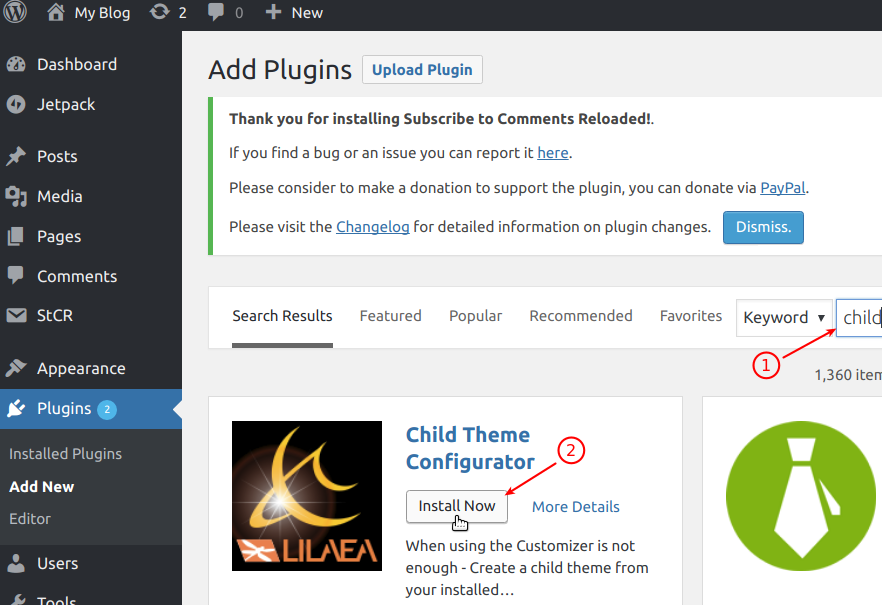
Creating a child theme plugin helps you organize custom functionality separately from the theme files. It allows for easier management and updates while keeping your child theme lightweight. This approach enhances your site’s performance and security by isolating custom code from theme updates.
How Do I Start Creating A Child Theme?
To start, create a new folder in your WordPress themes directory. Inside, add a style. css file with template information referencing the parent theme. You can also include a functions. php file for custom functions. Use WordPress Codex guidelines for detailed instructions on setting up your child theme.
Can Child Themes Inherit Parent Theme Updates?
Yes, child themes inherit updates from the parent theme automatically. This ensures your site benefits from improvements and security patches. Customizations in the child theme remain intact, providing a stable foundation for your site’s design and functionality. Always test updates in a staging environment before applying them live.
Conclusion
Creating a child theme WordPress plugin is simple and beneficial. It preserves customizations during updates. Follow steps carefully for a smooth process. Custom themes enhance your site’s uniqueness. Remember to test changes thoroughly. Ensure compatibility with the main theme. Use online resources for extra help if needed.
Stay updated with WordPress changes. This keeps your site secure and efficient. Practice makes perfect, so keep experimenting. With time, customizing becomes easier. Enjoy the process of making your site truly yours.


