
Are you looking to customize your WordPress site without losing your changes during updates? Creating a child theme in WordPress is the perfect solution, and it’s easier than you might think, especially with the Twenty Thirteen theme.
Imagine having the freedom to tweak your site’s design and functionality while ensuring everything stays intact with each update. In this guide, you’ll discover the step-by-step process of crafting a child theme specifically for Twenty Thirteen. By the end, you’ll not only save time but also gain peace of mind knowing your customizations are safe.
Ready to take control of your site’s appearance and functionality? Let’s dive in!

Credit: www.flickr.com
What Is A Child Theme?
A child theme is a theme that gets its features from another theme. This other theme is called the parent theme. Using a child theme is safe. Your changes won’t disappear when you update the parent theme.
You can add or change styles and layout with a child theme. It helps in keeping your website unique. The parent theme stays the same, while you update your child theme. This makes it easy to manage and keep things neat.
Benefits Of Using Child Themes
Child themes offer many advantages. They help you keep your customizations safe. Updates to the main theme won’t affect your changes. This means your site stays stable and secure. You can try new things without fear. Child themes make experimenting easy.
Child themes give you flexibility. You can tweak parts of your site. The main theme stays intact. This lets you create a unique look. But you won’t break your site. This is important for designers and developers.
Using child themes makes learning easier. You see how themes work. You can change small parts. You don’t need to touch the main theme. This helps beginners understand WordPress better. Child themes are important tools for anyone using WordPress.
Setting Up Your Environment
Start with a good text editor. Options like Notepad++ or Sublime Text work well. A reliable FTP client is essential too, such as FileZilla. These tools help you edit and upload files. Ensure you have a basic understanding of CSS and HTML.
First, log in to your WordPress dashboard. Go to the Appearance section. Click on Themes. Identify your current theme. You will create a child theme based on it.
Make a new folder in wp-content/themes. Name it twentythirteen-child. Inside, create a file named style.css. This file will store your theme’s styles.
Creating The Child Theme Directory
First, open your WordPress folder. Find the wp-content/themes directory. Here, create a new folder. This folder will be your child theme directory.
Naming The Directory
Choose a simple name for your folder. It should relate to your theme. If your theme is Twenty Thirteen, name it twentythirteen-child. Use lowercase letters and hyphens. Avoid spaces and special characters.
Folder Structure
Inside your child theme folder, create a style.css file. This file will hold your CSS rules. You may also add a functions.php file. This file can hold extra functions for your theme. Keep your files organized. It helps you find things easily later.
Adding The Style.css File
Integrating the style. css file is crucial in creating a child theme for WordPress Twenty Thirteen. This file dictates the visual appearance, allowing custom designs while preserving the original theme’s functionality. Properly linking style. css ensures seamless adaptation and updates.
Essential Css Comments
Every child theme needs a style.css file. This file should have comments at the top. These comments are important. They tell WordPress about your theme. You should include the theme name and description. Also add author and version. Write them clearly. WordPress reads these comments. It uses them to understand your theme.
Importing Parent Theme Styles
To make the child theme work, you must import the parent theme styles. Use the @import rule. This rule helps to copy styles from the parent theme. Write it at the top of your style.css file. It looks like this: @import url(“../twentythirteen/style.css”);. This line tells WordPress to use the parent theme’s styles. This way, your child theme gets the same look.

Credit: learn.wordpress.org
Configuring The Functions.php File
Easily create a child theme in WordPress Twenty Thirteen by configuring the functions. php file. Customize your theme without altering the original. A simple adjustment ensures updates don’t erase your changes.
Enqueuing Stylesheets
Start by creating a new functions.php file. This file will help to load styles. Use the wp_enqueue_style() function. This function makes sure that styles load correctly. First, add the parent theme styles. Then, add the child theme styles. This way, both styles will work together. Always check your code for errors. Simple mistakes can cause problems.
Adding Custom Functions
Custom functions add more features to your theme. Create these functions in the functions.php file. Use PHP to write these functions. They can change how your site works. Test each function carefully. Make sure it does what you want. If something breaks, review your code. Look for missing semicolons or brackets.
Customizing Template Files
Creating a child theme in WordPress Twenty Thirteen allows safe customization of template files. Start by making a new folder in the themes directory. Then, add a style. css file with essential theme information, ensuring you maintain updates without losing changes.
Copying Parent Templates
Copy the parent template files to your child theme folder. This ensures any changes won’t affect the original files. It’s like having a backup. Make sure to keep the same folder structure. For example, if you copy a file from “template-parts”, create a “template-parts” folder in your child theme. This helps WordPress find the files easily.
Modifying Templates
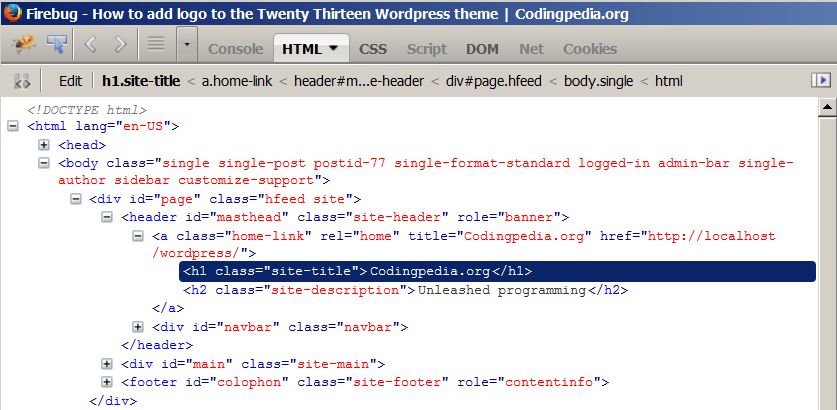
Open the copied files in a text editor. You can use Notepad or any other editor. Edit the parts you want to change. Maybe you want to change the header style. Or you want to move a sidebar. Save your changes once you’re done.
After saving, check your website. See if the changes look good. If not, edit the file again. Keep testing until you are happy. Remember to keep backups of your edited files. This way, you can restore them if needed.
Credit: www.codepedia.org
Testing Your Child Theme
Creating a child theme in WordPress Twenty Thirteen involves copying the parent theme’s files. Test your child theme by activating it and checking for errors. Adjust styles and functions to ensure it works smoothly, providing a safe way to customize your site.
Activating The Child Theme
First, go to your WordPress dashboard. Click on “Appearance” and then “Themes.” You will see your new child theme listed. Click “Activate” to use it. Now, your site uses the child theme. Check your site to make sure it looks right. If something seems off, don’t worry. You can fix it.
Troubleshooting Common Issues
Sometimes, things don’t work as planned. If your child theme doesn’t show, check the style.css file. Ensure it has the correct template name. Also, check the functions.php file for errors. Typos can cause issues. If your site looks strange, clear your browser cache. This may solve the problem. Still having trouble? Consider disabling plugins one by one. Some plugins may conflict with your theme.
Best Practices For Child Themes
Creating a child theme in WordPress Twenty Thirteen involves copying the parent theme’s files. Then, edit the style. css file to add custom styles. This approach keeps original files intact, allowing for easy updates and modifications without altering the main theme.
Maintaining Updates
Keeping your child theme updated is important. Always check for new updates. Updates fix bugs and add new features. Keep a backup before updating. This helps if something goes wrong. Use a plugin to help with backups. Updates protect your website from hackers. They also ensure everything runs smoothly.
Organizing Custom Code
Organizing your custom code makes future changes easier. Use separate files for different functions. For example, put styles in a CSS file. Place scripts in a JS file. Label your code with clear comments. Comments explain what the code does. This helps others understand your work. Clean code is easy to read and update. This saves time and reduces errors.
Frequently Asked Questions
What Is A WordPress Child Theme?
A WordPress child theme inherits features from a parent theme. It allows customization without altering the original theme’s code. This ensures updates to the parent theme won’t affect your changes. Child themes are ideal for making modifications while maintaining the integrity of the parent theme.
Why Use A Child Theme In WordPress?
Using a child theme preserves your customizations during parent theme updates. It allows you to tweak styles and functions safely. This separation of code makes maintaining and updating your site easier. Child themes enhance site longevity and flexibility, ensuring a smoother WordPress experience.
How Do I Create A Child Theme In Twenty Thirteen?
To create a child theme, first, create a new folder in the themes directory. Name it “twentythirteen-child”. Then, add a style. css file with necessary header information. Finally, add a functions. php file to enqueue the parent theme’s stylesheet. Activate your child theme via the WordPress admin panel.
Can I Customize The Twenty Thirteen Child Theme?
Yes, you can customize the Twenty Thirteen child theme extensively. Modify the style. css file to change design aspects. Use functions. php to alter functionality. Add new template files if needed. This approach ensures your changes won’t be lost during updates to the parent theme.
Conclusion
Creating a child theme in WordPress is straightforward. It helps customize your site safely. You keep the original theme intact. Changes won’t vanish after updates. This method is ideal for unique design needs. You gain full control over your site’s appearance.
Start with basic edits. Then, explore advanced features. Remember to test changes regularly. This ensures everything works well. Your site stays functional and stylish. With practice, designing becomes easier. Soon, you’ll build themes confidently. Enjoy crafting your personalized WordPress site.


