
Are you tired of your WordPress site looking just like everyone else’s? Do you crave a design that reflects your unique style, yet fear the complexities of coding?
You’re in the right place. Discover how to create a child theme in WordPress Twenty Sixteen, a simple yet powerful way to customize your website without losing your changes during updates. This guide will break down the process into easy, manageable steps, ensuring you don’t have to be a tech wizard to make your site stand out.
Ready to transform your website into something uniquely yours? Let’s dive in!
Understanding Child Themes
A child theme in WordPress is like a baby. It learns from a parent theme. It uses its styles and functions. But it can have its own changes. This means you can update the parent theme. Your changes stay safe. It is a good way to customize without worry. No need to touch the original files.
Using a child theme keeps your customizations safe. Updates to the parent theme won’t break your site. You can try new designs. Change colors or fonts easily. It is a great way to learn coding. You can add new features too. It makes your site unique. It helps in keeping your website organized.
Setting Up Your Development Environment
Start with a code editor. Examples are Notepad++ and Sublime Text. These help you write and edit your code easily. You also need FTP software like FileZilla. It helps you transfer files to your server. A browser is essential. Chrome or Firefox works great for testing.
Begin with XAMPP or WAMP. These are popular choices for local servers. They help you create a WordPress site on your computer. Download and install the software from their official websites. After installation, start the server. Open the control panel. Use it to manage your local server. This step ensures your site runs smoothly.
Creating The Child Theme Folder
First, create a new folder on your computer. This will hold your child theme. It is important to name this folder wisely. Start with the parent theme name. Add “-child” at the end. For example, name it “twentysixteen-child”. This helps in easy recognition.
Next, place the folder in the WordPress themes directory. Locate it at wp-content/themes on your server. This ensures WordPress can find it. Make sure the folder is in the right place. The child theme will not work otherwise. Double-check to avoid mistakes.

Credit: learn.wordpress.org
Creating The Stylesheet
Creating a stylesheet for a child theme requires copying the parent theme’s CSS file. Customize it to suit your design preferences. Ensure the child theme’s stylesheet is properly linked to override the Twenty Sixteen theme styles effectively.
Purpose Of Style.css
The style.css file is very important for a child theme. It tells WordPress about your child theme. This file must have some header information. First, write the theme name. Then, add the template. The template is the parent theme’s folder name. Next, add the theme author’s name. Lastly, add the version of the theme.
All this information should go at the top of the file. Below this information, add your CSS styles. These styles can change how your website looks. The child theme will use these styles to look different from the parent theme. Make sure to save the file as style.css. This way, WordPress can read it correctly.
Enqueuing The Parent Theme Styles
functions.php is where you add code. It helps your child theme. Include a function to load the parent styles. This keeps your child theme looking good. Use the wp_enqueue_style function. This function links the parent theme styles. Ensure the parent theme is loaded first. This prevents issues with styles. Use the correct template directory path. It helps locate the parent theme. Remember to use a unique name for your function. Avoid conflicts with other functions. This step is vital for a smooth setup.
Scripts must be added correctly. Use the wp_enqueue_script function. This links scripts from the parent theme. Ensure scripts are loaded in order. Proper order prevents errors. Use the get_template_directory_uri() function. It provides the correct path. This path is for the parent theme. Avoid hardcoding URLs. Hardcoding leads to issues later. Use dependencies if needed. Dependencies help load scripts in the right order. This method keeps the child theme working well.
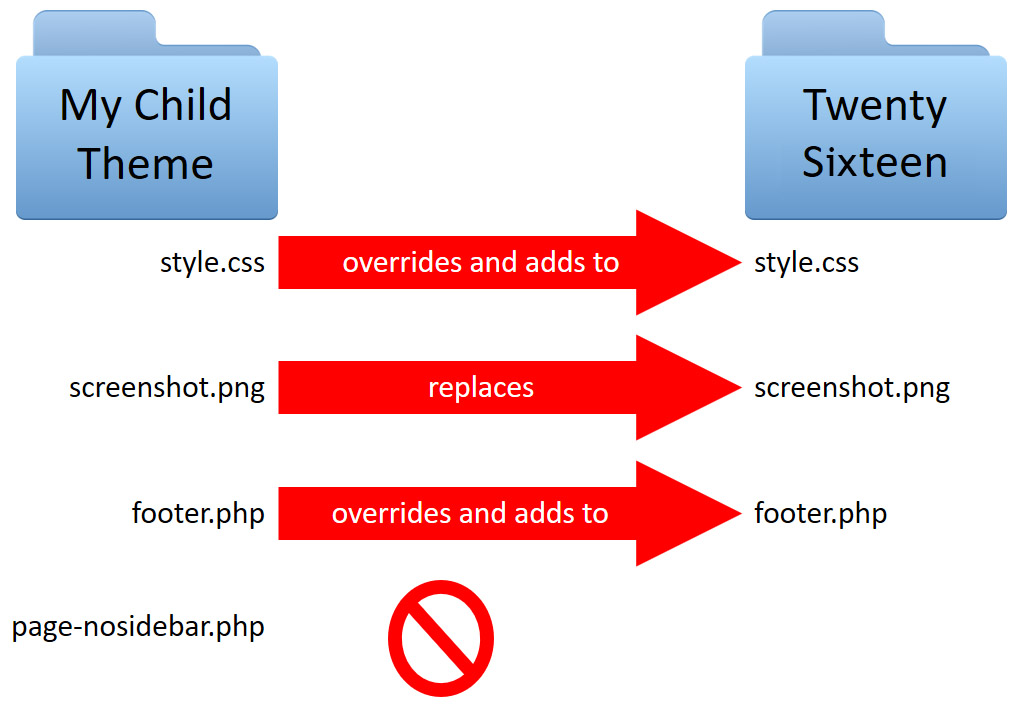
Credit: learn.wordpress.org
Customizing The Child Theme
To change the look of your child theme, edit the style.css file. This file controls colors, fonts, and layout. Open the file in a text editor. Make changes to the CSS code. For example, to change the background color, find the body tag. Add a new color code. Save the changes. Refresh your website. See the new look!
Templates decide how pages look. Copy the template files from the parent theme. Paste them into your child theme folder. Edit these files to add new features. Use a text editor to make changes. Save your work. Check the website. Notice the updates! Templates help create a unique website.
Testing The Child Theme
Creating a child theme in WordPress Twenty Sixteen involves copying and modifying the theme’s style files. Testing ensures the child theme works well with updates and customizations. This process keeps your main theme intact while allowing design changes.
Checking For Errors
First, activate your new child theme. Go to the WordPress dashboard. Click on “Appearance” and then “Themes”. Find your child theme and click “Activate”. Check your site for any issues. Does the layout look right? Are the colors correct?
Next, check for PHP errors. These errors can break your site. Install a plugin like “Query Monitor”. This plugin helps find errors. Visit your site while the plugin is active. Look for any error messages. Fix any errors you find.
Responsive Design Testing
Responsive design means your site works on all devices. Open your site on a phone. Check if everything looks good. Repeat this on a tablet. Make sure images resize properly. Text should be readable. Links should be easy to click.
Use a tool like Google Mobile-Friendly Test. This tool checks how your site looks on mobile. Enter your website URL and run the test. Follow any suggestions it gives.
Deploying The Child Theme
Creating a child theme in WordPress Twenty Sixteen ensures safe customization. First, set up a new folder for the child theme. Next, add a style. css file with theme details and an import rule. Finally, include a functions. php file to enqueue styles.
This method preserves custom changes during updates.
Uploading To WordPress
First, open the WordPress dashboard. Click on Appearance and then Themes. Select Add New and Upload Theme. Choose your child theme file. Click Install Now. Wait for the upload to finish. After that, you will see your child theme listed.
Activating The Child Theme
Find your child theme under Appearance and then Themes. Click Activate to make it live. Your site is now using the child theme. Check if your site looks okay. If you see problems, try refreshing the page. Sometimes, themes need a refresh to load correctly. Your child theme is now ready for use.
Troubleshooting Common Issues
Creating a child theme in WordPress Twenty Sixteen lets you customize your site safely. Start by copying the parent theme’s style. css and functions. php files. Modify these files in your child theme directory to make changes without affecting the original theme.
Styles Not Applying
Sometimes styles won’t apply in your child theme. Double-check your CSS files. Make sure the file names are correct. Ensure the path to the file is right. Also, clear your browser cache often. This helps see new changes. If issues persist, inspect with browser tools. Look for errors in the console. Fix them to see changes.
Template Overrides Not Working
Template overrides might not work due to file location errors. Always place new files in the right folders. Check if the file names match the original ones. Also, verify your child theme is active. Sometimes, updates reset this. Reactivate your child theme if needed. Also, review your code for mistakes. Debugging helps find what’s wrong.

Credit: learn.wordpress.org
Frequently Asked Questions
What Is A Child Theme In WordPress?
A child theme is a sub-theme that inherits the functionality of a parent theme. It allows you to modify styles, layout, and design without changing the parent theme’s core files. This ensures that your customizations are preserved when the parent theme is updated.
Why Use A Child Theme In Twenty Sixteen?
Using a child theme with Twenty Sixteen allows customization without altering core files. It ensures updates won’t override your modifications. This approach is ideal for maintaining unique styles while leveraging the robust framework of Twenty Sixteen.
How Do You Create A Child Theme?
To create a child theme, start by creating a new folder in the themes directory. Include a style. css file with a Theme Name and Template. Add a functions. php file to enqueue the parent theme’s styles. Activate your child theme through the WordPress dashboard.
Can Child Themes Affect Website Performance?
Child themes generally don’t affect performance negatively. They inherit the parent theme’s functionality, ensuring efficient code execution. However, excessive customizations or poorly coded modifications can impact performance. It’s crucial to optimize your code and test changes thoroughly.
Conclusion
Creating a child theme in WordPress Twenty Sixteen is straightforward. You preserve the original theme, ensuring updates don’t affect your customizations. This approach allows unique design without starting from scratch. Follow the steps carefully to avoid errors. Always test your child theme in a safe environment first.
It helps catch issues early. The child theme setup enhances your site’s appearance and functionality. It also offers flexibility for future changes. Now, you’re ready to build a personalized website. Enjoy the creative process and the results!


