
Are you eager to customize your WordPress website without the risk of losing your changes every time the theme updates? Creating a child theme is your solution.
It’s a powerful yet straightforward way to tweak your site’s design and functionality while keeping the core theme intact. Whether you’re adding a new feature or just want to change the font style, a child theme empowers you to make personalized changes safely.
Imagine the satisfaction of having a site that truly reflects your vision! In this guide, tailored specifically for beginners like you, we’ll walk you through the process step-by-step. By the end, you’ll have the confidence to make your WordPress site truly your own. Ready to dive into the world of child themes and unlock endless possibilities? Keep reading, and let’s get started!
Credit: www.cloudways.com
What Is A Child Theme
A Child Theme in WordPress is like a little helper. It copies a main theme but lets you make changes. This means you can keep your design safe. Updates to the main theme won’t break your work.
Use a child theme to customize without worry. You can change colors, fonts, or layouts. It gives you the freedom to experiment. Safe and sound. You get all the features of the main theme. But with your personal touch.
Benefits Of Using Child Themes
Child themes keep your website safe when updates happen. Main themes can change with updates. A child theme keeps your custom changes safe. This helps your website look the same always.
Child themes make design changes easy. You can test new styles without breaking the main theme. This makes learning fun for beginners.
Using child themes is smart for future growth. You can add new features without losing old ones. This helps your website stay fresh and interesting.
Child themes save time. You only change what you need. This helps build websites faster. It also makes fixing problems easy.
Child themes help with learning. Beginners can see how themes work. It’s a safe way to try new things. This builds confidence.
Setting Up Your Development Environment
Pick a theme with many features. It should be well-coded and fast. Check if it is updated regularly. Read reviews from other users. This helps you make a good choice. A good parent theme makes your child theme better.
Download WordPress from the official site. Install a local server like XAMPP or MAMP. This lets you run WordPress on your computer. Follow the steps to set up the server. Then create a database. Use this database for your WordPress site. Now you can start building your child theme safely.
Credit: www.cloudways.com
Creating A Child Theme Directory
Choose a name for your child theme. This name should be clear and simple. Use lowercase letters and no spaces. Separate words with dashes. For example, my-child-theme is a good name. This name is important for WordPress to find your child theme.
Create a new folder for your child theme. This folder should be inside the wp-content/themes directory. The folder name must match the child theme name. Inside this folder, add a new file named style.css. This file will contain the child theme styles. Next, create a file named functions.php. This file will handle special functions. Both files are necessary for the child theme to work.
Creating The Style.css File
The style.css file is very important for your child theme. It tells WordPress about your theme. The first thing to add is the essential header information. This includes the theme name, description, and author. You should also add the template line. This tells WordPress the parent theme’s name. Make sure the details are correct.
Next, you need to enqueue the parent theme stylesheet. This makes sure your child theme uses the same styles. You do this by adding a function in the functions.php file. This function will tell WordPress to use the parent’s styles. It is important to add this function correctly. This keeps your site’s look consistent.
Credit: www.wpbeginner.com
Customizing Functions With Functions.php
Creating a child theme in WordPress allows beginners to customize functions with the functions. php file. This method ensures safe modifications while keeping the main theme intact during updates. Simply copy the necessary files and edit them in the child theme folder.
Basic Functions Setup
To set up basic functions, open the functions.php file. This file is in your child theme folder. Copy the functions.php from the parent theme. Paste it into your child theme folder. This step is crucial. It ensures your site works well. Do not delete any lines. Only add new functions. This keeps your site stable.
Adding Custom Functions
Adding custom functions is easy. Start by opening the functions.php file. Add your new code at the bottom. Ensure each line ends with a semicolon. This is very important. Use simple code snippets. This helps in avoiding errors. Test your site after adding code. This ensures everything works. Custom functions can change your site. Make sure they are useful.
Modifying Templates In Child Theme
Creating a child theme in WordPress lets beginners safely modify templates without affecting the main theme. This approach ensures customizations remain intact after updates, providing flexibility and security for your website’s design.
Copying Template Files
Copy template files into your child theme folder. This keeps the original safe. Use the same file names. This helps WordPress find them. Find the template you want to change. Copy it from the parent theme. Paste it in the child theme. Now, you can make changes safely.
Making Safe Modifications
Changes in the child theme don’t affect the parent theme. This is important. If you make a mistake, the parent theme stays safe. Always check your changes. Make sure everything works. Test on your website. See if it looks good. If not, you can fix it. Keep your child theme updated. It helps your website work better.
Testing Your Child Theme
Creating a child theme in WordPress allows beginners to customize websites safely. Test your child theme by activating it and checking for errors. Ensure all features work seamlessly to maintain your site’s functionality and appearance.
Checking Compatibility
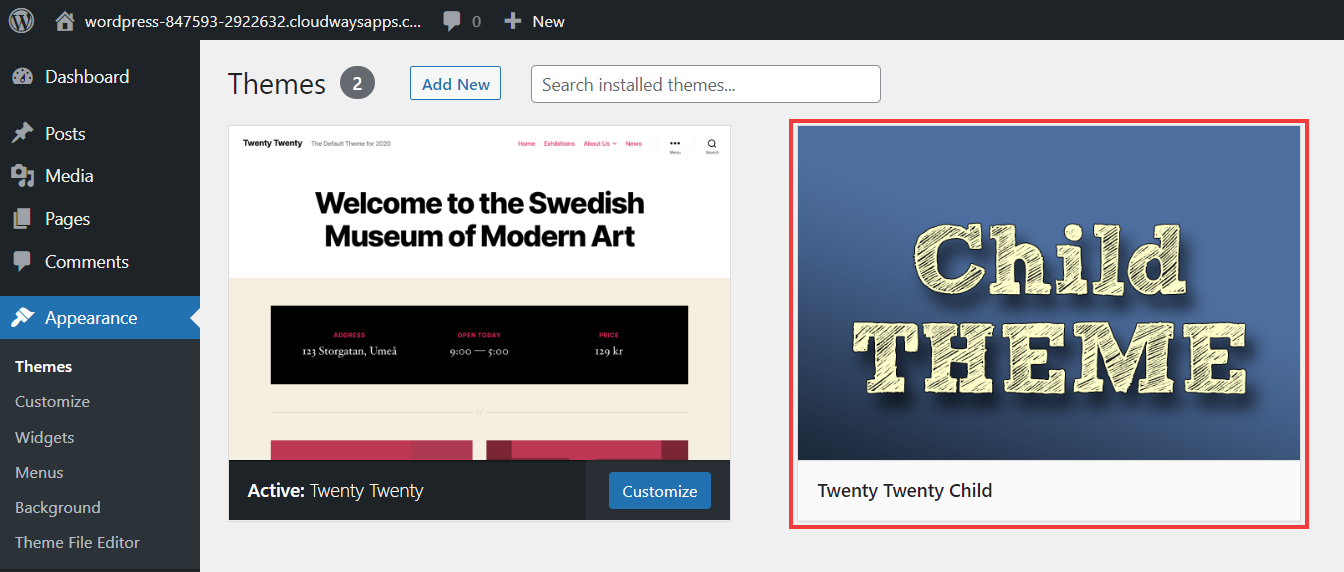
Testing your child theme is important. First, open your WordPress dashboard. Go to Appearance and click on Themes. Look for your child theme and click on Activate. Visit your site to check if it looks good. Make sure all parts of the site display correctly. Check for missing images or broken links. If anything seems wrong, fix it in the child theme’s files.
Troubleshooting Common Issues
Sometimes, the child theme doesn’t work well. Check the style.css file first. Ensure the template line matches the parent theme. If styles are missing, add them in the child theme’s CSS file. For broken functions, check the functions.php file. Make sure the code is correct. Always back up your site before making changes. This keeps your site safe if something breaks.
Activating Your Child Theme
First, go to your WordPress Dashboard. Click on Appearance and then Themes. Here, you will see a list of themes. Find your new child theme. Click on the Activate button. Now, your site uses the child theme. This keeps your changes safe when updates happen.
Check your site to ensure the child theme is active. Visit the front end of your website. Look for any changes you made in the child theme. If you see them, everything is working fine. Double-check by going back to Dashboard and Themes. Make sure the child theme is marked as active. Now you know your child theme works well.
Best Practices For Child Themes
Creating a WordPress child theme involves copying the parent theme’s essential files. This allows customization without losing updates. Beginners should focus on style. css and functions. php for safe modifications.
Maintaining Theme Updates
Updating themes is important. This keeps your site secure. A child theme makes this easy. You can update the parent theme. Your custom changes stay safe. Always backup before updates. It’s wise to check for theme updates regularly. Use a plugin to automate this. It saves time and effort. Test your site after updates. Ensure everything works well. If issues arise, review your custom code. Sometimes small changes fix big problems.
Documenting Custom Changes
Keep track of your custom changes. Write them down. This helps when fixing issues. Use clear notes. Explain why you made each change. Store these notes safely. You might need them later. A simple text file works well. Even small changes matter. Keep them documented. This makes future updates easier. Documenting helps others too. Share your notes with team members. Everyone benefits from clear documentation. Use comments in your code. It improves understanding.
Frequently Asked Questions
What Is A WordPress Child Theme?
A WordPress child theme is a sub-theme that inherits features of a parent theme. It allows you to modify styles and functions without affecting the parent theme. This ensures your customizations are preserved during updates. Child themes are ideal for beginners wanting to personalize their WordPress site safely.
Why Use A Child Theme In WordPress?
Using a child theme ensures your modifications are safe from updates. It allows customizing without altering the main theme files. This preserves your changes and helps maintain site stability. It’s a recommended practice for beginners wanting to enhance their WordPress site securely.
How Do I Create A WordPress Child Theme?
To create a child theme, first create a new folder in the themes directory. Add a style. css file with your customizations. Include a functions. php file to enqueue the parent theme styles. Activate the child theme from your WordPress dashboard.
This method helps preserve your site’s customizations.
What Should I Include In A Child Theme?
A child theme should include a style. css file for custom styles. It should also have a functions. php file to enqueue parent theme styles. Optionally, you can add template files for further customization. These components help ensure your changes are preserved during theme updates.
Conclusion
Creating a child theme in WordPress is straightforward. It enhances customization without altering the main theme. Begin by duplicating core files and customizing styles. Use a reliable file manager for safe transfers. Regularly update your child theme for security. Test changes in a staging environment.
Stay informed with WordPress updates. These steps ensure your site remains unique. You gain control over design without risking updates. Engage with online forums for additional tips. Explore plugins for added functionality. Remember, practice makes perfect. Keep learning and experimenting with child themes.
Your WordPress site will reflect your personal touch.


