
Creating a child theme in WordPress can feel like stepping into a world of endless customization and creativity. Imagine having the power to tweak your website’s design without the risk of losing your changes when the parent theme updates.
Sounds amazing, right? If you’ve ever wanted to personalize your WordPress site to better reflect your brand or style, understanding how to craft a child theme is a crucial skill. In 2023, mastering this process is more relevant than ever, given the dynamic updates and innovations in the WordPress ecosystem.
You might wonder, “Is it complicated? ” Or “Do I need to be a coding wizard? ” The good news is, you don’t. With a few simple steps and a bit of guidance, you can have your child theme up and running in no time. Stay with us, and you’ll discover not only how easy it is but also how empowering it feels to have full control over your site’s design. By the end of this article, you’ll be ready to customize your WordPress site with confidence and flair.
What Is A Child Theme?
A child theme is like a small copy of a big theme. It lets you make changes without breaking the original theme. This is important if you update the parent theme. Your changes stay safe. You can change the style, colors, and layout. Use it to test new ideas. It gives you freedom without risk.
To create one, you need two files. A style.css file and a functions.php file. These files hold the magic. Style.css changes the look. Functions.php adds new features. Both files live in a new folder. Name this folder after your child theme. Easy and simple!

Credit: tanjirsdev.com
Benefits Of Using A Child Theme
Child themes keep your changes safe. This means updates do not remove your work. Easy updates make your site better.
Child themes help in learning. You can practice coding. This helps to build skills. They make your site unique. You can change the look easily.
Errors are less risky. You can fix them without breaking the main theme. Customization is simple. You only change what you want.
Child themes save time. You do not start from scratch. They give freedom to experiment. Your site stays fresh and new.
Prerequisites For Creating A Child Theme
To create a child theme in WordPress, ensure you have a few things ready. First, access to the WordPress Dashboard is essential. You also need a text editor like Notepad or Sublime Text. A File Transfer Protocol (FTP) client such as FileZilla is helpful. Make sure you know your WordPress theme folder location. Also, check if you have administrative rights to make changes.
Basic understanding of HTML and CSS is useful. Familiarity with PHP can be an advantage. You should know how to navigate through files. Be prepared to edit code carefully. Make sure you can follow instructions step-by-step.
Credit: theadminbar.com
Setting Up Your Development Environment
Picking the best parent theme is crucial. Make sure it matches your needs. The theme must be popular and well-supported. This ensures easy updates and help. Look for a theme with clean code. This helps your child theme perform better.
You will need a few tools. A good code editor is essential. Try using Visual Studio Code or Sublime Text. Both are easy to use. You also need an FTP client like FileZilla. This helps you upload files to the server. Finally, have a backup plugin ready. It’s important to keep your site safe.
Creating The Child Theme Directory
Start by opening your WordPress installation. Find the folder named wp-content. Inside it, locate the themes folder. This is where you create your child theme directory. Choose a name for your child theme. Names should be simple and meaningful. Create a new folder using this name. This folder will hold your child theme files.
Inside the child theme folder, create a style.css file. This file tells WordPress about your child theme. Add the basic information to this file. Include the theme name, description, and version. Don’t forget to mention the parent theme. This connects your child theme to the parent theme. Your child theme directory is now ready for use.
Adding The Style.css File
Begin by adding the style. css file to your child theme folder. This file customizes the appearance of your WordPress site. Ensure it includes the correct header information to link with the parent theme.
Structure Of Style.css
Creating a child theme requires a special file. This file is called style.css. It tells WordPress about the new theme. The structure of this file is easy. Start with the Theme Information. This includes the theme name, parent theme, and version.
Theme Information is important. It helps WordPress understand your child theme. Use the template tag for the parent theme. Add the author and description tags. These tags make your theme easy to identify.
Here is an example:
/
Theme Name: My Child Theme
Template: ParentTheme
Version: 1.0
Author: Your Name
Description: A child theme for learning.
/
Following this structure makes your theme work smoothly. Always check the parent theme name. Make sure it matches exactly. This helps prevent errors in your theme.
Creating The Functions.php File
Loading the Parent Theme Styles is a key step. Use the functions.php file. This file tells WordPress to use styles from the parent theme. Add the following code:
php
function my_child_theme_styles() {
    wp_enqueue_style('parent-style', get_template_directory_uri() . '/style.css');
}
add_action('wp_enqueue_scripts', 'my_child_theme_styles');
?
This code loads the parent theme’s styles. It helps keep your child theme looking consistent. Don’t forget to save your changes.
Adding Custom Functions can make your theme unique. Place custom code inside functions.php. For example, add a custom logo support:
php
function my_child_theme_setup() {
    add_theme_support('custom-logo');
}
add_action('after_setup_theme', 'my_child_theme_setup');
?
This code lets you add a custom logo. It makes your website special. Keep functions simple for easy understanding. Change things slowly and check results.
Customizing The Child Theme
Templates are the files that control your site’s look. You can change these files in your child theme. Copy the template you want to change. Paste it into your child theme folder. Edit the copied file. This keeps the original safe. Only the changes affect your site. It’s like making your site wear a new outfit.
Styles make your site pretty. Layouts decide where things go. Use CSS to change styles. Add new rules in your child theme’s style.css file. This file is like a magic book. Write new rules, and your site changes. Layout changes need more work. Sometimes you change template files. Other times, you use CSS. Always test changes. Make sure they look good.
Testing And Debugging
After making a child theme, check for errors. Use the WordPress dashboard. Go to Appearance and then Themes. Activate your child theme. If the site looks strange, there may be issues. Use tools like Theme Check. This tool finds problems in the theme code. Also, check the browser console for errors. Fix any errors you find.
Make sure the child theme works with plugins. Test all plugins you use. Visit each page of your site. Check that everything works fine. Update your theme and plugins regularly. This keeps everything compatible. Compatibility is key for a smooth site experience.

Credit: m.youtube.com
Activating And Using The Child Theme
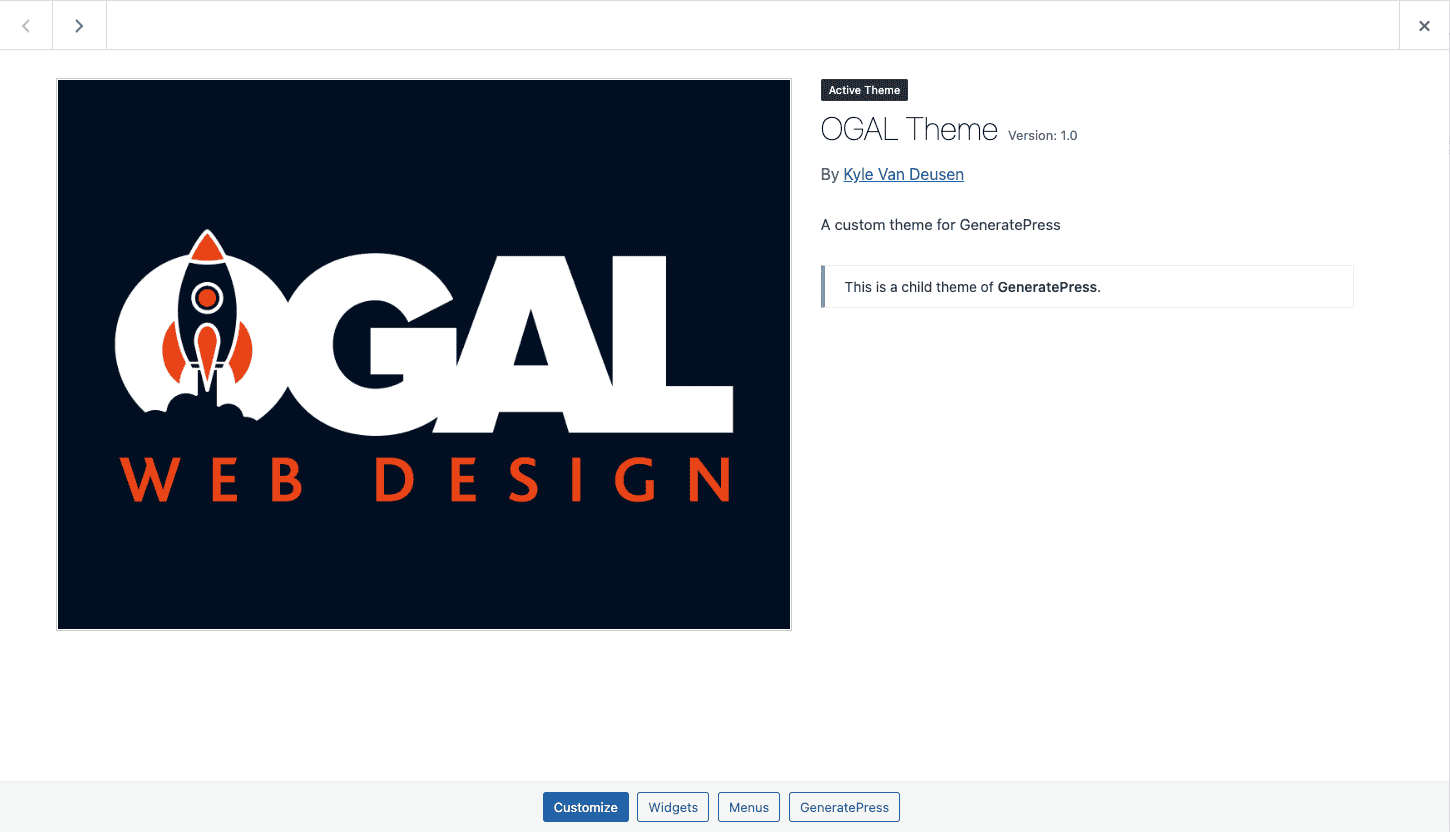
Switching from Parent to Child Theme is simple. Go to your WordPress dashboard. Find the menu named “Themes.” Click on it. You will see a list of themes. Look for your newly created child theme. Click on the “Activate” button next to it. Your website now uses the child theme.
Verifying Theme Functionality is important. Check your site after activation. Make sure everything looks right. Visit various pages to test it. Ensure all functions work as before. If something seems off, review your child theme setup. Fix any errors if necessary.
Best Practices For Child Themes
Using a child theme is smart for customizing WordPress. It keeps the main theme safe. Always create a separate folder for the child theme. Name it clearly to avoid confusion. Include a style.css file. This file tells WordPress about the child theme. Add a functions.php file too. It helps to load the parent theme’s styles.
Test your child theme on a staging site first. This way, you avoid breaking the live site. Keep your code clean and organized. It makes future changes easier. Update the child theme regularly. This ensures compatibility with WordPress updates. Always back up your website. Backups protect your work from loss.
Common Mistakes To Avoid
Many beginners mix up files. It’s important to know each file’s purpose. Style.css is not just for looks. It also tells WordPress about your theme. Functions.php is for adding features. Avoid placing styles here.
Copying too many files is a common error. Only copy files you need to change. This keeps your child theme light. It also makes updates easier. Always keep your theme clean and organized.
Some forget about updates. Parent themes get updates often. Updating your child theme is important. It helps keep things working well. Always test after updates. This ensures your site runs smoothly.
Frequently Asked Questions
What Is A WordPress Child Theme?
A child theme in WordPress allows you to modify a parent theme without altering its core files. This ensures your changes are preserved after updates. It inherits functionalities and styles from the parent theme, offering a safer way to customize your site.
Why Create A WordPress Child Theme?
Creating a child theme helps maintain customizations during theme updates. It prevents loss of changes when the parent theme is updated. This approach is ideal for making tweaks or adding new features while keeping the parent theme’s core intact.
How Do You Set Up A Child Theme?
Setting up a child theme involves creating a new folder in your theme directory. Include a style. css file with template information. Add a functions. php file to enqueue styles. This process ensures your child theme properly inherits the parent theme’s features.
Can Child Themes Affect Website Performance?
Child themes generally don’t affect website performance significantly. They utilize the parent theme’s resources, ensuring smooth operation. However, excessive customizations or poorly coded functions can impact speed. It’s essential to optimize code and test changes to maintain performance.
Conclusion
Creating a child theme in WordPress is simple and rewarding. It allows you to customize your website safely. Preserve your main theme’s updates without losing changes. Follow the steps carefully. Start by creating a new folder in your themes directory.
Add a style. css and a functions. php file. Import the parent theme’s styles. Activate your child theme in WordPress. Test your website to ensure everything works. Enjoy your personalized website design. With practice, you’ll get better at it. Enjoy the freedom to tweak your website’s look.
Keep exploring and learning. Your site, your rules.


