
Are you looking to customize your WordPress website without the fear of breaking it? Creating a child theme might be your perfect solution.
Imagine having the freedom to tweak your site’s design and functionality while keeping the original theme intact. This not only safeguards your work from being lost during updates but also gives you the creative control you crave. Whether you’re a seasoned developer or just starting out, understanding how to create a child theme is a game-changer.
Stick around as we unravel this process step-by-step, making it simple and stress-free. Your website’s transformation is just a few clicks away!
Credit: wpengine.com
What Is A Child Theme
A child theme is a special type of WordPress theme. It inherits the look and features of another theme, called the parent theme. This means you can change your site’s appearance without touching the original theme’s files. If the parent theme updates, your changes stay safe.
Creating a child theme is like making a copy with some differences. You only need two files to get started: style.css and functions.php. These files tell WordPress to use the parent theme and add your custom changes. This way, even with updates, your special touches remain intact.

Credit: wedevs.com
Benefits Of Using Child Themes
Child themes make website updates easy. You can change your theme without losing your work. This helps keep your site safe and up-to-date. Child themes allow you to test new ideas. You can try new designs without breaking your website. This makes your site unique and fresh. Using a child theme helps protect your main theme. You keep the original theme safe and sound.
Child themes are easy to create. You only need a few files to start. This means anyone can make a child theme. Child themes can improve your website speed. Your website will load faster. Fast websites make visitors happy. Happy visitors come back again.
Child themes help you organize your code. Your code stays neat and tidy. Neat code makes fixing problems easier. Problems get solved fast. Child themes are great for learning. You learn new skills by using them.
Essential Tools And Requirements
Creating a child theme for WordPress requires basic tools like a text editor and FTP client. Essential files include a style. css and functions. php. These allow customization while preserving the original theme.
Text Editor
A good text editor is important for creating a child theme. Some popular choices are Notepad++ and Sublime Text. These editors make it easy to write code. They have features like syntax highlighting to help spot errors. Choose one you find easy to use.
Ftp Client
An FTP client helps you upload files to your website. This is needed for adding a child theme. Popular options include FileZilla and Cyberduck. These tools connect your computer to the server. Uploading files becomes simple with them.
Basic Coding Knowledge
Understanding some basic coding is helpful. You need to know a bit about HTML and CSS. This helps in customizing the child theme. You don’t need to be an expert. Just the basics will do.
Creating The Child Theme Directory
First, open your WordPress installation folder. Find the wp-content/themes directory. Inside, make a new folder. Name it anything you like. It’s good to use a name related to the parent theme.
The new folder is your child theme directory. Inside this folder, create a new file. Name it style.css. This file tells WordPress the theme details.
Add another file named functions.php. This file can contain additional theme functions. Ensure all files are saved properly. You can now start adding your custom styles and functions.
Setting Up Style.css File
The style.css file is important for your child theme. At the top, add theme information. Include the theme name, template, and version. This tells WordPress about your child theme. Use clear words. Make sure to spell everything right. This helps WordPress find your theme easily.
To make the child theme look like the parent, import styles. Use the @import rule in your style.css file.
Write @import url("../parent-theme/style.css");. Replace parent-theme with the real theme folder name.
This line tells WordPress to use parent styles. Now, your site looks like the parent theme, but you can make changes.
This is a simple way to start customizing.
Configuring Functions.php File
Editing the functions. php file is crucial for creating a WordPress child theme. This file allows custom functions, enhancing theme functionality while preserving parent theme updates.
Enqueuing Parent Styles
To keep the parent theme’s styles, use a function in your child theme. Open the functions.php file. Add this code:
function my_theme_enqueue_styles() {
    wp_enqueue_style('parent-style', get_template_directory_uri() . '/style.css');
}
add_action('wp_enqueue_scripts', 'my_theme_enqueue_styles');
This code loads the parent’s CSS. It helps keep your website’s look. Without this, styles will break.
Custom Functions
Add special features with custom functions. Open the functions.php file. Write your own functions here. Each function adds a new feature. For example, add a custom logo function:
function my_custom_logo() {
    add_theme_support('custom-logo');
}
add_action('after_setup_theme', 'my_custom_logo');
These functions make your site unique. Change them as you need. Always test after adding.
Activating Your Child Theme
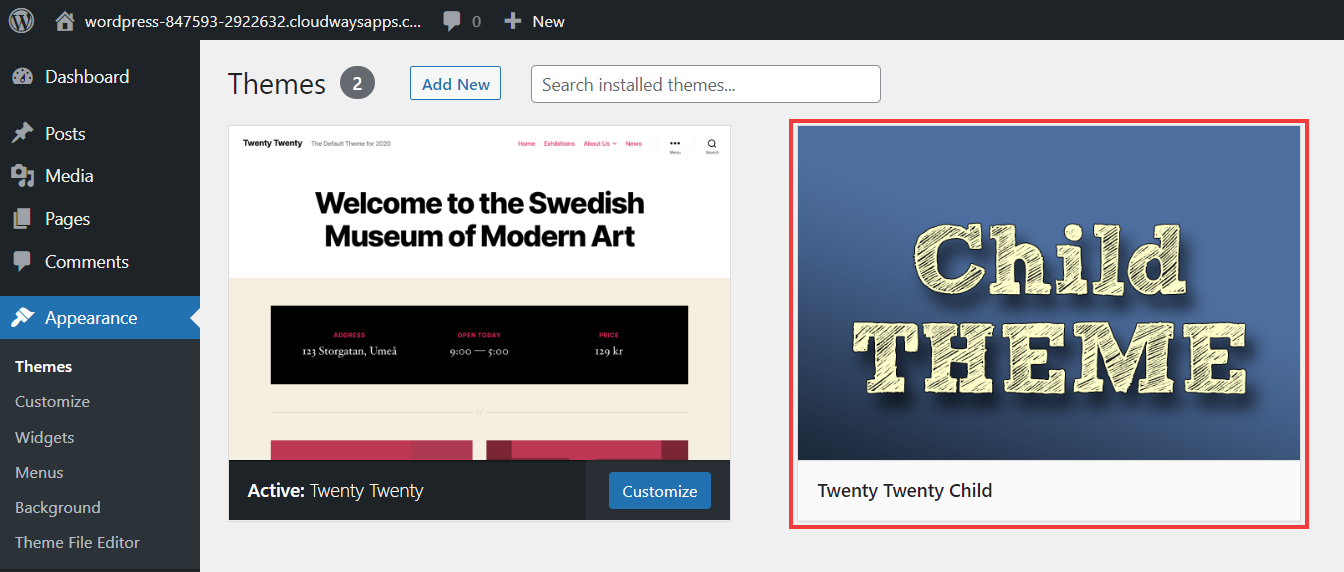
Open your WordPress dashboard. Go to Appearance and then Themes. You’ll see the child theme listed there. Click on Activate. This will set your child theme live. Your website will now use the child theme. The parent theme stays safe and unchanged.
Sometimes, you might see a warning. This is normal. It usually means a file is missing. Make sure all files are in the right folder. Double-check the style.css and functions.php files. They should have correct code.
Refresh your website to see changes. If something looks wrong, check the files again. Fix any mistakes you find. Now, your child theme is ready. Enjoy your custom website!
Credit: www.cloudways.com
Testing And Troubleshooting
Creating a child theme in WordPress allows customization without affecting the parent theme. Start by setting up a new folder in the themes directory. Then, create a style. css file and functions. php to enqueue the parent theme styles and add custom functions.
Common Issues
Child themes may not load properly. This can cause display problems. Check if you linked the parent theme correctly. Another issue might be missing files. Ensure style.css and functions.php are present. Sometimes changes do not show. Clear your browser cache to see updates. Incorrect permissions can block access. Verify file permissions are set right. Broken links might appear. Look at the WordPress link settings.
Debugging Tips
Enable debug mode in WordPress. This can help find errors. Look at the error logs. They give clues about issues. Use inspect tool in your browser. This shows what is wrong with page elements. Check console for JavaScript errors. Fix any bugs you find there. Verify your code is clean. Messy code can cause problems. Try to deactivate plugins. They may conflict with your child theme.
Customizing The Child Theme
Creating a child theme in WordPress allows for customization without altering the original theme. It provides a safe space to modify styles and functions. This approach ensures updates don’t override your changes.
Modifying Templates
Change template files to make your site unique. Copy the file from the parent theme. Place it in the child theme folder. Keep file names the same. This way, you have a new look. Editing templates is easy and safe.
Adding Custom Styles
Use CSS to add custom styles. Create a new style.css file. Add your styles here. Make text bold or change colors. Custom styles help your website look better. Styles make your site stand out.
Integrating Plugins
Plugins add features to your site. Install plugins like contact forms or galleries. Ensure they work with your child theme. Plugins make your site more useful. They help with different tasks.
Best Practices For Child Themes
Creating a child theme in WordPress allows customization without altering the main theme. Start by making a new folder in the themes directory. Include a style. css file with template information and an import statement. This ensures changes are preserved during updates.
Version Control
Using version control is important for your child theme. It helps track changes. Mistakes can be fixed easily. Git is a popular tool for this. It lets you save different versions of your work. You can go back if needed. This makes managing your theme safe. You can work with others better too.
Backup Strategies
Backing up your work is crucial. It protects your theme. Use automated backup tools. These tools save your work regularly. You won’t lose anything important. Store backups in different places. Cloud storage is a good option. It keeps your data safe. Make sure backups are easy to access. This ensures you can restore your theme anytime.
Frequently Asked Questions
What Is A Child Theme In WordPress?
A child theme in WordPress is a sub-theme that inherits styles and functions from a parent theme. It allows users to modify and customize their website without altering the parent theme. This ensures that updates to the parent theme don’t overwrite your customizations, offering both flexibility and security.
Why Create A WordPress Child Theme?
Creating a child theme allows you to customize your WordPress site safely. It preserves your changes during parent theme updates, preventing loss of customizations. Additionally, it helps maintain website functionality and design consistency while enabling you to experiment and modify your site’s appearance and features without risk.
How Do I Start A Child Theme?
To start a child theme, create a new folder in your themes directory. Inside, add a style. css file with a header comment indicating your child theme. Then, create a functions. php file to enqueue the parent theme’s styles. Activate the child theme in WordPress, and begin customizing.
Can Child Themes Affect Website Performance?
Child themes generally do not affect website performance negatively. They use the parent theme’s resources efficiently, ensuring smooth functionality. However, excessive customizations or poorly coded modifications might impact performance. Always optimize your code and test changes to maintain optimal site speed and user experience.
Conclusion
Creating a child theme for WordPress is a smart choice. It keeps your customizations safe during updates. The process is straightforward and improves your site’s flexibility. Start with a new folder for your child theme. Add a style. css file and a functions.
php file. Copy templates from the parent theme only when needed. This method ensures your site stays unique yet secure. Enjoy the peace of mind that comes with a child theme. Your WordPress site will remain stylish and personalized. Keep exploring new design possibilities.
Create, tweak, and enhance your website effortlessly.


