
Are you tired of searching for the perfect WordPress theme that meets all your needs? Imagine having a blank canvas to build a theme that aligns perfectly with your vision.
Creating a blank WordPress theme might sound like a daunting task, but it’s more accessible than you might think. This guide will walk you through the process, step-by-step, to empower you to build a theme from scratch. Whether you want full control over your website’s aesthetics or are eager to sharpen your coding skills, this article is for you.
By the end, you’ll have the knowledge to create a personalized theme that not only looks stunning but also performs efficiently. Dive in, and unlock the potential to design a site that’s uniquely yours!
What Is A Blank WordPress Theme
A Blank WordPress Theme is like a clean slate. It has no design or style. This theme is great for developers. It allows them to build from scratch. There are no extra features. No clutter to remove. It is also known as a “starter theme.”
Many use it to learn theme development. Others use it to create custom designs. It is simple and easy. No distractions. Just the basics. You have full control. Add your own styles. Add your own functions. It is flexible and adaptable.
Benefits Of Using A Blank Theme
Blank themes are a great start for WordPress projects. They offer clean code and customization. Developers find them easy to edit. There are no extra elements. This means faster loading times. Users enjoy a simple design. Blank themes make it easy to add features. They provide a solid foundation. Many coders save time and effort. These themes give full control over layout. They help in learning WordPress coding.
Blank themes are ideal for beginners. They help understand theme structure. Start with a basic design. Add what you need. Remove what you don’t. The focus is on simplicity. Each element is easy to manage. It reduces complexity. This is why many prefer them for new projects.
Setting Up Your Development Environment
Begin with downloading a code editor. Editors like Visual Studio Code or Sublime Text are popular. Next, install WordPress on your computer. This helps in building themes. You will need Node.js for task automation. Finally, get Git for version control. It helps track changes.
Use local server software like XAMPP or MAMP. These tools create a server on your computer. First, install the software. Then start the server. Place WordPress files in the htdocs folder. Access your site by typing localhost/yourfoldername in a browser. Ensure the server is running before testing.
Creating The Theme Directory
Choose a simple name for your theme. Make it unique and easy to remember. The name should reflect your theme’s purpose. Avoid using special characters or spaces. Stick to lowercase letters for ease. Examples include mytheme or simpletheme. This helps with easy navigation later.
Create a new folder on your computer. Name it after your theme. Inside this folder, make a few important subfolders. These include css, js, and images. Each folder has its role. The css folder holds your stylesheets. The js folder is for JavaScript files. Store images in the images folder. This structure helps keep your theme organized.
Essential Files And Their Roles
The style.css file is very important. It contains the theme’s design styles. Colors, fonts, and layout rules live here. WordPress reads the header of this file. This part holds the theme’s name and other details. Keep it simple and clear.
The index.php file acts as the main template. It tells WordPress what to show. This file is the default for all pages. If no other template fits, WordPress uses this one. It helps display content like posts and pages.
The functions.php file adds features to the theme. It lets you use WordPress functions and custom code. This file can help add menus, widgets, and extra features. Use it to make the theme work better.

Credit: seahawkmedia.com
Adding Basic Theme Features
Crafting a blank WordPress theme involves adding basic features. Start by creating essential files like style. css and index. php. These files form the foundation of your theme, allowing customization and enhancement as needed.
Enqueuing Styles And Scripts
Enqueue styles and scripts using functions.php. Create this file in your theme folder. Use wp_enqueue_style() to add styles. Use wp_enqueue_script() for scripts. Always use get_template_directory_uri() to get your theme’s URL.
Remember to call wp_head() in your header. This ensures scripts load properly. Add your styles and scripts to the function with add_action(‘wp_enqueue_scripts’). This keeps your theme clean and organized.
Setting Up The Theme Header
Create a header.php file. This is where the head section lives. Start with a basic HTML structure. Include html and tags. Add a section with meta tags.
Place the wp_head() function before the tag. Then, create a tag. This is where your content will go. Make sure to close the body and html tags later.
Customizing The Theme Layout
Custom page templates make each page unique. Use different layouts for different pages. Add special features to specific pages. WordPress allows easy template creation. Start by copying the main template file. Rename it for the new template. Edit the file to fit your needs. Change the HTML structure. Add PHP code for dynamic content. Save changes and upload the file. Use the new template in WordPress. Select it in the page settings. View the page with the new design. Custom templates help in organizing content. They make the site look consistent. Users enjoy a unique browsing experience.
Sidebars enhance site navigation. They offer extra space for widgets. Use them to display links or ads. Add a sidebar by editing the theme files. Open the functions.php file. Register a new sidebar area. Define its name and description. Save the changes. Go to the sidebar.php file. Add code to show widgets. Use dynamic_sidebar() function. Place the sidebar in the layout. Choose the right position. Save and view the site. Sidebars improve user interaction. They keep important links visible. Visitors find information quickly.
Implementing WordPress Hooks
Creating a blank WordPress theme involves implementing hooks for flexibility. Hooks let you add custom features easily. They allow modifications without changing core files. This ensures a clean, manageable codebase.
Action Hooks
Action hooks let you add custom code. They run at specific points in WordPress. For example, you can use wp_head to add code to the header. Another example is wp_footer. This lets you add code to the footer. Action hooks are powerful tools. They help customize your site. Use them to enhance functionality. You can create new features or modify existing ones. Always check hook documentation. This ensures correct usage. It also helps avoid errors.
Filter Hooks
Filter hooks let you change data before it’s used. They are useful for modifying content. Use them to adjust text or images. A common filter hook is the_content. It changes post content. Another example is excerpt_length. This alters the length of post excerpts. Filters help refine your site. They improve user experience. Always test filter changes. This ensures content displays correctly. It also prevents unexpected issues.
Testing And Debugging
Debugging tools help find errors. Turn on WP_DEBUG for better error messages. Use the Debug Bar plugin. It shows queries and cache details. Errors appear in the debug log file. Check this file often. Plugins like Query Monitor offer more features. They monitor HTTP requests and hooks. Debugging tools are vital for smooth theme development.
Browsers show pages differently. Test themes on major browsers. Use Chrome, Firefox, and Safari. Each browser has different rules. Check for layout issues. Ensure everything looks good. Use online tools like BrowserStack. They simulate different browsers and devices. This helps find hidden problems. Testing improves user experience.

Credit: www.youtube.com
Finalizing And Deploying Your Theme
Check your theme files for any errors or bugs. Make sure all links and images work well. Use a local server to test. This helps catch any problems. Clean up your files by removing unused code. This makes your theme faster.
Zip your theme folder. Go to your WordPress dashboard. Click on “Appearance” and then “Themes.” Choose “Add New” and upload your zip file. Click “Install Now” and wait. Once done, activate your theme. Check your site to see it live.
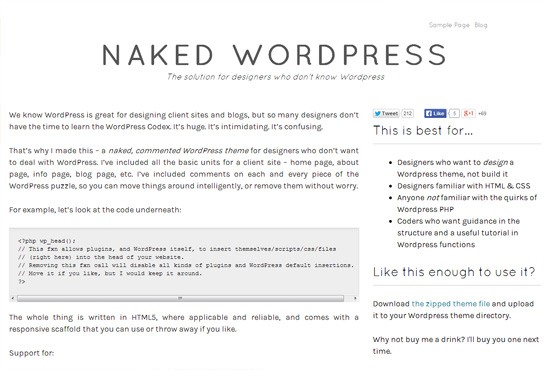
Credit: www.webfx.com
Frequently Asked Questions
How Do I Start A Blank WordPress Theme?
To start, create a new folder in the “wp-content/themes” directory. Add a “style. css” file with theme details and an “index. php” file. These are the basic requirements for a WordPress theme. This setup will serve as the foundation for your blank WordPress theme.
What Is A Blank WordPress Theme?
A blank WordPress theme is a minimalistic starter theme. It includes only the essential files needed for a WordPress theme to function. It provides a clean slate for developers to build custom themes. This approach allows for greater flexibility in design and functionality.
Why Use A Blank WordPress Theme?
Using a blank WordPress theme gives you complete control over design and functionality. It eliminates unnecessary code and features, improving site performance. It also allows developers to create a theme tailored to specific needs. This approach is ideal for those who want a custom, optimized WordPress site.
How Can I Customize A Blank Theme?
Customizing a blank theme involves adding your own styles and functions. Use “style. css” for styling and “functions. php” for custom functions. You can also add additional template files as needed. This process allows you to create a unique look and feel for your site.
Conclusion
Creating a blank WordPress theme is simpler than it seems. With the right steps, anyone can start. Begin with understanding WordPress structure. Then, set up essential files like style. css and index. php. Next, build a basic layout. Add necessary functions and templates.
Test your theme thoroughly. Ensure it’s responsive and user-friendly. Keep learning and adapting. WordPress themes evolve constantly. Stay updated with new features. Practice makes perfect. Soon, you’ll create themes effortlessly. Enjoy the process and creativity involved. Your efforts will pay off with a unique theme.
Keep exploring and building your skills.


