
Struggling with your WordPress theme can feel like you’re trying to solve a puzzle without all the pieces. You want your website to shine, but a small error in your theme code can throw everything off balance.
The good news? You can fix it! Understanding how to correct your theme code in WordPress will not only enhance your site’s appearance but also improve its functionality. Imagine the satisfaction of seeing your website perform seamlessly, knowing you made it happen.
Dive in to discover simple steps that will empower you to take control of your site, enhance your skills, and ensure your online presence stands out. Your WordPress journey starts here, and you’re just a few clicks away from making your website the best it can be.

Credit: kinsta.com
Understanding WordPress Theme Structure
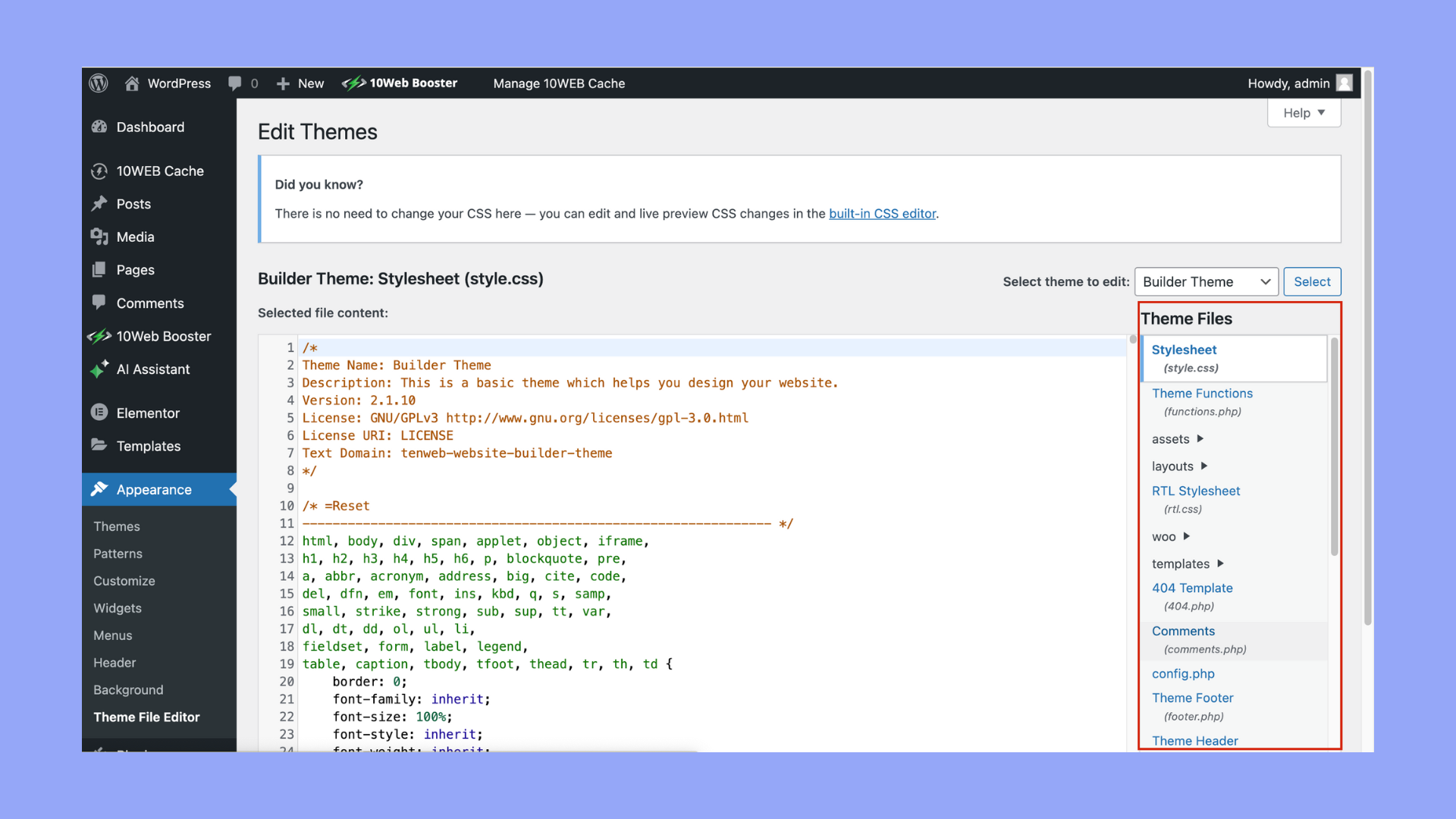
WordPress themes have files. These files control how your site looks. The main files include index.php, style.css, and functions.php. Each file plays a role. The index.php is the backbone. It tells WordPress what to show. The style.css file controls design. Colors, fonts, and layout live here. Then there’s functions.php. It adds features and functionality. Think of it as a toolbox.
Templates are part of themes too. They help change layouts. For example, header.php is for your site’s header. footer.php is for the bottom part. These files work together. They make your site unique. Understanding these files is crucial. It helps in correcting theme code. With knowledge, you can fix issues.
Credit: 10web.io
Identifying Theme Code Issues
Theme code problems can cause a website to act strange. A slow site can be a sign of trouble. Look for errors in the console window. These errors show problems in the code. Missing images or styles are clues too. Broken links are another sign of code issues. These small problems can make a big difference.
Use tools like Google Chrome Developer Tools to check the code. These tools highlight errors and warnings. They help find the problem quickly. Update your theme regularly. Updates fix bugs and improve security. Make a backup before editing the code. Backups save your work if mistakes happen. Seek help if you feel stuck. Online forums and guides can be helpful.
Using Child Themes
A child theme helps keep your changes safe. It uses a separate folder. This folder holds all your custom changes. The main theme stays untouched. You need to create a new folder. Call it the child theme folder. Add a style.css file inside. This file is important. It tells WordPress to use the child theme.
Another file you need is functions.php. This file loads the parent theme styles. You can then add your custom styles. Always remember to activate your child theme. Go to the WordPress dashboard. Navigate to Appearance, then Themes. Select and activate your child theme. Now, your changes will not be lost with updates.
Editing Theme Files Safely
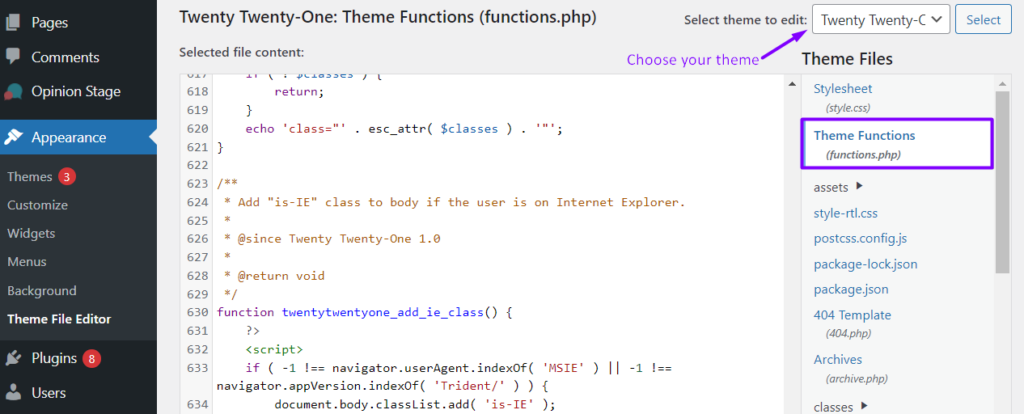
Access the theme editor from your WordPress dashboard. Find the Appearance menu. Click on Theme Editor. You will see your theme files on the right. Be careful while making changes. Small errors can break your site. Always know which file you are editing.
Make a backup before you edit. It is very important. Use a plugin or manual method. Plugins like UpdraftPlus are easy to use. Save the backup on your computer. If anything goes wrong, you can restore it. This ensures you don’t lose your work. Keep backups safe and updated.
Common Errors And Fixes
Syntax mistakes often break code. A missing semicolon causes chaos. It makes the theme unstable. Check every line of code. Look for missing symbols. Use a code editor. It highlights errors. Fix them fast. The theme will work better.
Layout issues ruin the look. Div tags sometimes misalign sections. A misplaced bracket shifts content. Check the HTML structure. Ensure tags are nested well. Use browser tools. Inspect elements. Adjust positions. Restore the layout. Make it neat.
Styles give themes their look. Missing styles create dull pages. CSS files might be mislinked. Check the file path. Correct it. Review the stylesheet. Ensure selectors are accurate. Styles will return. The theme will look lively again.
Testing Theme Modifications
Staging sites help test changes safely. They prevent mistakes on your main site. Always use a staging site before making any theme code changes. This ensures your site stays functional and error-free. Setting up a staging site is easy. Many hosting providers offer this feature. Check if yours does. If not, plugins are available to create one. Keep your staging site updated regularly. This mirrors the main site perfectly. Test theme modifications thoroughly. Look for any errors or issues. This helps catch problems early. Fix them before they affect your main site.
Browser tools help find code errors. Open them by right-clicking a page and selecting “Inspect”. The Console shows errors and warnings. These help identify problems in your theme code. Debugging tools let you test changes live. Make small changes and see results immediately. This helps refine your code quickly. Always clear your browser cache after testing. This ensures you see changes. Use developer tools to test different screen sizes. This ensures your theme works on all devices. Regular testing keeps your site optimized and user-friendly.
Restoring Original Theme Code
Restoring your theme’s original code is easy. First, find your theme in WordPress. Navigate to Appearance and then click on Themes. Once there, select the theme you want to fix. Next, press the Theme Details button. You will see an option to Reinstall. Click it.
This action brings back the original code. But remember, all changes will be lost. Always back up your changes. So, save your work first. Use a simple plugin or a backup tool. This keeps your work safe. If anything goes wrong, you can restore it quickly.
Best Practices For Future Changes
Always keep a backup of your website. Save your work often. You will be glad you did. Backups help when things go wrong. Use a plugin for easy backups. Store them on a cloud. Or save on an external drive. This way, your data is safe. Don’t forget to update your backups. Do this every week.
Version control helps track changes. It keeps your code safe. Try using Git. It is a popular tool. It logs every change you make. You can go back if needed. This is important for big projects. It makes collaboration easy. Other people can work with you. Everyone can see changes in real time.
Resources For Theme Development
Online tutorials are easy to follow. They provide step-by-step guides. Many are free and accessible. Websites like W3Schools and Codecademy are popular choices. They offer clear instructions for beginners. You can learn at your own pace. Watch videos on YouTube for detailed explanations. They help you understand coding concepts. Explore forums for additional tips. These resources make learning simple and fun.
The WordPress Developer Community is a helpful place. It is full of experts and learners. You can ask questions and get answers. It’s a great way to gain knowledge. The community shares useful tips and advice. You can find code snippets and examples. Join groups to discuss themes. Participate in events for learning. Being part of this community helps you grow.
Credit: www.easywp.com
Frequently Asked Questions
How Do I Find Theme Code Errors In WordPress?
Use a debug plugin or enable WP_DEBUG in wp-config. php. Check error logs in your hosting account. Review your theme files for syntax errors or deprecated functions. You can also utilize online tools like Theme Check to identify issues.
Can I Edit WordPress Theme Code Safely?
Yes, use a child theme to edit safely without affecting the parent theme. Always back up your site before making changes. Use a code editor for syntax highlighting and error detection. Test changes on a local environment first.
What Tools Help In Correcting Theme Code?
Tools like Theme Check, Debug Bar, and Query Monitor are helpful. Use code editors like Visual Studio Code for syntax checking. Online validators can also assist in identifying errors. These tools ensure your code adheres to WordPress standards.
How To Restore WordPress Theme Code?
Restore from a backup using your hosting provider’s backup tool. Alternatively, re-upload the original theme files from a fresh download. Use FTP or the WordPress dashboard for uploading. This helps revert any unwanted changes made during editing.
Conclusion
Correcting your WordPress theme code improves site functionality. You gain control and customization. Errors can hinder performance and user experience. A clean code enhances speed and reliability. Tools and tutorials simplify the process. Always backup your files before making changes.
Testing ensures your site runs smoothly. Seek help if needed. Online forums and communities offer support. Stay patient and persistent in your efforts. Success leads to a well-functioning website. Your dedication to learning pays off. Keep enhancing your skills for better results.
Your website’s appearance and performance depend on your coding expertise.


