
Are you looking to give your WordPress site a fresh new look, but you love your current header and wish you could keep it? You’re not alone.
Many WordPress users face the challenge of wanting to update their theme without losing the unique elements they’ve worked so hard to perfect. Imagine being able to switch themes effortlessly while preserving the design and functionality of your beloved header.
It’s like having the best of both worlds, right? In this guide, we’re diving straight into the nuts and bolts of how to copy your WordPress header to another theme. This process can save you time and effort, allowing you to maintain consistency across your site while exploring new design possibilities. Whether you’re a seasoned developer or a WordPress newbie, we’ve got you covered with straightforward, actionable steps. Ready to simplify your WordPress experience and keep your favorite header intact? Let’s get started!
Credit: www.wpzoom.com
Assessing Your Current Header
First, look at your WordPress header. Notice the logo, menu, and social icons. These are essential parts. Make a list of these elements. This helps when copying them to a new theme. Always remember what each part does. Know why it is important for your site. Each piece plays a role in user experience. Some sites may also have a search bar or contact link. Note these too. They can be crucial for users.
Check the design and layout of your header. Is it simple or complex? Look at the color and font choices. These give your site its unique look. Notice the placement of elements. See how they align on the page. Think about what makes the header special. This helps you keep the same look in a new theme. Good design makes your site easy to use. Users find what they need quickly.

Credit: docs.themeisle.com
Preparing For Header Transfer
Transferring your WordPress header to a new theme can enhance your site’s look. Start by copying the header code from the old theme. Then, paste it into the new theme’s header file. Ensure compatibility by checking that styles and scripts work smoothly in the new theme.
Backup Original Theme Files
Always save your theme files. This is important for safety. Use FTP or File Manager. Download the theme folder. Keep it safe on your computer. This will help you restore it later. If something goes wrong, you can use these files. Make sure all files are downloaded.
Set Up A Child Theme
A child theme helps you keep changes safe. Create a child theme for your site. This keeps your main theme untouched. Use the WordPress dashboard to make the child theme. Go to Appearance and click on Themes. Choose ‘Add New’ and then ‘Child Theme’. Follow the steps shown. This makes sure you can update the main theme safely. With a child theme, your edits are separate. Your work stays protected.
Extracting Header Code
Copying a WordPress header to another theme involves accessing the theme files. Locate the header. php file in your current theme. Copy its code, then paste it into the header. php file of the new theme.
Access Theme Editor
First, go to your WordPress dashboard. Find the Appearance section. Click on Theme Editor. This opens the theme files. Look for the header.php file. It contains the header code. Click on it to view the code. This code controls your site’s header.
Copy Header Code
Highlight the code you need. Be careful not to miss any part. Copy all the code. Use Ctrl+C or Command+C to copy. Save this code in a safe place. You will need it later.
Adapting Header For New Theme
Headers need to fit the new theme. CSS changes help in this. Check the font styles. Match them with the new theme. Look at the colors too. Make sure they blend well. Use the browser’s inspector tool. It helps in finding CSS rules. Change these rules to suit your needs. This makes the header look good.
JavaScript adds special effects to headers. These need to work well. Ensure scripts in the header are active. Some themes might not support all scripts. Test them after adding. Remove any script that doesn’t work. This keeps the header smooth and functional.
Integrating Header Into New Theme
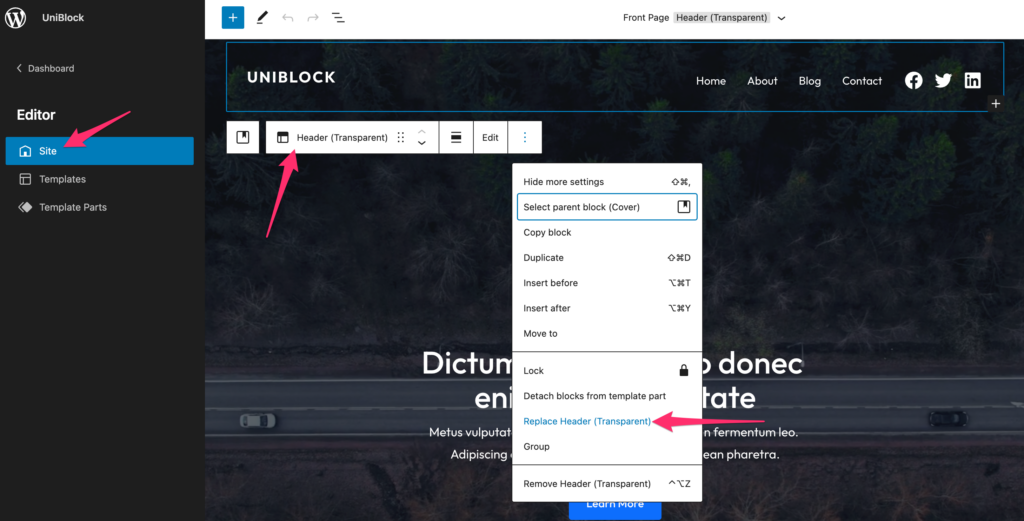
First, find the header code in your old theme. It is usually in the header.php file. Copy all the code in this file. Open your new theme’s folder. Locate the header.php file there too. Paste the copied code in the new file. Save your changes after pasting. You should check the theme files carefully to avoid errors. Each theme might have different locations for files. Make sure you do not overwrite necessary code.
Check if the header works well. Go to your website’s home page. Look at the top of the page. Make sure the header looks like the old one. If it looks different, there might be a problem. Check for errors in code. Ensure all links and images work. Refresh the page to see changes. You might need to clear your browser cache. This helps see the updated header. Ask for help if you see issues.

Credit: gutenbergtimes.com
Troubleshooting Common Issues
Transferring a WordPress header to another theme involves copying the header. php file. Ensure compatibility by checking both themes’ structure and styling. Adjust CSS and HTML elements to match the new theme’s design for seamless integration.
Resolve Styling Conflicts
Copying headers can mess up styles. Themes might clash. Check the CSS files. Look for differences. Fix them carefully. Change only what you need. Test your changes. Make sure everything looks right.
Fix Javascript Errors
JavaScript problems can break your site. Check the console for error messages. Look at the code. Find where it goes wrong. Update old scripts if needed. Replace or remove broken parts. Always save and test. Make sure your site works smoothly.
Finalizing And Testing
Ensure a smooth transition by finalizing and testing the copied WordPress header in the new theme. Verify layout consistency and functionality to maintain a cohesive user experience. Debug any issues to ensure compatibility across different devices and browsers.
Cross-browser Testing
Make sure your header looks good on all browsers. Firefox, Chrome, and Safari are popular ones. Check each one. Sometimes, things look different on each browser. Small changes can make big differences. Test on your computer and phone. Ask friends to test too. They might find problems you missed.
Mobile Responsiveness Check
Headers must be easy to see on phones. Many people use phones more than computers. Check if everything is clear and fits well. Text should not be too big or too small. Buttons must be easy to click. Make sure images load quickly. Slow images can annoy users. Test on different phone sizes. This helps find any mistakes.
Frequently Asked Questions
How Do I Copy A WordPress Header?
To copy a WordPress header, access the theme files via FTP or your hosting panel. Locate the header. php file in your current theme. Download it, then upload it to the new theme’s directory. Ensure compatibility with the new theme’s structure for seamless integration.
Can I Use Plugins For Header Copying?
Yes, plugins like Duplicate Post can help. They allow you to clone pages or posts, including headers. Ensure the plugin is compatible with your WordPress version and theme. After cloning, adjust settings to match the new theme’s design requirements for best results.
What Are Common Header Issues When Copying?
Common issues include styling conflicts and missing elements. Ensure CSS and JavaScript files are included in the new theme. Check for any theme-specific functions that need adjustments. Test the header on different devices to ensure responsive design compatibility.
How To Ensure Header Style Matches New Theme?
To ensure style consistency, compare CSS files of both themes. Copy necessary styles from the old theme to the new one. Adjust color schemes, fonts, and layout to match the new theme’s aesthetics. Preview changes and make necessary tweaks for a seamless look.
Conclusion
Copying a WordPress header between themes is simple. Follow the steps carefully. Begin by identifying the header code in your current theme. Next, transfer this code to the new theme’s header file. Make sure you back up your files before starting.
This prevents data loss. Check for compatibility issues. Adjust styling as needed. Test your new theme to ensure it works correctly. You now have a consistent header across themes. A unified look enhances your site’s appearance. Visitors appreciate consistency. Your website maintains a professional feel.
Enjoy your cohesive design.


