
Ever stumbled upon a WordPress theme that perfectly captures the essence of your brand or blog? You know, the one that just feels right and you can’t imagine your website without it.
But what if you want to replicate this theme on another site or save it for future projects? Understanding how to copy a theme in WordPress can save you time and effort, and it’s easier than you might think. Imagine having the power to duplicate your favorite theme with just a few clicks.
This means you can maintain consistency across multiple sites without starting from scratch each time. You’re about to unlock the secret to efficiency and creativity in web design. In this guide, we’ll walk you through the steps to successfully copy a WordPress theme. By the end, you’ll be equipped with the knowledge to streamline your workflow and enhance your website’s appeal. Stick around to discover how to make your web development process smoother and more effective.

Credit: wpfactory.com
Understanding WordPress Themes
Themes give websites a unique look. They change how a site appears. Think of themes like clothes for a website. They make it look nice and tidy. Themes also help with layout. This means how things are arranged on the page. Each theme can have different options. Some themes focus on colors. Others may focus on fonts or layouts.
Purpose Of Themes
The main purpose of a theme is to make a website look good. They also make it easy to use. Themes can help with branding. They can match a company’s logo or colors. This helps people know where they are. A theme can also help with navigation. This means finding things on the site easily. Themes make sure everything looks neat.
Popular Theme Types
There are many types of themes. Some are simple. Others are more complex. Blog themes are for writers. Business themes are for companies. Portfolio themes are for artists. Store themes are for shops. Each type has special features. These features help with different needs. Choosing the right theme is important. It should match the website’s purpose.
Credit: www.greengeeks.com
Preparation Steps
Copying a theme in WordPress involves several steps. Start by accessing the WordPress dashboard and locating the theme editor. Download the theme files to your computer and rename them. Upload the renamed files back to the WordPress theme directory. Activate the new theme version in your dashboard.
Choosing The Right Theme
Start by finding a theme that suits your site. Look for themes that match your site’s purpose. Do you want a blog or a shop? Choose carefully. Check for user reviews and ratings. These can help you decide. Make sure the theme is compatible with your version of WordPress. Compatibility is important for smooth operation. You might want a theme with customization options. This allows you to change colors and layouts. Some themes come with pre-built templates. These can save you time. Always preview a theme before you pick it. Preview shows how it looks on your site.
Backup Your Site
Backing up your site is crucial. It protects your data. Use a plugin for automatic backups. There are many free plugins available. Save backups to cloud storage. Cloud storage keeps your data safe. Regular backups help restore your site if needed. Check the plugin’s settings. Make sure it backs up files and database. This ensures nothing is lost. Set a schedule for backups. Daily or weekly backups work best. Test the backup system regularly. Testing confirms everything works.
Copying Themes Using WordPress Dashboard
Start by logging into your WordPress dashboard. Look for the Appearance menu on the left. Click on it to find the Themes section. Here, you will see all the installed themes. Choose the theme you want to copy. Each theme has options you can explore. Take time to understand these options. This will help you later.
To duplicate your theme, use a plugin. Search for plugins that can clone themes. One popular choice is Duplicator. Install and activate the plugin. Follow the plugin’s instructions to create a copy. Always remember to save your work. Check your new theme copy under the Themes section. Make sure everything looks right.
Copying Themes Via Ftp
Accessing your WordPress site via FTP lets you copy themes effortlessly. Navigate to the wp-content/themes directory and upload your theme folder. This method ensures quick theme installation without using the WordPress dashboard.
Setting Up Ftp Client
First, choose an FTP client like FileZilla. Download and install it on your computer. Open the FTP client and enter your website details. You need the server address, username, and password. These details are often found in your web host account.
After entering the details, click Connect. This will link your computer to the website server. You can now access all the files and folders.
Copying Theme Files
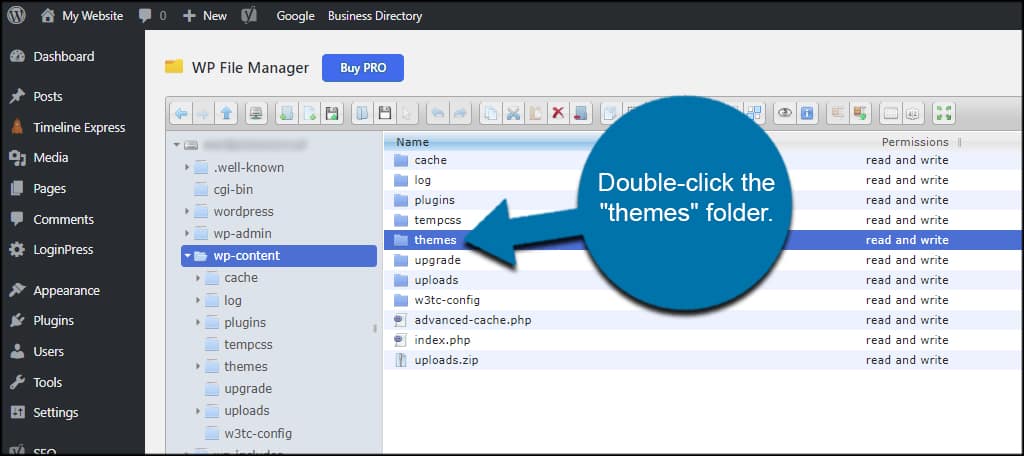
Once connected, find the wp-content folder. Open it and then go to the themes folder. Here you can see all your themes. Choose the theme you want to copy. Right-click on it and select Download. This will save the theme to your computer.
Make sure to keep the folder structure the same. This ensures the theme works when uploaded to another site.
Using Theme Customization Plugins
Explore theme customization plugins to easily copy a theme in WordPress. These tools simplify the process, allowing you to duplicate your website’s look effortlessly. Customize without coding skills and maintain consistent design across multiple sites.
Popular Plugins For Theme Duplication
Some plugins help copy a WordPress theme easily. Duplicate Theme is a common plugin. It makes theme duplication simple. Child Theme Configurator is another option. This plugin is useful for creating child themes. Theme Switcha allows you to test themes before applying them.
Step-by-step Plugin Usage
First, install the chosen plugin. Find it in the plugins section. Click Activate to start using it. Next, go to the plugin’s settings. Follow the instructions to duplicate the theme. Some plugins create a copy in seconds. Others might need a few clicks. Save changes to keep the new theme. Test the copied theme thoroughly. Make sure everything works well. If issues arise, consult the plugin’s support page. It often has solutions.
Testing The Copied Theme
Check if all features work properly. Click on menus to see if they respond. Open different pages and check their look. Ensure all widgets show up correctly. Test forms to see if they send messages. Make sure buttons do their job. Look at the website on different devices. See if it looks good on phones and tablets. Don’t miss any small details. They matter a lot.
Some themes might not work with all plugins. Try to activate each plugin one at a time. See if the website still works well. If something breaks, note the plugin. Check the theme and plugin settings. Update them to the latest version. Compatibility problems can be fixed with updates. Always keep backups of your site. This helps in case something goes wrong.
Common Errors And Troubleshooting
Copying a theme in WordPress can lead to common errors if not done correctly. Troubleshooting involves checking file permissions, ensuring the theme files are complete, and verifying settings. Carefully follow steps to avoid issues and ensure a smooth copying process.
Identifying Common Issues
Copying a theme in WordPress can cause problems. Themes might break or look different. Sometimes, plugins cause issues. This can make the site slow or not work. Broken links or missing images can appear. Check for these signs. They help find the problem.
Fixing Theme Copy Errors
First, update all plugins. Old plugins may conflict. Next, check theme settings. Sometimes settings change. Use the WordPress debug tool. It helps find errors. Check file permissions. Wrong permissions can block theme files. Try reinstalling the theme. This can fix many issues.

Credit: wpfactory.com
Best Practices For Theme Management
Keep your theme updated. Developers release updates to fix bugs. Updates also add new features. Regular updates keep your site safe. They also improve performance. Always check for new updates. Maintenance is key to a healthy site. Remove unused themes. They take up space. They can also slow down your site.
Security is very important. Always use themes from trusted sources. Some themes have hidden malware. This can harm your site. Secure themes protect your data. They also protect your visitors. Use strong passwords. This keeps hackers away. Regular backups are helpful. They save your data if something goes wrong.
Frequently Asked Questions
How Do I Copy A Theme In WordPress?
To copy a WordPress theme, use a file manager or FTP client. Download the theme folder from “wp-content/themes” to your computer. Rename it, then upload it back to the same directory. Activate the new theme from the WordPress dashboard.
How Do I Extract A Theme From WordPress?
To extract a WordPress theme, access the server via FTP. Navigate to wp-content/themes. Download the desired theme folder to your local device. Ensure to have a backup before making changes. Use a dedicated FTP client like FileZilla for efficient extraction.
How Do I Copy A Design In WordPress?
To copy a design in WordPress, use a page builder like Elementor. Duplicate the page or template, then customize it. Alternatively, export the design as a JSON file and import it to another site. This method maintains design consistency across pages.
How Do I Import A WordPress Theme?
Import a WordPress theme by navigating to ‘Appearance’ then ‘Themes’. Click ‘Add New’, ‘Upload Theme’, choose your theme file, and install. Activate the theme after installation to apply changes. Ensure compatibility with your WordPress version before importing. Regularly update themes for security and performance.
Conclusion
Copying a theme in WordPress is simple with the right steps. Start by backing up your site. This ensures safety. Then, access your WordPress dashboard. Navigate to the Themes section. Choose your desired theme. Use a child theme for easy customization.
This keeps original settings intact. Next, copy necessary files. Ensure everything works well. Test your new setup thoroughly. Make adjustments if needed. Keep your theme updated regularly. This maintains security and performance. Following these steps helps you manage themes effectively.
Enjoy your improved WordPress site!


