
Are you looking to customize your WordPress site but unsure how to copy files into the themes folder? You’re not alone.
Navigating WordPress themes can feel like cracking a secret code. But don’t worry—unlocking the potential of your website is simpler than it seems. In this guide, we’ll walk you through each step, ensuring you can enhance your site without a hitch.
Imagine the satisfaction of seeing your unique vision come to life, knowing you made it happen. Stick with us, and by the end, you’ll have the confidence to take your WordPress customization skills to the next level. Your website’s transformation starts here.

Credit: docs.themeisle.com
Understanding WordPress File Structure
WordPress has many important files. These are called core files. They make WordPress run smoothly. Core files are in the root directory. This is the main folder. It holds all the important files. Don’t change these files. Changing them can break your site.
Themes and plugins have their own folders. They are inside the wp-content folder. Themes are in the themes folder. Plugins are in the plugins folder. You can add new themes here. You can also add new plugins. Be careful. Only add files that are safe. Always check for updates. Keep your site secure.
Accessing WordPress Files
Copying files into the WordPress themes folder involves using an FTP client. Access your server, locate the ‘wp-content’ directory, and navigate to the ‘themes’ folder. Simply drag and drop your files into the desired theme folder. This process updates your theme with new designs or features.
Using Cpanel File Manager
cPanel is a tool for managing website files. Log into your hosting account. Find the cPanel icon and click it. Look for the File Manager option. Open it to see your website files. Choose the public_html folder. This folder holds your WordPress files. Find the wp-content folder inside. Click to open it. You will see the themes folder. Click it to open. Now you can copy files here. Use the Upload button for new files. Drag and drop files if needed. Make sure files are in the right spot. Check your site to see changes.
Accessing Via Ftp Client
FTP clients help move files to websites. FileZilla is a popular choice. Download and install it on your computer. Open FileZilla and enter your site details. Use the host, username, and password. Connect to your site. Find the wp-content folder. Open it and locate the themes folder. Drag files from your computer to this folder. Wait for the transfer to complete. Check your WordPress site. Make sure everything works. Repeat if needed.
Locating The Themes Folder
Find the themes folder by accessing your WordPress directory through FTP or hosting control panel. Navigate to wp-content/themes, then select your active theme folder to copy files into it. Ensure correct file permissions to prevent errors.
Navigating To Wp-content
Start by opening your website’s file manager or FTP client. Find the folder named public_html or www. Inside, locate the wp-content folder. This folder holds all your WordPress content. Click on it to open.
Finding The Active Theme Folder
Inside the wp-content folder, search for the themes directory. This folder contains all installed themes. Identify your active theme. It’s the one your website uses now. Open this theme’s folder to add your files.
Preparing Files For Upload
Choose the correct file formats for your theme. Use .php for code files. Images should be in .jpg or .png format. Name files clearly. Avoid spaces and special characters. Use dashes instead of spaces. Keep names short and descriptive. For example, use header-image.jpg instead of Header image.jpg.
Organize files into folders. This helps find them later. Use folders like css, js, and images. Place stylesheets in the css folder. Keep JavaScript files in the js folder. Store images in the images folder. This keeps the theme folder tidy. It also makes it easy to update files. Proper organization saves time.
Copying Files Via Cpanel
Open cPanel from your hosting account. Find the File Manager option. Click on it. You will see folders and files. Navigate to the public_html folder. This is where WordPress files are. Look for the wp-content folder. Inside, find the themes folder. Open the theme you want. Use the Upload option at the top. Select files you need to upload. Wait for the upload to finish. Check the list to confirm.
Ensure files are in the right theme folder. This is important. Go back to the themes folder. Look for the files you uploaded. Double-check the file names. Make sure they match. You can view the file details. Confirm the file size and type. Once files are in place, your theme updates. You can now see the changes on your site. This means your files were uploaded correctly.
Copying Files Via Ftp
Start by opening your FTP client. Enter the FTP server details. Usually, it’s your website’s domain name. Enter your username and password. Click on the connect button. Once connected, you will see your website files. Make sure to select the correct directory.
Navigate to the wp-content folder. Open it and find the themes directory. Select the theme folder you want. Drag and drop your files into this folder. Wait for the transfer to complete. Check if the files are in the theme folder. Close the FTP client once done.
Testing Changes On WordPress
After copying files, it’s important to check your site. Refreshing the website is a simple task. Just click the refresh button on your browser. Changes might not appear right away. Sometimes, the old page is still loaded. Try pressing Ctrl + F5 for a hard refresh. This forces the browser to load new files. If changes are still missing, clear the browser cache. This helps show updated content.
Troubleshooting Common Issues
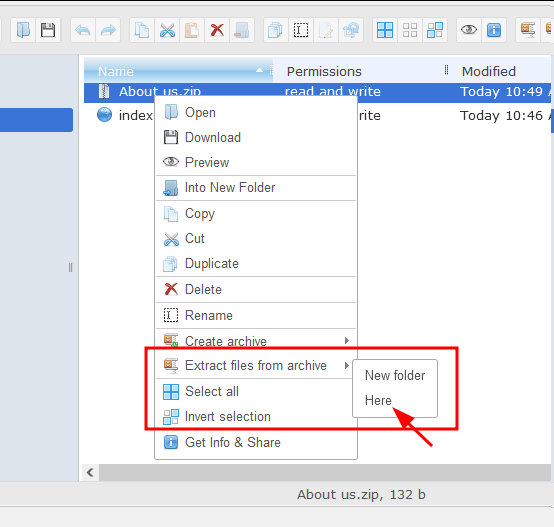
Sometimes, changes do not appear as planned. This could be due to cached files. Clearing the cache often resolves these problems. Another issue is incorrect file placement. Double-check the folder paths. Make sure files are in the right theme folder. Check file permissions too. Incorrect permissions can block file usage. Adjust them if needed. Always back up files before making changes. This helps to restore if something goes wrong.
Credit: www.codeable.io
Best Practices For File Management
Copying files into the WordPress themes folder involves accessing the WordPress directory through a file manager or FTP client. Locate the themes folder within wp-content, then drag and drop your files into the desired theme’s directory. Ensure the files are compatible with the theme to avoid errors.
Backing Up Theme Files
Always keep a backup of your theme files. Use a cloud service or external drive. This ensures you can recover files easily if they are lost. Mistakes can happen. It’s wise to be prepared. Backing up files is quick and saves headaches later. Protect your work and time. Remember to check your backup regularly.
Keeping File Names Descriptive
Use descriptive names for your files. This helps you find them quickly. Names should reflect the file’s purpose. Example: “header-image.jpg” is clear. Avoid random or generic names like “file1.jpg”. This reduces confusion. Descriptive names aid in organization. Keep your workspace tidy and easy to navigate.
Credit: docs.themeum.com
Frequently Asked Questions
How Can I Access WordPress Theme Files?
You can access WordPress theme files via FTP or the cPanel file manager. Navigate to wp-content/themes/ in your WordPress directory. Choose your active theme folder to modify or copy files securely.
Is It Safe To Modify Theme Files?
Modifying theme files can be safe if done correctly. Always use a child theme to avoid losing changes during updates. Backup your site before making any modifications to ensure safety.
Can I Use Plugins To Copy Files?
Yes, you can use plugins like File Manager or WP Remote to copy files into theme folders. They offer a user-friendly interface, making file management easier without needing FTP access.
Why Can’t I Copy Files Directly?
Directly copying files might be restricted due to server permissions. Ensure correct permissions are set, or use FTP/cPanel to avoid issues. Always verify file paths to prevent any errors.
Conclusion
Copying files into your WordPress themes folder is simple. Follow the steps carefully. Always back up your site before making changes. Protect your data. Double-check file paths and names to avoid errors. Use a reliable FTP client for smooth transfers.
Test your website after updating files. Ensure everything works as expected. Troubleshoot if any issues arise. Stay organized with your file management. Keep learning about WordPress themes for better customization. Enhance your website’s look and functionality. This process boosts your site’s potential.
Happy WordPress file management!


