
Are you looking to replicate the look and feel of a WordPress theme you love? Whether you’re aiming to keep a consistent design across multiple websites or simply want to ensure you have a backup of your favorite theme, knowing how to copy an already installed WordPress theme can save you time and effort.
Imagine the satisfaction of having your website’s appearance safely duplicated, ready to be customized or reinstalled whenever you need. In this guide, we’ll walk you through the simple steps to copy your WordPress theme, ensuring you can effortlessly recreate the aesthetic you adore.
Stick around, and you’ll discover just how straightforward it is to safeguard your website’s design.
Backup Current WordPress Site
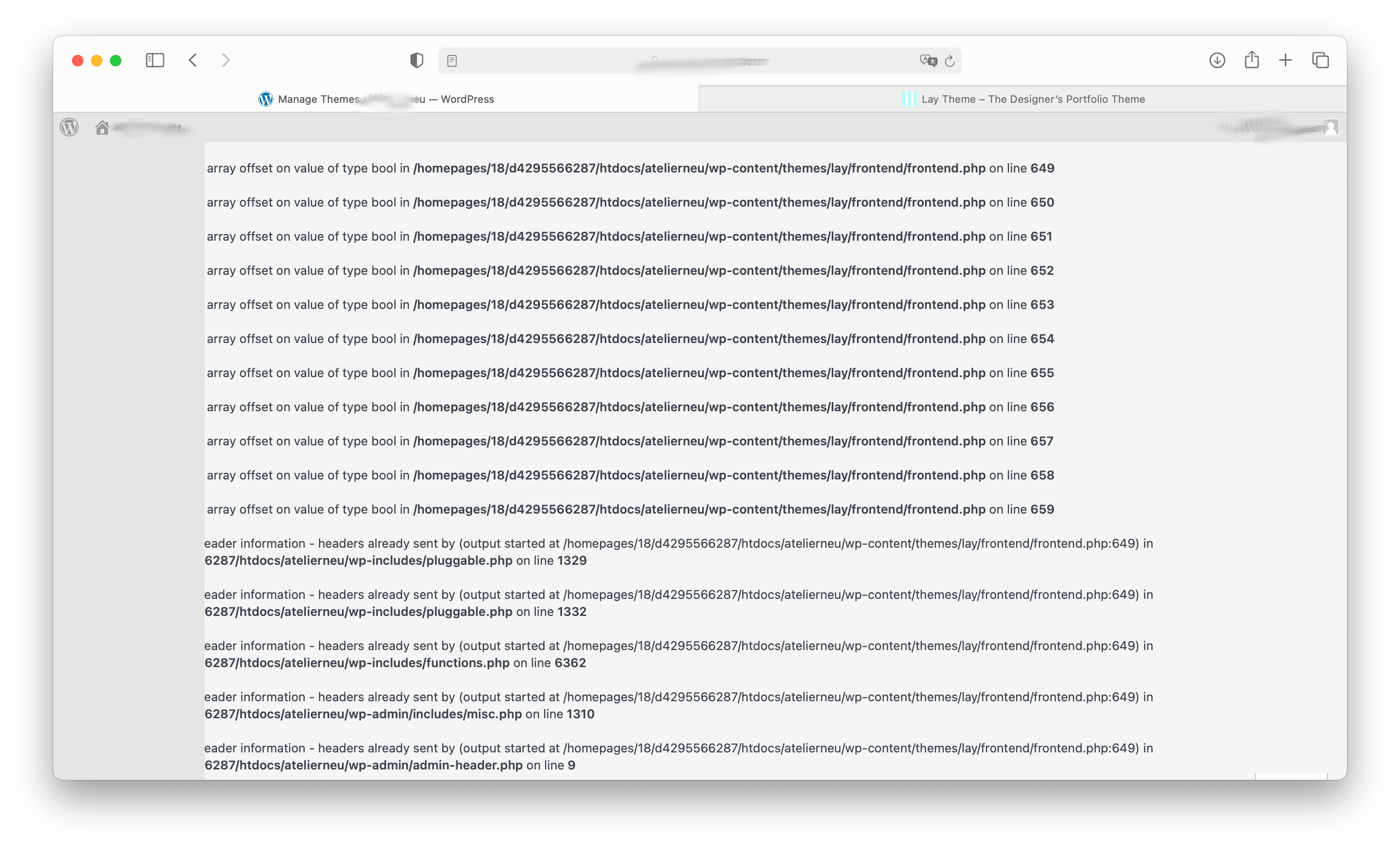
Backups keep your site safe. They save your data from loss. Mistakes happen. A backup helps you fix them fast. Plugins or changes can break a site. A backup makes it easy to restore. Your hard work stays protected. Backups are like an insurance. They give you peace of mind. Always keep a recent backup handy. It’s a smart move.
Many tools help in making backups. UpdraftPlus is popular. It is easy to use. BackupBuddy is another choice. It offers many features. VaultPress provides real-time backup. These tools keep data safe. They store it in the cloud. Choose one that suits your needs. Make backups a regular habit.
Credit: laythemeforum.com
Identify Current Theme
Accessing WordPress Dashboard is easy and quick. First, log in to your WordPress site. Use the username and password you set up. Look for the dashboard after logging in. It’s the main control center for your site. Everything you need is there. Locate the menu on the left side. Click on “Appearance”. You will see “Themes” in this section. This is where all themes are stored.
Locating the Active Theme is simple. In the “Themes” section, find the first theme. It usually has a message saying “Active”. This is your current theme. You can see its name and details. If you want to copy it, note its name. Knowing the name helps in downloading or duplicating it. This is important for keeping your site design. Copying saves time and effort.
Access Theme Files
Open your hosting account. Locate the File Manager option. It helps you see your site files. Navigate to the wp-content folder. Open the themes folder. Here, you see all your themes. Find the theme you want to copy. Right-click on the folder. Choose Download. This saves the theme to your computer.
Download an FTP Client like FileZilla. Install and open the program. Enter your site details to connect. Find the wp-content folder. Open the themes folder. Find your theme folder. Right-click and choose Download. This will save the theme files to your computer.
Download Theme Files
Open your website’s control panel. Find the File Manager option. Go to the wp-content folder. Look for the themes directory. You will see all your themes here. Select the theme folder you want. Then, click the download button. Save the theme files to your computer. This method is easy. It takes just a few steps.
First, use an FTP client like FileZilla. Connect to your website using FTP details. Locate the wp-content folder. Open the themes directory. Find the theme you want to copy. Right-click the theme folder. Choose the download option. This will save the theme to your computer. FTP is a bit technical. But it’s reliable and useful.
Export Theme Settings
Many themes have built-in options to export settings. Go to your WordPress dashboard. Find the theme settings. Look for the export button. This will create a file. Save this file. Use it later to import settings. Easy and quick.
Some plugins can help export theme settings. Install a plugin like Customizer Export/Import. Find it in the plugins menu. Once installed, activate it. Navigate to the customizer settings. Use the export option. Save the file to your computer. Import it when needed.
Install Theme On New Site
First, find the theme files on your computer. These files are often in a ZIP format. Go to your new site’s dashboard. Click on Appearance and then Themes. You will see a button that says “Add New”. Click it. Then, choose “Upload Theme”. A new window will pop up. Click on “Choose File”. Select your theme ZIP file. Finally, click “Install Now”.
After uploading, you will see an option to activate the theme. Click on “Activate”. Your theme will be live now. Check your site to see the new look. If anything looks odd, go back to the dashboard. Sometimes, small tweaks are needed. All changes can be done in the customizer section.
Import Theme Settings
Copying a theme’s settings is easy with the WordPress Importer. First, go to the dashboard. Next, click on Tools and then choose Import. Install the WordPress importer if it’s not ready. Now, upload the theme settings file. This file has the .xml format. Finally, click on Import to finish. Your theme settings are now copied.
Sometimes, themes need small changes. Find the settings under Appearance. Look for options like Colors, Fonts, and Layout. Change these options to match your old theme. Save the changes once you finish. Always check the live preview to see changes. This helps to ensure everything looks right.
Credit: duplicator.com
Test New Installation
Copying an installed WordPress theme involves a few simple steps. Start by accessing your website’s files via FTP or File Manager. Then, download the theme folder to your computer. Upload it to your new WordPress site in the same directory.
Activate it through the WordPress dashboard.
Verifying Appearance
Check if the theme looks right. Visit your site. Compare the new installation to the old theme. Make sure colors and fonts match. Look at the images. They should be clear and not broken. Check the layout. It should be neat and organized. If anything looks off, it might need fixing. Themes should look good on all devices. Test on phones and tablets too. Your site should load fast. Slow sites can lose visitors.
Checking Functionality
Test if the theme works well. Click on links. They should lead to correct pages. Check menus. They should open smoothly. Try the contact form. Emails should arrive properly. Check the search bar. It should find pages quickly. Test any buttons. They should respond fast. Plugins should work well with the theme. Look for errors. Fix them before going live. Your site should be easy to use. Visitors should find information quickly.

Credit: www.swaytheme.com
Frequently Asked Questions
How To Duplicate A WordPress Theme?
To duplicate a WordPress theme, first access the theme files via FTP or your hosting’s file manager. Copy the theme’s folder from `wp-content/themes` and rename it. Upload the new folder back to the same directory. Activate the duplicated theme through your WordPress dashboard.
Can I Copy A WordPress Theme Manually?
Yes, you can manually copy a WordPress theme using FTP. Access your site’s FTP server and navigate to `wp-content/themes`. Download the theme folder to your local computer. Rename and re-upload it to the same directory. Activate the new theme in WordPress.
Is Theme Cloning Possible With Plugins?
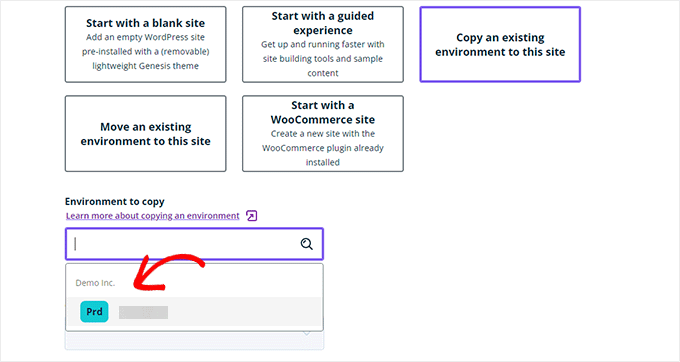
Yes, theme cloning is possible using plugins like Duplicator or All-in-One WP Migration. These plugins help you create a backup of your site, including themes. You can then use the backup to clone your theme on another WordPress installation.
Why Duplicate A WordPress Theme?
Duplicating a WordPress theme allows you to test customizations or updates without affecting your live site. It’s useful for development purposes, ensuring changes are safe before implementing them on your main website. This helps maintain site integrity and functionality.
Conclusion
Copying a WordPress theme doesn’t have to be hard. Follow the steps carefully. You can easily duplicate your theme. This helps if you want to keep settings. Or if you need a backup. Make sure to check theme compatibility. Always update themes regularly.
This keeps your site secure and fast. Back up your site before changes. Mistakes can happen. Practice often to improve your skills. Explore different themes for new ideas. Enhance your website look and feel. Keep learning and stay creative. Your WordPress journey is just beginning.


