
Have you ever stumbled upon a WordPress website and thought, “Wow, this theme is perfect for my site”? You’re not alone.
Many find themselves captivated by a theme’s design, wishing they could replicate it for their own projects. But how do you go about copying a WordPress website’s theme without getting tangled in technical jargon or risking your site’s integrity? Imagine the possibilities: saving time, achieving the perfect look, and enhancing user experience—all by mastering the art of theme duplication.
This guide is your roadmap to understanding how to effectively and ethically copy a WordPress theme. You’ll discover practical steps, useful tools, and crucial tips that ensure you maintain the originality and functionality of your site. By the end of this article, you’ll have the confidence to replicate that dream theme, aligning your website’s aesthetics with your vision. So, are you ready to unlock the secrets of theme copying and transform your site into a visual masterpiece? Let’s dive in!

Credit: wpfactory.com
Importance Of A WordPress Theme
A WordPress theme changes the look of a website. It makes websites look unique. Themes control the layout and design. They decide the colors and fonts. They make a site look modern or classic. A good theme helps with easy navigation. It lets users find things fast.
Websites with nice themes get more visitors. People stay longer on these sites. This can help a site grow. Themes also help in SEO. They make sure a site loads quickly. Fast sites rank better on search engines.
Legal Considerations
Understanding legal considerations is crucial when copying a WordPress theme. Always check the theme’s licensing to ensure compliance. Respect copyright laws to avoid legal issues.
Understanding Licensing
WordPress themes often have specific licenses. These licenses tell what you can do with the theme. Some themes are open-source. You can use and change them freely. Others have restrictions. You might need permission to copy or modify them.
Read the theme’s license carefully. It explains your rights. This is important to avoid legal problems. Check if the theme is GPL (General Public License). GPL allows many freedoms. You can copy, change, and share it. But you must share changes under the same license.
Respecting Copyright
Copyright protects the creator’s work. Themes can have copyrighted elements. This includes images, fonts, and code. Copying these without permission can lead to trouble. Always respect the creator’s rights.
Ask the theme owner for permission. Many owners are willing to help. They might let you use parts of the theme. It’s polite and legal. This keeps your website safe and respectful.
Tools And Software
FTP Clients help you access your website files. They are like bridges between your computer and your website. FileZilla is a popular choice. It’s free and easy to use. You connect with your server using login details. Then, browse your site’s files. You can download and upload files easily. This makes copying themes simple.
Theme Checkers show theme details. They help find out what theme a site uses. One popular tool is What WordPress Theme Is That. You enter the website URL. It reveals the theme name and details. Some checkers also show plugin information. These tools save time and effort. They make finding themes quick and simple.
Accessing The Theme Files
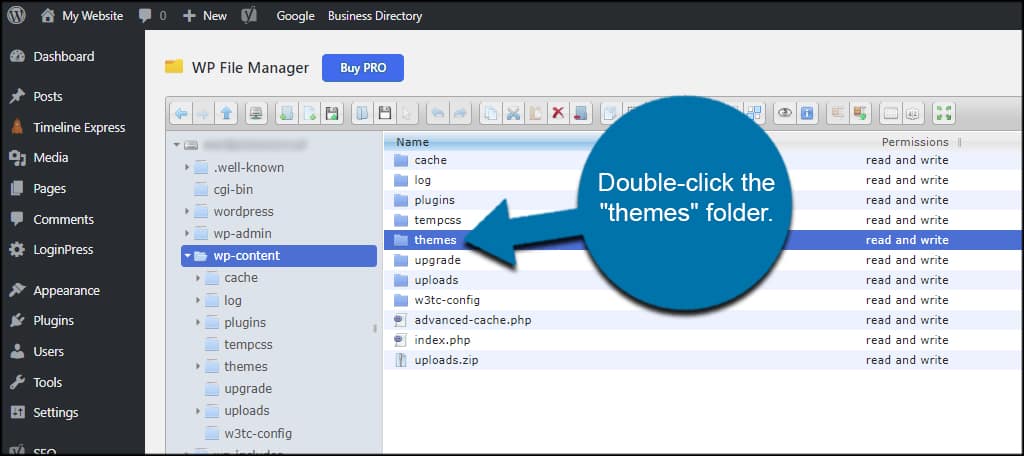
FTP helps in accessing website files. First, download an FTP client like FileZilla. Install it on your computer. You need to know your website’s FTP details. Hostname, username, and password are important. You can get them from your web hosting provider. Open FileZilla and enter these details. Click “Quickconnect” to access your website’s files. Navigate to the wp-content/themes folder. Download the theme folder to your computer. Now, you have copied your WordPress theme using FTP.
The dashboard is an easier way. First, log into your WordPress admin panel. Go to the Appearance section. Click on Themes. Find the theme you want to copy. Click on the Theme Details link. Next, click on the Download button. The theme will download to your computer. Now, you have copied your WordPress theme using the dashboard.
Downloading Theme Files
Identifying Theme Location: Find the theme folder in WordPress. It is inside the wp-content/themes directory. Each theme has its own folder. Look for the name that matches your active theme. This folder contains all theme files.
Copying Files Locally: You need FTP software for this. Connect to your website using FTP. Locate the theme folder you identified. Download the entire folder to your computer. Make sure all files are copied. Check the folder size to confirm. This ensures you have all necessary files.

Credit: www.youtube.com
Exporting Theme Settings
Themes often have a settings page. This page allows you to export settings. Find the theme options in your dashboard. Look for an export button. Click it. This will create a file with your settings. Save this file on your computer. Later, you can use it to import settings. Make sure to keep this file safe.
Open the WordPress customizer. This tool lets you change your website’s look. To export, you need a plugin. Install and activate the plugin. Find the export option in the customizer. Click to download the settings. This file will have all your design choices. Store it somewhere safe. You can import this file to another WordPress site.
Reinstalling On A New Site
Transferring a WordPress theme to a new site involves exporting the theme files from the existing site. Import these files into the new site’s WordPress dashboard. Ensure all settings and customizations are transferred accurately for consistent site appearance.
Uploading Theme Files
First, find the theme files on your computer. These files are usually in a ZIP format. Go to your new site’s dashboard. Click on Appearance, then Themes. Here, you will see a button labeled Add New. Click it. Next, press Upload Theme and choose the ZIP file. Once uploaded, click Activate to use the theme. The theme is now ready.
Importing Settings
After the theme is active, it’s time for settings. Visit the old site. Export the settings using the Export Tool. Now, go to the new site. Use the Import Tool to upload these settings. Check if everything looks right. Adjust any settings if needed. Your site should now look like the original.
Credit: www.greengeeks.com
Testing And Troubleshooting
Copying a WordPress website’s theme involves testing compatibility and troubleshooting potential issues. Ensure the theme functions correctly by examining design elements and plugins. Address any errors quickly to maintain the site’s performance and aesthetics.
Checking For Errors
Errors can break a website. First, check the console in your browser. It shows any errors on the page. Look for red warnings or messages. Fix them before moving on. Next, use a plugin to scan for issues. Many plugins are free. They help find broken links and missing files. Errors can slow your site. Fixing them makes the site faster and better.
Ensuring Functionality
Check if all parts of the theme work. Click on links and buttons. Make sure they do what they should. Test forms to see if they send data. Look at images. They should load properly. If any part fails, it needs fixing. Functionality is key for user experience. A broken theme can upset visitors. Keep everything smooth and reliable.
Frequently Asked Questions
How Do I Copy A WordPress Theme?
To copy a WordPress theme, access your hosting control panel or use an FTP client. Locate the theme’s folder under wp-content/themes. Download the folder to your local computer. You can then upload it to another WordPress site by using the same method.
Can I Duplicate A Theme Without Coding?
Yes, you can duplicate a theme without coding. Use a plugin like Duplicator or WP Clone. These plugins allow you to copy and migrate your theme easily. Follow the plugin instructions for a seamless experience without needing any technical skills.
What Tools Help In Copying Themes?
Several tools help in copying themes, such as Duplicator, WP Clone, and All-in-One WP Migration. These plugins simplify the process of theme duplication. They also ensure you can migrate your theme to another site effortlessly.
Is It Legal To Copy WordPress Themes?
Copying WordPress themes is legal if you own the theme or have permission. If the theme is licensed, ensure compliance with its terms. Always check the theme’s licensing agreement to avoid any legal issues when copying and using it on another site.
Conclusion
Copying a WordPress theme can seem tricky at first. But with the right steps, it becomes simple. Just ensure you have permission to replicate the design. Use available tools to help in the process. Always back up your website before making changes.
This prevents loss of data. Practice patience and attention to detail. These ensure a smooth transition. Following these tips, you can effectively copy a theme. Your WordPress site will look fantastic and function well. Keep learning and exploring more features.
You’ll continue improving your web skills.


