
Are you looking to duplicate your WordPress theme from one site to another without losing any of its charm or functionality? You’re in the right place.
Copying a WordPress theme might sound like a daunting task, especially if you’re not a tech wizard. But the truth is, with the right guidance, it’s a breeze. Imagine the time and effort you’ll save by not starting from scratch, allowing you to focus on what truly matters—creating content and engaging with your audience.
This guide will walk you through each step, ensuring you can effortlessly replicate your site’s aesthetic and functionality. Ready to transform your WordPress experience and streamline your workflow? Let’s dive in and make it happen!
Choosing The Right Theme
Ensure the theme works with your site’s version. Themes need to be compatible with your WordPress version. Check the theme details. Some themes have special features. These might not work on all sites. Verify the theme’s support for plugins. Some themes need specific plugins to work well. Ensure you have these plugins too. A theme might look good but may not work well. Test the theme on a similar setup first.
Themes have different licenses. Some are free, others are paid. Check if the theme allows copying. You need permission to use it on another site. Read the theme’s license details. Some themes may have restrictions. Ensure you follow the rules. You don’t want any trouble. Licenses protect the theme’s creator. Respect their work and rights.
Credit: www.greengeeks.com
Preparing The Source Site
Make sure to backup your original theme before copying it. This protects your data. Use a plugin or do it manually. Save it to a safe place. Losing theme data can cause stress. Backups keep your site safe. They are important for all site owners.
Ensure your theme is updated to the latest version. Updates fix bugs. They improve security. Check for updates regularly. Use the WordPress dashboard. Updated themes run better. They have new features. Themes need updates for best performance.
Exporting The Theme Files
First, connect to your website via FTP. Use a tool like FileZilla. Enter your FTP credentials. Find your WordPress folder. Open the folder named wp-content. Inside, you will see the themes folder. Right-click on your theme’s folder. Choose Download. This will save the theme files to your computer.
Log in to your WordPress Dashboard. Go to Appearance and click on Themes. You will see your active theme. Sadly, WordPress does not directly export themes. But, you can copy settings. Use the Customiser to note down settings. Manually apply them on the new site. It takes time but works well.
Transferring Theme Files
FTP helps move files from one place to another. First, open your FTP client. Connect it to the server of the site with the theme. Find the wp-content/themes folder. This folder has all your theme files. Download these files to your computer. Now, connect the FTP client to the new site. Go to the same folder on this server. Upload the theme files you downloaded. The theme is now on the new site. Check the site to make sure it looks right.
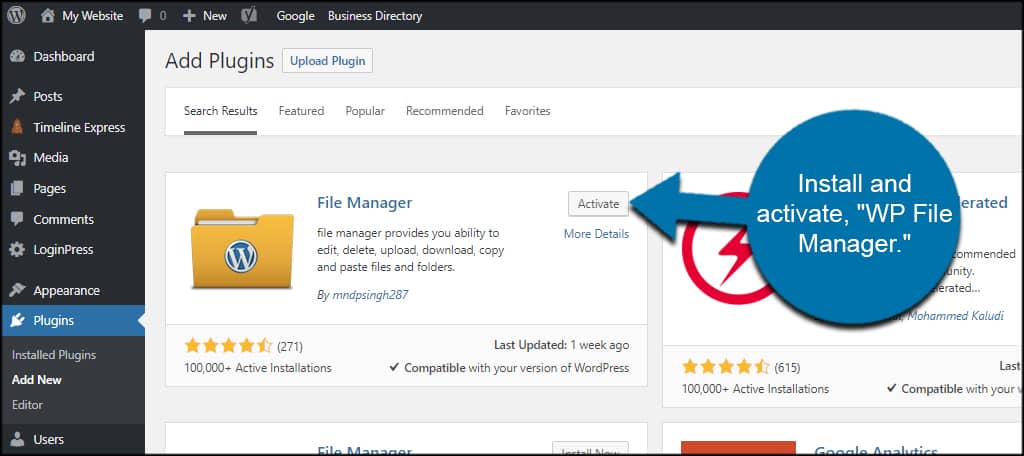
Open your hosting account. Find the File Manager tool. This tool is in the control panel. Go to the wp-content/themes folder. Select the theme folder you want. Click to download it to your computer. Now, switch to the new site’s hosting account. Open File Manager again. Go to the same folder. Upload the downloaded theme folder here. The theme is now set up on the new site. Visit the site to see if it works well.
Activating The Theme On The New Site
First, log into the WordPress dashboard. Find the “Themes” option in the sidebar. Click on “Add New” to start. Use the search bar to find your theme. Once you find it, click “Install.” Wait for the installation to finish. Then, click “Activate” to set the theme live.
Begin by going to the “Customize” section. Change the site’s name and logo if needed. Adjust colors and fonts to fit your style. Set up the homepage layout. Don’t forget to save changes before leaving. Explore widgets and menus for extra features.
Importing Theme Options And Settings
Duplicating a WordPress theme across sites involves importing theme options and settings. This ensures a seamless transfer of the design and layout. By using export/import tools, you can easily replicate the look and feel without manual adjustments. This process saves time and maintains consistency in your website design.
Using Theme’s Built-in Import Tool
Many themes have a built-in import tool. This tool helps to copy settings. Find the import option in your theme’s settings. Click it to start the import process. Make sure you have exported settings from the old site first. The import tool needs these files to work. Follow on-screen steps to complete the import. Check your new site to see if settings match the old site.
Manual Configuration Adjustments
Sometimes, settings don’t copy perfectly. Manual adjustments might be needed. Go through each setting on the new site. Compare with the old site to ensure consistency. Adjust any settings that didn’t import correctly. Pay attention to important features like menus and widgets. These might need extra tweaks. Take your time to get everything right.
Testing And Troubleshooting
Copying a WordPress theme to another site involves exporting theme files and settings, then importing them. Ensure the theme is compatible with both sites to avoid issues. This process helps maintain a consistent design across multiple websites.
Check For Errors And Inconsistencies
Testing is important after copying a theme. Check for errors and inconsistencies on your new site. Look at every detail. Make sure every page looks right. Check text, images, and links. Some themes might not work well. Compare your new site to the old one. Find any differences. Fix them quickly to avoid problems.
Resolve Compatibility Issues
Compatibility problems are common. Some plugins might not work. Check if all plugins are compatible with your theme. Update plugins if needed. Test your site on different browsers. Make sure it works everywhere. Check mobile and tablet views too. Fix any display issues you find. Smooth operation is important. Keep your site user-friendly.

Credit: www.youtube.com
Customizing For The New Site
Discover how to copy a WordPress theme to another site with ease. Follow simple steps to duplicate styles and settings effortlessly. Ensure a seamless transition, maintaining your site’s visual identity across platforms.
Modify Design Elements
Changing the design is fun. Start with the colors. Pick colors you like. Make sure they match your brand. Next, look at the fonts. Choose simple fonts. They should be easy to read. Then, adjust the layout. Decide where things should go. Move elements around. Keep it neat and tidy. Finally, check the images. Use clear and bright pictures. They make the site look nice.
Add New Features
Adding new features can make your site better. Think about what you need. Maybe a contact form. Or a photo gallery. You can add a blog too. Plugins help with this. They add cool stuff easily. Be careful not to add too many. Too many features can slow your site. Always test new features. Make sure they work well. This keeps visitors happy.

Credit: wpfactory.com
Frequently Asked Questions
How Do I Clone A WordPress Theme?
To clone a WordPress theme, first download the theme files via FTP. Next, upload these files to the new site’s theme directory. Ensure you activate the theme through the WordPress dashboard. Check for compatibility and necessary adjustments.
Can I Duplicate A Theme Without Plugins?
Yes, you can duplicate a theme without plugins. Use FTP to access your site’s files. Copy the theme folder and upload it to the new site. Ensure all settings and customizations are transferred manually for accurate duplication.
Is It Legal To Copy WordPress Themes?
Copying themes is legal if you have the rights or permission. Ensure the theme is either your own creation or licensed for redistribution. Always respect the theme’s licensing agreement and intellectual property rights to avoid legal issues.
What Challenges Arise When Copying Themes?
Challenges include compatibility issues and missing customizations. Plugins and widgets might not function correctly on the new site. Manual adjustments may be required. Ensure all settings, images, and scripts are properly configured to match the original theme.
Conclusion
Copying a WordPress theme is straightforward. Follow the steps for easy transfer. First, backup your data to prevent loss. Then, export the theme files from your site. Import them to the new site using the WordPress dashboard. Ensure compatibility with plugins and settings.
Check the site for any issues. Resolve problems quickly to maintain functionality. Regular updates improve performance and security. A smooth theme transfer enhances your site’s look and feel. Enjoy your newly styled website with ease. Share your experiences in the comments below.
Let’s keep the conversation going!


