
Have you ever stumbled upon a WordPress theme that perfectly captures the essence of your brand or blog, but you’re unsure how to replicate it? You’re not alone.
Copying a WordPress theme isn’t just about mimicking aesthetics; it’s about leveraging the functionality and design that align with your vision. Imagine transforming your website with a theme you love, without the hassle of starting from scratch. This guide will walk you through the simple steps of copying a WordPress theme, helping you save time and maintain consistency in your online presence.
Ready to create a website that truly reflects your style? Let’s dive in and explore how you can make this happen effortlessly.
Understanding WordPress Themes
Themes shape the look of your website. They control colors, fonts, and layout. Themes make your site unique. A good theme makes your website look professional. People will enjoy visiting your site. Themes also affect how your site works. They can make it load faster. A slow site can lose visitors. So, choose a theme that looks great and works well.
Themes and templates are not the same. A theme is the overall design. It covers the whole website. Templates are parts of the theme. They are like pages or sections. You can change templates without changing the theme. Templates help customize parts of the site. You might change a template for a blog post or a product page. But the theme stays the same.
Reasons To Copy A Theme
Duplicating a WordPress theme can streamline your site setup and ensure design consistency. It allows easy customization and preserves the original theme as a backup. This approach saves time, especially for beginners, by providing a solid design foundation without starting from scratch.
Customizing Design
Changing a theme allows you to make your site look unique. You can alter colors, fonts, and layouts. It helps make your website stand out. Personal touches add charm to your site. Your visitors will see your style and taste. It’s all about making your site truly yours.
Creating A Backup
Copying a theme keeps your work safe. Protect your design from errors or loss. If something goes wrong, you have a copy. This way, you don’t lose your hard work. Backups give you peace of mind. They ensure your site remains intact.
Developing A Child Theme
A child theme lets you change a theme without losing changes. It keeps the original theme safe. You can add new features easily. This method is smart and safe. It allows you to explore and learn. Make your site better without risks.
Preparing For Theme Copying
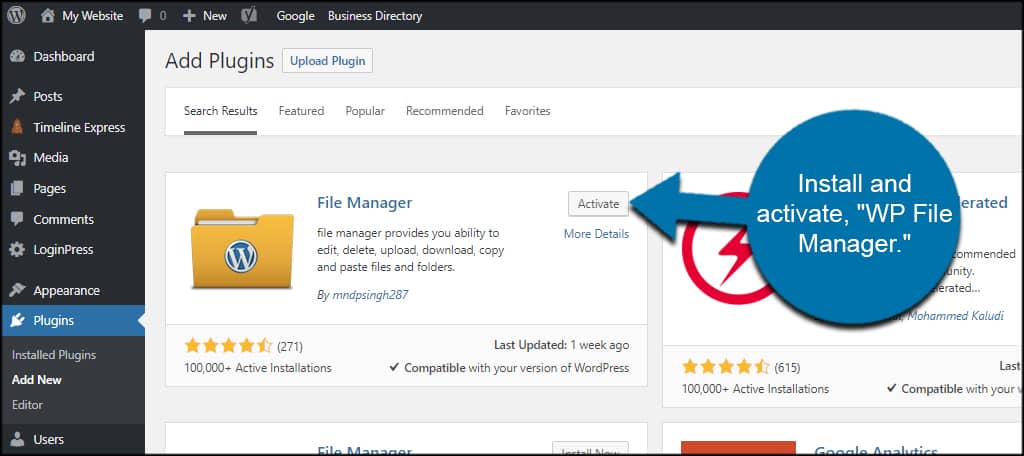
Backing up your WordPress site is important. It keeps your data safe. Use a plugin to make a backup. Plugins like UpdraftPlus help. Save your backup to a cloud service. You can use Google Drive or Dropbox. This way, you won’t lose your site data. Keeping a backup is smart.
Setting up a local environment is easy. First, download XAMPP or MAMP. These tools help run WordPress locally. Install them on your computer. Next, create a new database. Use phpMyAdmin for this step. Finally, install WordPress locally. Now, you can work on your theme safely. It’s like a playground for your site.
Credit: www.greengeeks.com
Using WordPress Dashboard
Go to your WordPress dashboard. Click on Appearance, then Themes. Here you see all themes available. Choose the one you like. Click Activate. It is now your site’s new look. Check your website to see the changes. Make sure everything looks good. If not, you can switch back. Just choose a different theme and activate it. Simple and quick.
First, install a plugin like Customizer Export/Import. Go to your dashboard. Navigate to Appearance, then Customize. Find the Export/Import option. Use it to export settings. Save the file on your computer. Now, switch to the new theme. Go back to Export/Import. Import the saved file. Your settings are now copied. Easy as pie.
Copying Via File Manager
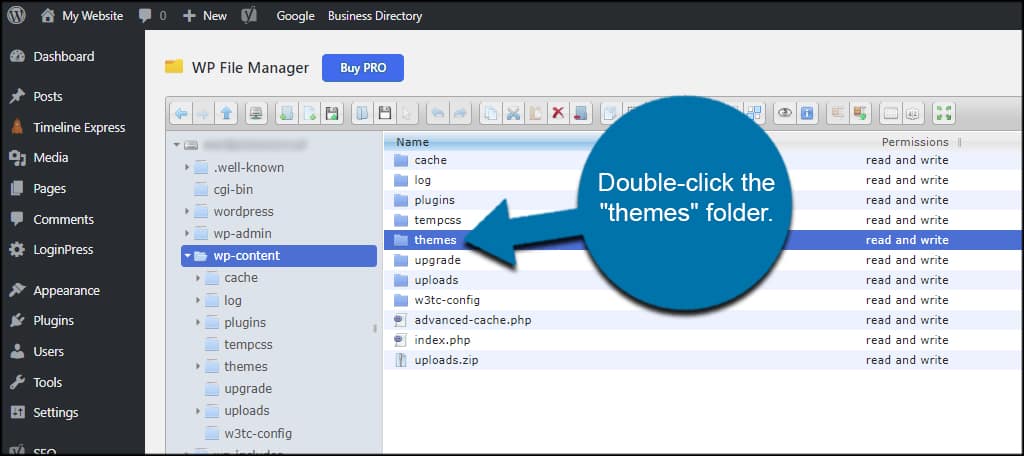
First, open the file manager in your hosting dashboard. Navigate to the wp-content folder. Inside, find the themes folder. Locate the theme you want to copy.
Right-click on the theme folder. Choose copy from the menu. Paste the folder inside the themes directory. Rename the folder to new-theme-name. Ensure the name is different.
Credit: www.greengeeks.com
Using Ftp For Theme Duplication
FTP helps in copying themes easily. First, install an FTP client like FileZilla. Connect to your website using your FTP credentials. These are your username and password. These are found in your hosting control panel. Make sure you connect correctly. If not, check your credentials again. Once connected, you see your website files. This is your FTP directory.
Locate the wp-content/themes folder. This folder stores all themes. Choose the theme you want to copy. Right-click and select download. Save it to your computer. Now, you have the theme files. To upload, go back to the same folder. Create a new folder for the copied theme. Name it differently from the original. Drag the downloaded files to this new folder. Your theme is now copied.
Creating A Child Theme
Using a child theme helps keep your changes safe. The parent theme gets updates, but your custom changes stay. This saves time and effort. Child themes make testing new features easy. You can try them without worry. No risk of breaking the main theme. Also, child themes let you learn more about coding. Experiment with new styles and functions. It’s a great way to grow skills.
- Create a new folder. Name it after your child theme.
- Create a style.css file in the folder.
- Add a header comment in style.css. It should include the theme name and template.
- Create a functions.php file in the folder.
- Enqueue the parent theme styles in functions.php.
- Activate your child theme in the WordPress dashboard.
Testing The Copied Theme
Copying a WordPress theme involves careful testing to ensure functionality. Start by creating a child theme. This method preserves original settings. Make sure to verify all elements, like fonts and colors, work correctly in your copied theme. Testing ensures the theme runs smoothly and looks right on different devices.
Checking For Errors
After copying a theme, check for any errors. Look at every page and post. Ensure everything displays correctly. Sometimes, small mistakes happen. These can be missing images or broken links. Check the console for error messages. This helps find hidden issues. Fixing errors is important. It makes your site work well.
Verifying Functionality
Make sure all parts of the theme work. Click on menus and buttons. They should lead to the right places. Test forms by submitting them. This checks if they work. Ensure the theme is responsive. It should look good on phones and tablets too. Functionality is key to a good user experience.
Troubleshooting Common Issues
Copying a theme in WordPress can sometimes cause headaches. Navigate to the theme folder using an FTP client. Duplicate the theme files and rename them. Ensure changes are saved and verify compatibility with plugins.
Resolving Theme Conflicts
Sometimes themes don’t work well together. This can cause problems on your site. One theme might clash with another. This is called a theme conflict. To fix this, try deactivating other themes. Keep only the one you want. Check if the problem goes away. If not, update your theme to the latest version. This can solve many issues. Another step is to disable plugins one by one. Some plugins might not work well with your theme. If the problem stops, you found the bad plugin. Then, look for a compatible plugin to replace it.
Fixing Broken Styles
Broken styles make your site look bad. Sometimes styles don’t load right. First, clear your browser cache. This helps load the latest version of your site. Check your theme settings. Make sure no styles are turned off. If styles are still broken, inspect the code in your browser. Look for errors. You might see a missing file. Upload the file again to fix it. Keep your WordPress and theme updated. This can help avoid style problems in the future.
Best Practices
Backing up your theme is very important. It saves your work. Always keep a copy of your theme. Use plugins for easy backups. Save your theme files. Keep a backup before making changes. Store backups in a safe place. Regular backups prevent data loss. You can restore your theme easily. This protects your hard work.
Always update your theme to the latest version. Updates fix bugs. They improve security. New features may be added. Check for updates often. Use plugins for automatic updates. This keeps your site safe. Updates enhance performance. Follow theme developer guidelines. This ensures your theme works well. Don’t skip updates. They are important for your site.

Credit: wpfactory.com
Frequently Asked Questions
How Can I Duplicate A WordPress Theme?
To duplicate a WordPress theme, access your website’s file manager or use FTP. Locate the theme folder in wp-content/themes. Copy and paste the entire folder, renaming the duplicate. Ensure compatibility by checking CSS and functions files. This process allows customization without affecting the original theme.
Is Copying A Theme In WordPress Legal?
Yes, copying a theme is generally legal if you own it or have permission. Ensure you follow licensing agreements and give credit if necessary. Avoid using themes with restrictive licenses. Always check the theme’s specific terms to ensure compliance with legal obligations.
What Tools Help Copy A WordPress Theme?
Several tools can assist in copying a WordPress theme, including WP Clone, Duplicator, and All-in-One WP Migration. These plugins simplify the process, ensuring all files and settings are duplicated accurately. Using such tools minimizes errors and saves time during the theme duplication process.
Can Copying Themes Affect Website Performance?
Yes, copying themes can affect performance if not done correctly. Duplicate themes may cause conflicts or slow loading times. Ensure compatibility and check for redundant scripts. Optimize and test the duplicated theme to maintain or improve website performance and avoid potential issues.
Conclusion
Copying a theme in WordPress is simple and useful. It allows for creativity and customization. You can experiment with designs and features. Always back up your site before starting. This ensures safety and peace of mind. Explore different themes and find your style.
Use the built-in tools for easy copying. Remember to check for updates regularly. They keep your theme secure and functional. With practice, you’ll gain confidence in theme management. Enhance your site’s appearance with each tweak. Enjoy the process and create a site that truly reflects you.


